
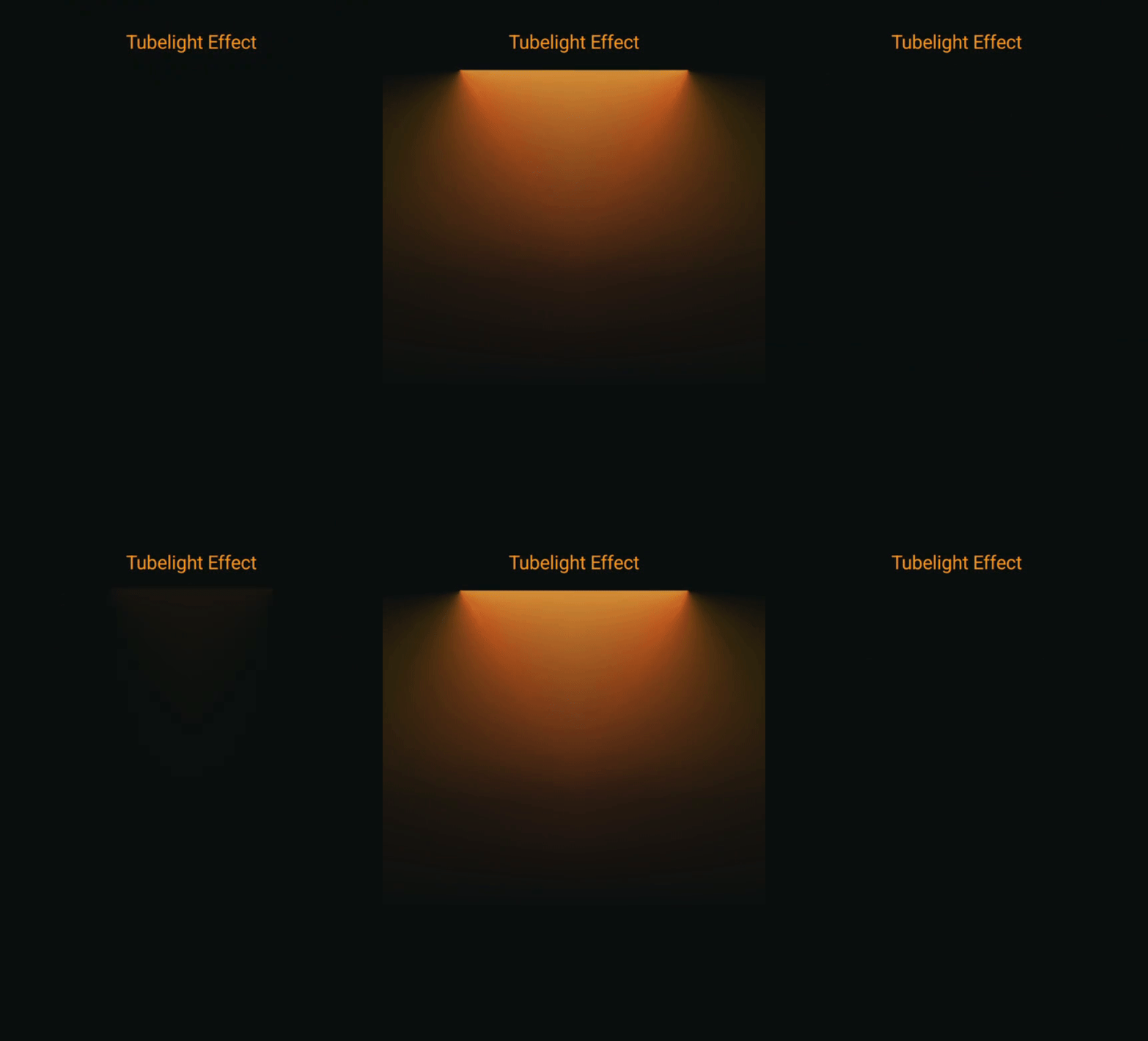
Here’s a step-by-step guide on how I created the Tubelight Effect for my demo app
val sweepGradient = Brush.sweepGradient(
    colorStops = arrayOf(
        0.0f to mainGlowColor,
        0.49f to Color.Transparent,
        1.0f to Color.Transparent,
    ),
    center = centerOffset
)
With the angular gradient set up correctly, we get this effect

The next step is to mirror the element. For this, we’ll use a scale of -1 on the X axis
onDrawBehind {
scale(
  scaleX = if (flip) -1f else 1f,
  scaleY = 1f
   ) {
     drawRect(
       brush = sweepGradient,
       blendMode = BlendMode.Plus
     )
   }
}
As a result, we get the following outcome:
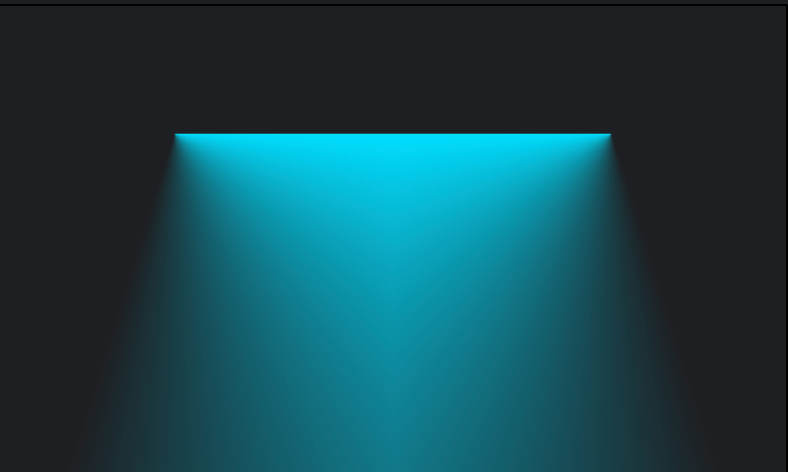
Let’s also break down the other parts of the code. We need to define centerOffset
size.width is the maximum width of our block; we subtract half of the width we need. We draw from the center, so we calculate everything relative to it. Later, we’ll use this for the animation
val centerOffset = Offset(
    x = size.width - tubeWidth,
    y = startY
)
val sweepGradient = Brush.sweepGradient(
    colorStops = arrayOf(
        0.0f to mainGlowColor,
        0.49f to Color.Transparent,
        1.0f to Color.Transparent,
    ),
    center = centerOffset
)
Overall, it will look like this:
https://medium.com/media/dad28eee825de83865d81d77df62d3cd/href
blendMode = BlendMode.Plus is a color blending mode that determines how the new drawing combines with what’s already on the canvas. In our case, it adds a glow on top if we have something as a background.
Now, let’s add some animations 🙌 We’ll add a fade-in animation by changing halfTubeWidth. The result will look like this:
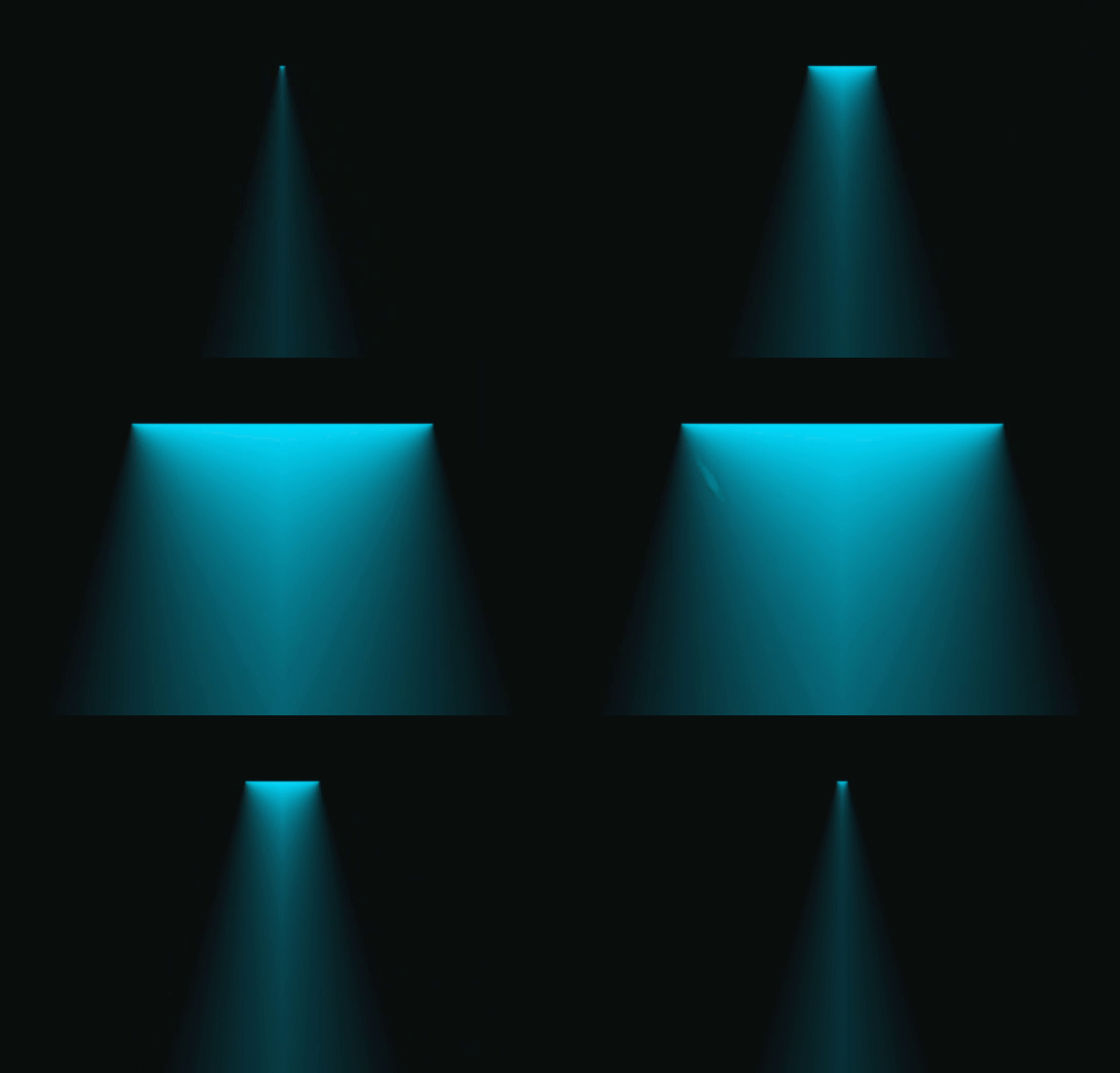
We can also create a separate animation for the light expansion
val sweepGradient = Brush.sweepGradient(
    colorStops = arrayOf(
        0.0f to mainGlowColor,
        animationProgress * 0.49f to Color.Transparent,
        1.0f to Color.Transparent,
    ),
    center = centerOffset
)

In the final result, I:
- Added another gradient with a different color, which created a more interesting effect.
- Didn’t want the effect to cover the full width. To avoid a sharp cut at the end, I added another gradient from white to transparent and then applied the BlendMode.DstIn overlay method.
https://medium.com/media/eec714f37d2d36a82efe20f3cd3d0493/href
And don’t forget to add compositingStrategy to handle transparency properly
.graphicsLayer {
  compositingStrategy = CompositingStrategy.Offscreen
}
By combining different colors, we get really interesting lighting effects

And here’s the final code:
https://medium.com/media/9789b7f90ab2e93ad5027208040635a3/href
How to use it (either the animated version or the slider version)
https://medium.com/media/3a6b082c8698beab8547e4470864c091/href
I hope you found this interesting. If so, follow me on my social media!
🔗 Linkedin: https://www.linkedin.com/in/roman-khrupa/
🔗 Twitter: https://x.com/romankhrupa
🔗 Full code in Github: https://github.com/rmnkhr/tubelight-effect

How to Create a Tubelight Effect in Android Compose was originally published in ProAndroidDev on Medium, where people are continuing the conversation by highlighting and responding to this story.




This Post Has 0 Comments