
 [[{“value”:”
Apple Intelligence has become an integral part of iOS for the iPhones that are compatible with it. One key feature is that it can summarize your notifications, including every time you get a text. It’s completely optional, though, so if you don’t want AI on your device, we’ll show you how to turn off message summaries on iPhone.
Why You’ll Love This Tip
- Turn off AI features if you don’t want them on your iPhone.
- Avoid inaccurate AI summaries whenever you get a new text.
How to Turn Off Summary on iPhone Messages
System Requirements
This tip was performed on an iPhone 15 Pro running iOS 26.2. Find out how to update to the latest version of iOS.
Apple Intelligence can summarize your notifications, giving you a quick look at what a notification is trying to tell you in as few words as possible. This is most useful with your text messages. However, the summarization feature can be somewhat hit or miss and can lead to some serious misunderstandings if you only read the summaries. For more tips and tricks for making your iPhone easier to use, be sure to check out our free Tip of the Day newsletter. Now, here’s how to turn off the AI summary on your iPhone:
Note
Apple Intelligence summaries require an iPhone 15 Pro or newer.
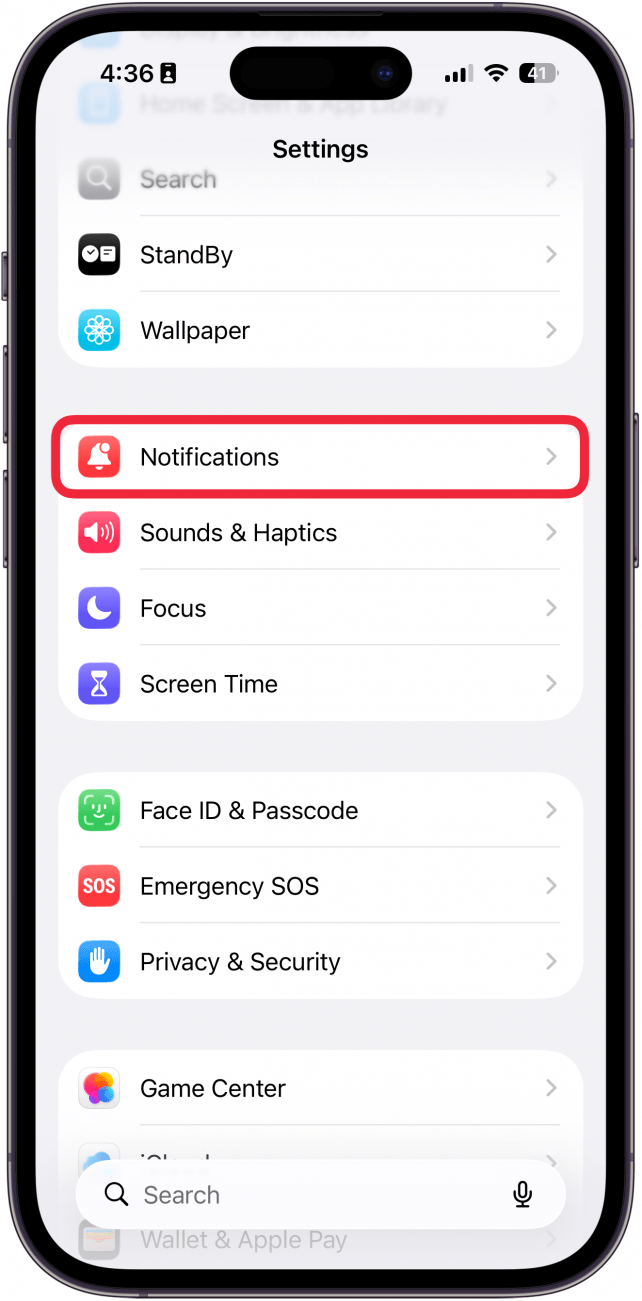
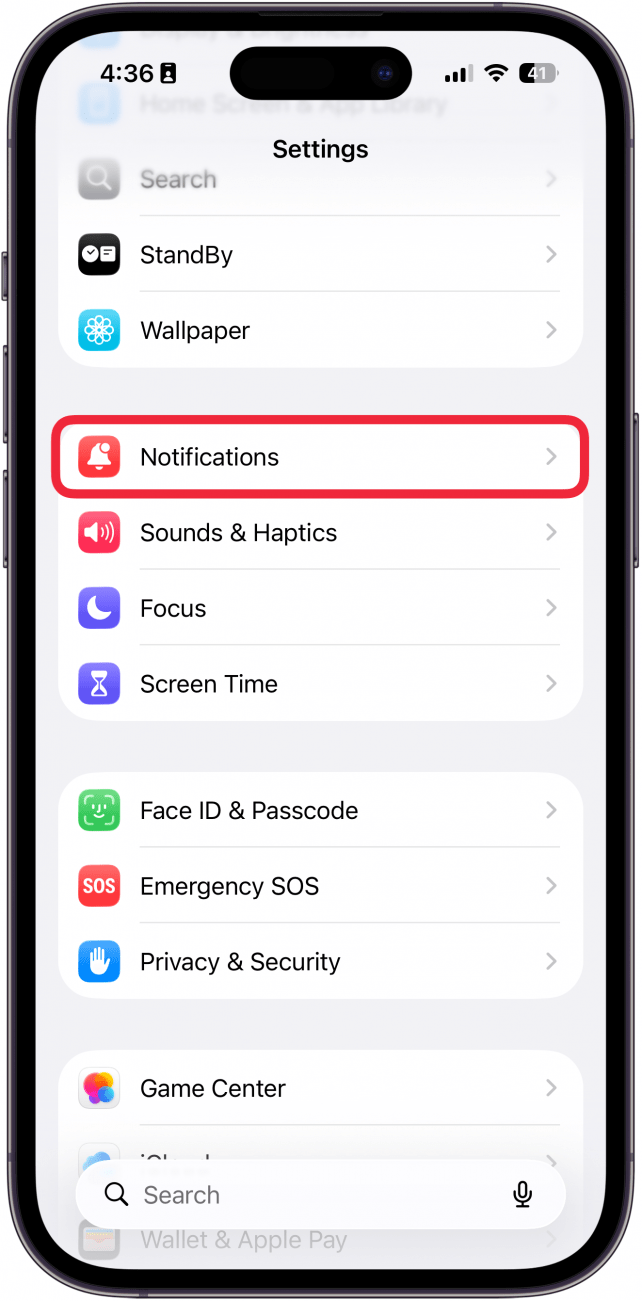
- Open the Settings app, and select Notifications.
<!–[if IE 9]>
![a screenshot of the settings app on iphone with a red box around notifications]()
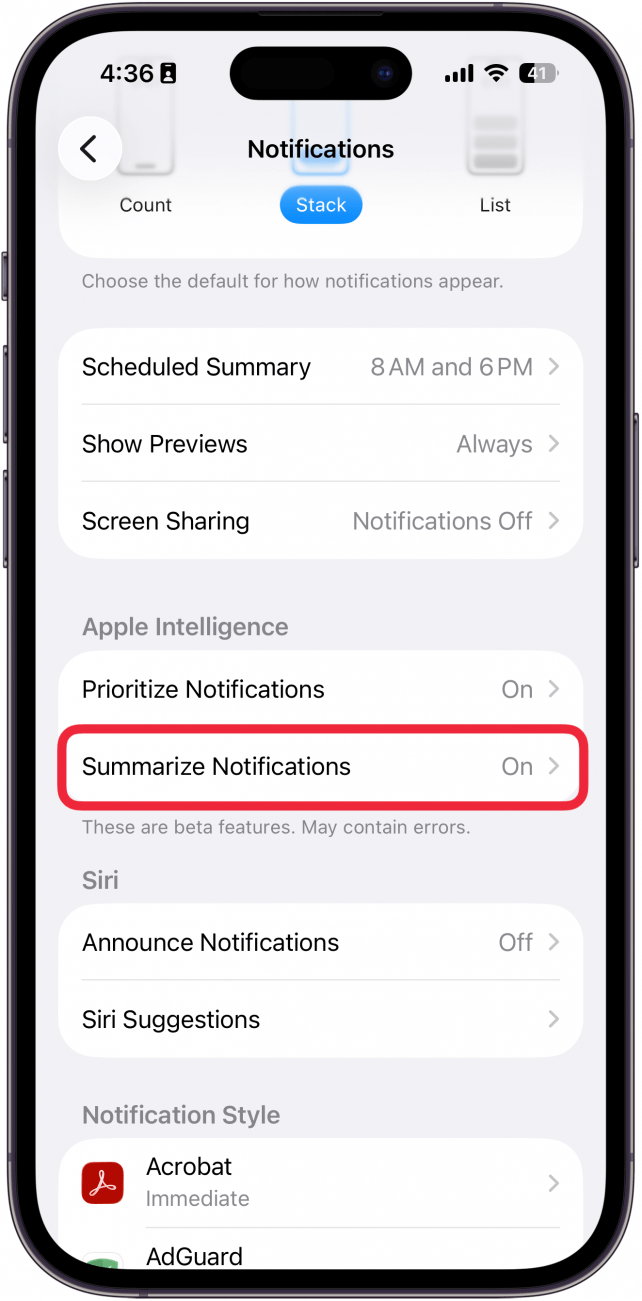
- Scroll down, and tap Summarize Notifications.
<!–[if IE 9]>
![a screenshot of notification settings on iphone with a red box around summarize notifications]()
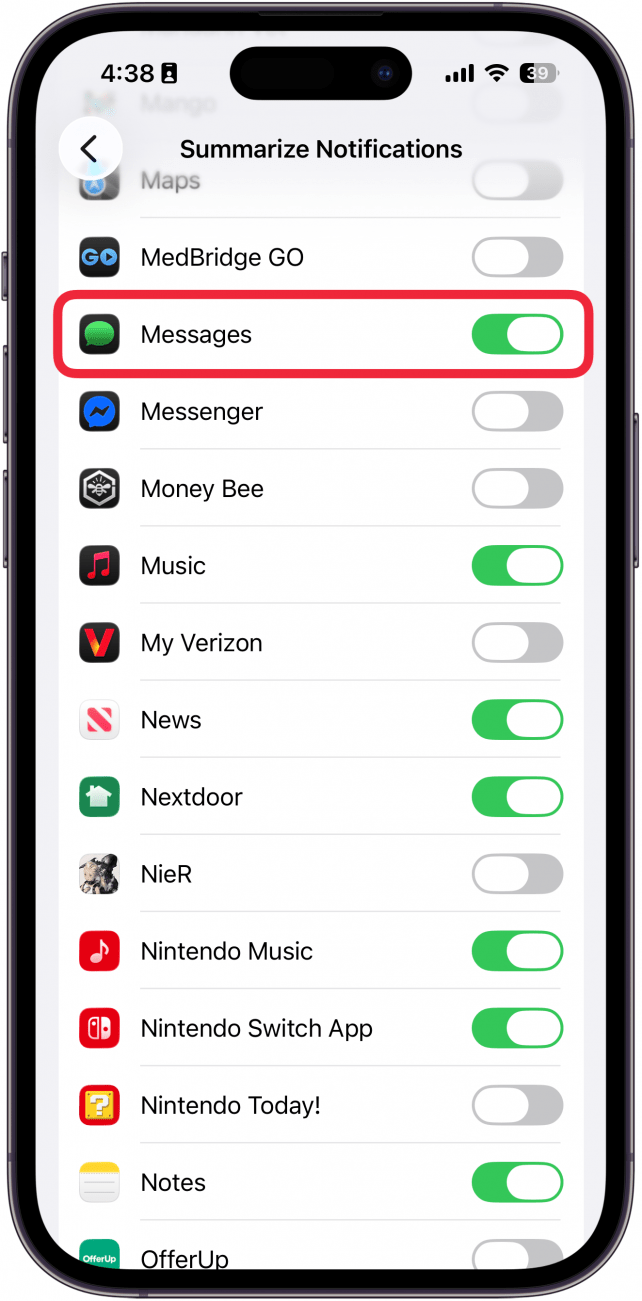
- In the app list, scroll down to the Messages app.
<!–[if IE 9]>
![a screenshot of notification summary settings on iphone with a red box around the messages app, which has a green toggle next to it]()
- Tap the toggle to disable summaries for the Messages app.
<!–[if IE 9]>
![a screenshot of notification summary settings on iphone with a red box around the messages app, which has a gray toggle next to it]()
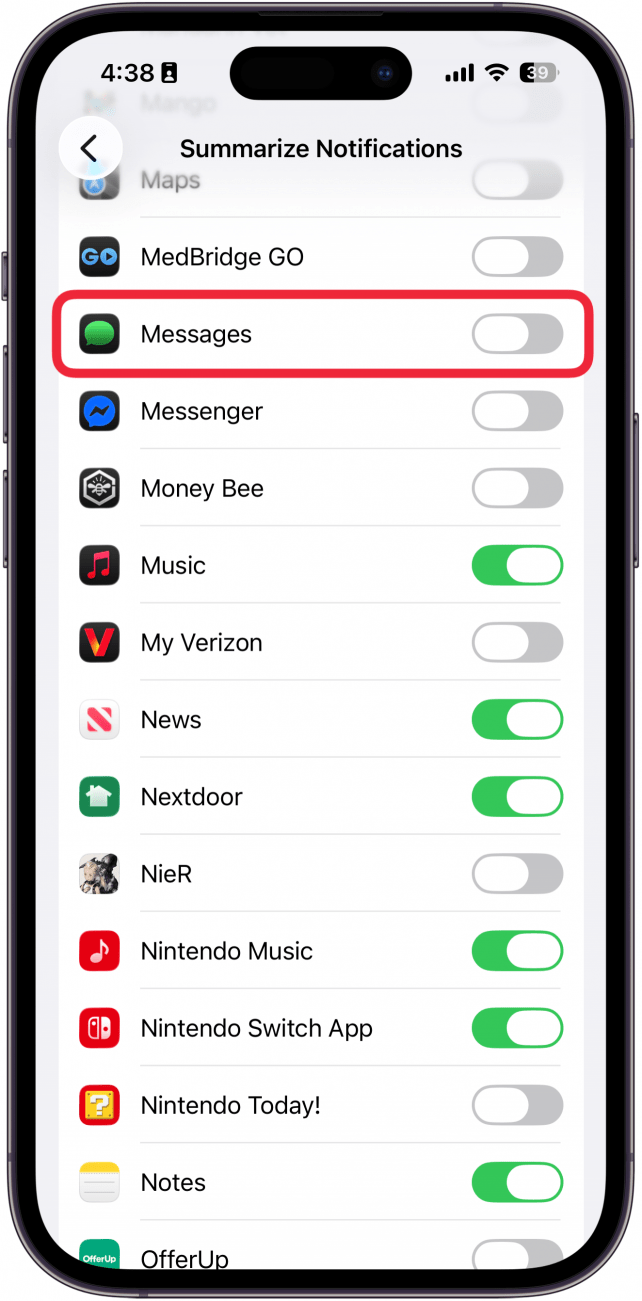
While you’re in this menu, you can also turn off Apple Intelligence summaries for other apps, or even turn off summaries altogether by tapping the toggle at the top of the list, next to Summarize Notifications.
More On: Apple Intelligence
Top image credit: The-DesignStudio / Shutterstock.com
“}]]




This Post Has 0 Comments