
 [[{“value”:”Autocorrect can be helpful, but it’s not for everyone. Learn how to turn off autocorrect on your iPhone, iPad, and Mac in just a few easy steps.
The post How to Turn Off Autocorrect on iPhone, iPad, and Mac appeared first on iGeeksBlog.”}]] [[{“value”:”
Autocorrect is one such iPhone feature that looks very useful on paper, but in reality, it quickly turns into a headache. It is why your “Yes bro” becomes “Yes brp”, your friend’s name changes to something random, and your perfectly fine Hinglish sentence turns into a grammatical crime scene.
And the worst part is that it sometimes even replaces correct words and brand names. So if you are tired of fighting your keyboard every day, it’s time to switch autocorrect off. This post details how to disable autocorrect on iPhone, iPad and Mac.
Table of Contents
- What Autocorrect Actually Does on iPhone, iPad, and Mac
- Difference Between Auto-Correction and Predictive Text
- How to Turn Off Auto-Correction on iPhone
- How to Turn Off Auto-Correction on Mac
- How to Turn Off Auto-Correction for Certain Words on iPhone
- Does Turning Off Auto-Correction Affect All Apps?
- Autocorrect is Off, But iPhone Still Changes Words? Try These Fixes
- Summing Up…
What Autocorrect Actually Does on iPhone, iPad, and Mac
First things first, autocorrect on iPhone and iPad is referred to as Auto-Correction. It comes enabled by default on iPhone and iPad and tries to:
- Fix spelling mistakes automatically.
- Replace “incorrect” words with what it thinks you meant.
- Sometimes, change words after you finish typing or even after you hit send.
In short, autocorrect is not just a typing helper. It can literally rewrite parts of your message without warning.
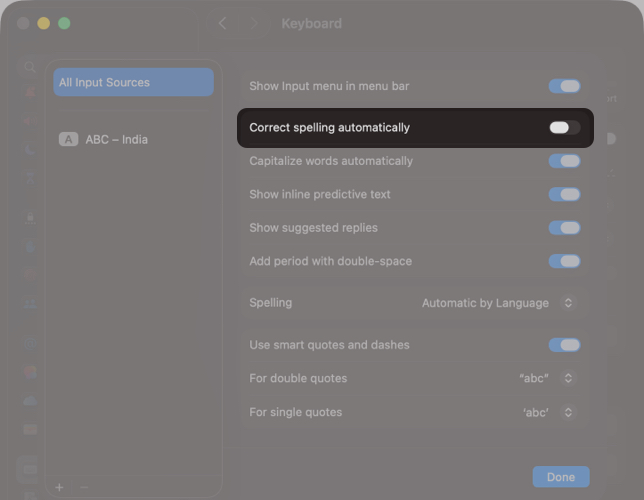
On Mac, Apple labels autocorrect a little differently. Instead of Auto-Correction, you’ll usually see the toggle labeled “Correct spelling automatically. This is the macOS version of autocorrect, and it works across most Apple apps (and many third-party apps, too).
Difference Between Auto-Correction and Predictive Text
This is where many people get confused because both features are related to typing, but they behave very differently.
| Feature | Auto Correction (Autocorrect) | Predictive Text |
|---|---|---|
| What it does | Automatically corrects or replaces words while you type | Shows suggested words/phrases as you type |
| Main behavior | Edits your text without asking | Suggests options, you choose manually |
| Where you see it | Changes happen inside the typed sentence | Suggestions appear above the keyboard |
| Example | You type: definately → iPhone changes it to: definitely | You type: I’m going to → suggests work, the gym, sleep |
| Control | iPhone decides the correction automatically | You decide by tapping a suggestion |
| Best for | Fixing spelling errors and obvious typos | Faster typing, phrase completion |
| Common downside | Can change names, slang, Hinglish, or brand terms incorrectly | Can feel distracting if you don’t like suggestions |
| Can it change words after typing? | Yes, it can change a word even after you finish typing it | No, it doesn’t change text unless you tap a suggestion |
| Setting name on iPhone | Auto Correction | Predictive Text |
| Toggle location | Settings → General → Keyboard → Auto Correction | Settings → General → Keyboard → Predictive Text |
How to Turn Off Auto-Correction on iPhone
Turning off Auto-Correction on iPhone is pretty straightforward and can be done in two ways:
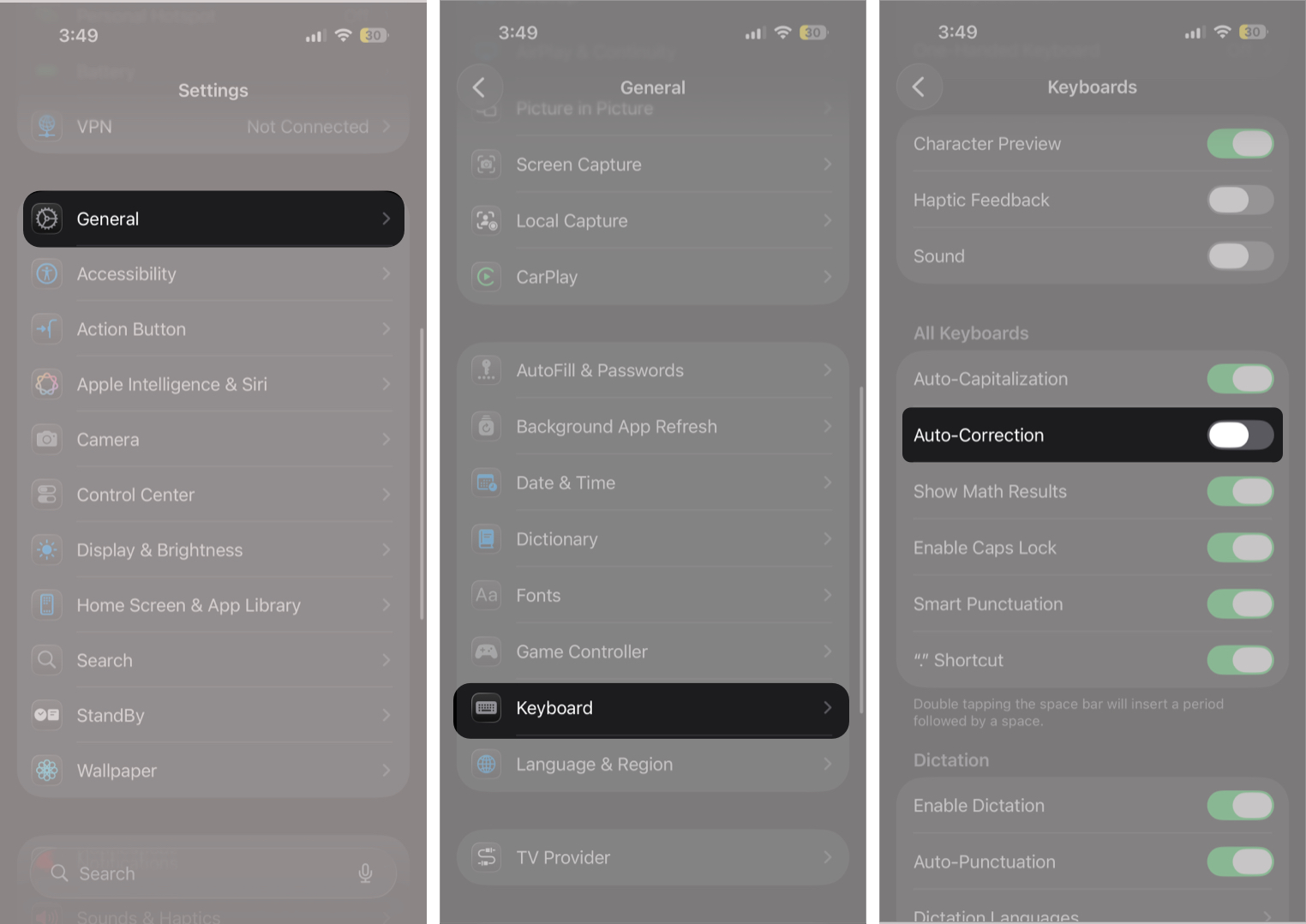
Via Settings
This is the most reliable method and works across all apps.
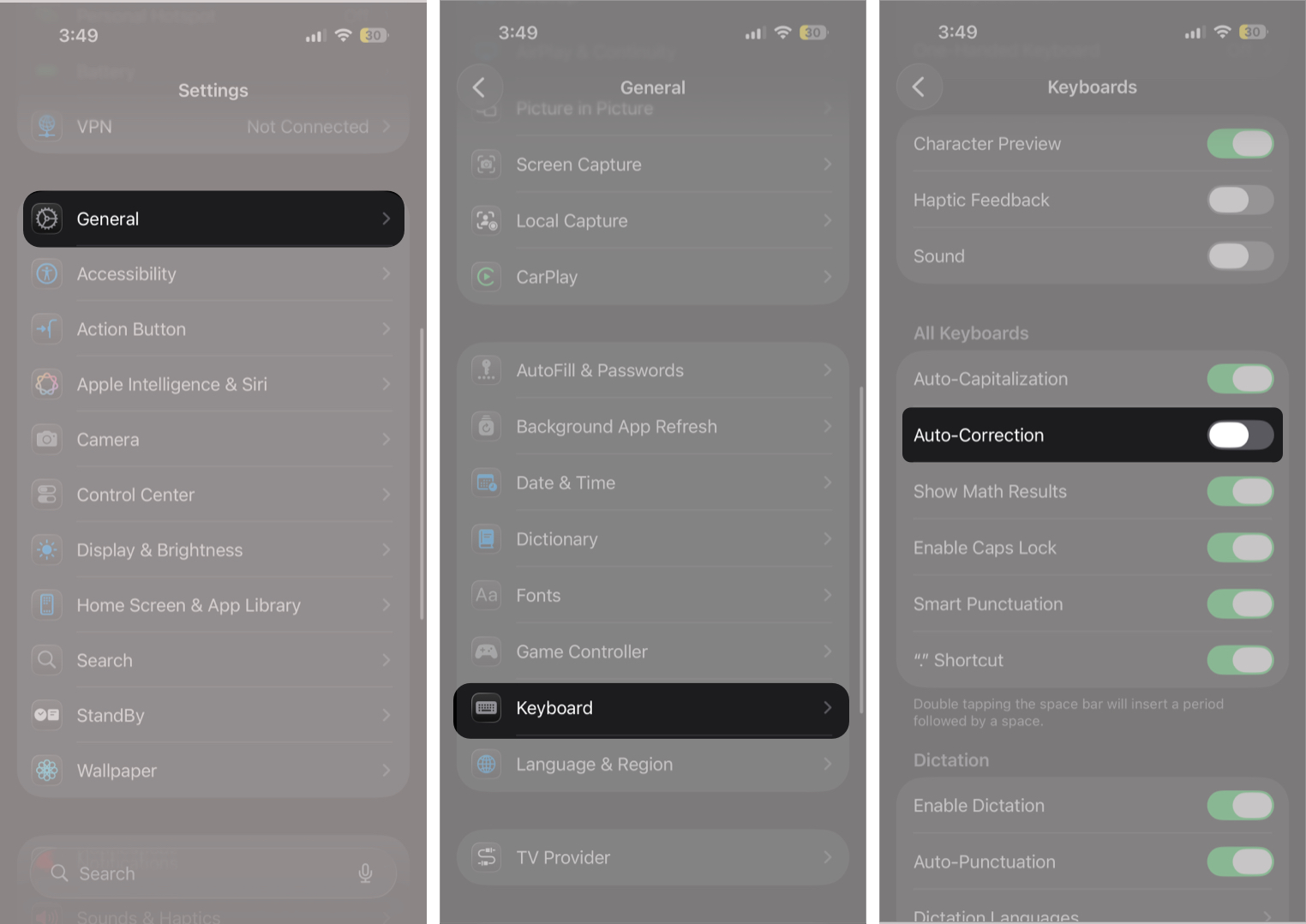
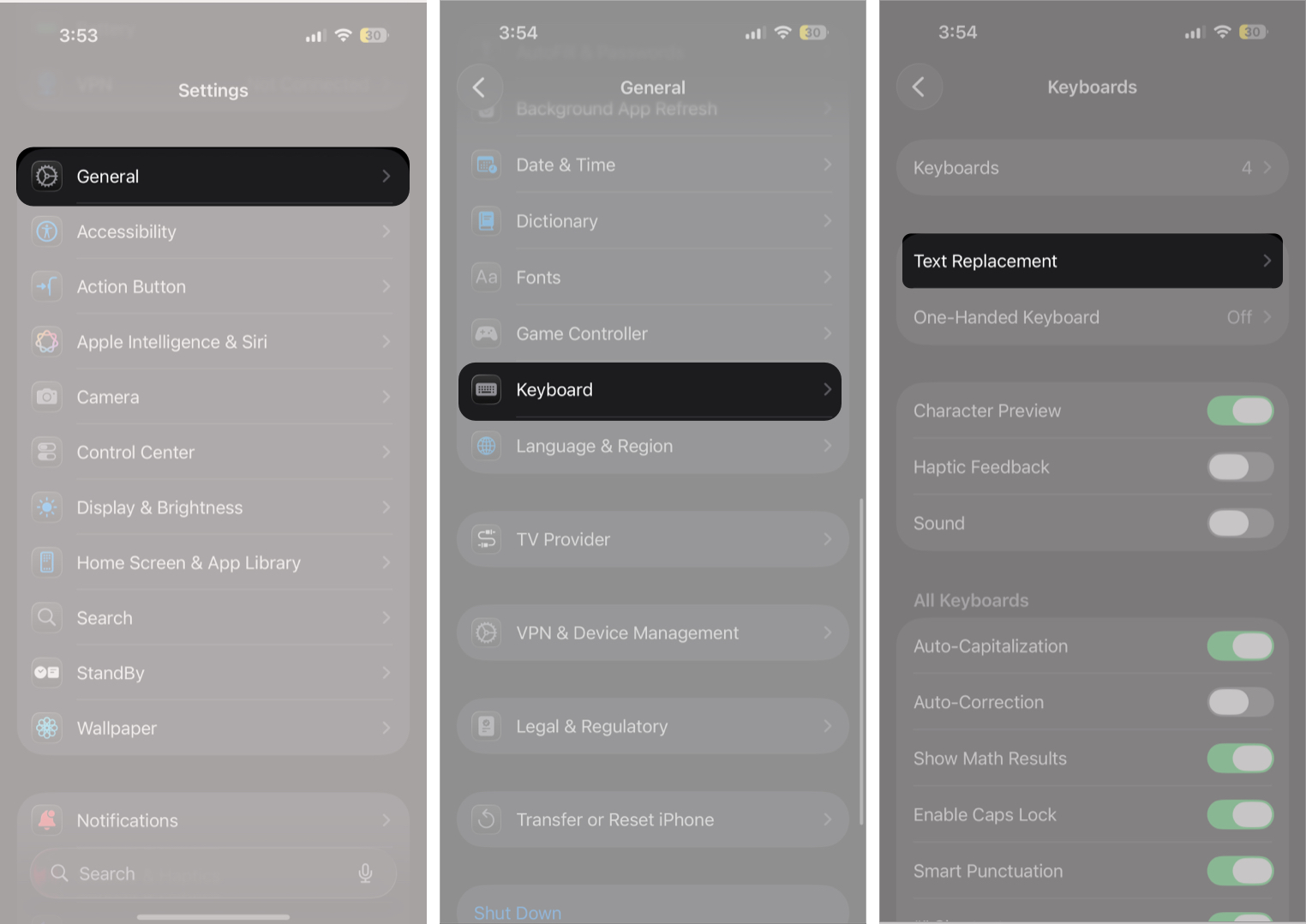
- Open Settings and tap General.
- Here, locate and tap Keyboard.
- Next, toggle off Auto-Correction under All Keyboards.
Once done, your iPhone will stop replacing your words automatically.
Directly via Keyboard
While turning off Auto-Correction in Settings is pretty quick, it’s inconvenient when you are already typing in an app and have to close it because of it. In that case, you can quickly jump to keyboard settings directly from the keyboard. Here is how:
- Open any app that uses the keyboard.
- Tap and hold the Globe (Emoji) icon at the bottom-left corner of the keyboard.
- Tap Keyboard Settings on the pop-up menu that appears.
- Toggle off Auto-Correction under All keyboards.
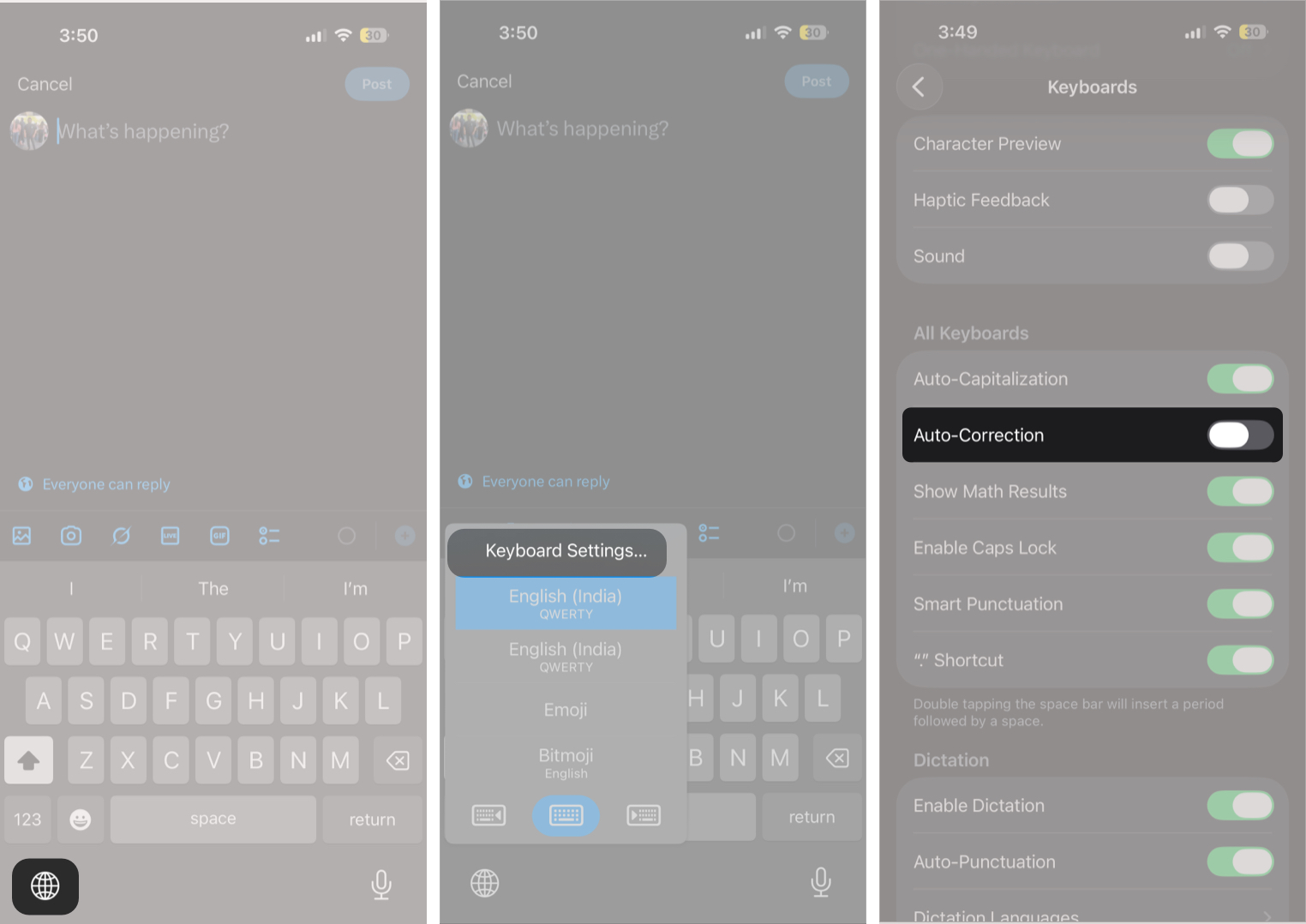
Note: If you don’t see a globe key, it’s usually because you only have one keyboard language enabled. In that case, you may see an emoji icon instead.
How to Turn Off Auto-Correction on Mac
Mac keyboard settings do not automatically mirror your iPhone keyboard settings, even if both devices are signed in with the same Apple ID. So turning off autocorrect on iPhone won’t turn it off on your Mac, and vice versa.
- Open the Settings app and select Keyboard in the sidebar.
- Here, click the Edit button next to Input Sources under Text Input.
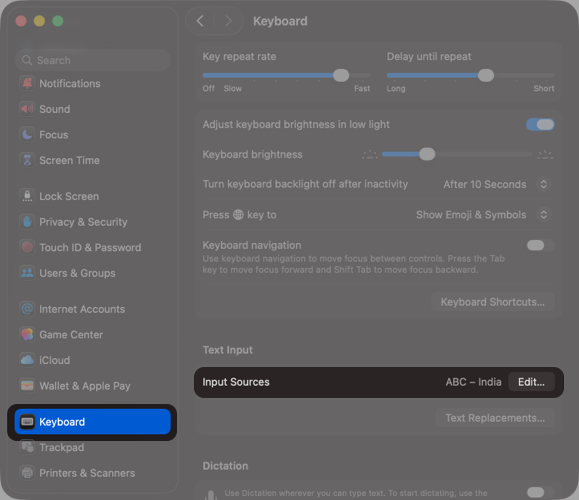
- Toggle off “Correct spelling automatically.”
How to Turn Off Auto-Correction for Certain Words on iPhone
If you don’t want to turn off Auto-Correction entirely, you do have a smarter option. You can stop your iPhone from “fixing” specific words (like your name, your city, brand names, slang, or Hinglish phrases) by adding them to the keyboard dictionary using Text Replacement.
- Open Settings → General → Keyboard.
- Tap Text Replace ment.
- Tap the + button at the top right corner.
- In the Phrase field, type the word you want iPhone to accept (example: Vikhyat, iGeeksBlog, Hinglish)
- In the Shortcut field, type the same word again
- Tap Save.
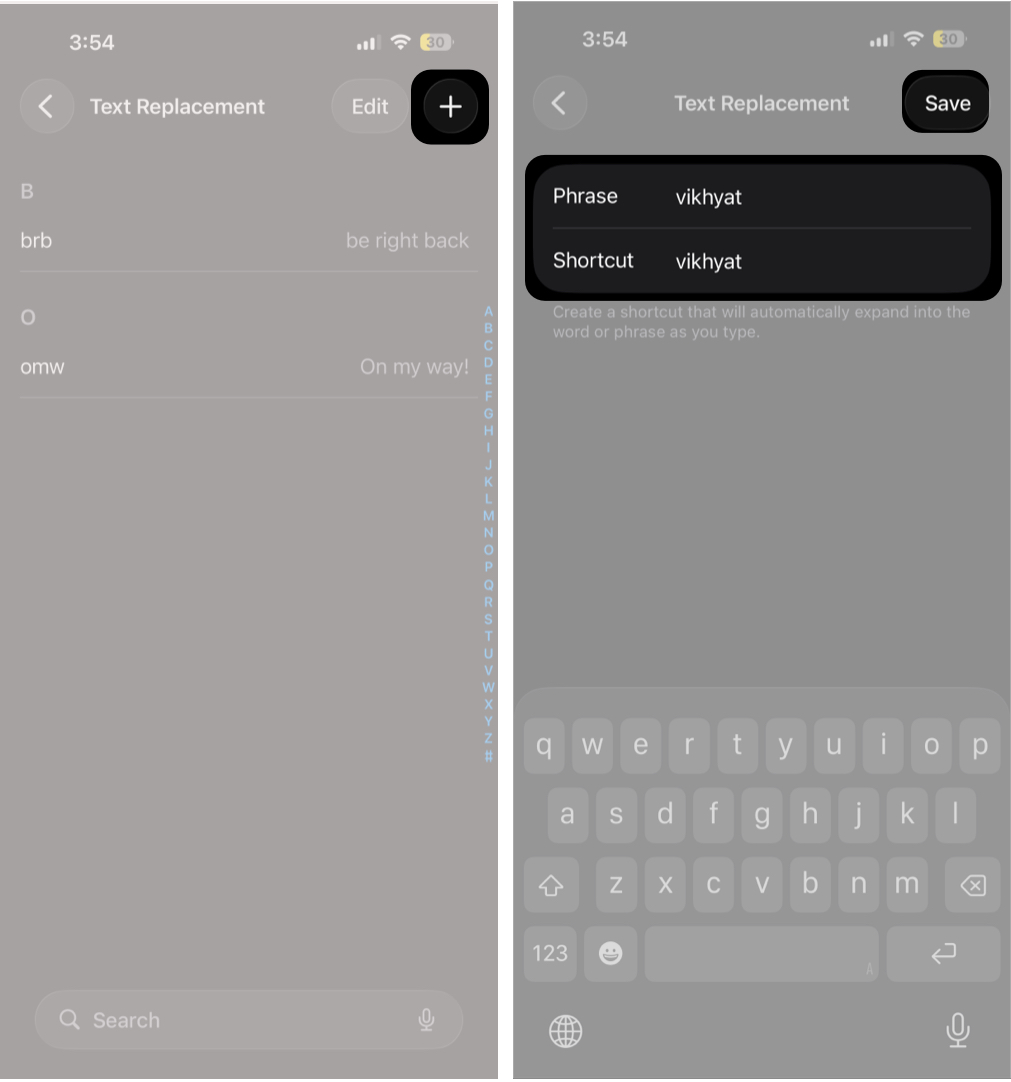
Once done, your iPhone will not auto-correct the exact word, even with Auto-Correction enabled.
Does Turning Off Auto-Correction Affect All Apps?
Yes, the Auto-Correction toggle on iPhone and Mac applies system-wide. When you switch off Auto Correction, autocorrect will stop working in:
- iMessage and WhatsApp.
- Instagram captions and DMs.
- Notes.
- Safari search.
- Gmail and other mail apps.
- Any third-party app that uses the keyboard.
Apple currently does not offer a per-app or per-keyboard autocorrect toggle.
Autocorrect is Off, But iPhone Still Changes Words? Try These Fixes
Even after you disable Auto Correction, iOS can still interfere with typing through other “smart” features. These settings are worth checking.
| Fix | What to change | Why it helps | Path |
|---|---|---|---|
| Turn off Check Spelling (optional) | Disable Check Spelling | Removes spell underlines and reduces iOS pushing “corrections” or distractions while typing | Settings → General → Keyboard → Check Spelling (Off) |
| Turn off Smart Punctuation | Disable Smart Punctuation | Stops iPhone from automatically changing punctuation, quotes, and formatting while you type | Settings → General → Keyboard → Smart Punctuation (Off) |
| Turn off Auto Capitalization | Disable Auto Capitalization | Prevents iOS from forcing capital letters at the beginning of sentences and some words | Settings → General → Keyboard → Auto Capitalization (Off) |
| Reset Keyboard Dictionary | Reset Keyboard Dictionary | Fixes stubborn word replacements caused by “learned” typing habits or incorrect keyboard memory | Settings → General → Transfer or Reset iPhone → Reset → Reset Keyboard Dictionary |
| Remove unwanted Text Replacements | Delete incorrect Text Replacement entries | Sometimes, iPhone changes words because you previously saved a replacement by mistake | Settings → General → Keyboard → Text Replacement → Delete the entry |
Summing Up…
And that’s it; this is how you turn off autocorrect on your Apple devices and make typing feel faster, cleaner, and more in your control. Remember, you do not need to turn off autocorrect completely if the issues are with specific words, such as names, slang, or brand terms. In such cases, Text Replacement is a better solution.
Did turning off autocorrect fix the issue for you? Share your experience in the comments and tell us which iPhone or Mac keyboard setting annoys you the most
FAQs
No. iOS doesn’t currently offer per-app autocorrect controls.
The Auto-Correction setting applies to all keyboards, though behavior can vary depending on the language.
The post How to Turn Off Autocorrect on iPhone, iPad, and Mac appeared first on iGeeksBlog.”}]]


This Post Has 0 Comments