
 [[{“value”:”
Apple updates iOS every year without fail, bestowing upon our iPhones a range of new features and security improvements as well as the occasional redesign. In September 2025 iOS 26 made its debut. Most iPhone users will move to the new platform pretty much straight away, and the majority are sure to love the changes. But what if you want to go back to an older version of iOS? Is that even possible?
In this article, we explore what options you have when wanting to downgrade iOS on your iPhone.
Update February 4, 2026: iPhone users for whom iOS 26.2.1 has caused crashes and connectivity issues, users were able to follow these steps to downgrade while Apple was signing iOS 26.2, but unfortunately it stopped doing so on February 3.
PROMOTION
EaseUS |Downgrade iOS for free
EaseUS iOS System Repair is to solve iOS/iPadOS system issues without data loss, including upgrading to a new iOS or rolling back to a previous iOS. With just one click, it lists out all the available firmware versions that Apple is still signing, so that you’re able to decide which version is your favorite or downgrade to any ideal version. The downgrade is completed without iTunes. Now 25% OFF by using code: MACWORLD25.
Can I downgrade from a new version of iOS to an old one?
The answer to this depends on whether you want to downgrade from a brand new version of iOS to an old version of iOS, a beta to a non-beta version, or just a point update within a few days of it being issued. In those scenarios, you can downgrade, but there is a time limit.
If you are hoping to downgrade from iOS 26 to iOS 18, though, that’s not something you can do anymore. Even if you want to downgrade from iOS 26.2 to iOS 26.1 that won’t be possible either. The reason you can’t downgrade is that Apple is no longer ‘signing’ those versions of iOS, and these days Apple stops signing old versions of iOS within days of a new version or update being issued.
But if you are quick enough you might be able to downgrade from a new version of iOS to the previous version, we’ll show you how.
How to downgrade iOS: What you need
1) Find out whether Apple is still signing the older version of iOS
The first thing you need to do is find out if Apple is still signing the version of iOS you need.
To find out whether Apple is still signing the version of iOS you need visit this page and look up your iPhone to see which versions are still signed by Apple. Apple usually stops signing a version of iOS within one or two weeks of a new update.
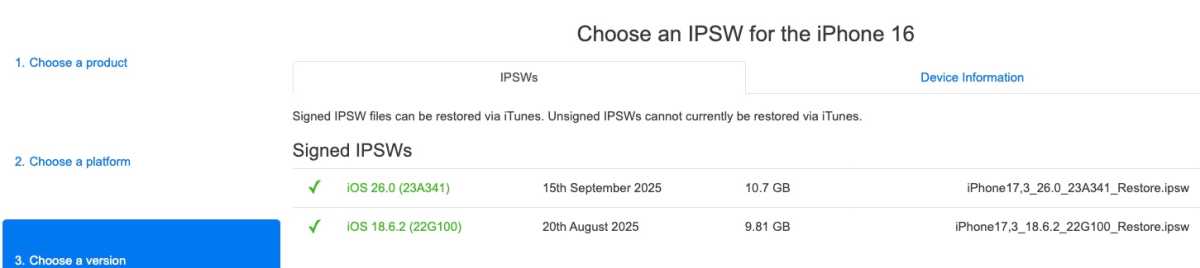
Is Apple still signing the version of iOS you want?
Foundry
If you are lucky and the old version is still being signed you will be able to downgrade.
However, you still may prefer to stay on the new version because this process will wipe your iPhone.
2) Download the correct IPSW firmware files
You will need the correct firmware for your iPhone model.
To do this go to IPSW.me (on your Mac) and download the correct version of the iOS you want that matches your iPhone model.
As said above, it needs to still be signed by Apple at the time you wish to restore that version, which can be a very narrow window indeed – days, not weeks.
The software should start downloading to your Downloads folder. (Note, it can take a long time to download an iOS from the site).
3) A Mac or PC
You will need to use the Finder (Mac) or iTunes/Apple Devices App (PC) to restore your iPhone.
4) An old backup from before the update
The only way to reinstall an older version of iOS is to wipe the current one from your device. If you restore from a backup made after you updated, you will be putting the newer version of iOS back on to the device.
Therefore we recommend restoring from an older backup. We explain how to do this in the steps below.
How to downgrade iOS 26: Step-by-step guide
We followed the steps below to downgraded from iOS 18 to iOS 17.6.1, but the process is the same for downgrading from iOS 26.2.1 to iOS 26.2, as long as you act quickly. [Note: Apple has stopped signing iOS 26.2 as of February 3].
WARNING: This process will wipe your iPhone! Beware that you could lose your data if you don’t have a backup from before the iOS update you are downgrading from.
- Download the correct version of iOS you require from IPSW.me. Note it must still be signed by Apple at the time you wish to restore it.
- On a Mac open the Finder. On a PC use the Apple Devices app. (Some PC users and those running macOS Catalina or older will need to use iTunes).
- Plug in your iPhone.
- Turn off Find My on your device because it enables Activation Lock, which could prevent you from erasing and downgrading the iPhone. Go to Settings > your name > Find My > Find My iPhone > Turn off. Enter your Apple ID password to confirm.
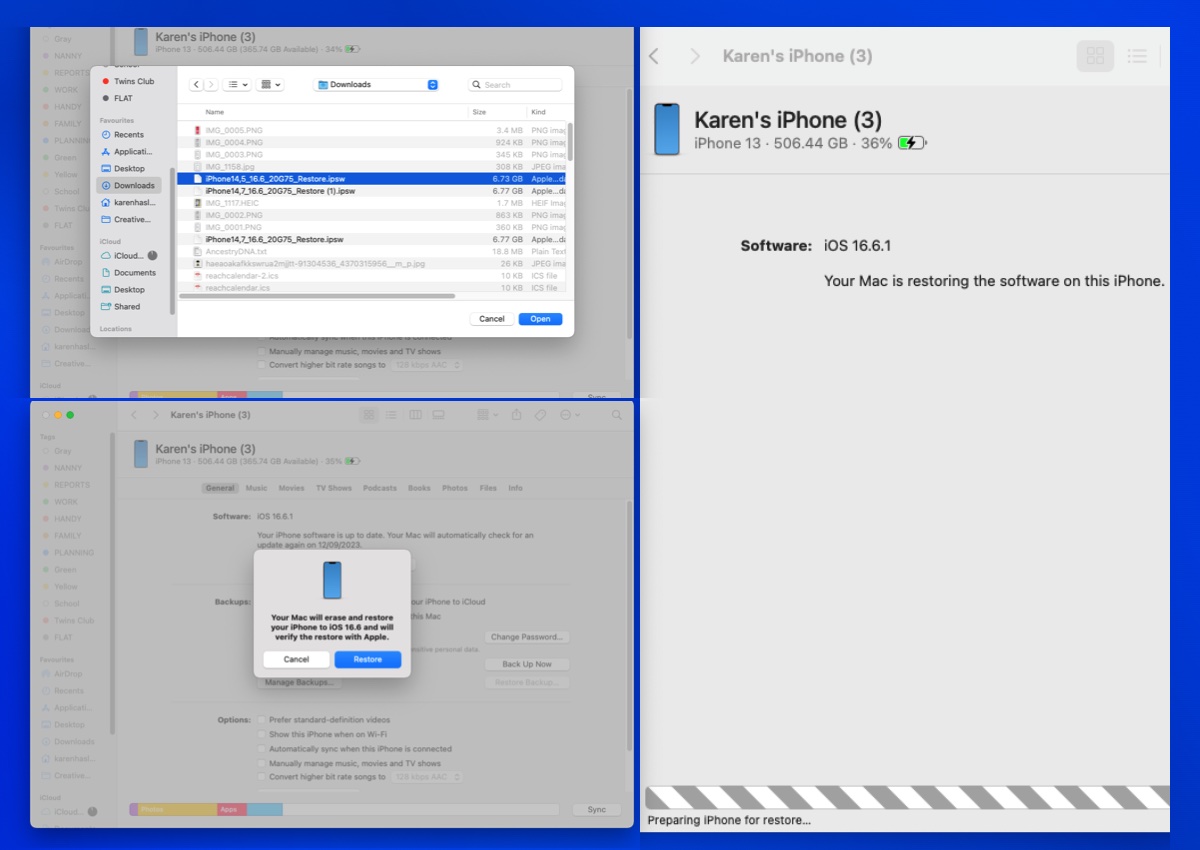
- Hold down the Option/Alt key and click on Restore iPhone. On a PC hold Shift and click on Restore iPhone.
- Select the version of iOS you wish to install on the iPhone from your downloads folder.
- Click on Open.
- A message will appear saying which version of iOS you will install – this should be the one you have selected. Click to confirm this and wait while your iPhone is restored. Do not disconnect the iPhone during this process.
- The phone will be wiped and the old version of iOS installed on the iPhone. When we did this the Finder wrongly identified the version, but it was the one we wanted.
- You now need to set up your iPhone again. Be aware that backups made on newer versions of iOS usually can’t be restored to older versions, so you may need to set up the iPhone as new.
Foundry
How to downgrade from an iOS beta
If you want to downgrade from an iOS beta the process can be simple, or difficult, depending on whether you just want to start using the official version of iOS rather than the beta.
If you want to stop getting beta updates of iOS 26 and instead use the standard version of iOS 26 then you just need to turn off Beta Updates so that you don’t receive them on your device.
- Open Settings on your iPhone.
- Tap on General.
- Tap on Software Update.
- Tap on Beta Updates.
- Tap on Off.
- Tap on Back.
It is also possible to revert from the beta version installed on your iPhone to the version of the previous iOS. But as above, you will wipe your iPhone or iPad in doing so.
If you want to receive beta updates again in the future just go back to this screen and select the ones you want.
We cover the whole process in our how to remove an iOS beta from your iPhone guide.
FAQ
Why can’t I downgrade to an older version of iOS?
As we said above, there is a very small window in which you can downgrade.
When software is made available by Apple the company includes a signature that confirms its authenticity. This is for security reasons, so that you won’t accidentally install bogus software that claims to be iOS and then find yourself in a world of pain as all your data is stolen. Whereas in the past Apple would leave the signature valid on previous versions of iOS for a short time, in recent years the signature has been removed within days of, and sometimes almost simultaneously with, the release of the newer version.
This isn’t a new scenario. At an Apple shareholder meeting back in 2016, the company’s senior vice president of software engineering, Craig Federighi, was reported as saying that Apple did “not provide a way to downgrade largely because each iOS update improves the security of your iPhone, iPad or iPod touch. To downgrade iOS means that your device would be less secure, and easier for hackers to get into.”
If the version of iOS you wish to reinstall doesn’t have this signature then you will not be able to install it on your iPhone or iPad.
Is there another way to go back to a previous version of iOS if this doesn’t work?
If you simply must have a certain version of iOS, perhaps because an old app is stuck on that version and hasn’t been updated since, then there is a somewhat drastic solution. Buy an old iPhone.
It sounds silly, but it’s probably the easiest way to ensure that you have the iOS version you need. We’d recommend scouring eBay or some of the refurbished outlets like Amazon Renewed (or Back Market, MusicMagpie, or Amazon Renewed in the U.K.) to see if someone is selling an older model still running the iOS you want. Needless to say, you should specifically ask the buyer to confirm this–don’t just assume that the iPhone will still be running the version of iOS that was current when it launched.
But bear in mind, finally, that there’s a reason why Apple wants people using its latest software. Not only does this mean you get the newest features and design, but it should also be the safest one available as it has the latest updates.
There are also third-party tools that can offer easier workflows, additional automation, or support for unsigned firmware. Examples include EaseUS iOS System Repair, AnyFix, Tenorshare ReiBoot, and TinyUmbrella.
How long does Apple allow you to downgrade iOS after an update?
Apple typically provides a very narrow window for downgrading your iPhone’s operating system.
This limitation exists because Apple is required to “sign” an older version of iOS to confirm its authenticity and security before it can be installed on a device.
Once Apple stops signing an older version, which often happens within days of a newer release, that version becomes unavailable for installation.
Apple’s official stance, as explained by senior vice president of software engineering Craig Federighi, is that downgrading is restricted because “each iOS update improves the security of your iPhone… To downgrade iOS means that your device would be less secure, and easier for hackers to get into.”
Can you downgrade iOS without a computer?
Downgrading an iPhone or iPad to an older version of iOS typically requires a computer, as Apple does not provide a native “rollback” feature within the device’s settings. While you can perform certain actions like removing a beta profile directly on your device, a true downgrade to a previous stable version generally necessitates a PC or Mac to install the necessary firmware files.
If you are currently running a beta version (such as the iOS 26 beta) and want to return to the standard release, you can do so without a computer by removing the configuration profile, as explained above.
Will downgrading iOS erase my iPhone?
Yes, downgrading iOS will typically erase your iPhone. The standard process for moving to an older version of the operating system requires a complete wipe of the device’s current data to ensure the older software can be installed cleanly.
Because of this, having a backup is critical. However, there is a significant limitation regarding compatibility: backups made on a newer version of iOS (such as iOS 26) cannot be restored to a device running an older version (such as iOS 18) . To get your data back after a downgrade, you must use a backup that was created while the device was still running that older version or earlier.
While official methods via Apple’s Finder involve wiping the device, some third-party software claims to offer “no data loss” downgrades. For instance, the program Tenorshare ReiBoot is described as a tool that allows you to downgrade iOS 26 to 18 without data loss on your iPhone or iPad.
“}]]


This Post Has 0 Comments