
 [[{“value”:”
Have you hidden a person or animal from your People & Pets album, and now want to add them back? Here’s how to unhide people in Apple Photos and get them back in the People & Pets album.
Why You’ll Love This Tip
- Hiding a person or animal from the People & Pets album isn’t permanent.
- You can add collections back to your People & Pets album if you accidentally hid them.
How to Unhide a Person in Photos
System Requirements
This tip was performed on an iPhone 17 Pro running iOS 26. Find out how to update to the latest version of iOS.
Did you hide a friend or family member from your People & Pets album, and now want their collection back? Here’s how to unhide a person in Photos in a few easy steps.
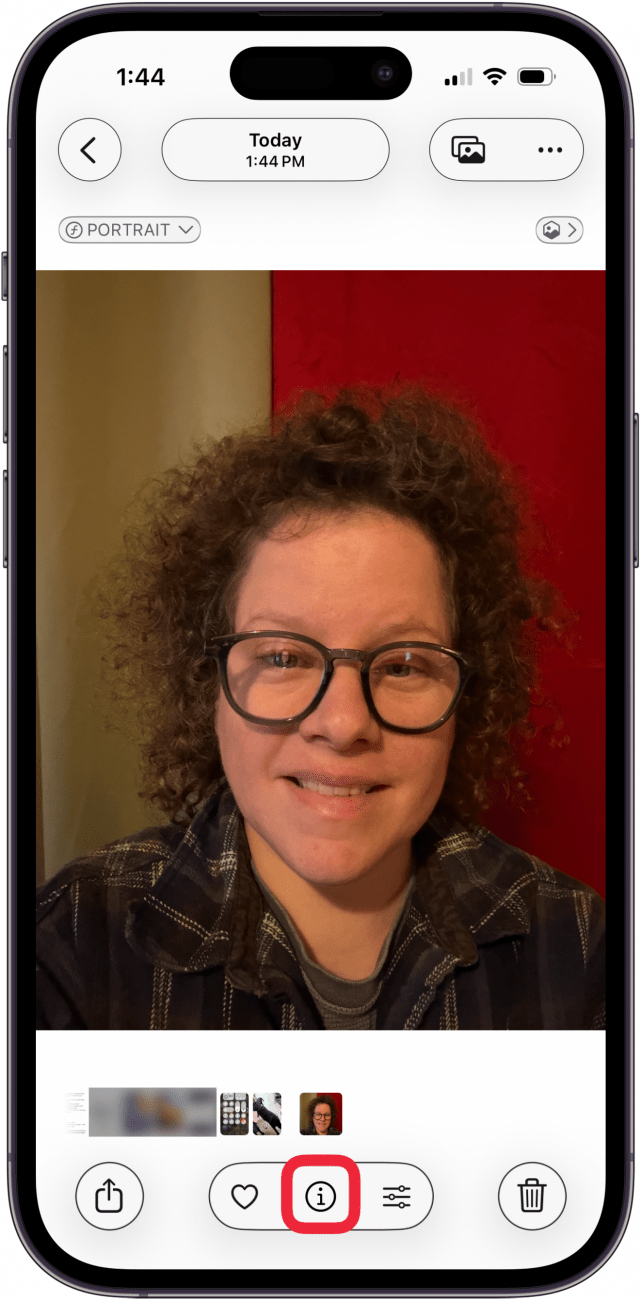
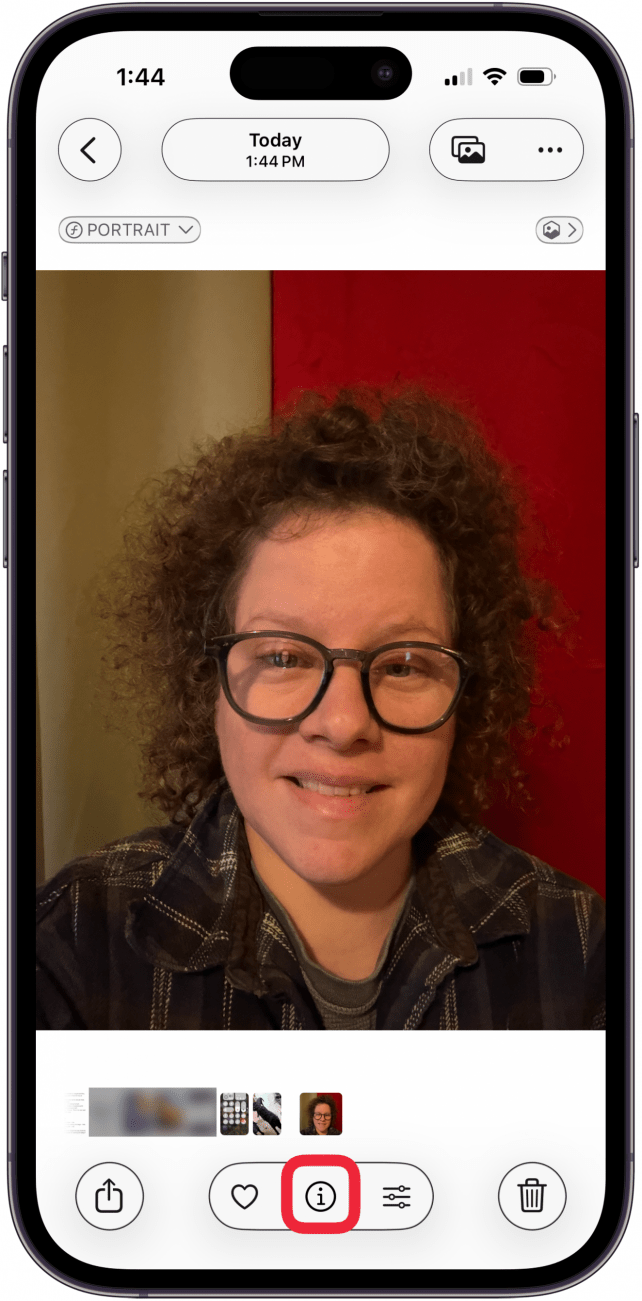
- Open a photo of a person or animal you hid from the People & Pets album, and tap the info icon.
<!–[if IE 9]>

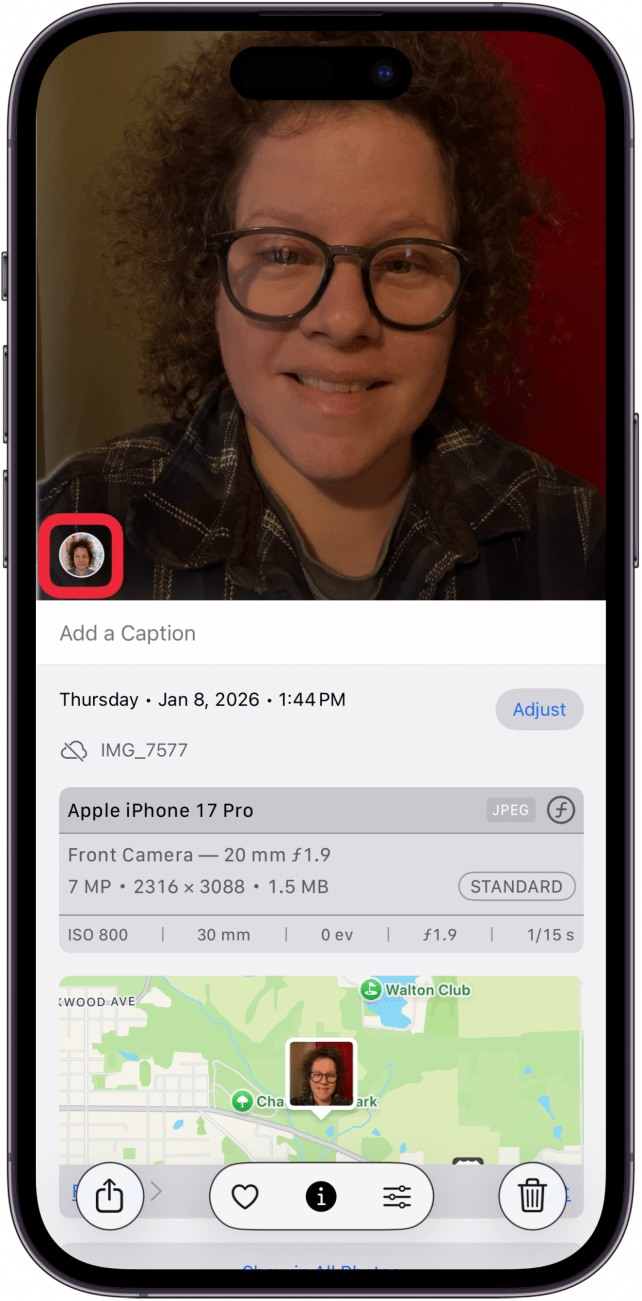
- Tap the small photo icon of the person on the lower left of the picture.
<!–[if IE 9]>

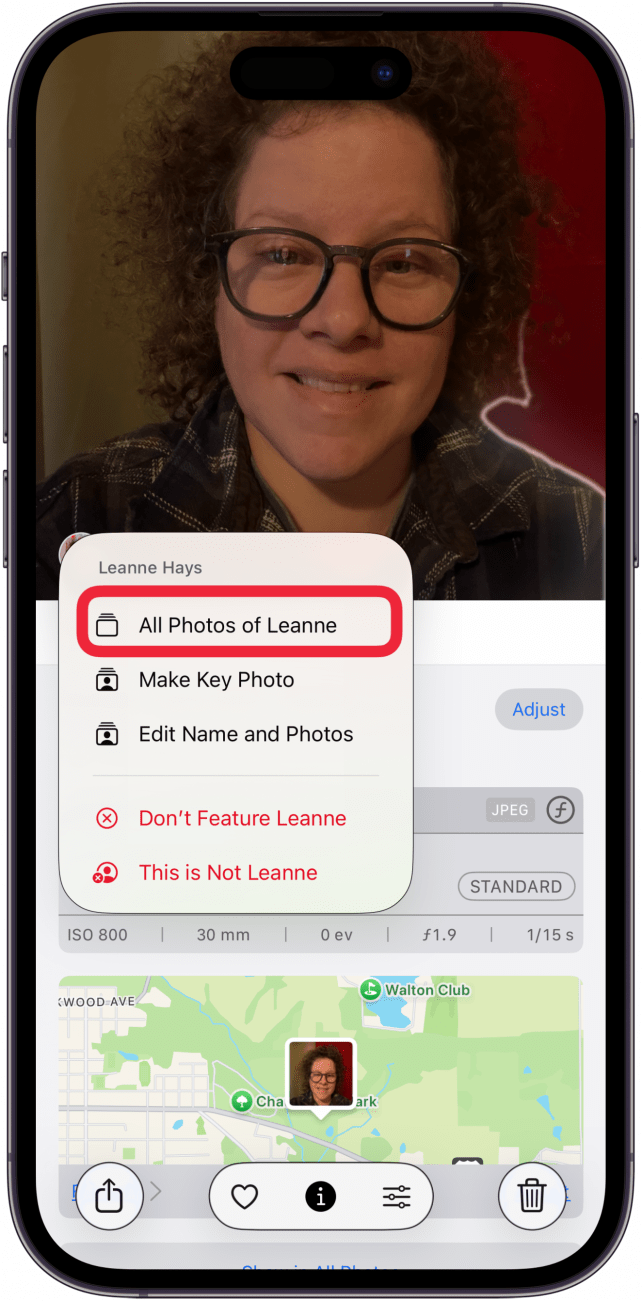
- Tap All Photos of (Name).
<!–[if IE 9]>

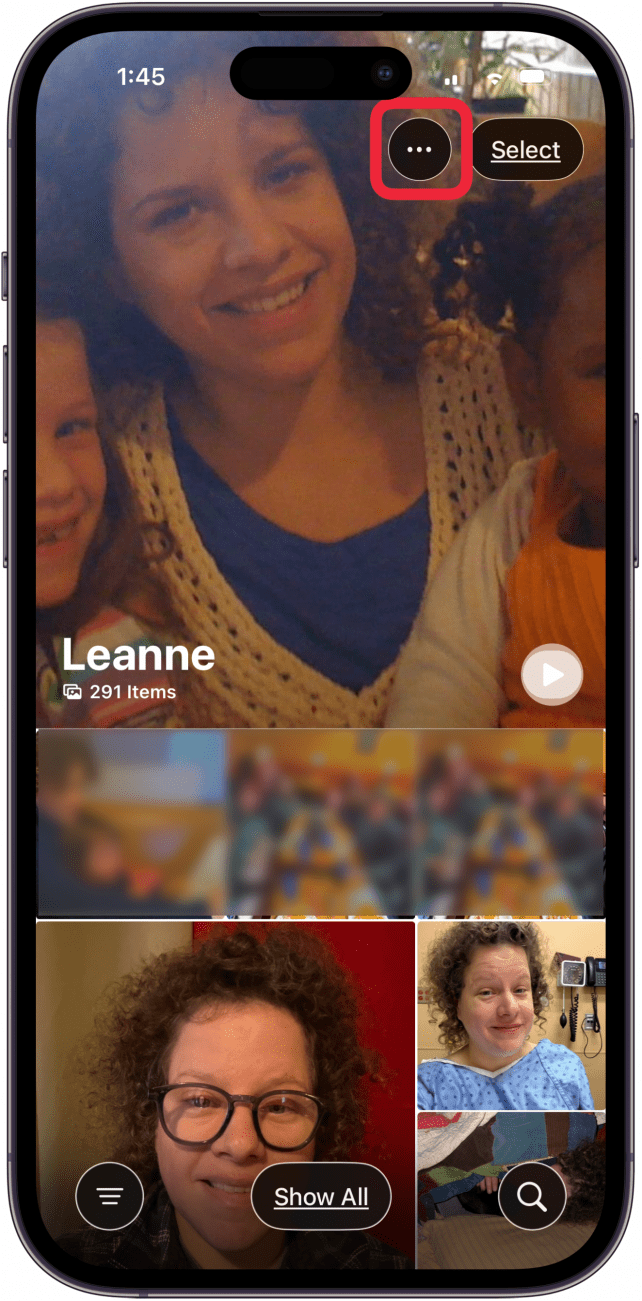
- Tap the More button.
<!–[if IE 9]>

- Tap Add (Name) to People & Pets.
<!–[if IE 9]>


Now you know how to unhide people in Apple Photos, and the person or animal you removed from the People & Pets album is restored. Be sure to check out our free Tip of the Day for more great Photos app tutorials.
“}]]




This Post Has 0 Comments