
 [[{“value”:”Setting up a new iPad can feel confusing if you’re unsure what each option means. This guide walks you through every setup step in clear, simple language so you can start using your iPad with confidence.
The post How to Set Up Your New iPad (The Right Way) appeared first on iGeeksBlog.”}]] [[{“value”:”
Setting up a new iPad should feel straightforward, but for many people, the number of questions that appear on the screen can be confusing. Each step asks you to make a decision, and if you’re not sure what those choices mean, it’s easy to second-guess yourself.
This guide explains every part of the setup process in the same order you’ll see on your iPad. You’ll understand what each option does, why it matters, and what to choose based on your needs. By the end, your iPad will be fully set up, secure, and ready to use with confidence.
Table of Contents
- Step 1: Before You Turn On Your iPad
- Step 2: Turning On Your iPad for the First Time
- Step 3: Choosing Language, Region, and Appearance
- Step 4: Quick Start or Manual Setup
- Step 5: Connecting to Wi-Fi or Cellular
- Step 6: Set Up Face ID, Touch ID, and Your Passcode
- Step 7: Transfer Apps and Data
- Step 8: Sign In With Your Apple ID
- Step 9: Final Settings and Preferences
- Step 10: Finish Setup and Reach the Home Screen
- Your iPad Is Ready
Step 1: Before You Turn On Your iPad
A smooth setup starts with a little preparation. Having a few things ready will save time and prevent frustration halfway through the process.
Before you begin, try to have the following nearby:
- A stable Wi‑Fi connection and its password, or a cellular data plan if your iPad supports it
- Your Apple ID and password (or be ready to create one during setup)
- A credit or debit card, if you want to set up Apple Pay
- Your old iPad, iPhone, computer backup, or Android device, if you’re transferring data
If you’re upgrading from an older Apple device and don’t have enough iCloud storage, Apple temporarily gives you free backup space for up to three weeks so you can move everything safely.
Step 2: Turning On Your iPad for the First Time
When you’re ready, press and hold the top button until the Apple logo appears. If nothing happens, your battery may be low. Plug it in and wait a few minutes before trying again.
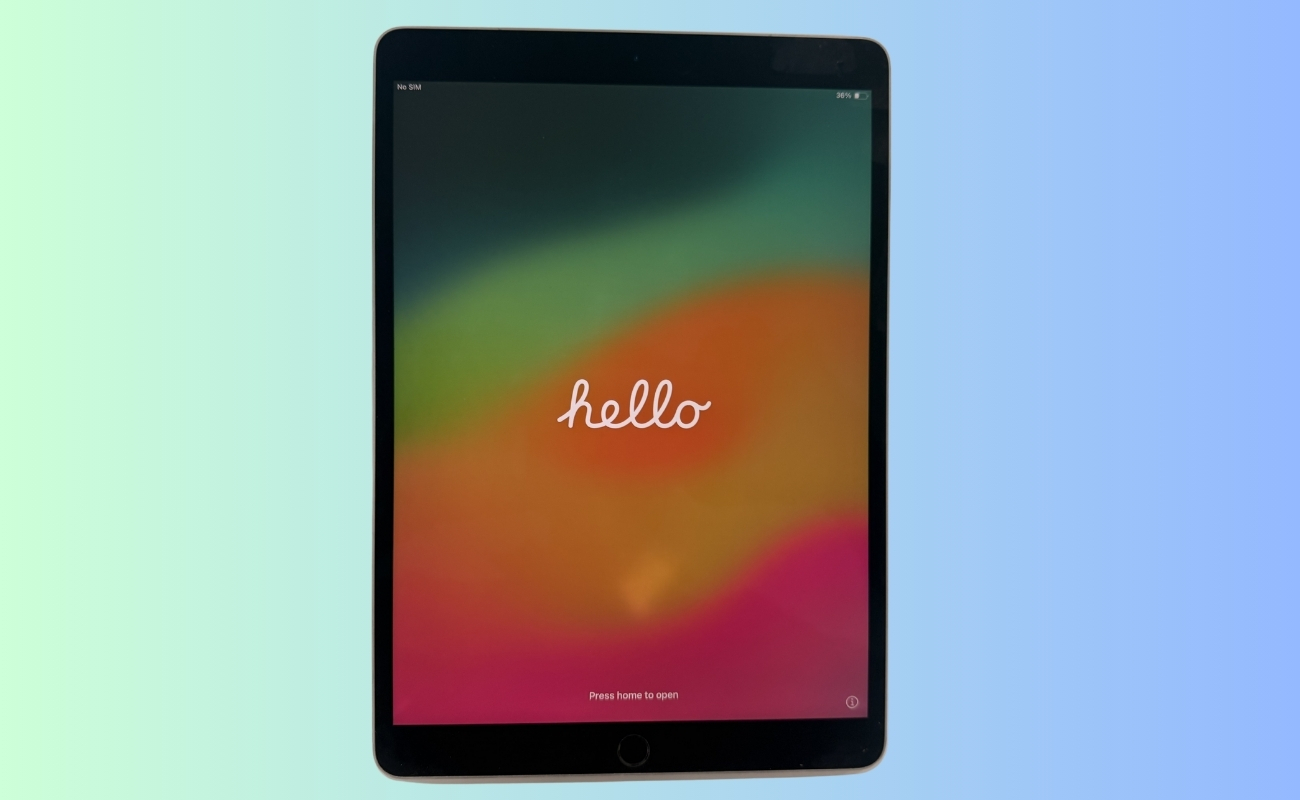
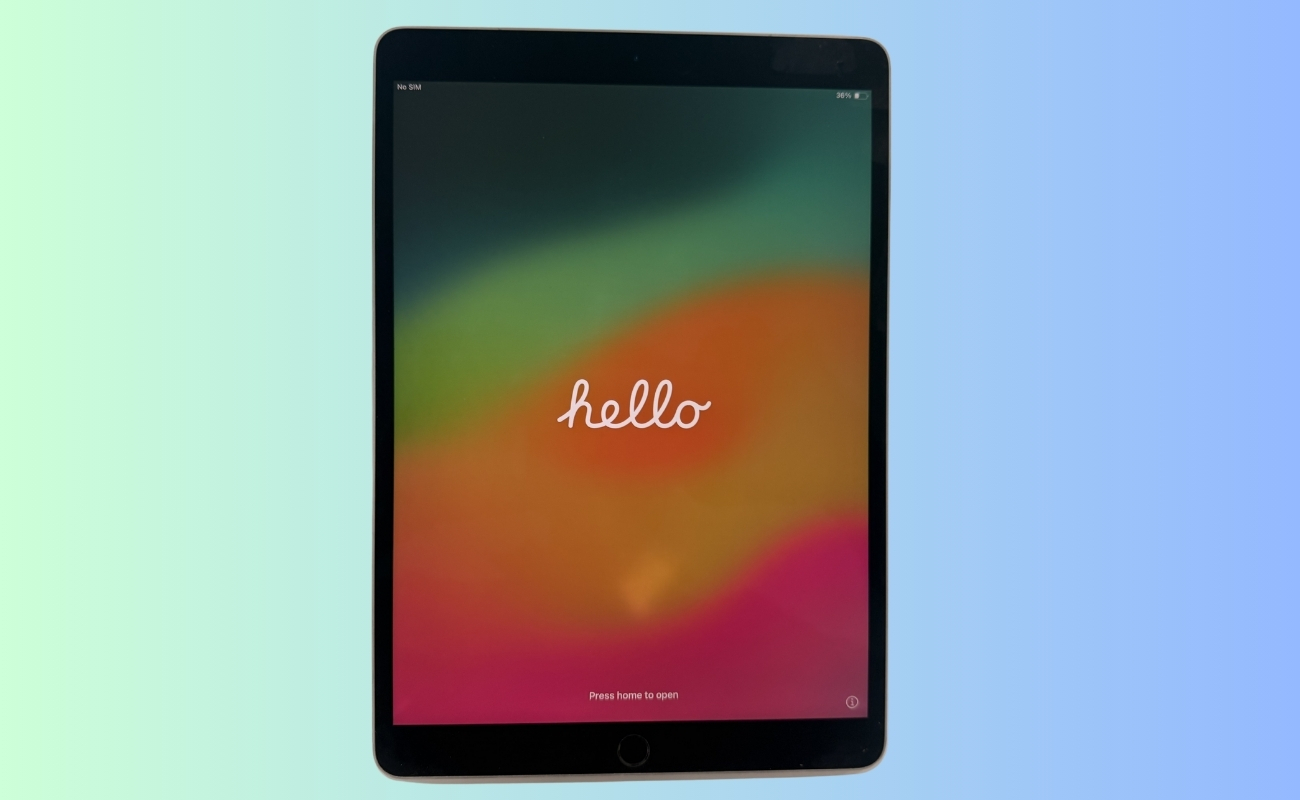
As soon as the screen lights up, you’ll see a friendly “Hello.” This is your starting line.
- If your iPad has a Home button, press it to continue
- If it doesn’t, swipe up from the bottom of the screen
Accessibility features are available immediately. If you have vision difficulties, you can turn on VoiceOver by triple‑clicking the Home button or top button. You can also enable Zoom by double‑tapping the screen with three fingers.
Step 3: Choosing Language, Region, and Appearance
Next, your iPad asks a few basic questions so it knows how to communicate with you. These choices affect everything from keyboard layout to date formats.
You’ll be asked to:
- Choose your language
- Select your country or region
- Pick how large the text and icons appear on the screen
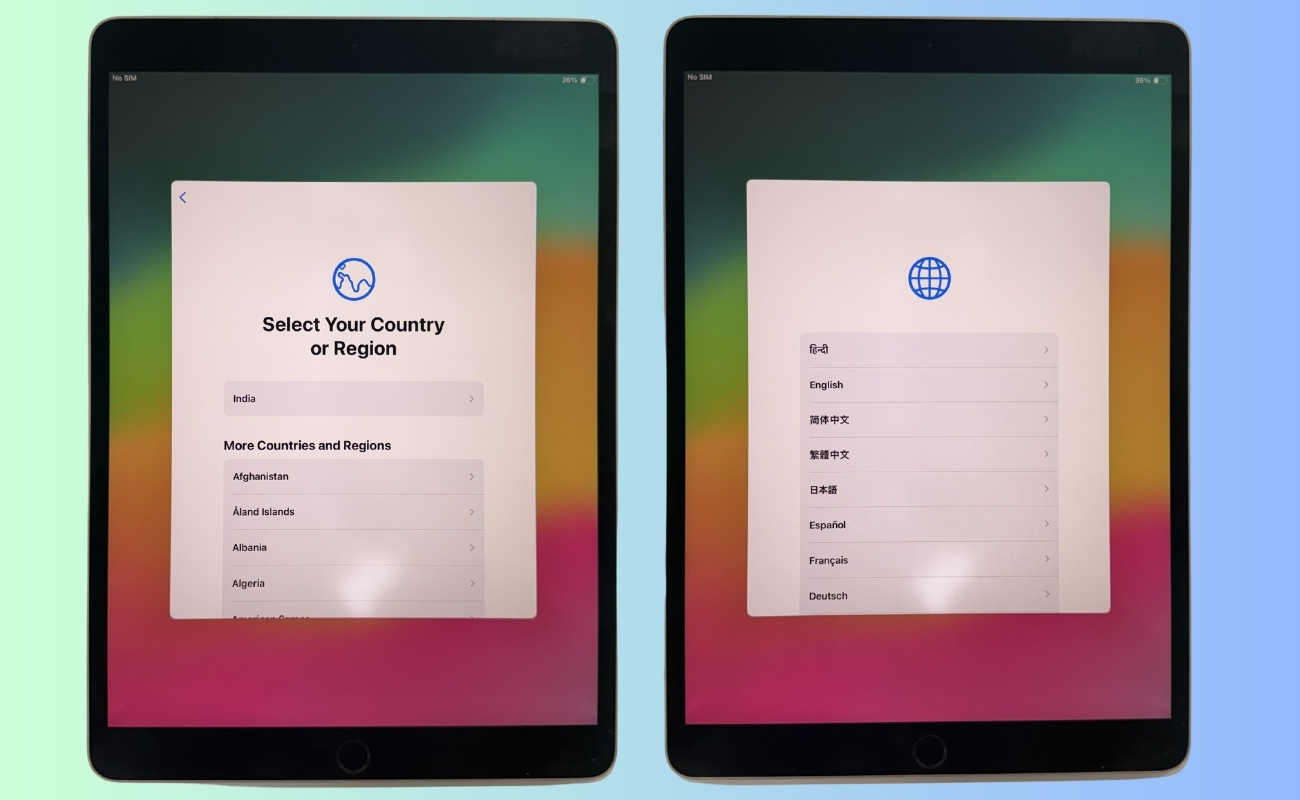
If everything looks readable, the default appearance is usually the best choice. You can always change this later.
Step 4: Quick Start or Manual Setup
This is one of the most important moments in the setup process. Your iPad asks how you want to get started.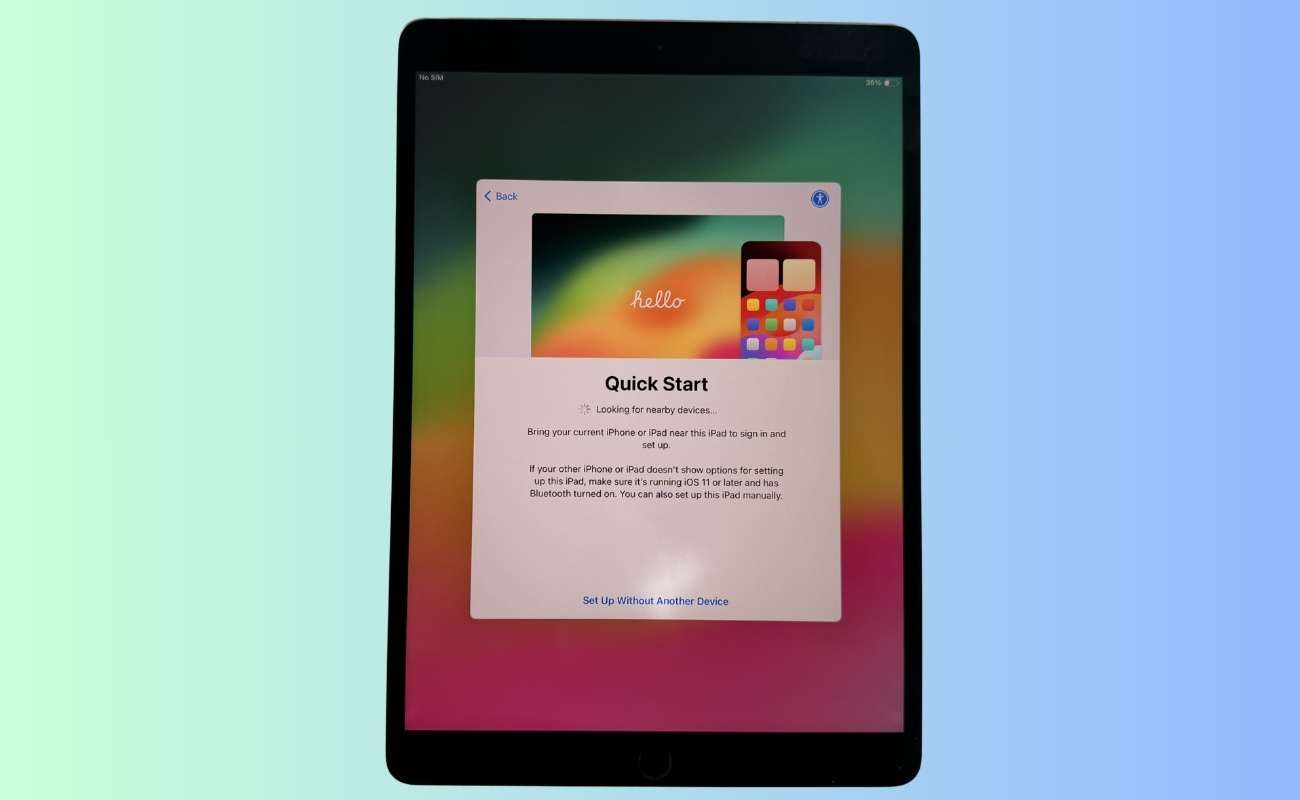
If you already own an iPhone or iPad running a recent version of iOS or iPadOS, Quick Start is the easiest option. Simply bring the old device close to your new iPad. A prompt will appear asking if you want to set up the new iPad. Follow the instructions, scan the moving pattern, and your settings will transfer automatically.
If you don’t have another Apple device nearby, tap Set Up Without Another Device. This manual setup takes a bit longer, but it gives you full control and works just as well.
Step 5: Connecting to Wi-Fi or Cellular
An internet connection is required to finish the setup. Choose your Wi‑Fi network and enter the password. If you’re using a Wi‑Fi + Cellular iPad, you can also connect using mobile data.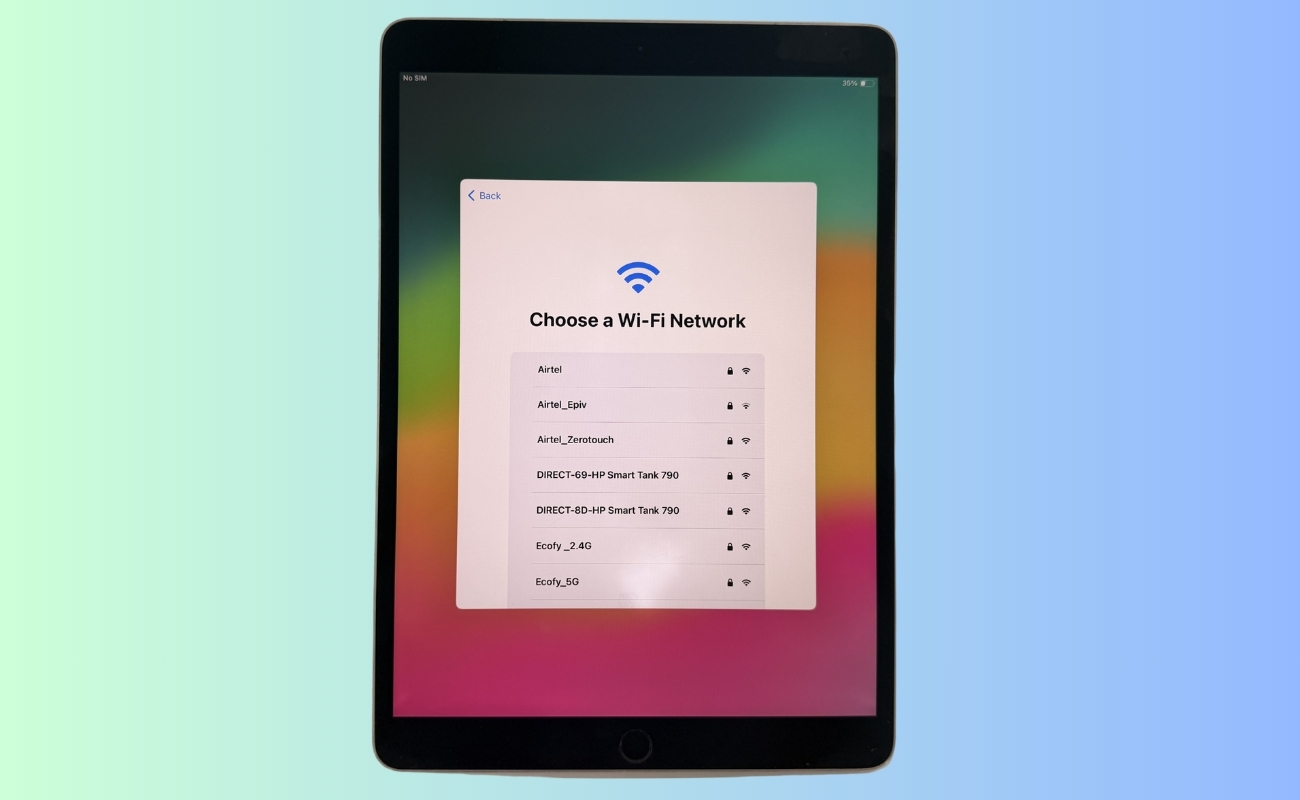
Once connected, your iPad may check for updates. This can take a few minutes, so be patient. After that, you’ll be shown Apple’s privacy information. Read it and continue.
Step 6: Set Up Face ID, Touch ID, and Your Passcode
Security is not optional; it’s essential. Your iPad gives you multiple layers of protection, and setting them up now keeps your data safe from day one.
Depending on your model, you’ll be asked to set up:
- Face ID, which scans your face using the front camera
- Touch ID, which uses your fingerprint on the Home button
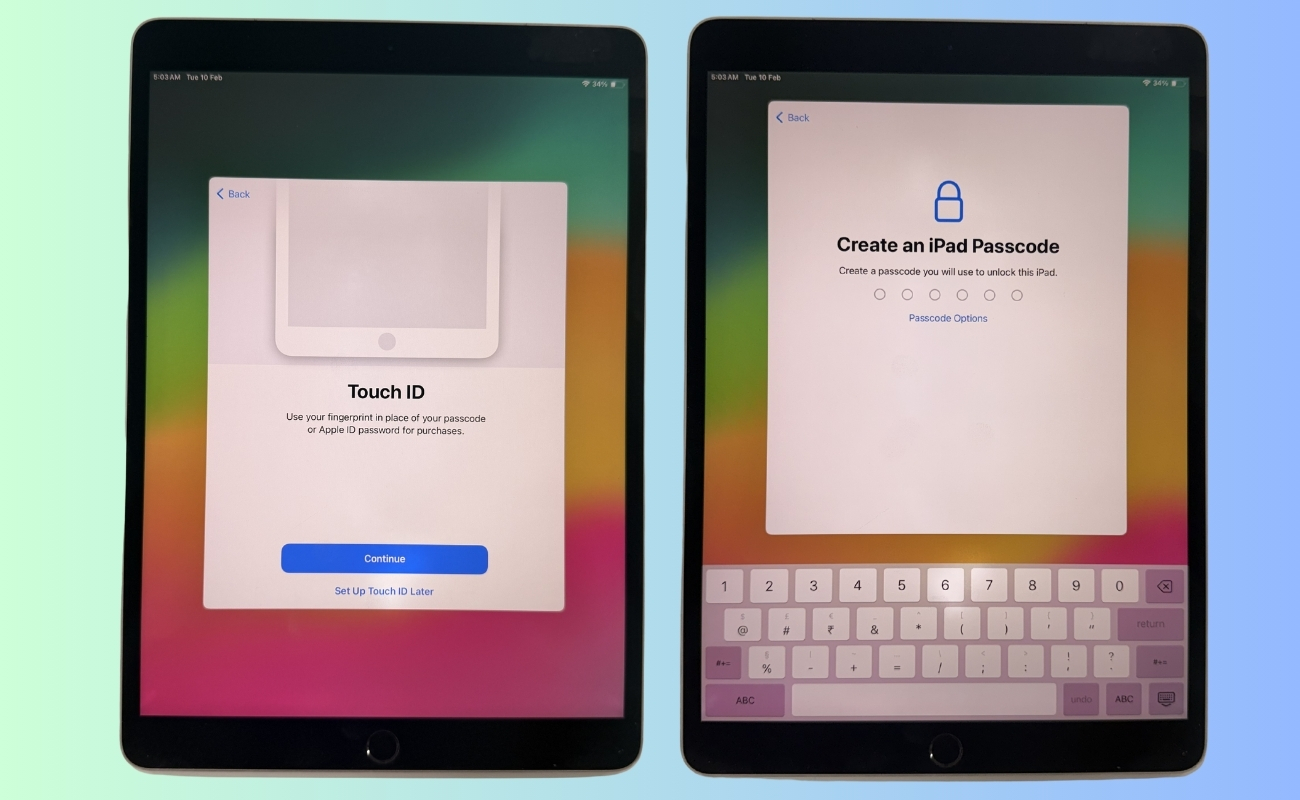
Follow the on‑screen instructions carefully. For Touch ID, lift and place your finger multiple times so the iPad can learn every angle. For Face ID, gently move your head in a circle as instructed.
You’ll also create a passcode. A six‑digit code is the default, but you can choose a longer numeric code or an alphanumeric password for extra security. Longer passcodes are harder to guess and safer.
Step 7: Transfer Apps and Data
This is the point where your iPad asks what kind of start you want. Some people prefer to bring everything over exactly as it was before, while others want to begin fresh with no old clutter. Instead of guessing, use the table below to quickly find the option that fits your situation.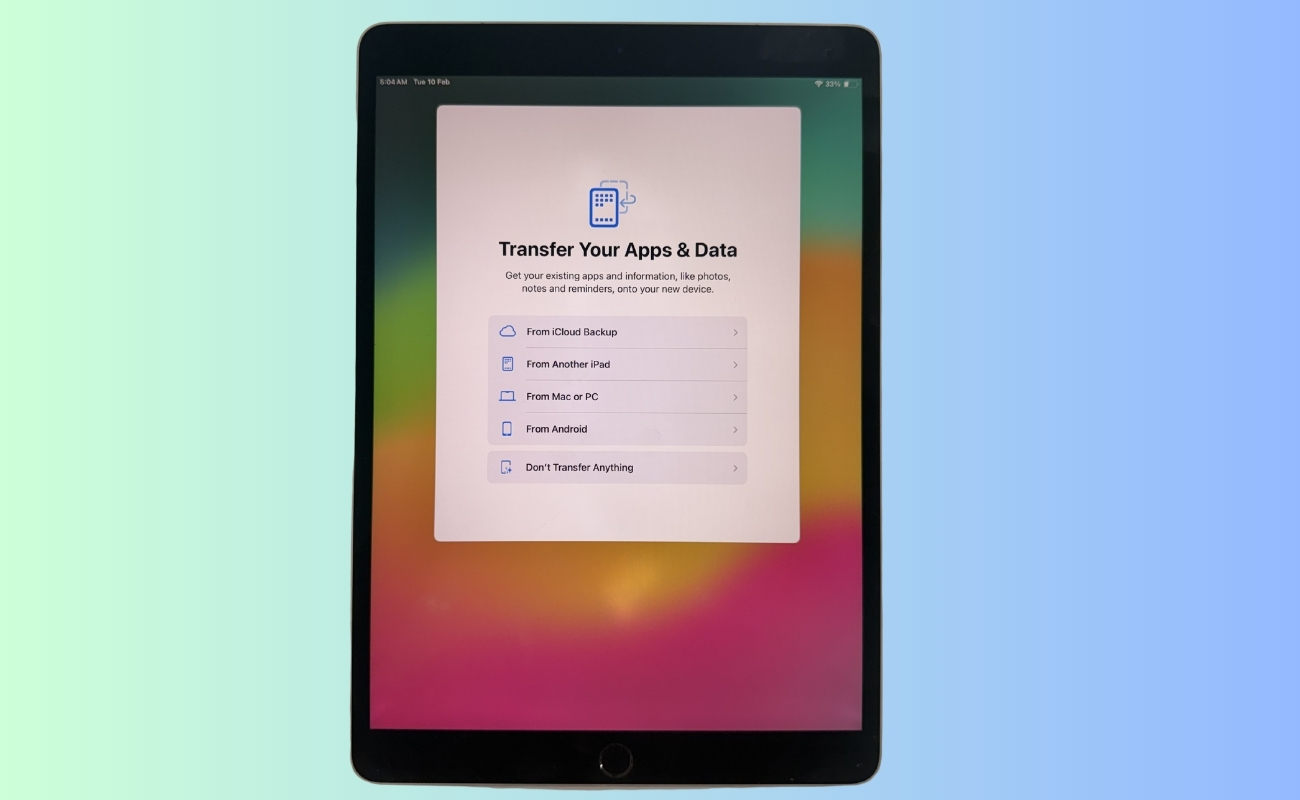
| Transfer Option | Best For | What Happens |
|---|---|---|
| Restore from iCloud Backup | Users with a recent iCloud backup | Apps, photos, settings, and data download automatically from iCloud |
| Transfer from Another iPad or iPhone | Users with their old device nearby | Data moves wirelessly from the old device to the new one |
| Restore from Mac or PC Backup | Users who back up to a computer | Data restores using Finder or iTunes |
| Move from Android | Users switching from Android | Contacts, photos, messages, and more are transferred |
| Set Up as New iPad | Users who want a clean start | No old data or settings are transferred |
Once you make your selection, the iPad handles the rest automatically. If you are transferring data, keep your devices nearby and connected to power until the process finishes. If you choose to start fresh, setup moves ahead quickly, and you can begin customizing your iPad right away. There is no wrong choice here, only what fits how you want to use your device.
Step 8: Sign In With Your Apple ID
Your Apple ID ties your iPad to your apps, photos, backups, messages, and subscriptions. Sign in with your existing Apple ID, or create one if this is your first Apple device. Once signed in, Apple will ask you to make a few important choices that affect security, privacy, and convenience.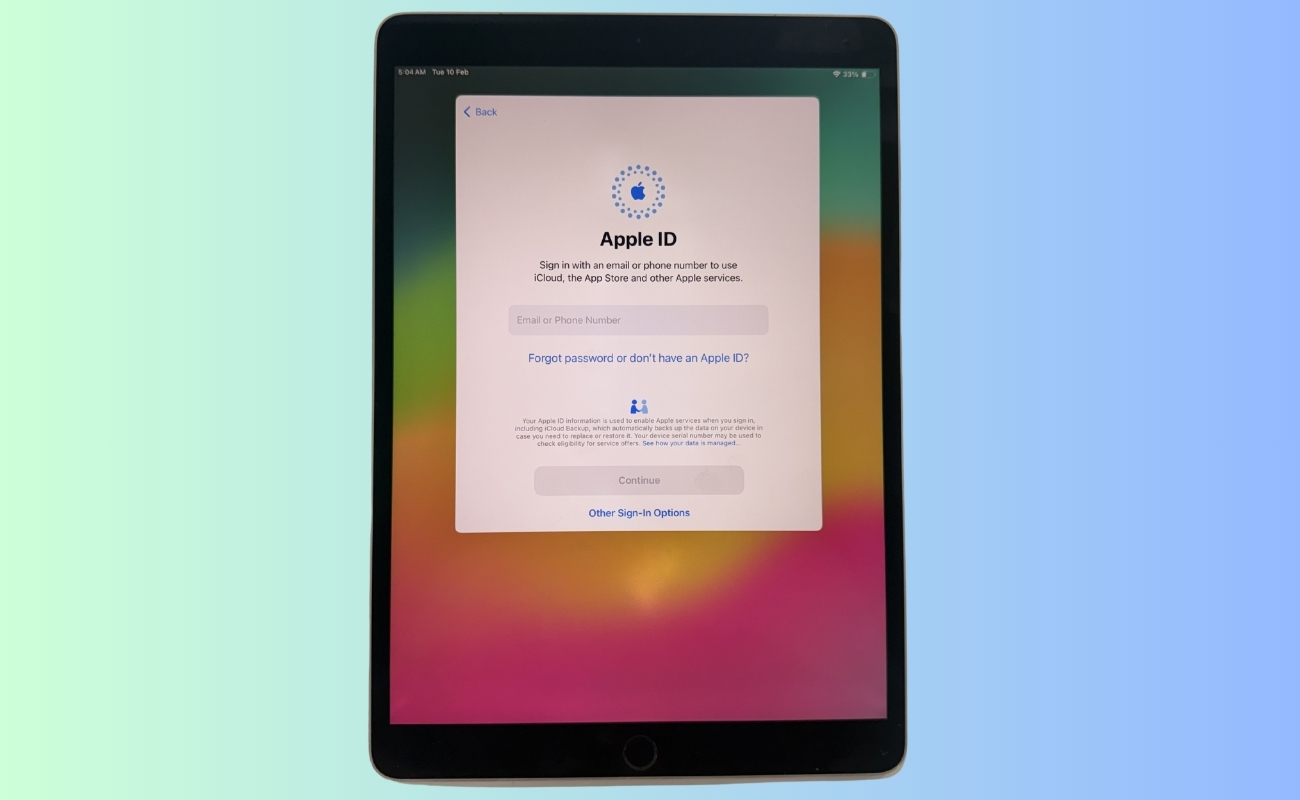
Instead of listing each option separately, the table below explains what each decision means and what most users should choose.
| Setting | What It Does | Recommended Choice |
|---|---|---|
| Automatic Updates | Keeps your iPad updated with the latest security fixes | Turn On |
| Location Services | Enables maps, Find My, weather, and location-based apps | Turn On unless you are worried about privacy |
| Apple Pay | Allows secure payments in apps and online | Optional |
| Screen Time | Tracks usage and allows limits and controls | Optional |
| Analytics Sharing | Sends anonymous usage data to Apple | Personal preference |
These choices are not permanent decisions. Every setting shown here can be changed later in the Settings app once you are more comfortable with your iPad. If you are unsure, choosing the recommended options is a safe starting point and gives you a secure, balanced setup from day one.
Step 9: Final Settings and Preferences
Your iPad now asks about features that affect how you use and experience the device.
- Screen Time helps track usage and set limits, especially useful for families
- iPad Analytics lets you choose whether to share anonymous usage data with Apple
- Light or Dark Mode changes how your screen looks in different lighting conditions
If you’re unsure, choose the defaults. Everything here can be changed later in Settings.
Step 10: Finish Setup and Reach the Home Screen
Once these steps are complete, your iPad brings you to the Home Screen. This is the moment everything feels real. You’re officially set up.
Take a moment to explore. Open Settings and get familiar with it. It’s where almost all customization lives. From here, you can: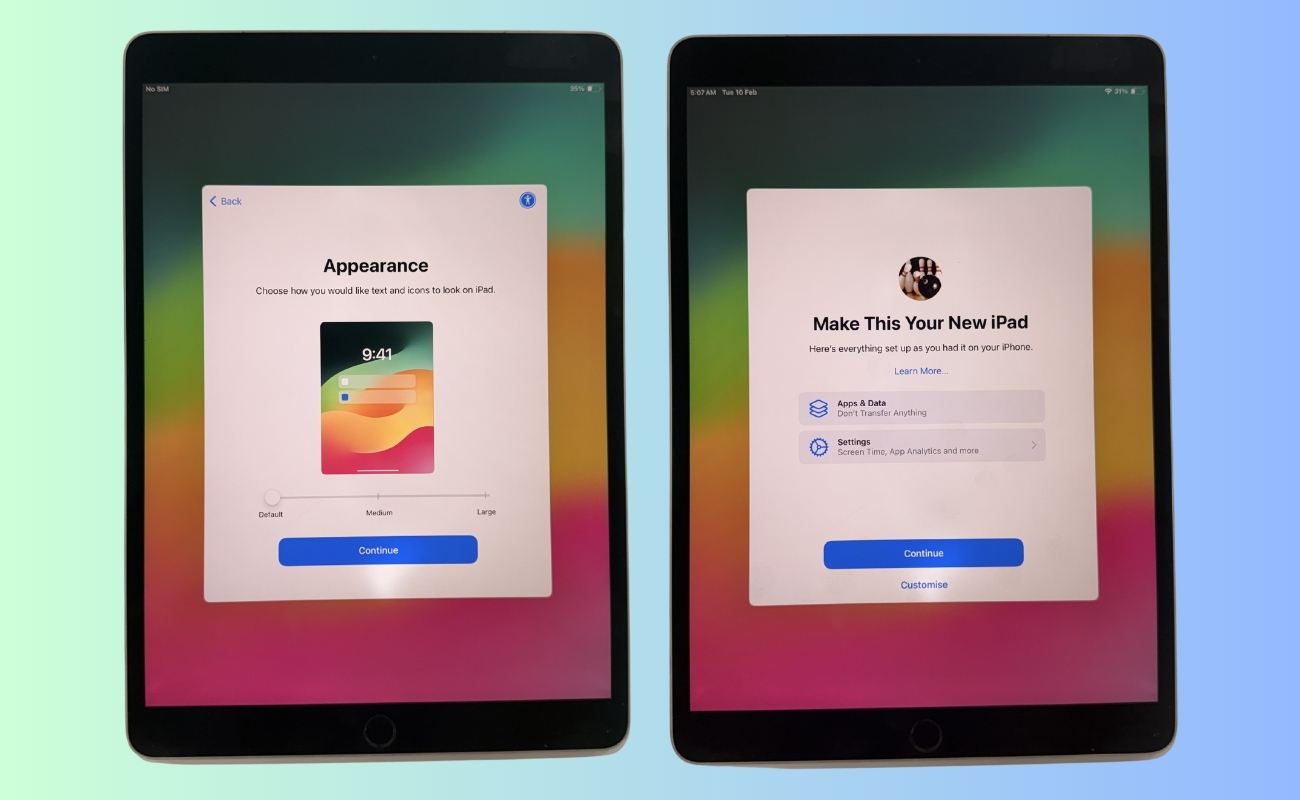
- Change your wallpaper
- Set up Siri and voice commands
- Adjust brightness and text size
- Add email, social, and streaming accounts
- Download apps from the App Store
Your screen will probably have fingerprints by now. A quick wipe makes it feel brand new again.
Your iPad Is Ready
Setting up an iPad isn’t about pressing the “right” buttons; it’s about understanding your choices. Once you know what each step does, the process becomes calm, logical, and even enjoyable.
Now that your iPad is ready, the real fun begins. Explore, customize, and make it yours. This device isn’t just set up, it’s waiting for you to use it your way.
The post How to Set Up Your New iPad (The Right Way) appeared first on iGeeksBlog.”}]]


This Post Has 0 Comments