
A technical exploration of constraint-aware composition
The Hook: Why Does This Component Exist?
Let me paint a picture you’ve probably lived through.
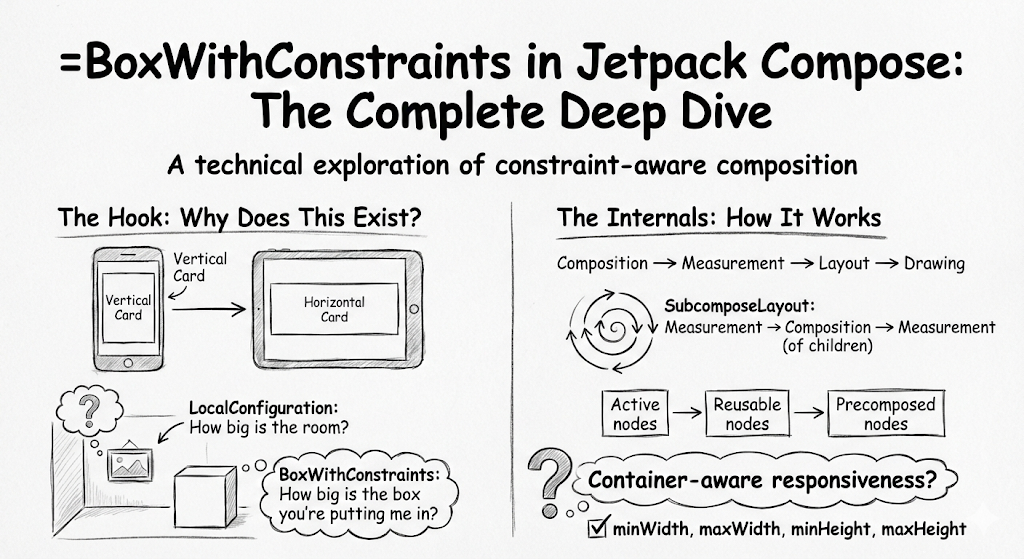
You’re building a card component. On a phone, it should stack vertically: image on top, text below. On a tablet, it should stretch horizontally; image on the left, text on the right. Simple requirement, right?
Your first instinct might be:
@Composable
fun AdaptiveCard() {
    val configuration = LocalConfiguration.current
    if (configuration.screenWidthDp < 600) {
        VerticalCard()
    } else {
        HorizontalCard()
    }
}
This approach has a flaw. Here’s why.
LocalConfiguration.current.screenWidthDp gives you the screen width. But what if your card is inside a NavigationRail? Or a split-screen app? Or a resizable window on ChromeOS? Your card doesn’t care about the screen—it cares about the space it’s actually given.
This is the fundamental problem BoxWithConstraints solves: it tells you exactly how much space the parent has allocated to you, not how big the screen is.
Think of it this way:
- LocalConfiguration = “How big is the room?”
- BoxWithConstraints = “How big is the box you’re putting me in?”
A picture frame doesn’t care how big your house is. It cares about the wall space it’s been given.
The Internals: How It Works Under the Hood
The Compose Execution Model (And Why BoxWithConstraints Breaks It)
To understand BoxWithConstraints, you must first understand Compose’s execution flow:
Composition → Measurement → Layout → Drawing
In normal Compose code:
- Composition: You declare your UI tree (Column { Text(“Hello”) })
- Measurement: The system measures each node
- Layout: Nodes are positioned
- Drawing: Pixels hit the screen
This order is inviolable. Composition happens first, measurement happens second. You cannot measure something that hasn’t been composed.
But BoxWithConstraints asks an unusual question: “Can I know my constraints BEFORE I decide what to compose?”
This is like asking a chef to plate the food before cooking it.
Enter Subcomposition: Compose’s Deferred Composition Mechanism
BoxWithConstraints achieves this through subcomposition which is mechanism that defers composition until measurement time.
Here’s the actual implementation (simplified for clarity):
@Composable
fun BoxWithConstraints(
    modifier: Modifier = Modifier,
    contentAlignment: Alignment = Alignment.TopStart,
    propagateMinConstraints: Boolean = false,
    content: @Composable BoxWithConstraintsScope.() -> Unit,
) {
    SubcomposeLayout(modifier) { constraints ->
        // We're NOW in the measurement phase, but we can compose!
        val scope = BoxWithConstraintsScopeImpl(this, constraints)
        val measurables = subcompose(Unit) { scope.content() }

        // Standard Box measurement logic follows...
        with(measurePolicy) { measure(measurables, constraints) }
    }
}
The key is SubcomposeLayout. It inverts the normal flow:
Normal:     Composition → Measurement
Subcompose: Measurement → Composition (of children) → Measurement (of children)
When the parent asks BoxWithConstraints to measure itself, it:
- Receives the constraints
- Creates a scope with those constraints
- Composes the children at that moment
- Measures the now-composed children
- Returns the measurement result
This is why BoxWithConstraints is considered “heavy”. It performs composition work during the measurement phase.
The Three-Tier Node Architecture
Internally, SubcomposeLayout manages child nodes in three distinct regions:
[Active nodes] [Reusable nodes] [Precomposed nodes]     ↑               ↑                ↑
  Currently      "Recycled"      Pre-composed
    used         for reuse      ahead of time
Active nodes: Slots currently being used in this measure pass.
Reusable nodes: Previously active slots that are kept around (similar to a RecyclerView’s recycled views). When similar content is needed, these are “reactivated” instead of creating new compositions.
Precomposed nodes: Slots composed ahead of time via precompose() (used internally by lazy lists to compose upcoming items before they’re visible).
This architecture is why LazyColumn scrolls smoothly. It’s not creating and destroying compositions; it’s shuffling nodes between these three pools.
The Constraints: A Deep Dive
Inside BoxWithConstraintsScope, you get access to four properties:
interface BoxWithConstraintsScope : BoxScope {
    val minWidth: Dp
    val maxWidth: Dp
    val minHeight: Dp
    val maxHeight: Dp
    val constraints: Constraints  // The raw pixel-based constraints
}
What Do These Actually Mean?
maxWidth / maxHeight: The maximum space the parent is offering you. If Dp.Infinity, the parent said “take as much as you want” (usually from a scrollable container).
minWidth / minHeight: The minimum size the parent expects. Often 0.dp, but can be non-zero if the parent used propagateMinConstraints = true or if you’re in a weight-based layout.
The Screen Size Trap
BoxWithConstraints {
    // These are NOT the screen dimensions!
    val width = maxWidth   // Space YOUR PARENT gave YOU
    val height = maxHeight // Space YOUR PARENT gave YOU
}
Consider this hierarchy:
Row(Modifier.fillMaxSize()) {
    NavigationRail { /* 80.dp wide */ }
    BoxWithConstraints(Modifier.weight(1f)) {
        // maxWidth here is (screenWidth - 80.dp)
        // NOT screenWidth!
    }
}
This is precisely why BoxWithConstraints exists. LocalConfiguration would give you the wrong answer.
Bounded vs. Unbounded Constraints
Here’s a subtlety that can cause confusion:
LazyColumn {
    item {
        BoxWithConstraints {
            // maxHeight == Dp.Infinity !!!
            // Because LazyColumn offers infinite vertical space
        }

}
The maxHeight is Infinity because LazyColumn doesn’t constrain its children’s height, it scrolls. This is expected behavior, but it means you can’t use maxHeight for responsive decisions inside a scrollable container.
Practical Use Cases
Use Case 1: Responsive Card Layout
This card switches between vertical and horizontal layouts based on available space, not screen orientation:
@Composable
fun ResponsiveProductCard(
    imageUrl: String,
    title: String,
    description: String,
    modifier: Modifier = Modifier
) {
    BoxWithConstraints(modifier = modifier) {
        val isWide = maxWidth > 400.dp

        if (isWide) {
            // Horizontal layout: image left, text right
            Row(
                modifier = Modifier.fillMaxWidth(),
                horizontalArrangement = Arrangement.spacedBy(16.dp)
            ) {
                AsyncImage(
                    model = imageUrl,
                    contentDescription = null,
                    modifier = Modifier
                        .weight(0.4f)
                        .aspectRatio(1f)
                )
                Column(
                    modifier = Modifier.weight(0.6f),
                    verticalArrangement = Arrangement.Center
                ) {
                    Text(title, style = MaterialTheme.typography.headlineSmall)
                    Spacer(Modifier.height(8.dp))
                    Text(description, style = MaterialTheme.typography.bodyMedium)
                }
            }
        } else {
            // Vertical layout: image top, text bottom
            Column {
                AsyncImage(
                    model = imageUrl,
                    contentDescription = null,
                    modifier = Modifier
                        .fillMaxWidth()
                        .aspectRatio(16f / 9f)
                )
                Spacer(Modifier.height(12.dp))
                Text(title, style = MaterialTheme.typography.headlineSmall)
                Spacer(Modifier.height(4.dp))
                Text(description, style = MaterialTheme.typography.bodyMedium)
            }
        }
    }
}
Why this is better than checking screen size: Put this card in a two-column grid, and it automatically shows the vertical layout even on a tablet. It’s truly responsive to its container.
Use Case 2: Dynamic Text Sizing
Automatically size text to fit the available width:
@Composable
fun AutoSizeTitle(
    text: String,
    modifier: Modifier = Modifier
) {
    BoxWithConstraints(modifier = modifier) {
        val fontSize = when {
            maxWidth < 200.dp -> 14.sp
            maxWidth < 300.dp -> 18.sp
            maxWidth < 400.dp -> 24.sp
            else -> 32.sp
        }

        Text(
            text = text,
            fontSize = fontSize,
            maxLines = 1,
            overflow = TextOverflow.Ellipsis,
            modifier = Modifier.fillMaxWidth()
        )
    }
}
Use Case 3: Grid Item Count Based on Width
Dynamically calculate grid columns:
@Composable
fun AdaptiveGrid(
    items: List<Item>,
    modifier: Modifier = Modifier
) {
    BoxWithConstraints(modifier = modifier.fillMaxWidth()) {
        val columns = maxOf(1, (maxWidth / 160.dp).toInt())

        LazyVerticalGrid(
            columns = GridCells.Fixed(columns),
            horizontalArrangement = Arrangement.spacedBy(8.dp),
            verticalArrangement = Arrangement.spacedBy(8.dp)
        ) {
            items(items) { item ->
                GridItem(item)
            }
        }
    }
}
Performance Pitfalls & Best Practices
When NOT to Use BoxWithConstraints
1. When a simple modifier would suffice
// ❌ Overkill
BoxWithConstraints {
    Box(Modifier.size(maxWidth * 0.5f, maxHeight * 0.5f))
}
// ✅ Just use fillMaxSize with a fraction
Box(Modifier.fillMaxSize(0.5f))
2. When you’re just checking screen orientation
// ❌ Using BoxWithConstraints for screen-level decisions
BoxWithConstraints {
    if (maxWidth > maxHeight) LandscapeLayout() else PortraitLayout()
}
// ✅ Use LocalConfiguration for screen-level decisions
val configuration = LocalConfiguration.current
if (configuration.orientation == Configuration.ORIENTATION_LANDSCAPE) {
    LandscapeLayout()
} else {
    PortraitLayout()
}
3. Inside items of a LazyColumn/LazyRow
This is a common mistake:
// ❌ Performance issue
LazyColumn {
    items(1000) { index ->
        BoxWithConstraints {  // Subcomposition per item!
            ItemContent(index)
        }
    }
}
Each item triggers subcomposition. With 1000 items, you’re doing subcomposition repeatedly during scrolling. Instead, lift BoxWithConstraints to the parent:
// ✅ Single subcomposition
BoxWithConstraints {
    val itemHeight = if (maxWidth > 400.dp) 120.dp else 80.dp
    LazyColumn {
        items(1000) { index ->
            ItemContent(index, height = itemHeight)
        }
    }
}
Lighter Alternatives
For percentage-based sizing:
// Use Modifier.fillMaxWidth(fraction)
Box(Modifier.fillMaxWidth(0.8f))
// Use Modifier.weight in Row/Column
Row {
    Box(Modifier.weight(1f))  // 25%
    Box(Modifier.weight(3f))  // 75%
}

For aspect ratio:
Box(Modifier.aspectRatio(16f / 9f))
For custom measurement logic without subcomposition:
// Custom Layout is lighter than SubcomposeLayout
Layout(
    content = { /* your content */ }
) { measurables, constraints ->
    // Full control over measurement without subcomposition cost
    // But you can't make composition decisions here
}
For window size classes (screen-level responsiveness):
// Material3's adaptive APIs
val windowSizeClass = calculateWindowSizeClass(activity)
when (windowSizeClass.widthSizeClass) {
    WindowWidthSizeClass.Compact -> CompactLayout()
    WindowWidthSizeClass.Medium -> MediumLayout()
    WindowWidthSizeClass.Expanded -> ExpandedLayout()
}
Important Gotchas and Edge Cases
1. Intrinsic Measurements Don’t Work
This will crash:
Row {
    Text(
        "Hello",
        modifier = Modifier.height(IntrinsicSize.Min)
    )
    BoxWithConstraints {
        // CRASH: "Asking for intrinsic measurements of
        // SubcomposeLayout layouts is not supported"
    }
}
SubcomposeLayout cannot answer “what’s your intrinsic size?” because it doesn’t know what it will compose until it receives actual constraints.
Workaround: Add explicit size modifiers to BoxWithConstraints:
BoxWithConstraints(Modifier.height(100.dp)) {
    // Now intrinsic measurement isn't needed
}
2. First Composition Timing
On the very first composition, BoxWithConstraints doesn’t have constraints yet. The children are composed with placeholder values, then recomposed with real constraints. This means:
- Effects like LaunchedEffect inside may fire twice
- Initial state calculations based on constraints may need guarding
Best practice: Guard constraint-based logic:
BoxWithConstraints {
    if (constraints.hasBoundedWidth) {
        val columns = (maxWidth / 160.dp).toInt()
        // Safe to use
    }
}
3. Nested BoxWithConstraints is Usually Unnecessary
If you find yourself nesting them:
BoxWithConstraints {
    BoxWithConstraints {  // Usually unnecessary
        // ...
    }
}
The inner one has the same constraints (unless modified). Just use the outer one’s scope.
4. State Hoisting Matters More Here
Because content is subcomposed during measurement, state created inside BoxWithConstraints has unusual lifecycle characteristics:
BoxWithConstraints {
    // This state is created during MEASUREMENT, not composition
    var count by remember { mutableStateOf(0) }

    // If parent re-measures without recomposing, this state persists
    // But if the slot is "recycled", it might reset
}
Best practice: Hoist important state above BoxWithConstraints:
var count by remember { mutableStateOf(0) }
BoxWithConstraints {
    // count is stable regardless of subcomposition lifecycle
    Text("Count: $count")
}
5. The propagateMinConstraints Parameter
BoxWithConstraints(propagateMinConstraints = true) {
    // Children now MUST be at least minWidth x minHeight
    // This can cause unexpected overflow if children
    // have their own size requirements
}
Only use this when you explicitly want to enforce minimum sizes on children.
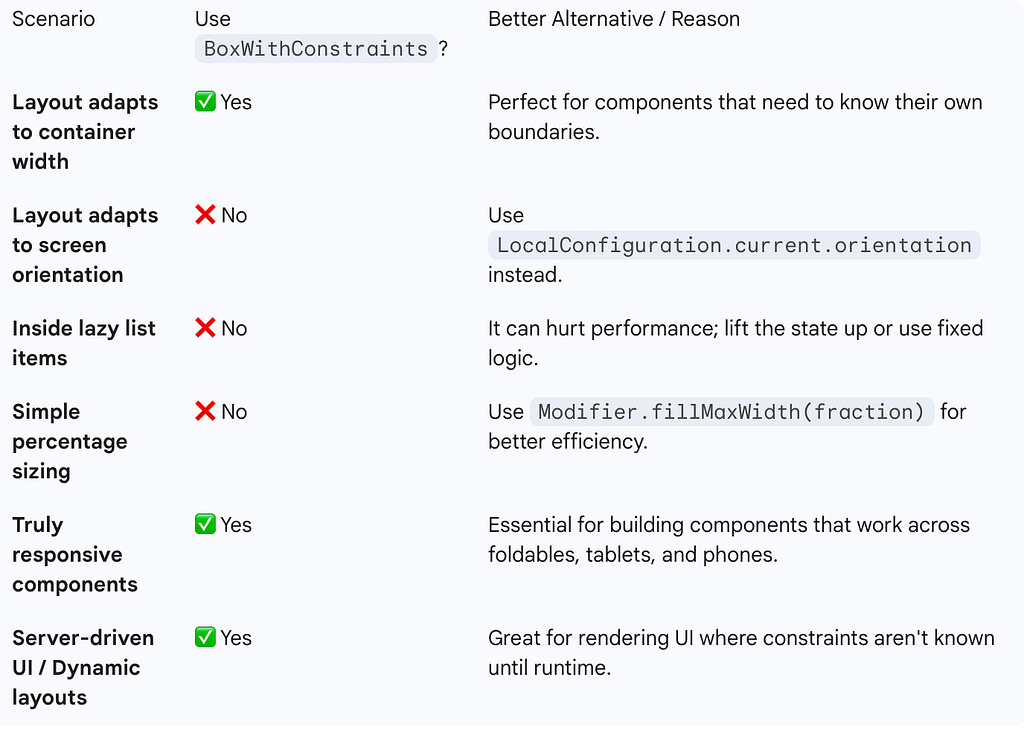
Summary: When to Reach for BoxWithConstraints
Final Thoughts
BoxWithConstraints is an API that appears simple on the surface but reveals significant depth when you understand what’s happening underneath. It’s not just a “Box that tells you its size” it’s a mechanism that lets composition decisions depend on layout information.
Use it when you genuinely need container-aware responsiveness. Avoid it when simpler modifiers will do. And always remember: it carries overhead because it’s doing something fundamentally different from normal composition.
The best code isn’t the code that uses the most sophisticated APIs — it’s the code that uses the right API for the job.
If this deep-dive helped you, consider sharing it with your team. The Android community grows when we share knowledge.
BoxWithConstraints in Jetpack Compose: The Complete Deep Dive was originally published in ProAndroidDev on Medium, where people are continuing the conversation by highlighting and responding to this story.





This Post Has 0 Comments