
Breaking changes based on official documentation and hands-on migration trials using the Android 17 SDK Preview.
The Android 17 Developer Preview is live. What a meaning for us? Yap, we immediately head to the documentation, searching for the Breaking Changes section, hoping our current architecture isn’t on the list 🫣.
I’ve been diving into the preview and the early documentation to see what’s actually going to break when we bump that target android 17 preview. From a rewritten, lock free MessageQueue to a total shutdown of forced orientations on large screens, let’s look at the heavy hitters we need to prepare for.
This year, the announcement feels different. Feels like google is pushing a Secure by Default and Adaptive by Default agenda that finally retires the shortcuts many of us have relied on for years.
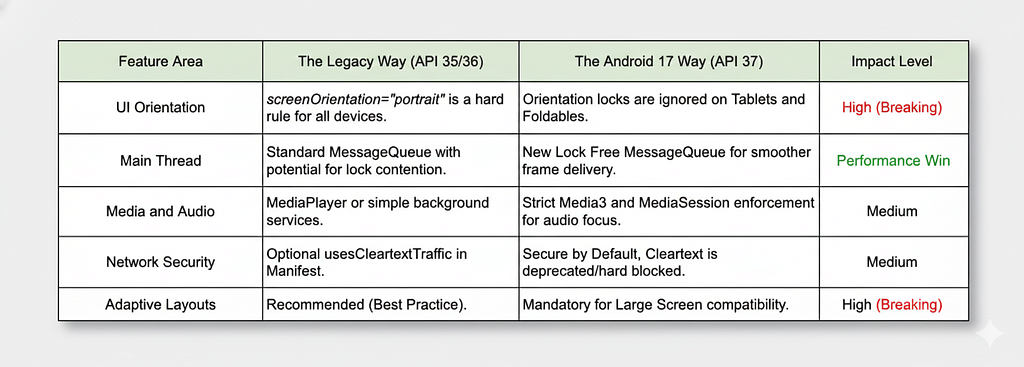
While Android 15 and 16 laid the groundwork for better privacy and foldable support, on Android 17 is where the legacy safety nets are finally being cut. The system is fundamentally changing how it handles everything from the way UI messages are queued to how network traffic is validated. I’ve summarized the key Android 17 updates in the table below, to give a clearer picture of what’s shifting,.
Tools Preparation
To truly understand how these shifts impact our daily work, let’s walk through a migration case study. I’ve built a simple sample app to demonstrate exactly what breaks when we flip the switch to Android 17 preview. And more importantly, to get a real feel for these changes, I didn’t just read the change logs, but I jumped into the deep end. I updated my environment to the latest Android Studio Panda 1, to access the early toolsets.
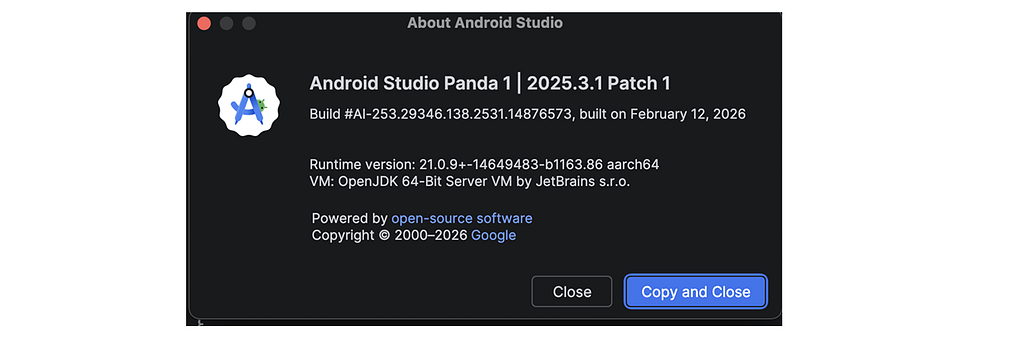
The first thing I noticed when trying to bump my targetSdk was that a literal API 37 wasn’t ready for compilation in the stable channels yet. To bypass this and actually talk to the Android 17 system, I had to pivot to the preview codename. In my build.gradle.kts, I made the jump by setting the versioning to Cinnamon Bun preview.
Before we can see the cracks in our old architecture, we have to prepare our environment. Getting the Cinnamon Bun SDK ready in Android Studio Panda 1 is a straightforward process, but we need to know where to look:
- Navigate to Settings → Languages & Frameworks → Android SDK.
- Under the SDK Platforms tab, ensure you check Show Package Details in the bottom right corner.
- Look for the Android CinnamonBun Preview, checklist it, and hit Apply.
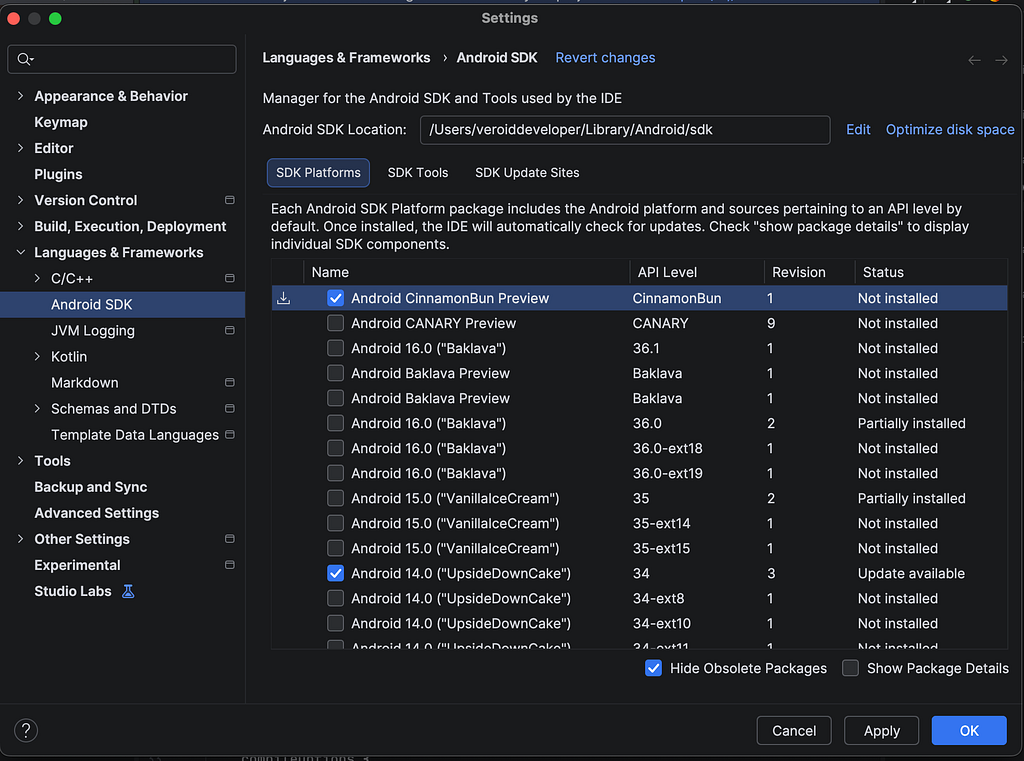
Once the download finishes, we’re officially standing on the bleeding edge. By setting compileSdkPreview = CinnamonBun in our Gradle file. Using the Cinnamon Bun preview allowed us to see how the OS behaves when legacy shortcuts are ignored. Now let’s stress testing it, against the future of the Android ecosystem, hehe.
//...
android {
    namespace = "com.veroanggra.transactionmonitor"
    compileSdkPreview = "CinnamonBun"

    defaultConfig {
        applicationId = "com.veroanggra.transactionmonitor"
        minSdk = 36
        targetSdkPreview = "CinnamonBun"
        versionCode = 1
        versionName = "1.0"

        testInstrumentationRunner = "androidx.test.runner.AndroidJUnitRunner"
    }

    //..
}

//..
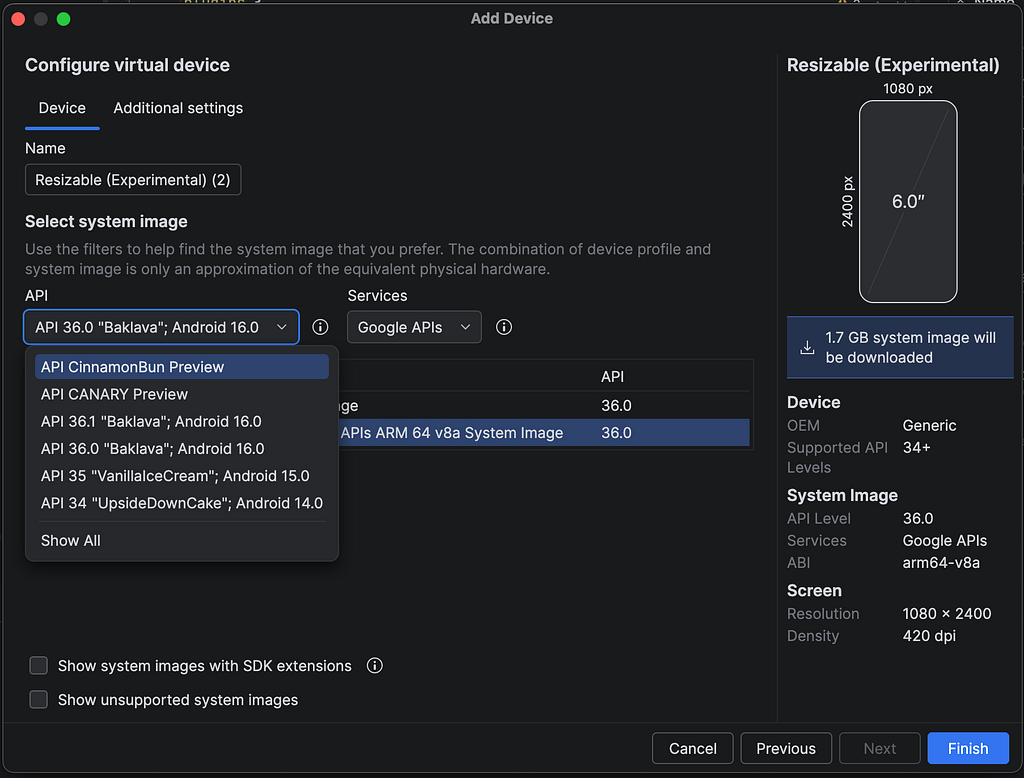
With the SDK in place, the next step is to spin up an environment where these changes actually come to life. I created a new emulator using the CinnamonBun system image. This is where the magic and the breaking points happens, it’s one thing to see our code compile, but seeing how it behaves on a true Android 17 OS is the real test for our architecture.
For this specific demo, I highly recommend using the Resizable Experimental Emulator. Since Android 17 most drastic orientation changes specifically target large screens, the Resizable Emulator is our best friend. It allows us to hot swap between Phone, Foldable, and Tablet configurations instantly. This is the ultimate way to watch our forced portrait layout meet its match the moment unfold into a larger canvas.
UI Orientation and Adaptive Layout
Let’s start with the most visible breaking change that’s UI Orientation. In this case study, I deliberately built the project the old way, for forcing the orientation to portrait across the board. Whether we’re on a standard smartphone, a Flip, a Foldable, or a 10 inch Tablet, the app is locked into a single, rigid portrait mode. On legacy APIs, this was our safety net, but on Android 17, it’s our first point of failure.
<?xml version="1.0" encoding="utf-8"?>
<manifest xmlns:android="http://schemas.android.com/apk/res/android"
    xmlns:tools="http://schemas.android.com/tools">
    <uses-permission android:name="android.permission.USE_LOOPBACK_INTERFACE" />

    <application>
        <activity
            android:name=".DashboardActivity"
            android:exported="true"
            android:label="@string/app_name"
            android:screenOrientation="portrait"
            android:theme="@style/Theme.TransactionMonitor">
            <intent-filter>
                <action android:name="android.intent.action.MAIN" />

                <category android:name="android.intent.category.LAUNCHER" />
            </intent-filter>
        </activity>
    </application>

</manifest>
It is important to note that these breaking changes specifically target the large screen ecosystem, most notably tablets and foldables in their various folding states. On these canvases, the OS now prioritizes the user’s physical orientation over our manifest’s hard coded rules.
The comparison below illustrates a striking contrast, our portrait lock remains secure in its folded state, but completely gives way as soon as the display expands.
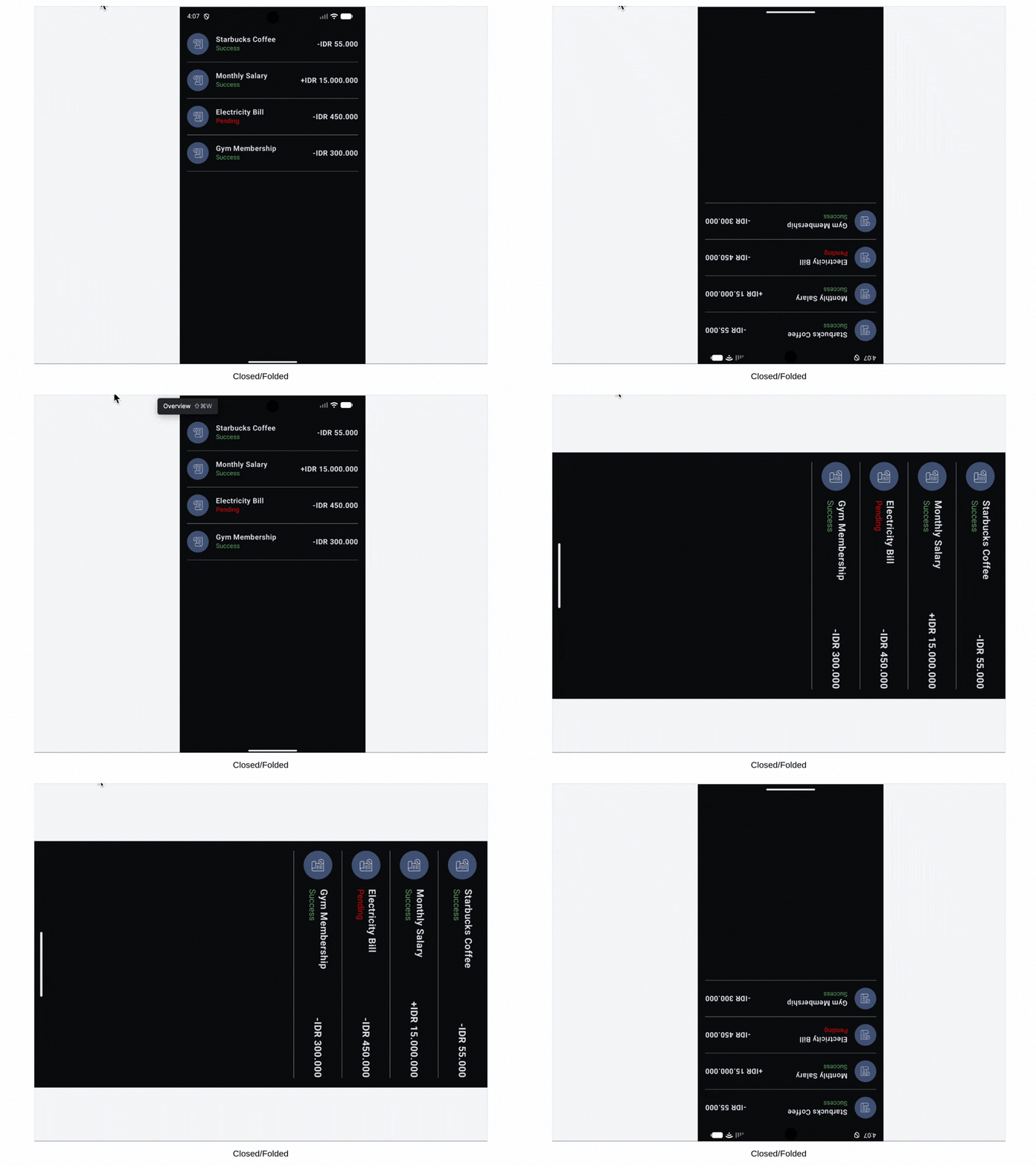
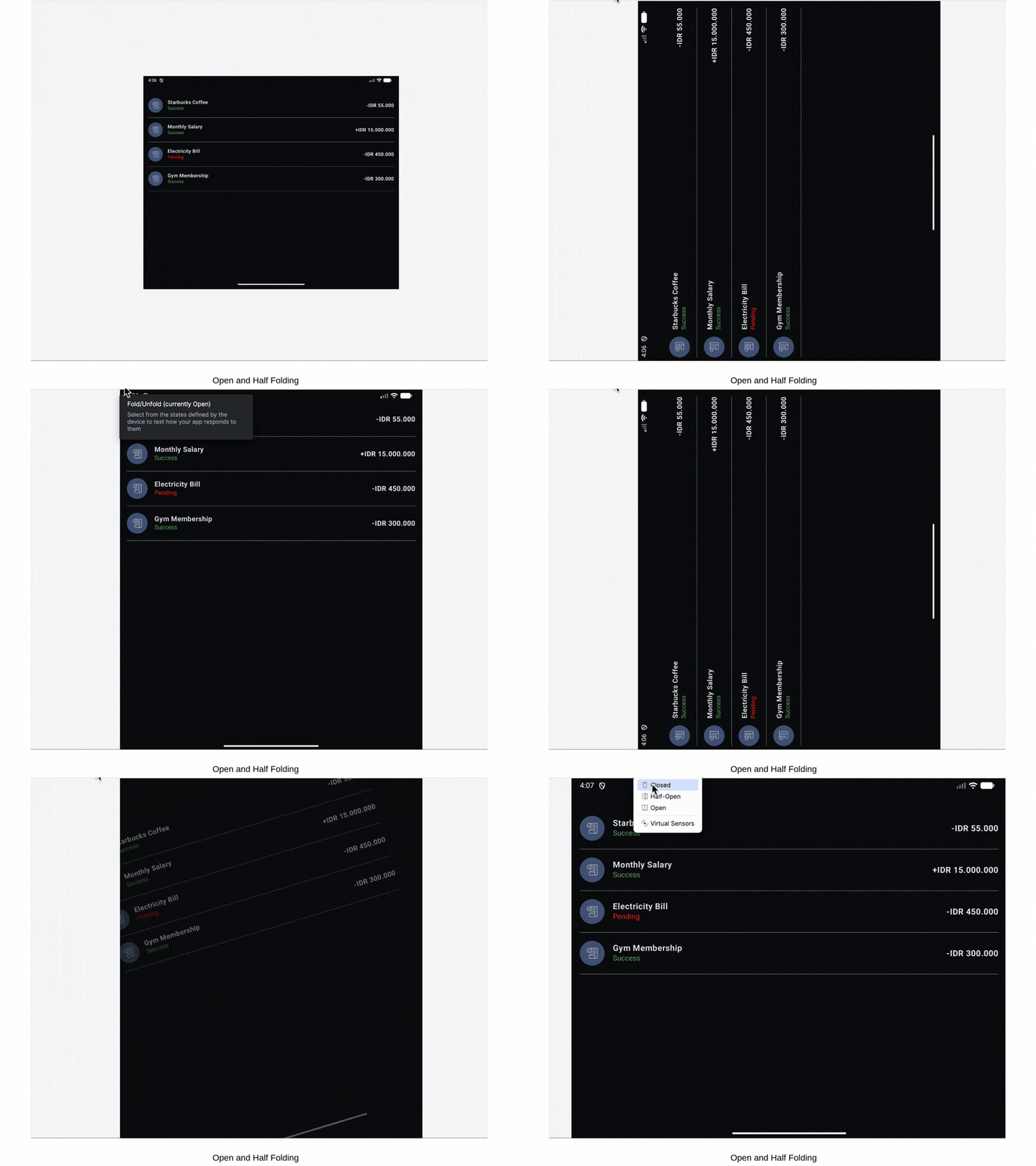
The portrait lock remains stable while the device is folded, but it’s a different game on a Tablet. On these larger canvases, Android 17 treats our screenOrientation as a suggestion, not a rule forcing our UI to rotate and exposing every gap in a non adaptive design, like the image below.
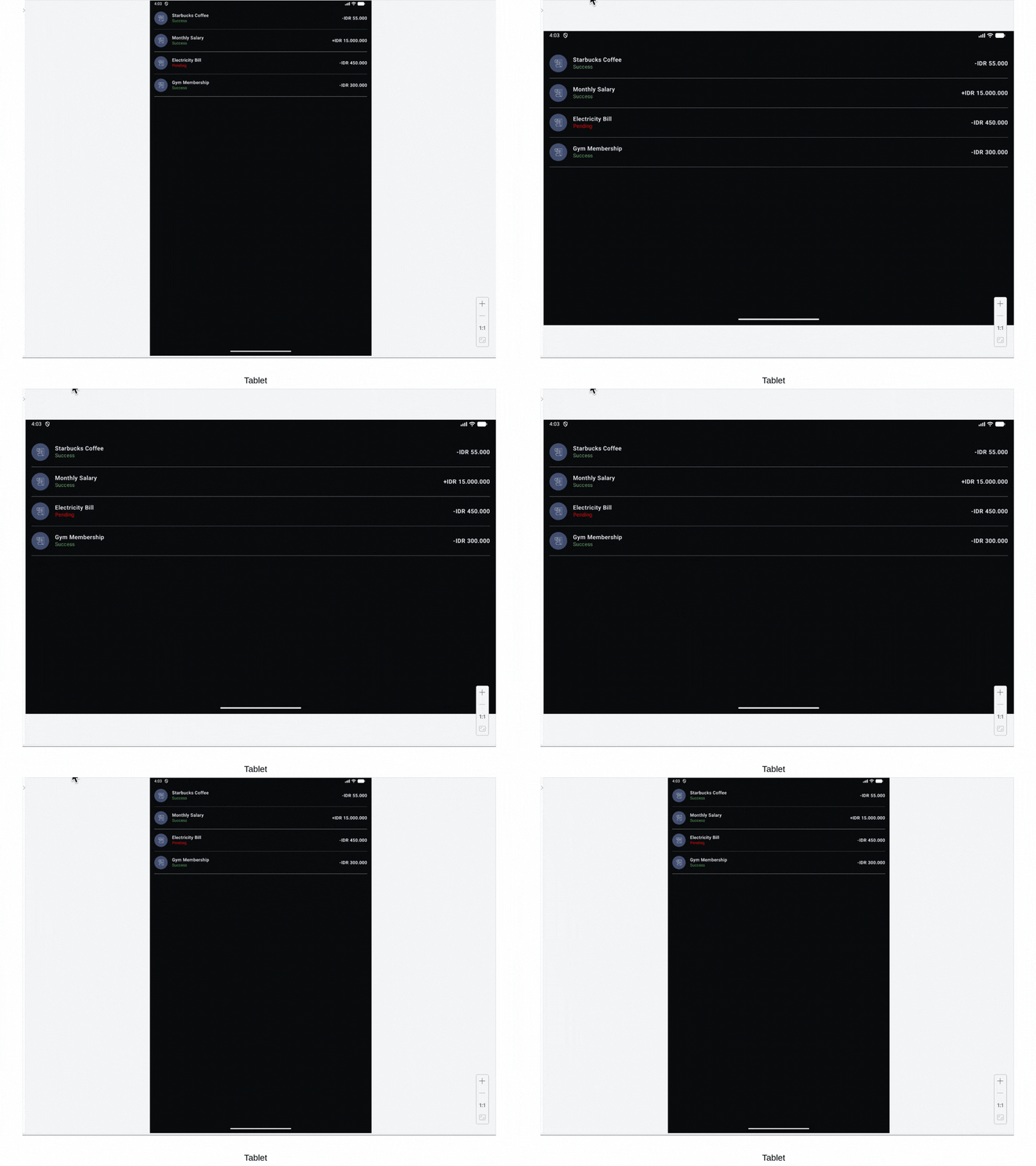
And the illustrated below, the portrait lock continues to work as intended on standard smartphones, maintaining the traditional vertical layout we’re used to.

The shift in Android 17 is clear apps must run adaptively on large screen devices. As developers, we can no longer hide behind orientation locks. We need a solution that is as dynamic as the hardware it runs on, and that is where WindowSizeClass emerges as the hero of our migration story.
Let’s look at how we can implement WindowSizeClass in our study case project. By observing the WidthSizeClass, we can intelligently decide whether to show a simple list or a sophisticated side by side view. If you want to see the starting point, the legacy code is available in the main branch of my repository.
When we compile the legacy code, the forced portrait orientation creates a significant UX bottleneck. On expandable devices, the UI becomes stretchy and disorganized, a clear sign that the layout is fighting the hardware rather than embracing it. This messy appearance is exactly what Android 17 adaptive mandate aims to eliminate.
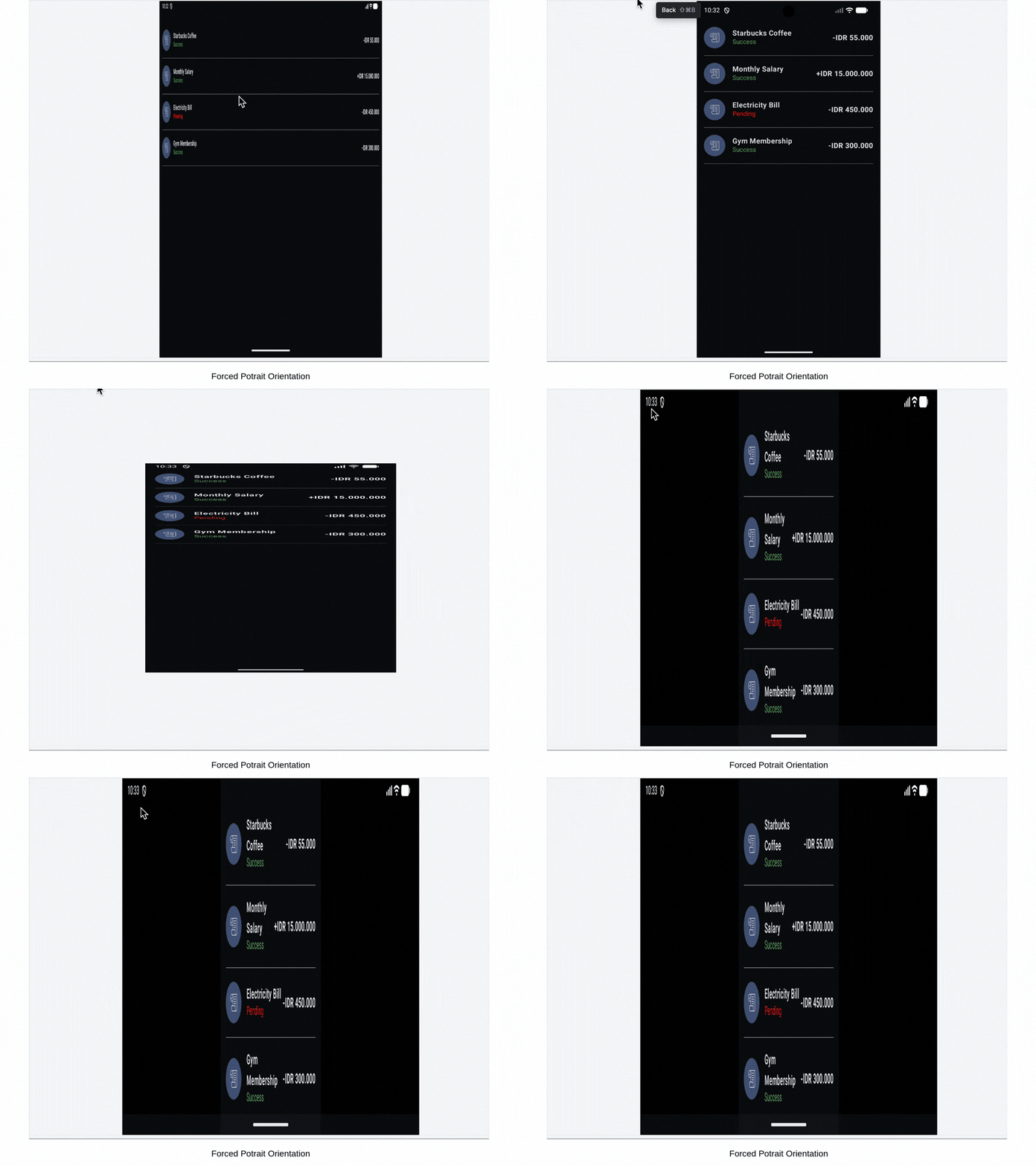
Let’s start with the baseline. Below is the original, non-adaptive version of our project. It relies on traditional orientation rules and basic list detail navigation. I’m sharing this so we can walk through the migration process together, step by step, as we transform this static UI into an Android 17 ready adaptive experience.
@OptIn(ExperimentalMaterial3Api::class)
@Composable
fun DashboardScreen(
    modifier: Modifier = Modifier,
    viewModel: TransactionListViewModel = viewModel(),
    onItemClick: (String) -> Unit
) {
    val uiState by viewModel.uiState.collectAsState()

    Scaffold(modifier = modifier) { paddingValues ->
        Box(
            modifier = Modifier
                .padding(paddingValues)
                .fillMaxSize(),
            contentAlignment = Alignment.Center
        ) {
            if (uiState.isLoading) {
                CircularProgressIndicator()
            } else {
                TransactionList(
                    transactions = uiState.transactions,
                    onItemClick = { transaction -> onItemClick(transaction.id) }
                )
            }
        }
    }
}
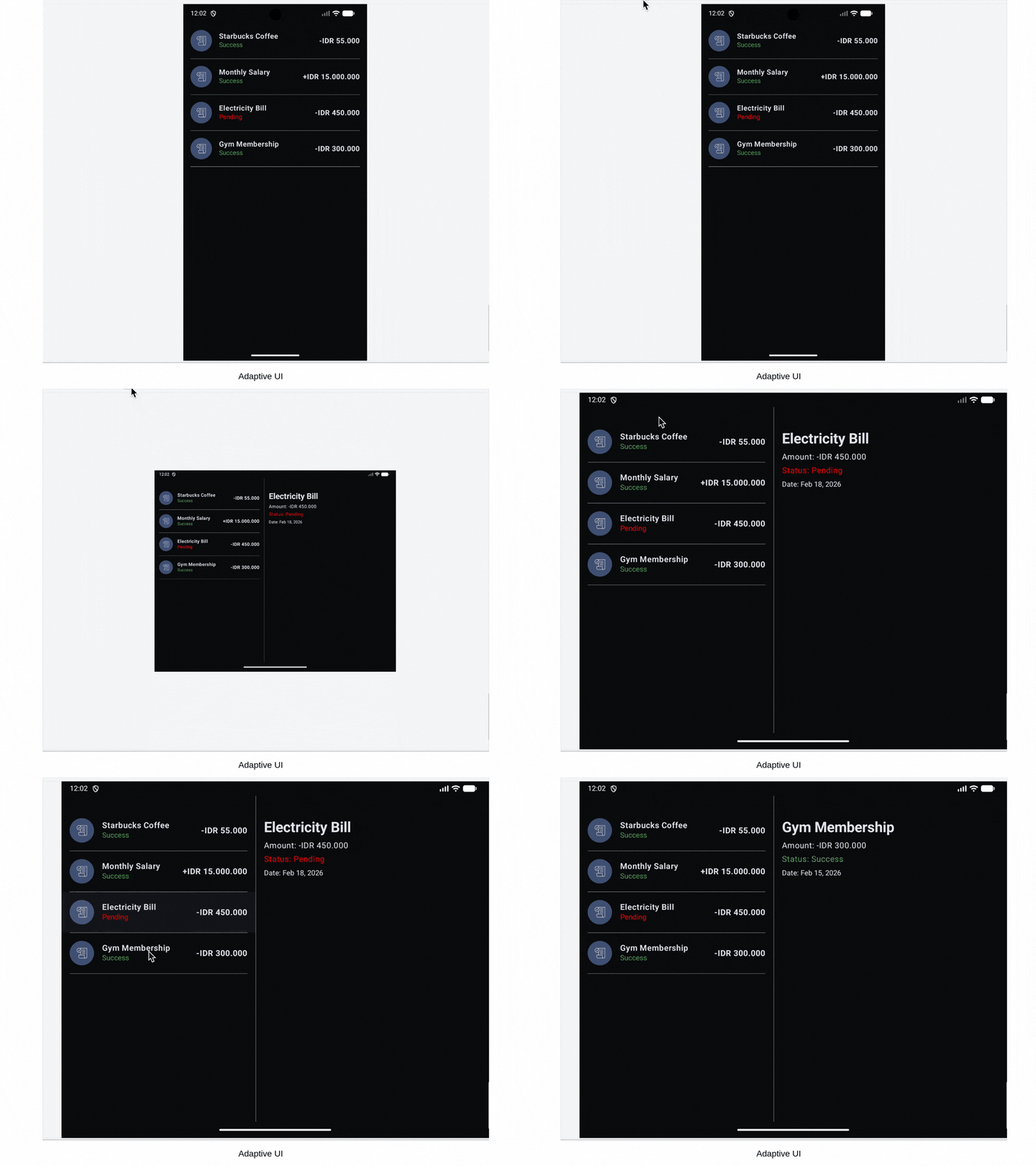
Now, let’s look at the transformation. After migrating the codebase, we’ve replaced rigid orientation locks with a dynamic, screen aware architecture. By shifting the selection state to the ViewModel and utilizing WindowSizeClass, the app now understands its environment. It no longer just stretches it evolves into a premium dual pane experience the moment it hits a larger canvas. You can find the complete migration code in this repository. Be sure to check out the adaptive branch for the final, future proof version of the app.
@OptIn(ExperimentalMaterial3Api::class)
@Composable
fun DashboardScreen(
    windowSize: WindowSizeClass,
    modifier: Modifier = Modifier,
    viewModel: TransactionListViewModel = viewModel(),
    onItemClick: (String) -> Unit
) {
    val uiState by viewModel.uiState.collectAsState()
    val widthSizeClass = windowSize.widthSizeClass

    Scaffold(modifier = modifier) { paddingValues ->
        Box(modifier = Modifier.padding(paddingValues).fillMaxSize()) {
            if (uiState.isLoading) {
                CircularProgressIndicator(Modifier.align(Alignment.Center))
            } else {
                if (widthSizeClass == WindowWidthSizeClass.Expanded) {
                    Row(Modifier.fillMaxSize()) {
                        TransactionList(
                            transactions = uiState.transactions,
                            onItemClick = { transaction ->
                                viewModel.selectTransaction(transaction.id)
                            },
                            modifier = Modifier.weight(1f)
                        )
                        VerticalDivider(thickness = 0.5.dp, color = androidx.compose.ui.graphics.Color.LightGray)
                        Box(Modifier.weight(1.2f)) {
                            uiState.selectedTransaction?.let { transaction ->
                                TransactionDetailsContent(transaction = transaction)
                            } ?: Text("Select a transaction", Modifier.align(Alignment.Center))
                        }
                    }
                } else {
                    TransactionList(
                        transactions = uiState.transactions,
                        onItemClick = { transaction -> onItemClick(transaction.id) }
                    )
                }
            }
        }
    }
}
To summarize the refactor, the transformation of our DashboardScreen boils down to two fundamental architectural shifts:
- Intelligent Layout Switching via WindowSizeClass → Instead of relying on a device’s physical orientation which Android 17 may override, the UI now uses windowSize.widthSizeClass as its source of truth. When an Expanded width is detected, the code dynamically swaps the singlepane list for a sophisticated side by side Row. This ensures the interface feels intentional and optimized for large screen devices like tablets and foldables.
- Context-Aware Interaction Logic → The app’s behavior now adapts to its environment. In the expanded view, the code updates the ViewModel’s selection state to refresh the adjacent detail pane instantly. On smaller screens, it seamlessly falls back to traditional screen to screen navigation. This dual track logic provides a desktop class experience on large screens while maintaining the familiar mobile flow on standard phones.
Our layout finally feels native to the Android 17 ecosystem. The image below shows the result a fluid, side by side experience that responds instantly to the expanded canvas, leaving the messy legacy UI behind.
Network Security
In Android 17, Google is tightening the screws on data privacy with a Secure by Default mandate. The biggest change here is that cleartext (HTTP) traffic is now blocked by default for all apps. If our app still communicates with an old server using http://, the system will simply block the connection to protect the user from potential Man in the Middle (MitM) attacks.
In previous versions, developers could opt out of HTTPS or accidentally leave doors open to unencrypted traffic. In Android 17, the OS now assumes android:usesCleartextTraffic=”false” by default.
In our study case a transaction monitoring app, security isn’t just a nice to have feature, it is an absolute requirement. Handling sensitive financial data over unencrypted channels poses a massive risk to user privacy. This Android 17 update essentially forces a Secure by Default architecture, requiring us to address two critical areas:
- Production APIs → All endpoints must be upgraded to TLS (HTTPS) to ensure data integrity.
- Local Testing/Dev Env → Any remaining cleartext traffic for development now requires a specific, limited exception defined in the Network Security Configuration.
To implement this second point, we can create a new resource file at res/xml/network_security_config.xml. This allows us to white list our local development environment without opening security holes in our production build.
Here is a sample of that implementation and for the full setup, including the Manifest integration, you can check the network-security branch in my repository.
<?xml version="1.0" encoding="utf-8"?>
<network-security-config>
    <domain-config cleartextTrafficPermitted="true">
        <domain includeSubdomains="true">dev-test.bank.com</domain>
    </domain-config>
</network-security-config>
To understand how this configuration bypasses Android 17 strict defaults, here is a breakdown of what each part does:
- <network-security-config> → The root element that signals to the system we are defining a custom security policy for the app’s network layer.
- <domain-config> → This defines a specific policy scope. Any rules set inside this tag will only apply to the domains listed within it, keeping the rest of your app secure.
- cleartextTrafficPermitted=”true” → This is the manual override. It explicitly tells Android 17 to allow unencrypted (HTTP) traffic for this specific group of domains.
- <domain> → This identifies the specific host dev-test.bank.com allowed to use HTTP.
- includeSubdomains=”true” → A crucial attribute for scalability. It ensures that subdomains like api.dev-test.bank.com also inherit this permission, preventing connection refused errors as our dev environment grows.
Lock-Free MessageQueue
The Lock-Free MessageQueue is a system level optimization that eliminates thread synchronization bottlenecks, allowing the main thread to process UI events and background data updates simultaneously without the jank caused by traditional locking. Just imagine that main thread as a busy cafe counter. Traditionally, every time a new order like a UI click or a scroll event came in, the barista had to lock the counter to update the menu. While the counter was locked, no other orders could be processed, causing a tiny stutter in service. In Android 17 has introduced the Lock Free MessageQueue. It’s like giving the barista a magic system where they can update the menu and take orders simultaneously without ever stopping the line.
And now let’s thinking about our Transaction Monitor app, this means the orders is a scrolling through our list and menu updates is new transaction data appearing, happen without ever making the user wait. It’s performance that we don’t have to build. Since the Lock Free MessageQueue is a low level enhancement within the Android Runtime, we have to use profiling tools to see its impact.
<application>
    <profileable android:shell="true" />
</application>
Strict Media3 and Audio Focus Enforcement
In older versions, apps could sometimes cheat the system by playing audio via a simple MediaPlayer without properly requesting audio focus or registering a MediaSession. This led to overlapping audio for example the music not pausing when a transaction alert sounds and make poor battery management.
And now on Android 17, if we want to play audio from a background service like our PlaybackService, we must link it to a Media Session, that allows the system to :
- Grant audio focus automatically.
- Show proper UI in the notification shade and lock screen.
- Manage resources by suspending services that aren’t actively managing a session.
To understand how to implement these strict standards in a real-world scenario, let’s dive into the PlaybackService implementation. This code demonstrates how to bridge a modern ExoPlayer instance with a MediaSession, ensuring the OS remains fully aware of our audio state at all times.
@OptIn(UnstableApi::class)
class PlaybackService : MediaSessionService() {
    private var mediaSession: MediaSession? = null

    private val playerListener = object : Player.Listener {
        override fun onPlaybackStateChanged(playbackState: Int) {
            if (playbackState == Player.STATE_ENDED) {
                stopSelf()
            }
        }
    }

    override fun onCreate() {
        super.onCreate()
        val player = ExoPlayer.Builder(this).build()
        player.addListener(playerListener)

        mediaSession = MediaSession.Builder(this, player).build()

        // just sample, I attached local res
        val mediaItem = MediaItem.fromUri("android.resource://$packageName/${R.raw.success_rime}")
        player.setMediaItem(mediaItem)
        player.prepare()
    }

    override fun onGetSession(controllerInfo: MediaSession.ControllerInfo) = mediaSession

    override fun onDestroy() {
        mediaSession?.run {
            player.removeListener(playerListener)
            player.release()
            release()
            mediaSession = null
        }
        super.onDestroy()
    }
}
Here is what each component does:
- MediaSessionService → Unlike a standard service, this class is the modern entry point for background audio. It acts as the container that the Android system communicates with to display playback controls in the notification shade.
- ExoPlayer → We use ExoPlayer.Builder(this).build() to create the engine. It’s the high-performance standard for Android, handling buffering and resource management far better than the legacy MediaPlayer.
- MediaSession → By building the session with MediaSession.Builder(this, player).build() , we are officially registering our audio with the OS. This bridge is what allows Android 17 to grant our app Audio Focus and let other apps like Spotify or a Phone call)know when to pause their volume.
- onPlaybackStateChanged → It’s checking for STATE_ENDED and calling stopSelf(), we ensure the service kills itself as soon as the chime is finished. This prevents our app from wasting battery or being flagged by the OS for sticky background processes.
- onDestroy() → We explicitly remove the listener and release both the player and the session. In Android 17, failing to release a MediaSession can lead to Memory Leaks or ghost notifications that the user can’t swipe away.
In Android 17, if we don’t use MediaSession, the OS assumes our audio is unimportant and may silence it if another app starts playing. This setup ensures our transaction alerts are treated as prioritized by the system’s audio policy
Takeaways
My initial exploration of the Cinnamon Bun (Android 17) preview has been a clear signal that the era of legacy shortcuts is officially over. From navigating the new orientation overrides on the resizable emulator to witnessing the silent, friction free performance gains of the LockFree MessageQueue in the profiler, it’s clear that Google is finally cutting the safety nets. This preview is a great reminder for us as developers to stay ahead in the Android 17 era, we need to build apps that are adaptive by default, secure by design, and architecturally ready for a high concurrency future.
GitHub – veroanggraa/TransactionMonitor
If you found this article helpful, please consider giving it a clap to show your support! Don’t forget to follow my account for more engaging insights about Android Technology. You can also connect with me on social media through the links Instagram, LinkedIn, X. I’d love to connect, hear your thoughts and see what amazing things you build!
Stay curious, and happy coding ! 😃
Handling the Changes That Will Actually Break Our Apps in Android 17 was originally published in ProAndroidDev on Medium, where people are continuing the conversation by highlighting and responding to this story.




This Post Has 0 Comments