
 [[{“value”:”Tired of your Mac and iPad ringing every time your iPhone gets a call? Learn easy ways to stop calls from showing up on other devices and stay interruption-free.
The post How to Stop iPhone Calls Ringing on Mac and iPad appeared first on iGeeksBlog.”}]] [[{“value”:”
When you get a call on your iPhone, you may not want every nearby Apple device ringing along with it. While Apple’s ecosystem is designed for convenience, having your iPhone, Mac, and iPad ring at the same time can be distracting, especially during meetings or focused work.
The good news is that you can fix this quickly. Below, I’ll show you easy ways to stop iPhone calls from ringing on your Mac or iPad, whether you want to turn them off permanently or silence them temporarily.
Table of Contents
- Why Are Your Mac and iPad Ringing When Your iPhone Gets a Call?
- Method 1: Turn Off “Calls on Other Devices” on iPhone (Permanent Fix)
- Method 2: Turn Off iPhone Call Notifications on Mac
- Method 3: Use Focus Mode to Temporarily Silence Calls
- How to Stop FaceTime Calls from Ringing on Mac and iPad
- Mac or iPad Still Ringing? Try These Quick Fixes
- Final Thoughts
Why Are Your Mac and iPad Ringing When Your iPhone Gets a Call?
Your Mac and iPad ring with your iPhone because of Apple’s Continuity feature called “Calls on Other Devices.” When this feature is enabled, your iPhone sends incoming cellular calls to nearby Apple devices that are signed in with the same Apple ID and connected to the same Wi-Fi network. This allows you to answer calls from any of those devices.
If you do not want your Mac or iPad to ring, you can easily turn this feature off in your iPhone’s settings.
Method 1: Turn Off “Calls on Other Devices” on iPhone (Permanent Fix)
This is the most effective way to stop your Mac and iPad from ringing. Here’s how to turn it off:
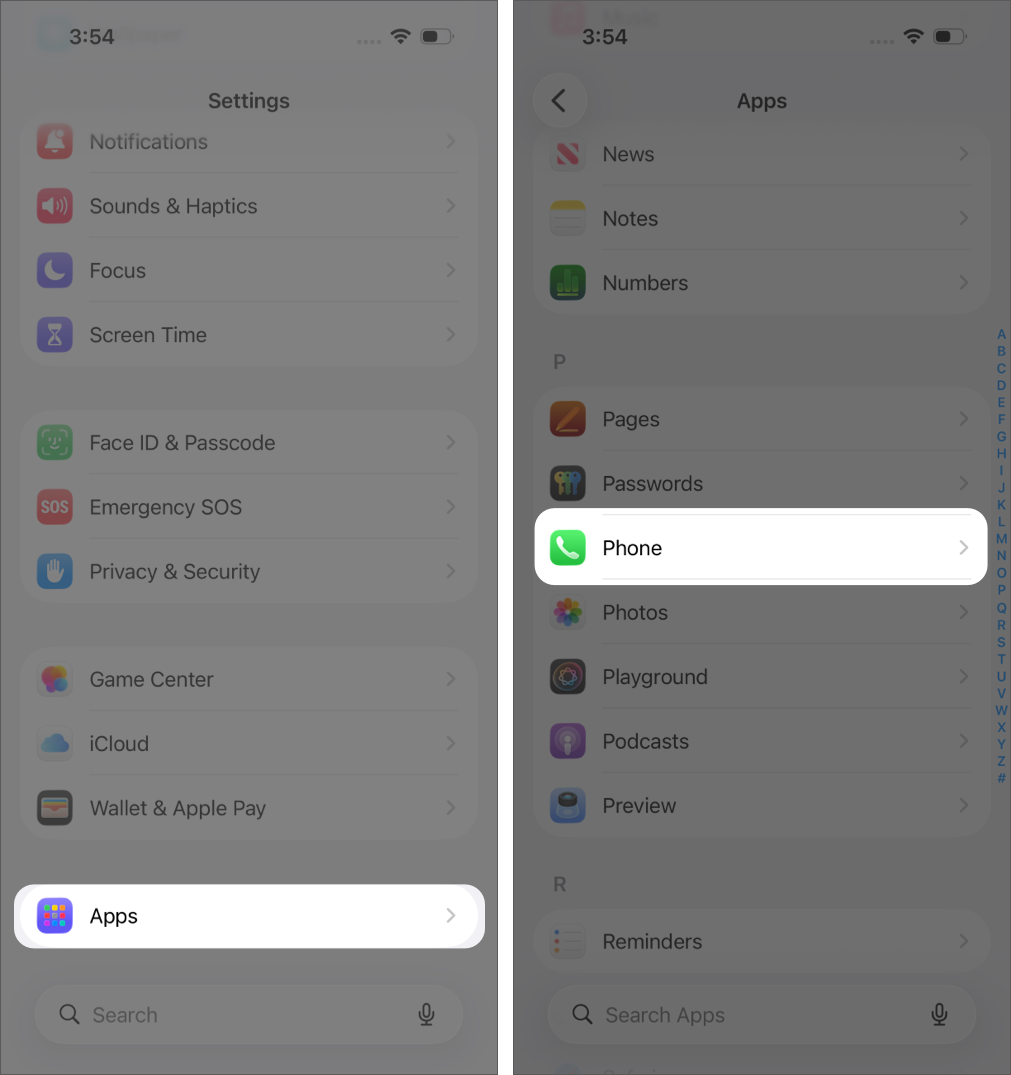
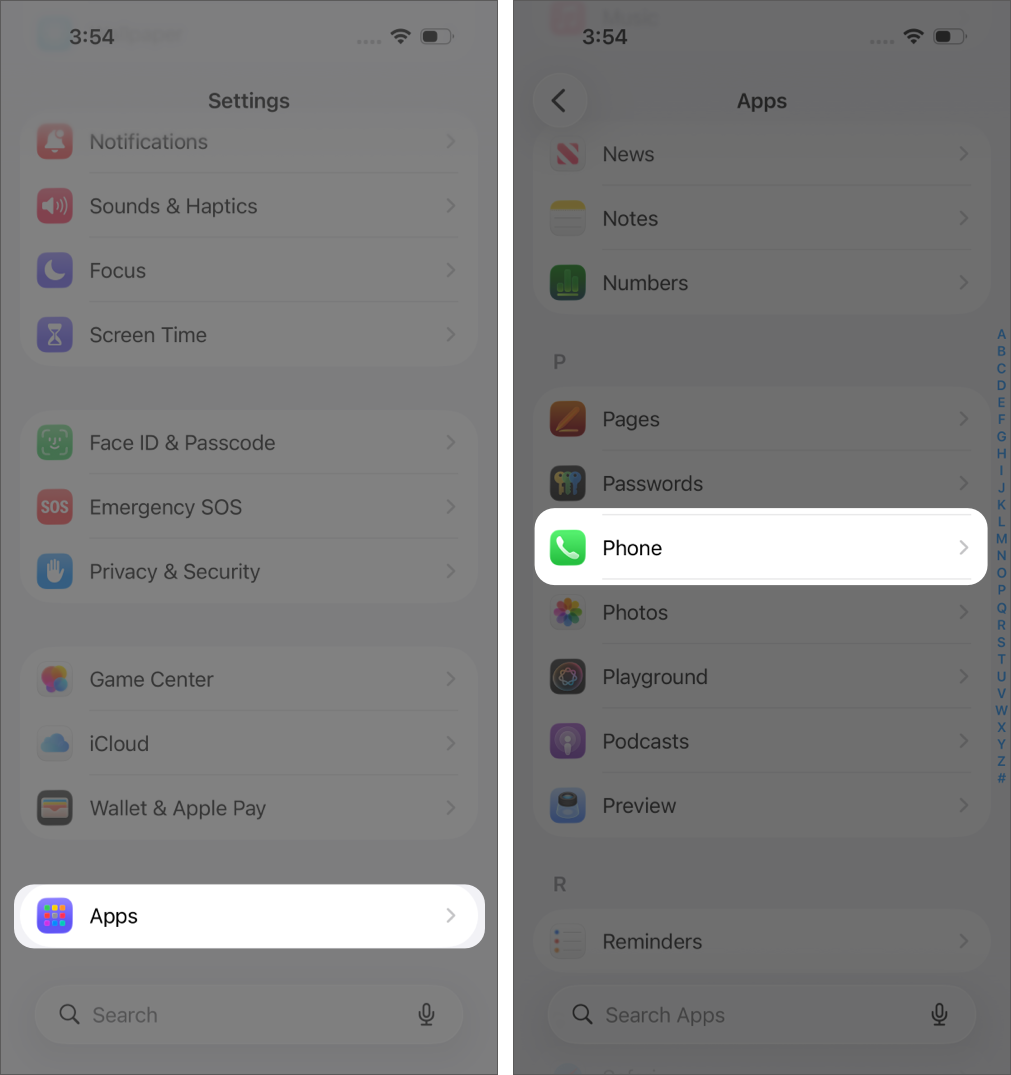
- Open Settings.
- Scroll down to Apps and tap Phone.
- Tap Calls on Other Devices under Calls.
- Turn off the Allow Calls on Other Devices toggle.
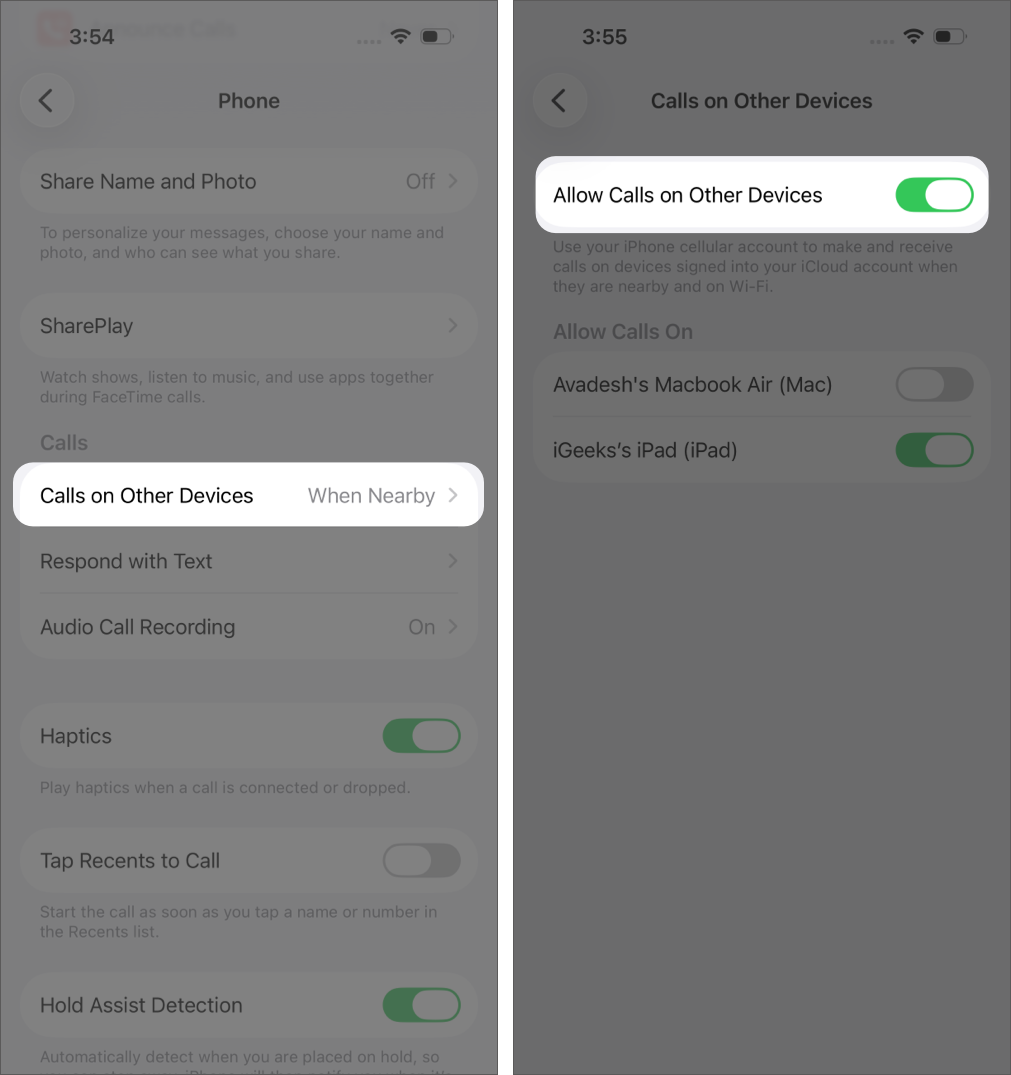
Alternatively, instead of turning the feature off completely, you can disable it only for specific devices. Simply toggle off your Mac or iPad in the device list.
Method 2: Turn Off iPhone Call Notifications on Mac
If you want to manage this setting on a specific device, such as your Mac, you can turn it off directly from there.
Here’s how:
- Open the FaceTime app.
- Click FaceTime in the menu bar near the Apple icon.
- Select Settings (or Preferences on older versions).
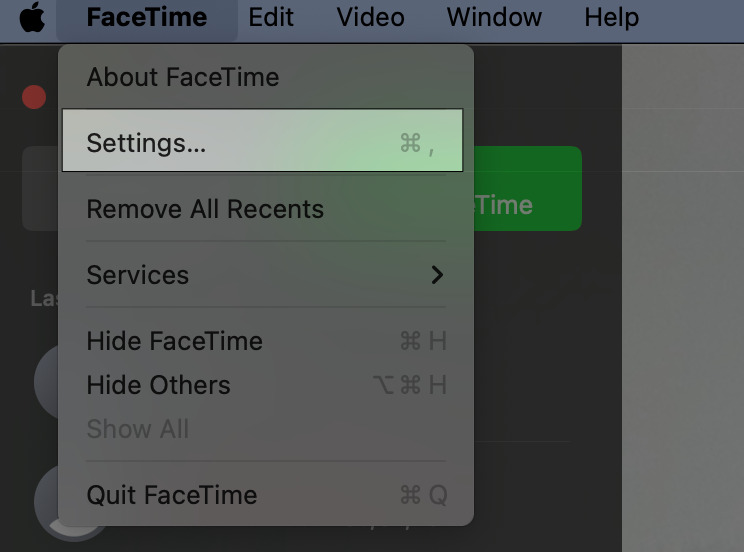
- Uncheck Calls from iPhone.
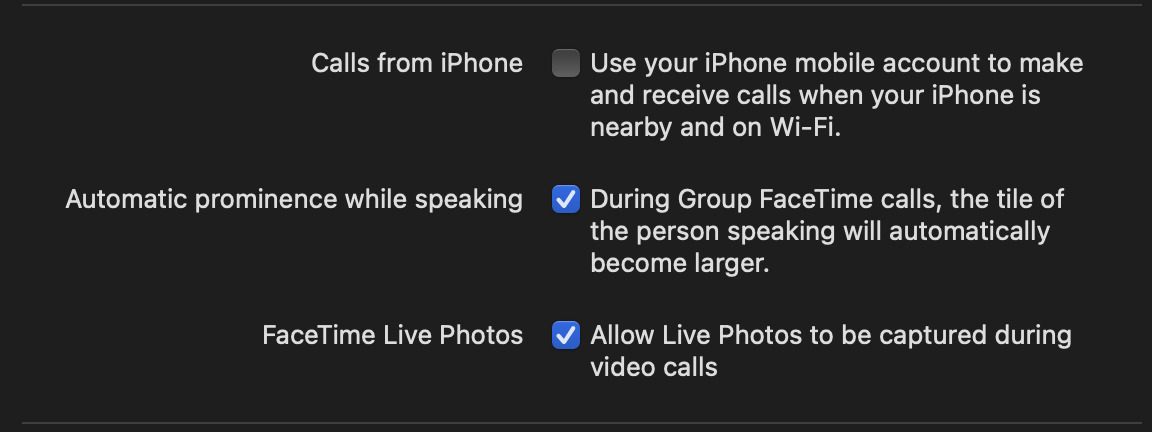
This keeps the feature active on other devices while disabling it only on your Mac.
Method 3: Use Focus Mode to Temporarily Silence Calls
Turning on Focus mode is the quickest way to silence calls during meetings or work hours.
On Mac:
- Click the Control Center in the menu bar.
- Select Focus.
- Turn on Do Not Disturb.
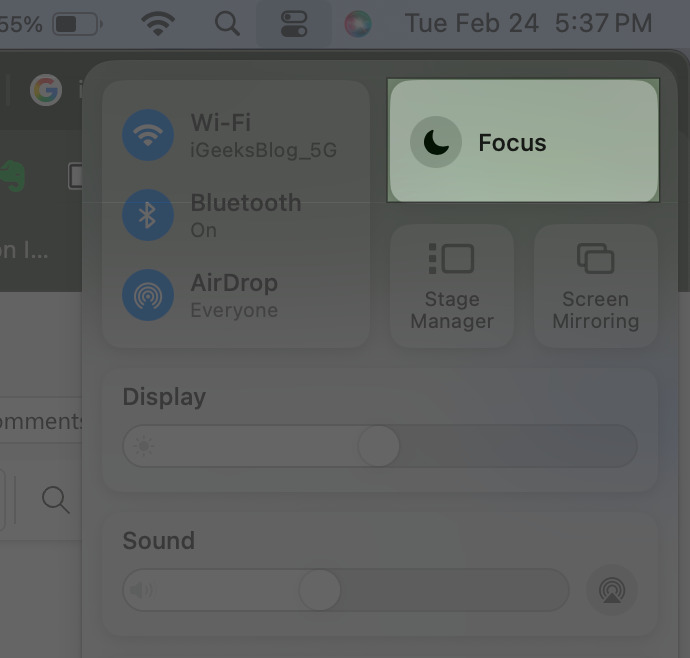
You can set it for one hour, until the evening, or schedule it automatically.
On iPad:
- Open Control Center.
- Tap Focus.
- Enable Do Not Disturb.
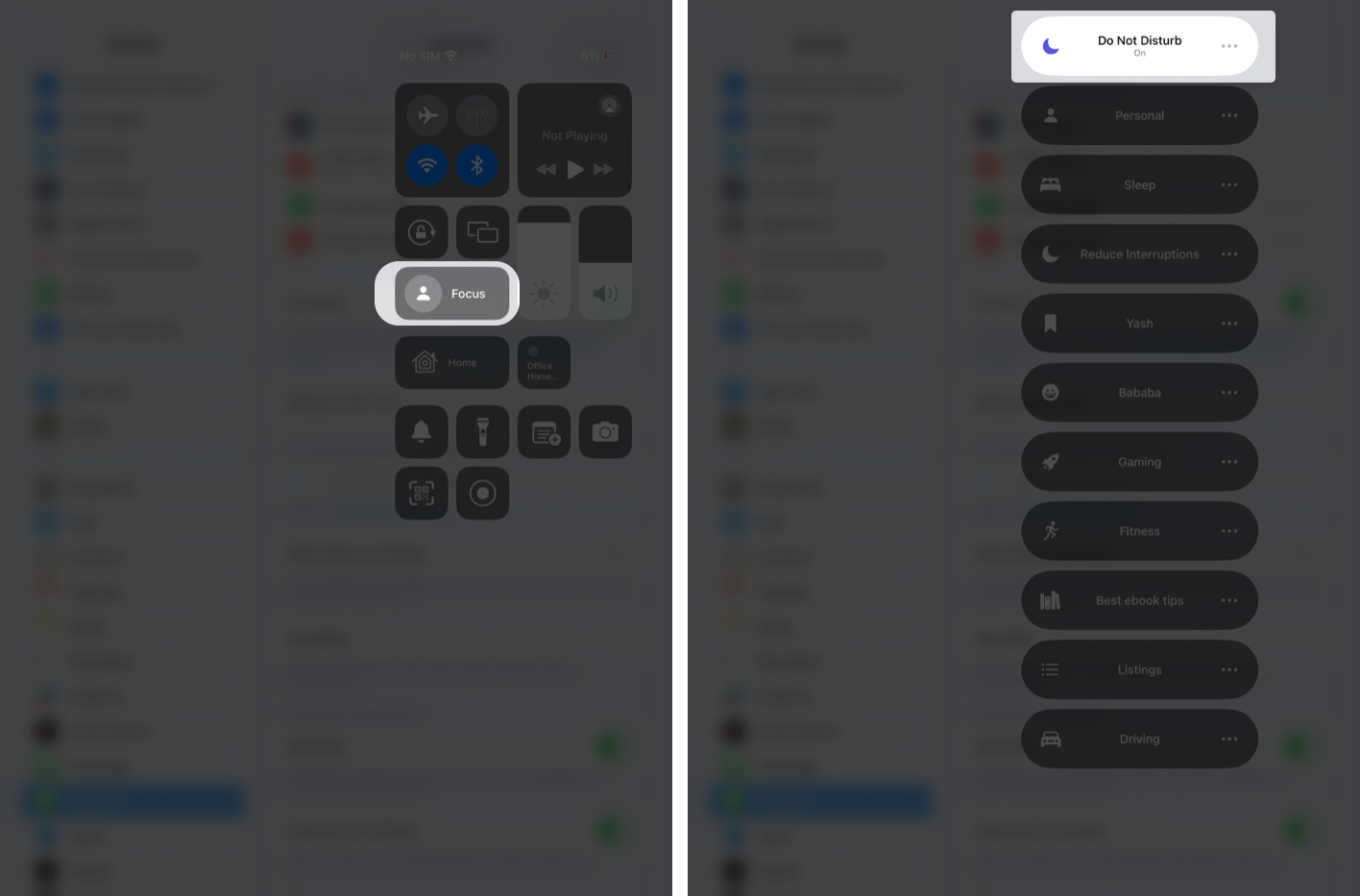
Keep in mind that this silences all notifications, not just calls.
How to Stop FaceTime Calls from Ringing on Mac and iPad
FaceTime calls work differently from regular cellular calls. When someone calls you on FaceTime, every device signed in with your Apple ID may ring at the same time.
To stop this, sign out of FaceTime or remove your contact details from the device where you do not want to receive calls.
On Mac
- Open the FaceTime app.
- In the menu bar, go to FaceTime > Settings (or Preferences on older versions).
- Under the General tab, either Sign Out of FaceTime or update the “You can be reached for FaceTime at” section and deselect your phone number or email address.

On iPad:
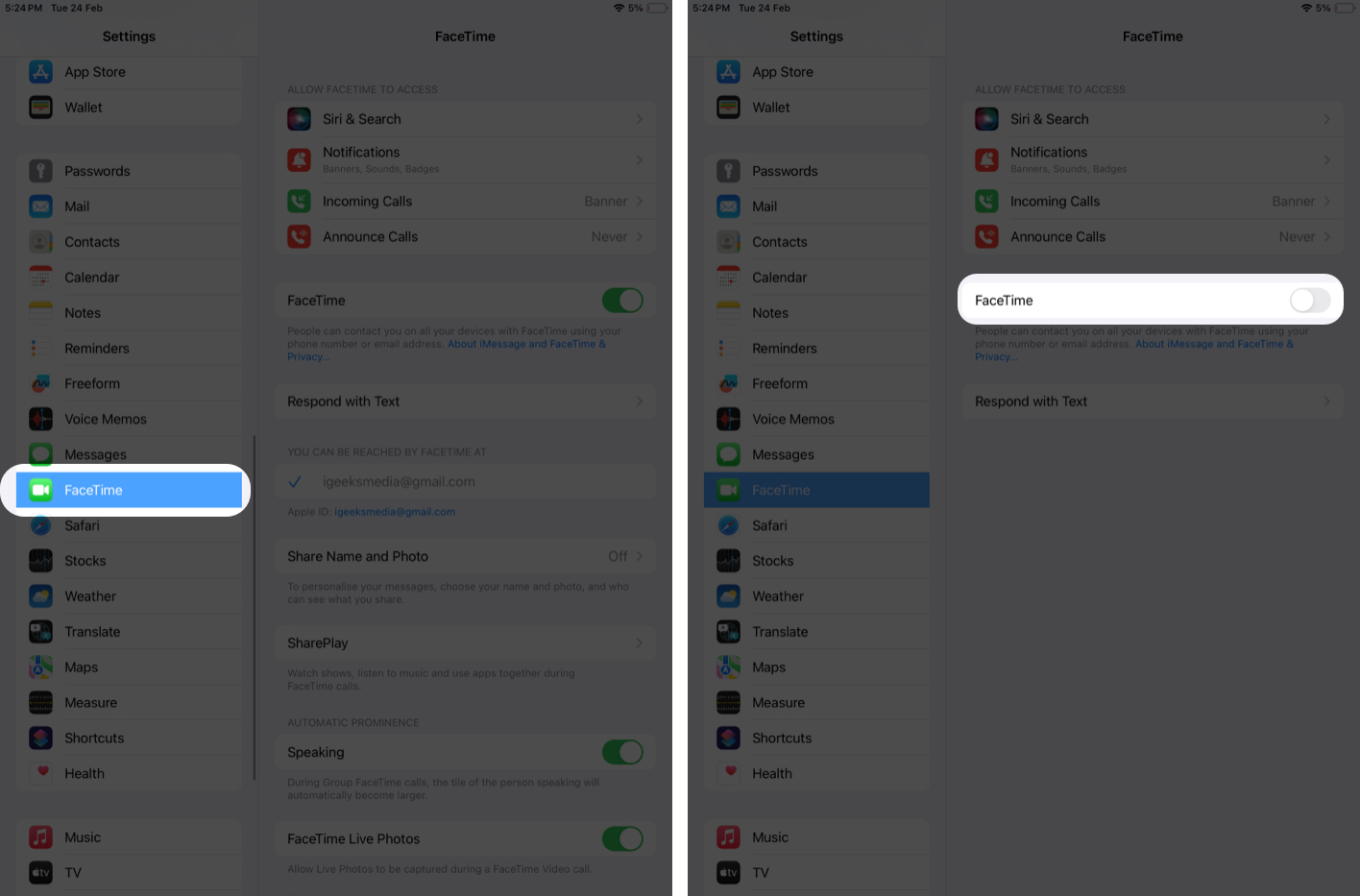
- Open Settings.
- Scroll down and tap FaceTime.
- Turn off the FaceTime toggle
Mac or iPad Still Ringing? Try These Quick Fixes
If your Mac or iPad is still ringing, try the following quick checks:
- Make sure both devices are signed in with the same Apple ID.
- Restart your iPhone and Mac to clear temporary syncing issues.
- Update to the latest version of iOS and macOS to avoid software glitches.
Sometimes Continuity settings take a few moments to sync across devices.
Final Thoughts
If your Mac and iPad ringing alongside your iPhone feels more chaotic than helpful, turning off “Calls on Other Devices” is an easy fix. Whether you disable it completely, adjust it for a specific device, or use Focus mode temporarily, you can control how calls appear across your Apple devices.
FAQs
No. Disabling “Calls on Other Devices” only affects phone call forwarding. iMessage syncing works separately.
If call forwarding is disabled, emergency calls will ring only on your iPhone.
No. Handoff is a separate Continuity feature and will continue working unless you disable it separately.
The post How to Stop iPhone Calls Ringing on Mac and iPad appeared first on iGeeksBlog.”}]]





This Post Has 0 Comments