
 [[{“value”:”
Have you ever taken a picture on your iPhone and wished you has taken it in Portrait mode? No worries! We’ll show you how to convert a photo to Portrait mode on your iPhone.
Why You’ll Love This Tip
- Learn how to change a regular photo to a Portrait mode photo in a few easy steps.
- Blur the background of a photo while focusing on the important part: the person’s face.
How to Change a Picture to Portrait Mode on an iPhone
System Requirements
This tip works on iPhones running iOS 16 or later, and was tested on an iPhone 17 Pro running iOS 26.4. Find out how to update to the latest version of iOS.
Here’s how to convert a normal photo to Portrait mode on your iPhone in just a few easy steps.
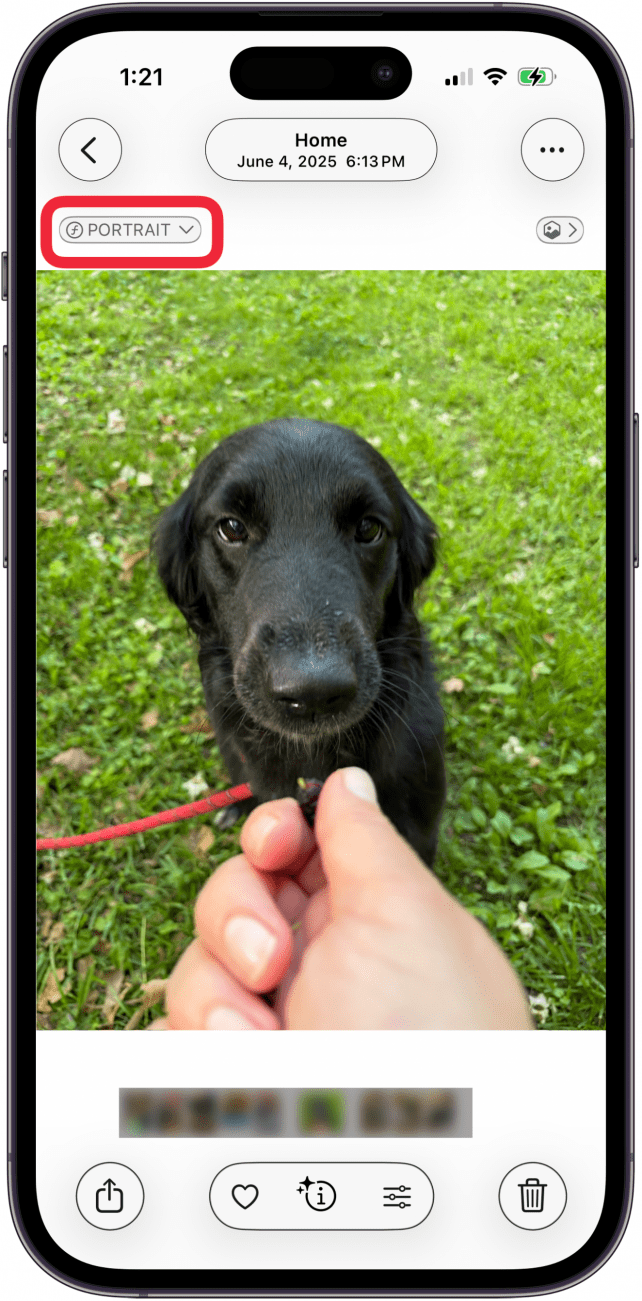
Note: Not every picture can be changed to Portrait mode. If you don’t see Portrait at the upper left of the photo, this is one of those photos that can’t be converted.
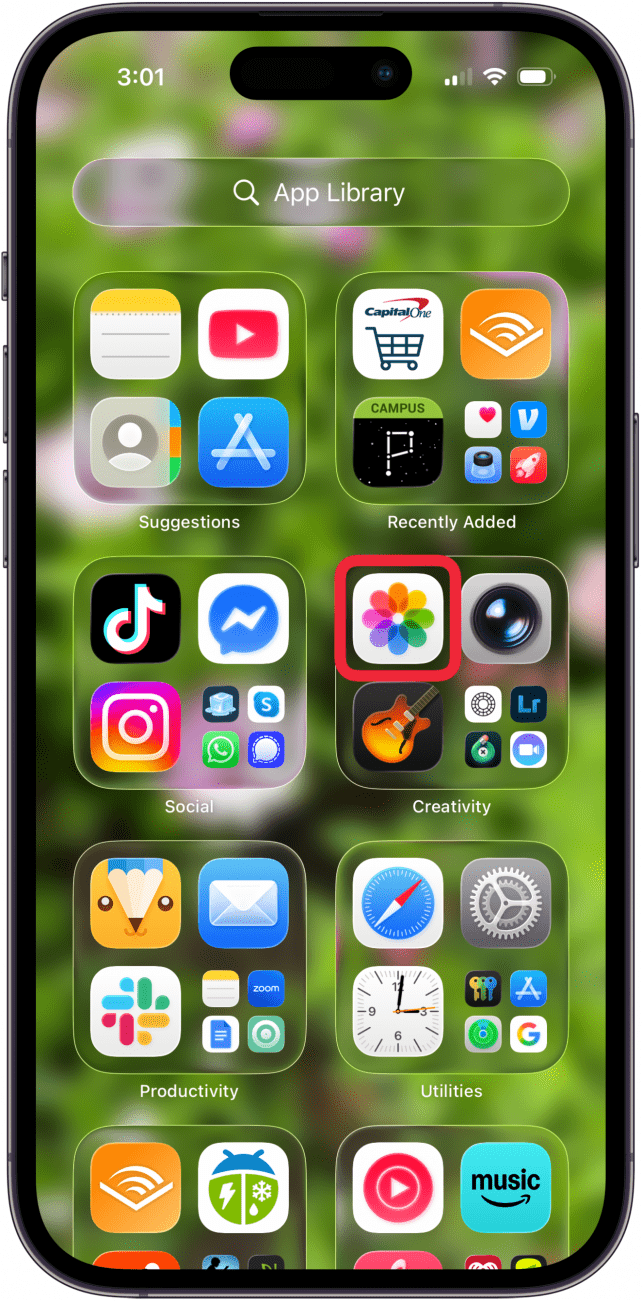
- Open the Photos app.
<!–[if IE 9]>

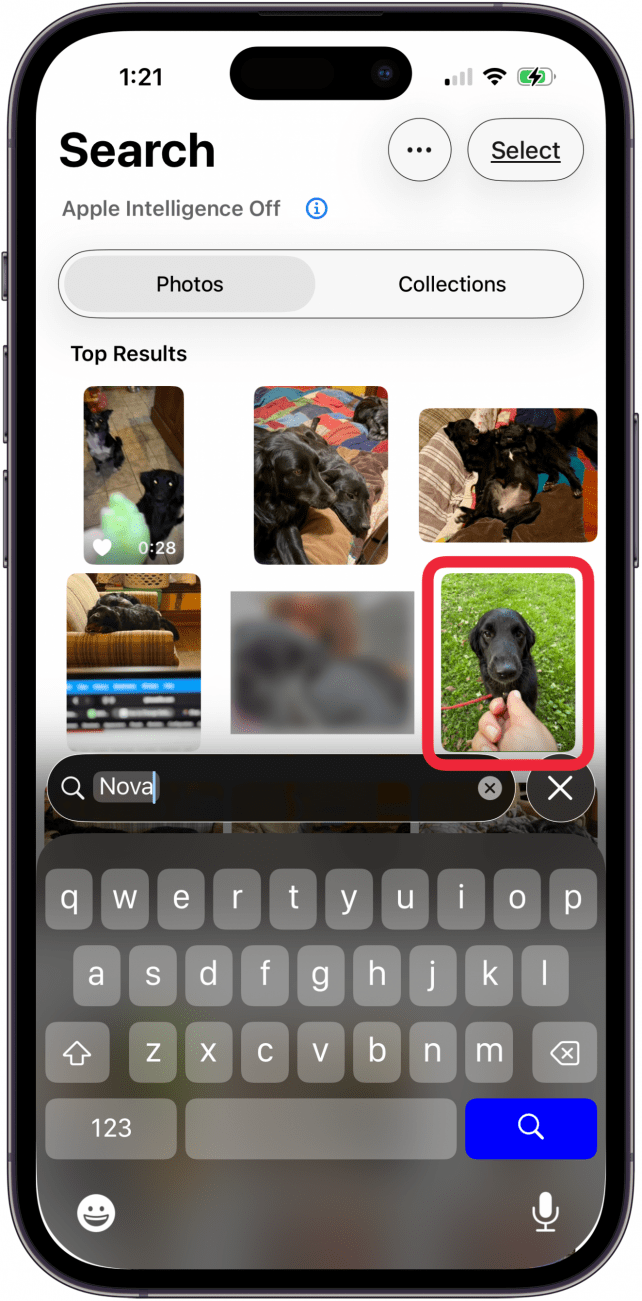
- Tap the photo of a person or animal that you want to change to Portrait mode.
<!–[if IE 9]>

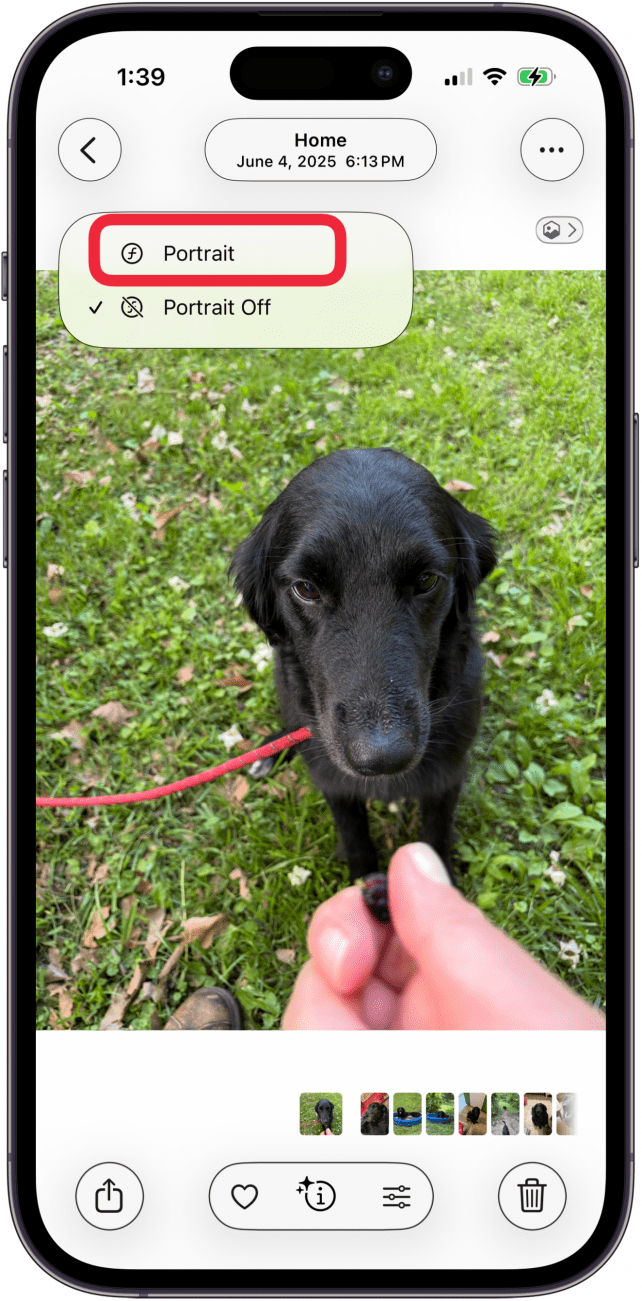
- Tap Portrait in the upper-left corner of the picture.
<!–[if IE 9]>

- Tap Portrait again.
<!–[if IE 9]>

And that’s it! Now you know how to convert a photo to Portrait mode on your iPhone. You can also reverse this process and turn Portrait mode photos into regular photos. For more great iPhone photography, check out our free Tip of the Day.
“}]]



This Post Has 0 Comments