


The Intro: The Problem
Picture this. You open up a massive 40+ module project. Somewhere deep down in the UI layer, you stumble upon this line:
https://medium.com/media/0b380ba0d186bd96b7a7a8709023c0f0/href
You Cmd+Click on primary and—boom—you land in the data class:
https://medium.com/media/160fcf02c854bf37e5b666477938a313/href
Cool. But where’s the actual value? You hit Find Usages and get slammed with 87 results. Some are reads, some are assignments. Now you’re manually sifting through the noise, hunting for that one specific provides or constructor where primary = Color(0xFF…).
Or take another classic scenario. You spot LocalAnalytics.current and want to figure out who is actually providing this CompositionLocal. Cmd+Click just drags you to compositionLocalOf { … }—the declaration, not the place where the value is actually injected. Cue the manual project-wide search.
This happens every single day. Every new CompositionLocal, every new theme becomes another round of detective work. Not because the code is garbage, but because the IDE simply lacks the tools to handle this specific pattern.
I got sick of it, so I wrote a plugin.
The Solution: Don’t Change the Code, Change How You See It
My first impulse was, “We just need better theme structuring.” But architecture isn’t the culprit here. CompositionLocal is an official Compose mechanism, and it works exactly as intended: implicitly passing dependencies down the composition tree. The real issue is that the IDE doesn’t understand this semantics.
So, instead of refactoring the codebase, I decided to change how the IDE displays it. I focused on three main areas:
- Navigation — One-click jump from a declaration or usage straight to the spot where the value is actually provided.
- Visualization — Seeing the color right in the editor, no app launch required.
- Insights — Knowing exactly how many providers or assignments exist for a property without ever leaving the file.
And just like that, YACT — Yet Another Composition Tracer was born.
What the Plugin Actually Does
Gutter Navigation
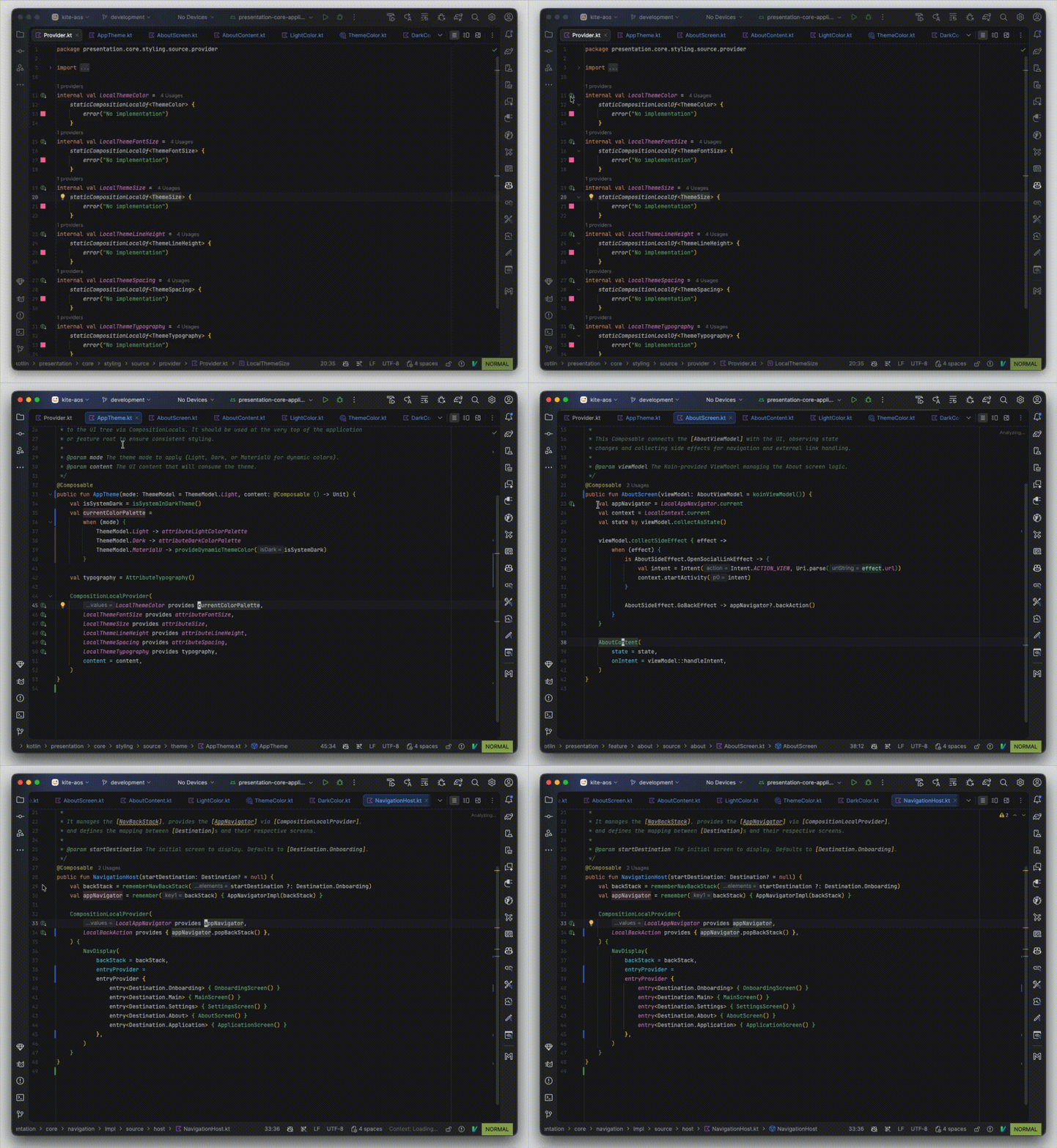
The first and most requested feature: navigation via gutter icons (that left-hand panel in the editor).
When you declare a CompositionLocal:
https://medium.com/media/11ed02fa3f17c8438579289d7d4ac873/href
YACT slaps an icon in the gutter right next to that line. Click it, and you get a neat list of all the places where this CompositionLocal gets its value via provides:
https://medium.com/media/0a246cf2adcddf70f6fd4c921743f383/href
This works backwards, too. Any identifier with the Local prefix (the standard naming convention for CompositionLocal in Compose) gets a gutter icon that leads straight to its providers. See LocalColors.current in some Composable? One click and you’re there.
Under the hood, two classes handle this magic: CompositionLocalLineMarkerProvider for declarations and CompositionLocalReferenceLineMarkerProvider for references. Both implement RelatedItemLineMarkerProvider from the IntelliJ SDK.
Code Vision Lenses

Code Vision refers to those handy inline hints the IDE shows above declarations. YACT injects two types of lenses:
Above a CompositionLocal declaration—the number of providers:
https://medium.com/media/3308c00021ae70e3aafdaf84e7f53ae3/href
Above a property in a data class or theme interface — the number of assignments:
https://medium.com/media/561a6c1629fd5c4479332cb310b7fbe3/href
Clicking the lens pops up a list, letting you jump straight to the action. This is built on top of DaemonBoundCodeVisionProvider: CompositionLocalCodeVisionProvider for the former and ThemeAssignmentCodeVisionProvider for the latter.
Color Swatches
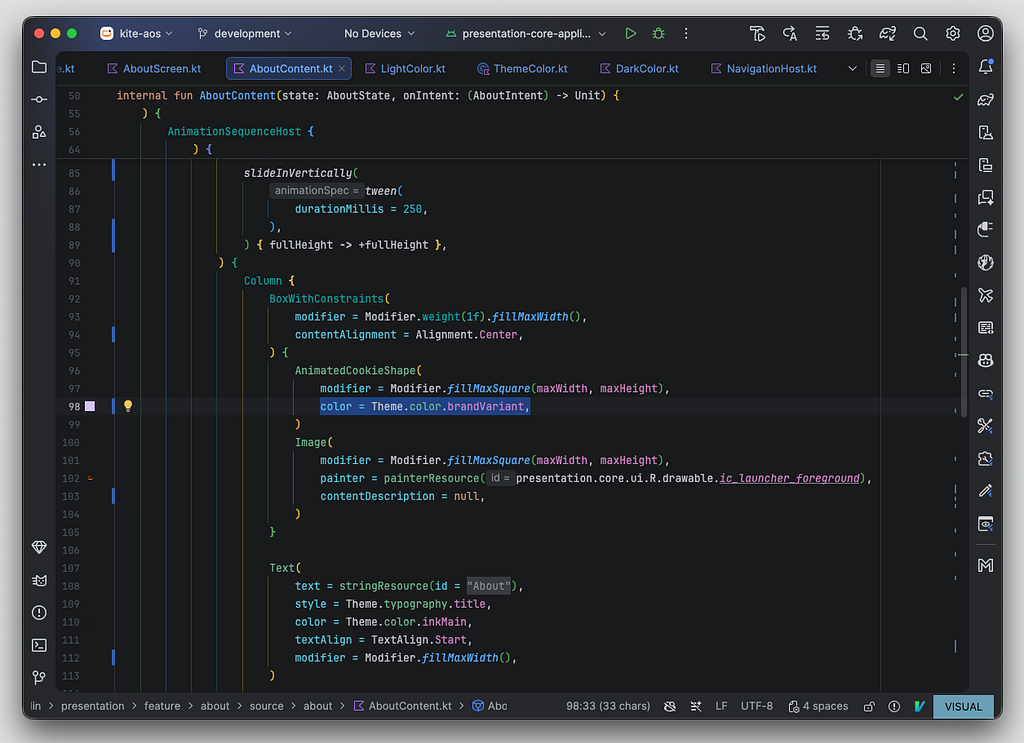
If you’re working with a theme where colors are defined via Color(0xFF…), YACT renders a slick little color swatch right in the gutter:
https://medium.com/media/01f9db7bb6226d66dbf016c2330eb7a2/href
You get to see the color way before you even build the app. This is powered by ElementColorProvider—IntelliJ’s standard extension point for color previews.
Go to Theme Assignment
A dedicated action for lightning-fast navigation. Just park your cursor on any theme property reference and hit the shortcut:
- Windows/Linux: Ctrl+Shift+G
- macOS: Cmd+Option+G
The plugin hunts down all the places where this property is assigned — whether via named arguments in constructors or via provides. If there’s only one target, it jumps immediately. If there are multiple, you get a popup list. If nothing is found, a balloon notification pops up so you aren’t left guessing if the plugin broke.
Under the Hood: IntelliJ SDK
PSI (Program Structure Interface)
Everything in IntelliJ revolves around PSI. It’s the tree the IDE builds when parsing source code. Every single piece of code — file, class, function, operator, literal — is a node in this PSI tree.
Kotlin has its own specific PSI classes. Here are the ones YACT interacts with the most:
- KtProperty — property declaration (val LocalColors = …)
- KtNameReferenceExpression — a reference to a name (LocalColors, primary)
- KtBinaryExpression — a binary expression, including infix provides
- KtValueArgument — a named argument in a call (primaryColor = Color(…))
- KtCallExpression — a function or constructor call (Color(0xFF…))
Navigating this tree is done via PsiTreeUtil, a utility class that lets you traverse up to parents or down to children of a specific type. For instance, when a user puts the cursor on an identifier, we traverse up the tree to find the nearest KtNameReferenceExpression:
https://medium.com/media/9ee95a5e5149c4fca66768ae000163f5/href
FileBasedIndex over ReferencesSearch
The killer architectural decision here was using FileBasedIndex instead of a raw PSI search.
The naive approach: traverse the entire PSI tree of the project on every request looking for patterns. It works, but it’s sluggish — especially in projects with dozens of modules.
FileBasedIndex is IntelliJ’s indexing engine that runs in the background. The data is cached on disk and is available instantly. It updates incrementally whenever files change.
YACT leverages two indexes:
- ThemeProviderIndex (ScalarIndexExtension<String>) — tracks where theme properties are provided. It indexes two patterns:
- Named arguments in constructor-like calls: Palette(primaryColor = …) → key “primaryColor”
- Infix provides expressions: LocalColors provides LightPalette → key “LocalColors”
2. ThemeColorIndex (FileBasedIndexExtension<String, Int>) — a map index that stores both the key and the value: mapping a property name to the ARGB integer from the Color(0x…) call.
The search happens in two stages. First, the index instantly returns a list of files containing the key. Then, ThemeProviderIndexQuery does a targeted PSI walk only in those files to find the specific elements for navigation. This two-phase approach keeps the index lightweight and the search blazing fast.
Performance Tweaks
IntelliJ is a heavily multithreaded environment with strict UI responsiveness rules. Here are a few things I had to handle:
- NotNullLazyValue for line markers. RelatedItemLineMarkerProvider requires you to provide navigation targets when creating the marker. But calculating these targets can be expensive (it requires an index search). NotNullLazyValue lets you defer this calculation until the exact moment the user actually clicks the icon.
- SmartPsiElementPointer for cross-thread PSI. PSI elements are bound to a specific file state. If a file is modified between the time you search (background thread) and the time you navigate (EDT), a raw reference to a PSI element becomes invalid. SmartPsiElementPointer automatically tracks these changes and safely resolves the element even after file modifications.
- Task.Backgroundable for Go to Theme Assignment. The index search and PSI walk are executed in a background thread with a progress indicator. The results are then passed back to the EDT via an onSuccess() callback. This guarantees the UI won’t freeze, even if there’s a massive number of matches.
Registering Extension Points
Everything is wired together in plugin.xml—a declarative file where the plugin registers its extension points:
https://medium.com/media/de005d1af581931ac55ab25326ca84e8/href
This is standard IntelliJ architecture: the plugin doesn’t call anything directly; it just registers implementations of extension points, and the IDE triggers them when needed.
The Pitfalls
K1 / K2 Compatibility
The Kotlin plugin for IntelliJ exists in two flavors: K1 (the old frontend) and K2 (the new FIR-based one). They are entirely different implementations and represent PSI differently.
In plugin.xml, one line is technically enough:
https://medium.com/media/e9713da19e559c00e2c9c4a86da00a84/href
But this isn’t a magic wand — it’s a promise that your code works with both. YACT operates on the level of base Kotlin PSI elements (KtProperty, KtBinaryExpression), which are shared between K1 and K2. However, if your plugin heavily relies on resolve or type inference, expect some serious breaking changes.
Shortcuts and macOS
This turned out to be an unexpectedly massive pain.
My first shortcut was Ctrl+Shift+T. Works great on Windows. On macOS? Nope. IntelliJ’s $default keymap on Mac automatically remaps control → Cmd. And Cmd+Shift+T is already hogged by “Go to Test”.
Second attempt: Alt+Shift+T. On macOS, that translates to Option+Shift+T, which happens to be “Switch to Task”. Plus, macOS intercepts a lot of Option+ combinations for typing special characters, so the shortcut was just vanishing before it even reached IntelliJ.
The fix? Define two separate shortcuts in plugin.xml:
https://medium.com/media/410fc659064dadc90ebe2eff0330b4de/href
$default covers Windows/Linux (Ctrl+Shift+G). The Mac OS X 10.5+ keymap explicitly handles macOS (Cmd+Option+G) using replace-all=”true” to override the inherited $default shortcut.
Pro tip: if you’re building a plugin, test your shortcuts on actual Mac hardware. Don’t blindly trust the keymap docs.
Shipping It
To publish the plugin, you need the org.jetbrains.intellij.platform Gradle plugin. Here are the core steps:
- Signing: JetBrains requires plugins to be signed. You’ll need a private.pem (private key) and a chain.crt (certificate chain). You generate these via the JetBrains Marketplace UI.
https://medium.com/media/41dfb8ee744973bda65597b7d769b5bd/href
Keep these out of git—add them to your .gitignore.
- Verification: Run ./gradlew verifyPlugin. This checks the plugin structure, the validity of plugin.xml, and compatibility with your specified IDE versions. Run this before every release.
- Compatibility: sinceBuild defines your minimum IDE version (e.g., 243 means IntelliJ 2024.3). If you omit untilBuild, your plugin is marked compatible with all future versions (though JetBrains might poke you to update it if something breaks in a new release).
What’s Next
There are two major features I want to ship next:
- An Inspection for “Orphaned” CompositionLocals. If a CompositionLocal is declared but there isn’t a single provides anywhere in the project, it’s either a bug or dead code. The plugin should flag this with a warning.
- Extended Color Support. Right now, YACT only understands Color(0xFF…) hex literals. Color.Red, Color(r, g, b), and resource colors are unsupported. This is an index limitation (it currently parses only one specific pattern). Expanding this will require writing new indexer rules.
Conclusion
A quick disclaimer: my main gig is Android/KMP development, so writing IntelliJ IDEA plugins isn’t my daily routine. This solution works, but if you know of cleaner or more elegant approaches — don’t throw tomatoes. I am totally open to constructive feedback, so drop your thoughts in the comments.
The main takeaway for me from this project: Developer Experience is not a luxury. If you waste 5 minutes every day trying to find where a CompositionLocal is provided, that’s 20 hours a year. Multiply that by your team size, and you’re looking at some serious lost time.
The IntelliJ SDK is incredibly powerful, but the documentation is mostly javadoc and digging through other people’s plugins as a reference. I hope this article serves as a solid starting point for anyone wanting to build their own plugin for Compose or Kotlin.
YACT is available on the JetBrains Marketplace and on GitHub
Would love to get a ⭐ and hear your feature requests.
87 Results in Find Usages: Fixing Navigation Hell in Jetpack Compose was originally published in ProAndroidDev on Medium, where people are continuing the conversation by highlighting and responding to this story.


This Post Has 0 Comments