
 [[{“value”:”
What to Know
- How long does the iPhone take to charge? That depends on things like the type of charger or your current battery level.
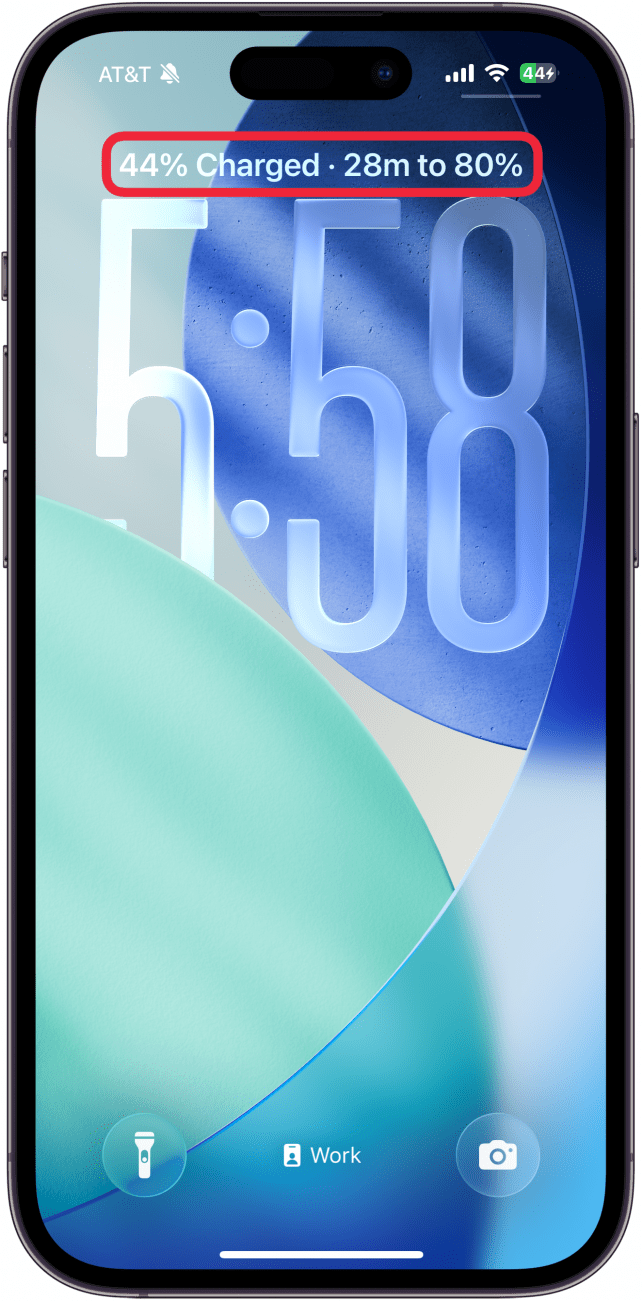
- You can see the charging time for your iPhone on the Lock Screen.
- Another option is to go into the Settings app, where you can also see your iPhone’s charging time.
One of the most requested features for the iPhone is the ability to see how long it will take to reach full charge. With the latest update, Apple has finally made it possible to see the charging time for your iPhone. When you plug it in, there are a couple different ways to see how long to charge your iPhone.
Jump To:
How Long Does It Take an iPhone to Charge?
The charging time of an iPhone depends on a variety of factors, the first being what type of charger you are using. There are fast chargers and slow chargers. As the names suggest, slow chargers are going to take longer to fully charge your iPhone while fast chargers will charge it more quickly. Slow chargers are chargers that offer less than 10 watts of power, while fast chargers put out up to 30 watts, allowing your phone battery to charge faster.
Another factor that can affect the iPhone’s charging time is whether or not you are using it while it’s charging. Your iPhone will charge faster if you’re not using it, compared to using it while it’s charging. If you need your iPhone to charge faster, it’s best to let it sit instead of continuing to use it.
The last thing that matters is how much battery you had when you plugged in your iPhone and how much you want to charge it. For example, charging from 60% battery to 80% won’t take nearly as long as charging from 20% to 100%. Thankfully, your iPhone will tell you how long it will take to charge when you plug it in. If you want to keep an eye on the battery percentage on your iPhone, you can display the exact percentage in the battery icon. For more hidden iPhone tips and tricks, be sure to sign up for our free Tip of the Day newsletter.
How to See Charging Time on iPhone
There are two ways to see the charging time on your iPhone. The easiest and probably quickest is found on your Lock Screen. You might not have even noticed this small but impactful change, but after updating to iOS 26, the charging time is displayed above the clock. It appears for a couple of seconds after you plug in your iPhone before changing back to the date:
<!–[if IE 9]>
If you’re having trouble catching the charging time on your iPhone’s Lock Screen, you can still find it like this:
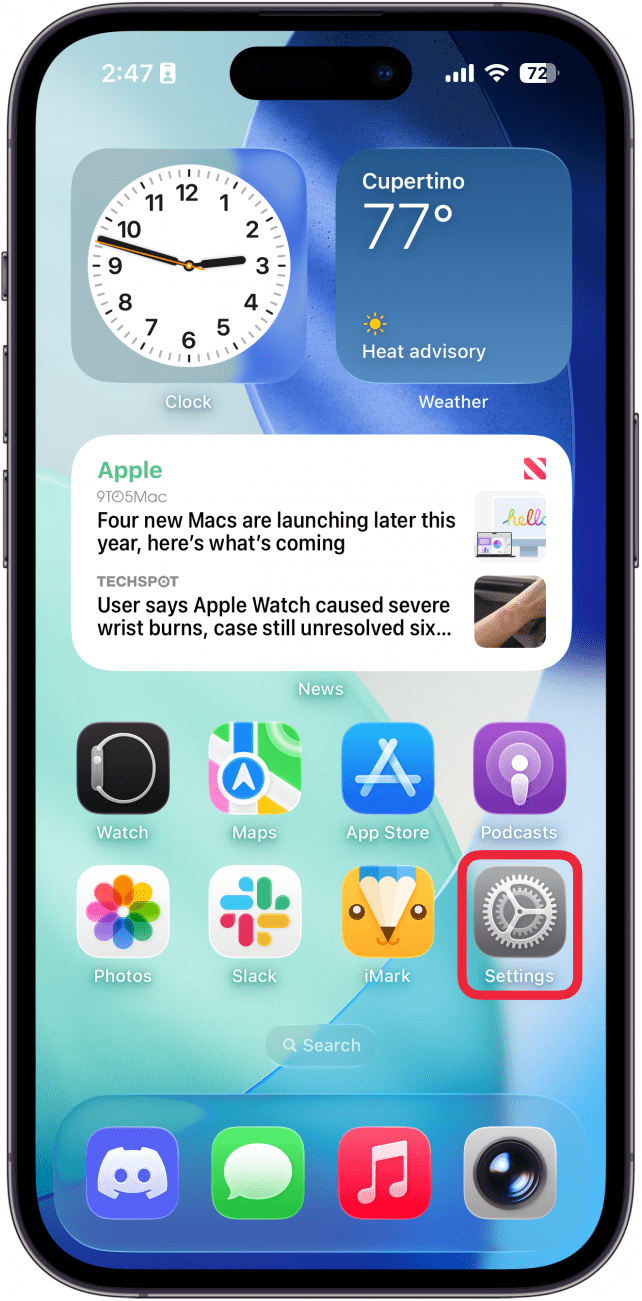
- Open the Settings app.
<!–[if IE 9]>
![a screenshot of the home screen on iphone with a red box around the settings app]()
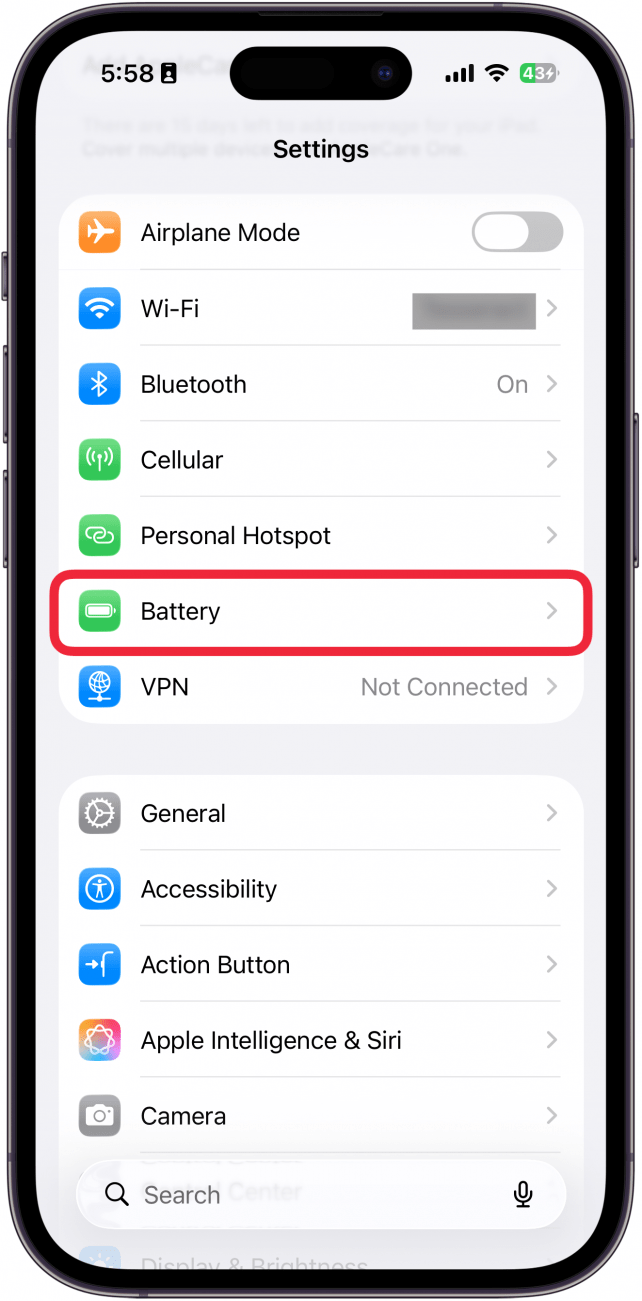
- Tap Battery.
<!–[if IE 9]>
![a screenshot of the iphone settings app with a red box around battery]()
- You will see how long it will take to charge to 80% and to 100%.
<!–[if IE 9]>
![a screenshot of battery settings on the iphone with a red box around charging percentage]()
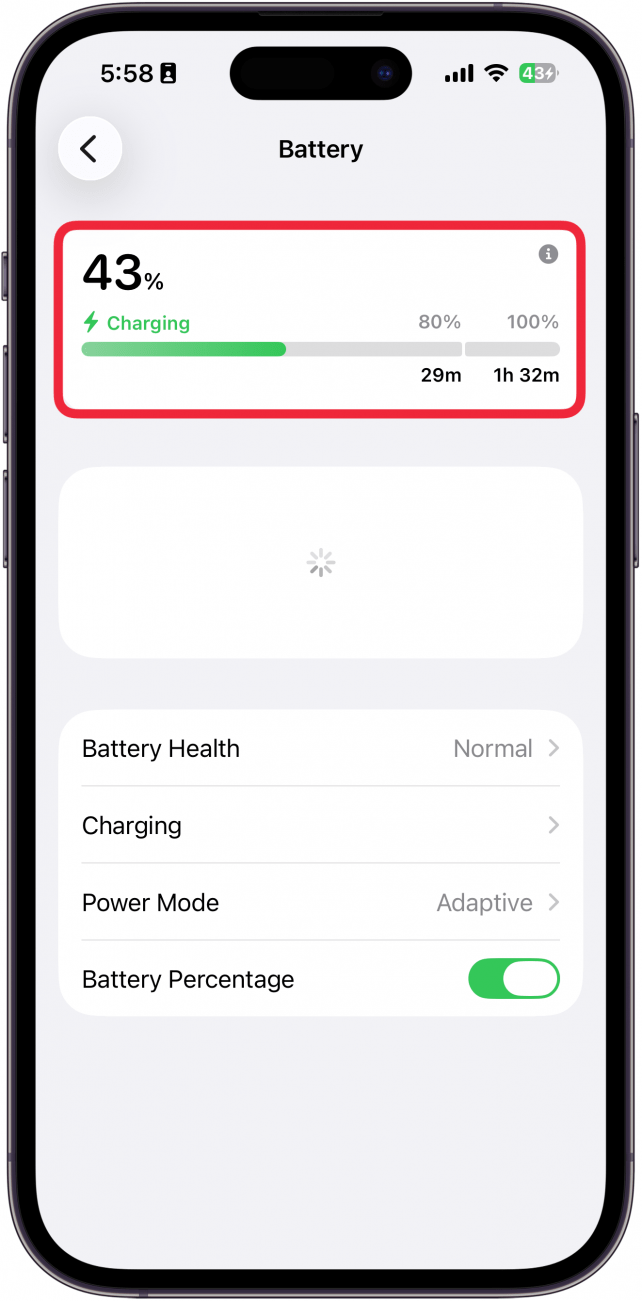
That’s how to see your iPhone charge display from the Settings app. Now, you’ll always know how long it takes to charge your iPhone. Next, find out
FAQ
- How do you know if your iPhone or iPad is charging? You can tell if your iPhone is charging by checking the battery icon in upper right corner of the screen. Usually, the icon will be green if it is charging. It gets a little more complicated if your device is dead. Find out more about how to tell if your iPhone is charging when dead.
- Why is my iPhone battery draining so fast all of a sudden? As iPhone batteries age, they lose the capacity to store power, meaning they die quicker. If your iPhone is dying fast, it is likely the result of an aging battery. If it happens suddenly, it could be due to an app or service running in the background.
- How do I know if my battery is still good? You can check your iPhone battery health from the Settings app at any time. This will tell you how much percentage your battery can hold relative to when it was brand new.
“}]]


This Post Has 0 Comments