
 [[{“value”:”
Windows 11 KB5079391 is available as an optional update, and there are several notable improvements. One change that stands out is support for 1000 Hz refresh rate monitors; another is the ability to turn Smart App Control (SAC) on or off without reinstalling the OS. Microsoft has also posted direct download links for KB5079391 offline installers (.msu).
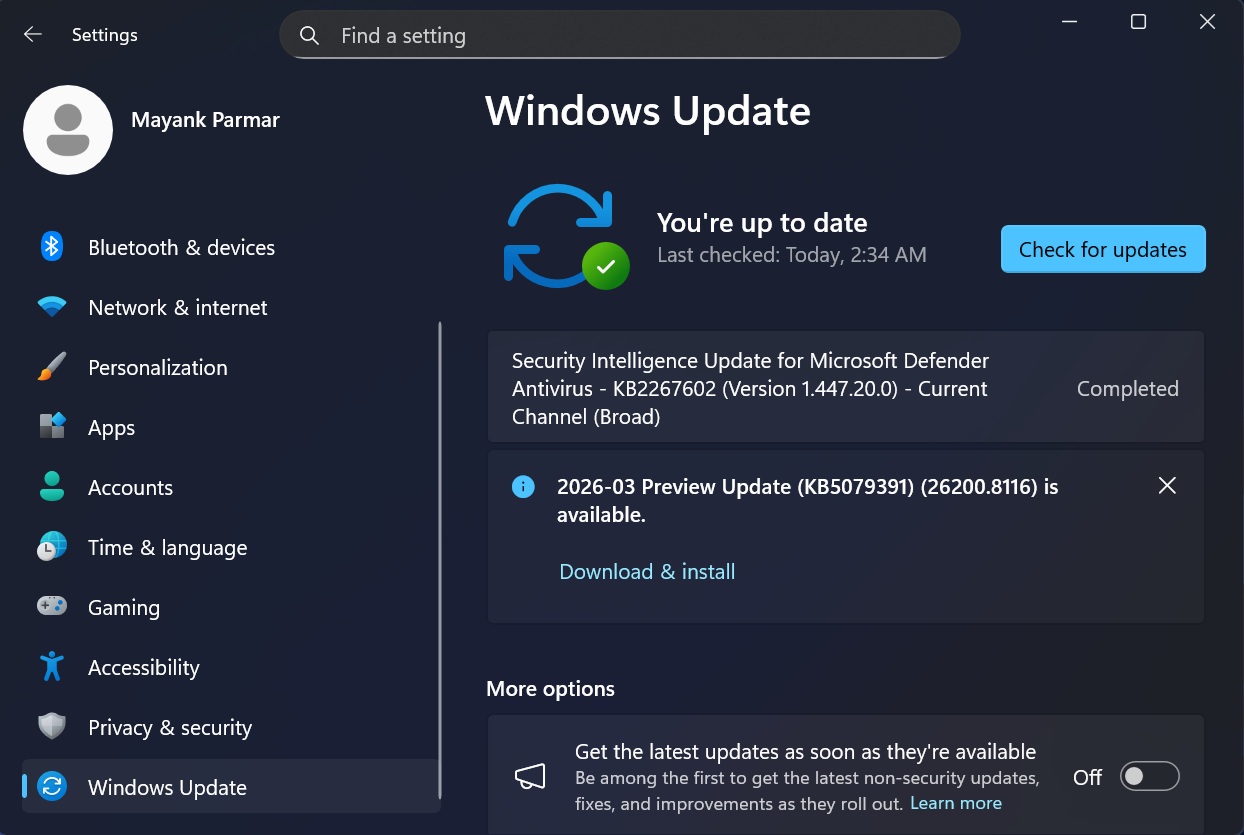
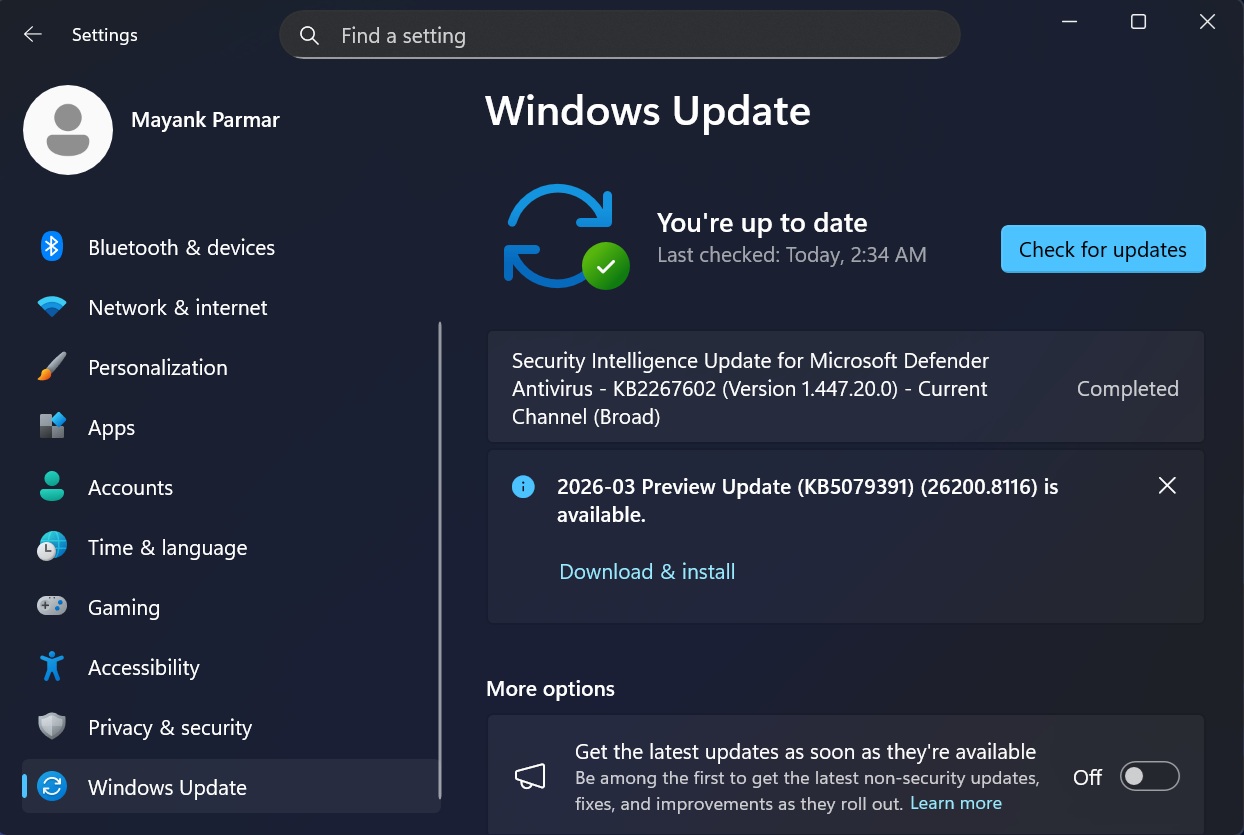
Today’s update is titled “2026-03 Preview Update (KB5079391) (26200.8116),” and it downloads only when you manually select the ‘Download & update‘ button in Settings > Windows Update. In the case of Windows 11 25H2, it bumps the OS to Build 26200.8116, while Windows 11 24H2 gets Build 26100.8116.
However, it’s worth noting that KB5079391 or any Windows update installs automatically when the toggle “Get the latest updates as soon as they’re available” is turned on. If you don’t want “unexpected updates,” do not forget to turn off the toggle in Settings > Windows Update.
Also, you’re not going to miss out on the changes, such as the ability to turn Smart App Control on or off, if you skip the optional update. Microsoft says it will bundle all the changes listed here in April 2026’s Patch Tuesday, which is scheduled for April 14, 2026.
Download Links for Windows 11 KB5079391
Windows 11 KB5079391 Direct Download Links: 64-bit and ARM-64
In our tests, Windows Latest found Windows 11’s March 2026 optional update size is 4.8GB, which is almost 200MB more than the previous updates. However, this only applies when you install updates using Update Catalog. If you use Windows Update (recommended), these monthly updates are going to be far smaller than 4.8GB.
| Build Number | Size | OS Version | Architecture |
|---|---|---|---|
| 26200.8116 | 4802.0 MB | Windows 11 25H2 | x64-based |
| 26200.8116 | 4802.0 MB | Windows 11 25H2 | arm64-based |
| 26100.8116 | 4449.0 MB | Windows 11 24H2 | x64-based |
| 26100.8116 | 4449.0 MB | Windows 11 24H2 | arm64-based |
What’s new in Windows 11 Build 26200.8116 (25H2) / Build 26100.8116 (24H2)?
New features are rolling out gradually, so they won’t show up after installing the update.
1. 1000Hz refresh rate support
Windows Latest noticed that today’s optional update for Windows 11 adds support for a 1000 Hz refresh rate if you have a supported monitor.
The world’s first 1000 Hz gaming monitor was announced at CES 2026, so there are not too many options to choose from. One of the monitors that supports a 1000 Hz refresh rate is Acer Predator XB273U F6, and if you’re planning to purchase the hardware, you’re going to need Windows 11 KB5079391 (Build 26200.8116 or newer).
However, it’s worth noting that 1000 Hz support in Windows 11 is rolling out gradually, so it won’t show up right away.
2. Smart App Control can now be turned on or off without reinstalling Windows
You’re not having déjà vu if you feel like you’ve read this before. Microsoft previously said it was rolling out greater control over Smart App Control in January 2026. At the time, the company said it would allow you to enable or disable Smart App Control without resetting or reinstalling Windows, but that never really happened.
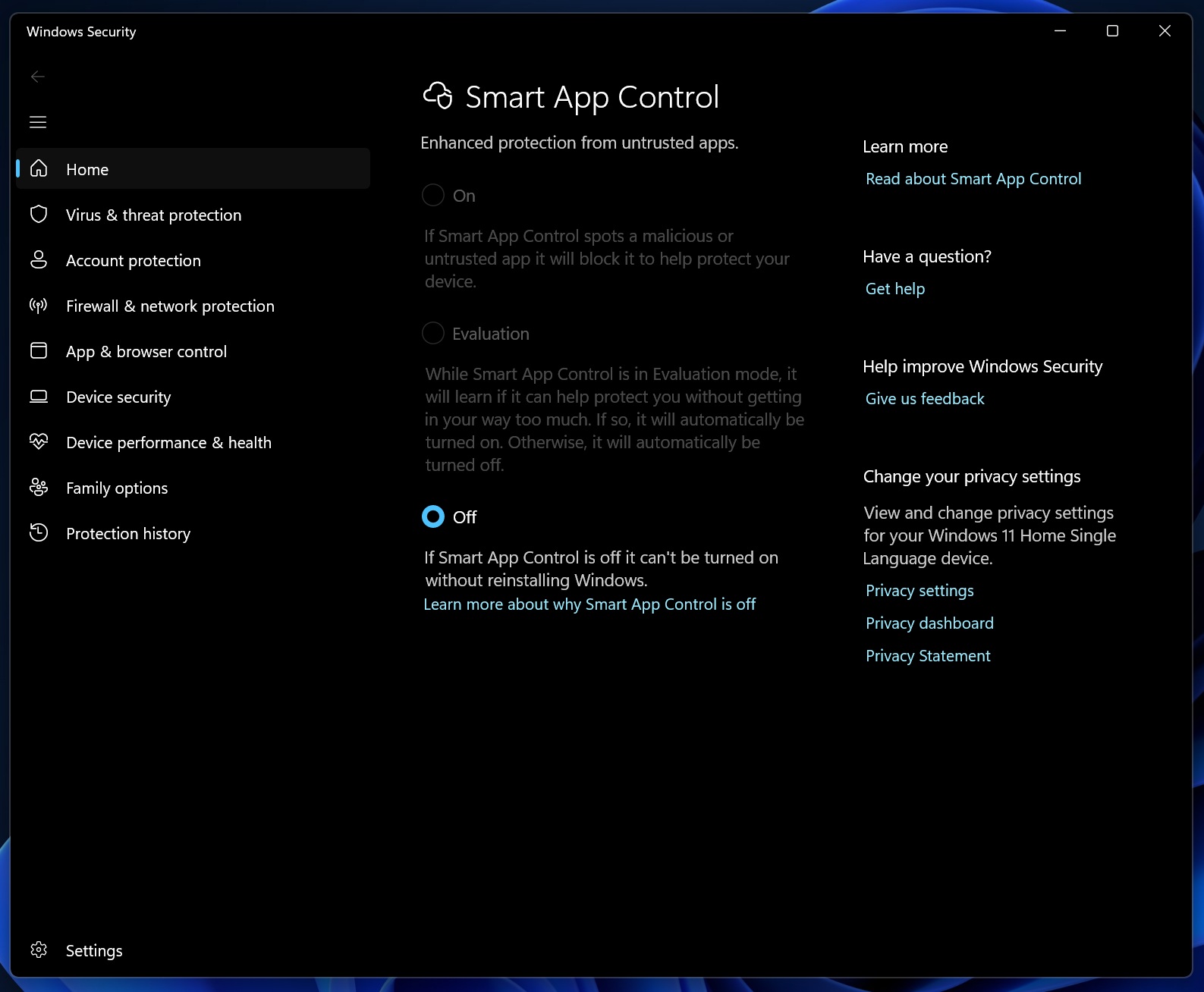
In fact, the ability to toggle Smart App Control on or off never showed up on most PCs, and Microsoft later clarified that it had stopped rolling out those changes.
But that changes with Windows 11 KB5079391, which finally allows you to turn Smart App Control on or off.
For those unaware, Smart App Control is a security feature that blocks malicious apps from running on your PC. While it works well most of the time, it can incorrectly flag legitimate apps as potentially unwanted or even malicious, which means you can’t run them unless you reinstall Windows.
Smart App Control has also blocked games and even anti-cheat software, which is why some people regret having it enabled without realizing it.
Smart App Control is usually turned off by default, but some OEMs may enable it, or users might turn it on without fully understanding the consequences. As mentioned, it’s great on paper, but not always in practice.
Thankfully, Microsoft is now listening to feedback and improving Windows. Microsoft told Windows Latest that installing Windows 11 KB5079391 lets you manage Smart App Control settings.
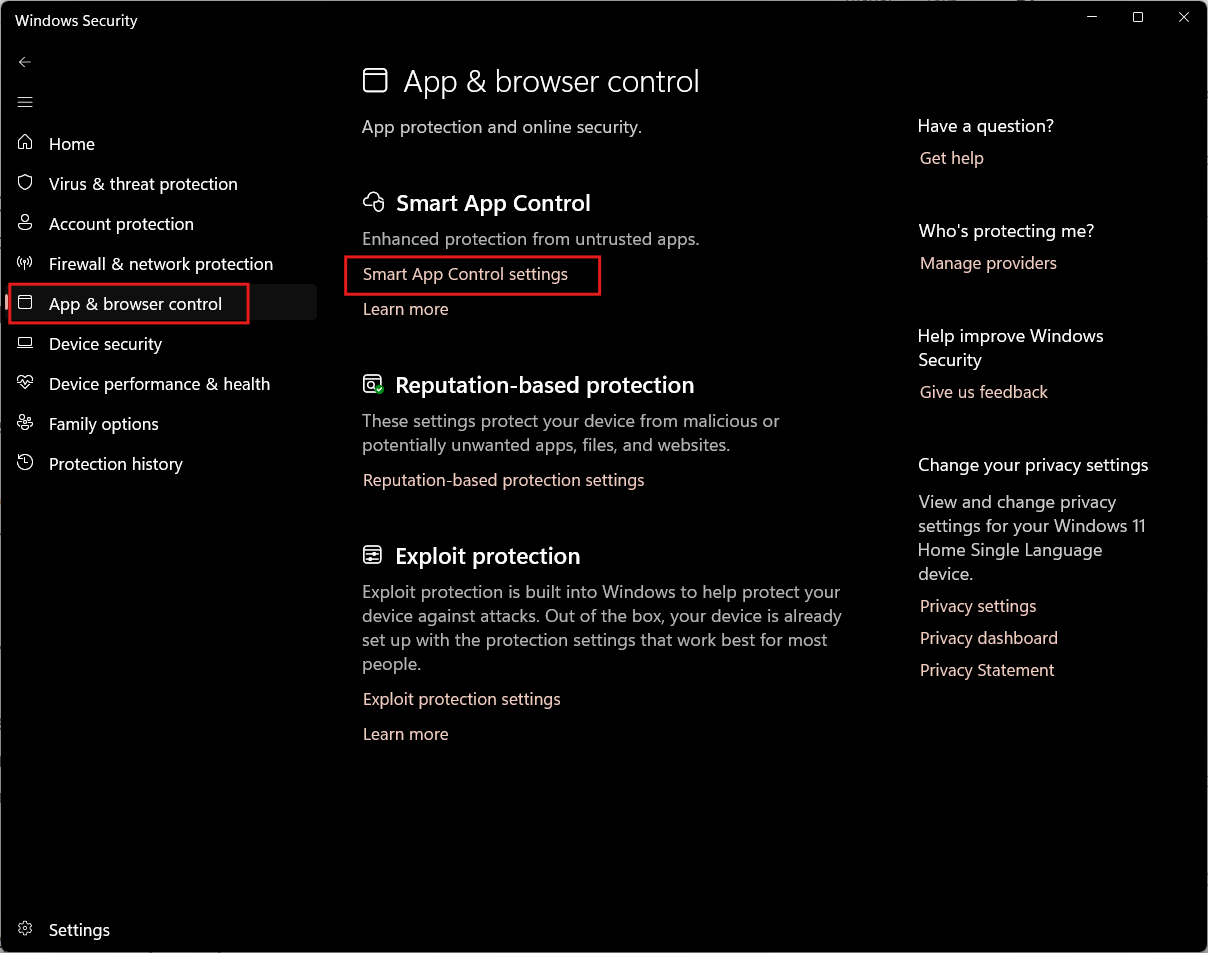
If you go to Settings > Windows Security > App & Browser Control > Smart App Control settings, and SAC is turned off, you can now turn it on without resetting Windows. Likewise, if it’s already turned on, you can now disable it without reinstalling or resetting Windows.
“This feature was previously disclosed in January 2026 (KB5074105) and is now beginning to roll out,” Microsoft noted in updated release notes.
It is worth noting that Microsoft is rolling out the Smart App Control update, and it won’t show up immediately after installing today’s patch.
2. The Settings app is getting better with greater control over Microsoft 365
It’s not something most of you will care about, but it is now possible to switch Microsoft 365 plans from Settings > Accounts.
If you’re using Microsoft 365 Basic, you can now switch to a higher plan, such as Microsoft 365, from Settings > Accounts, which also comes with Copilot in Office apps. Another notable change is that the dialog boxes in Settings > Accounts > Other users have been updated to use Windows 11’s design standard.
The Settings > About page now feels more structured, as you can find device specifications easily and quickly access other items in the Settings app, such as Storage Settings.
Microsoft has also rolled out the ‘Device’ card on the Settings home page for more users.
Last but not least, you will notice that the Settings app feels a bit faster.
3. File Explorer feels a bit better, but Microsoft is not delivering on its promises yet
Windows 11’s October 2025 update blocked users from previewing internet-downloaded files in File Explorer to improve security, especially against NTLM attacks.
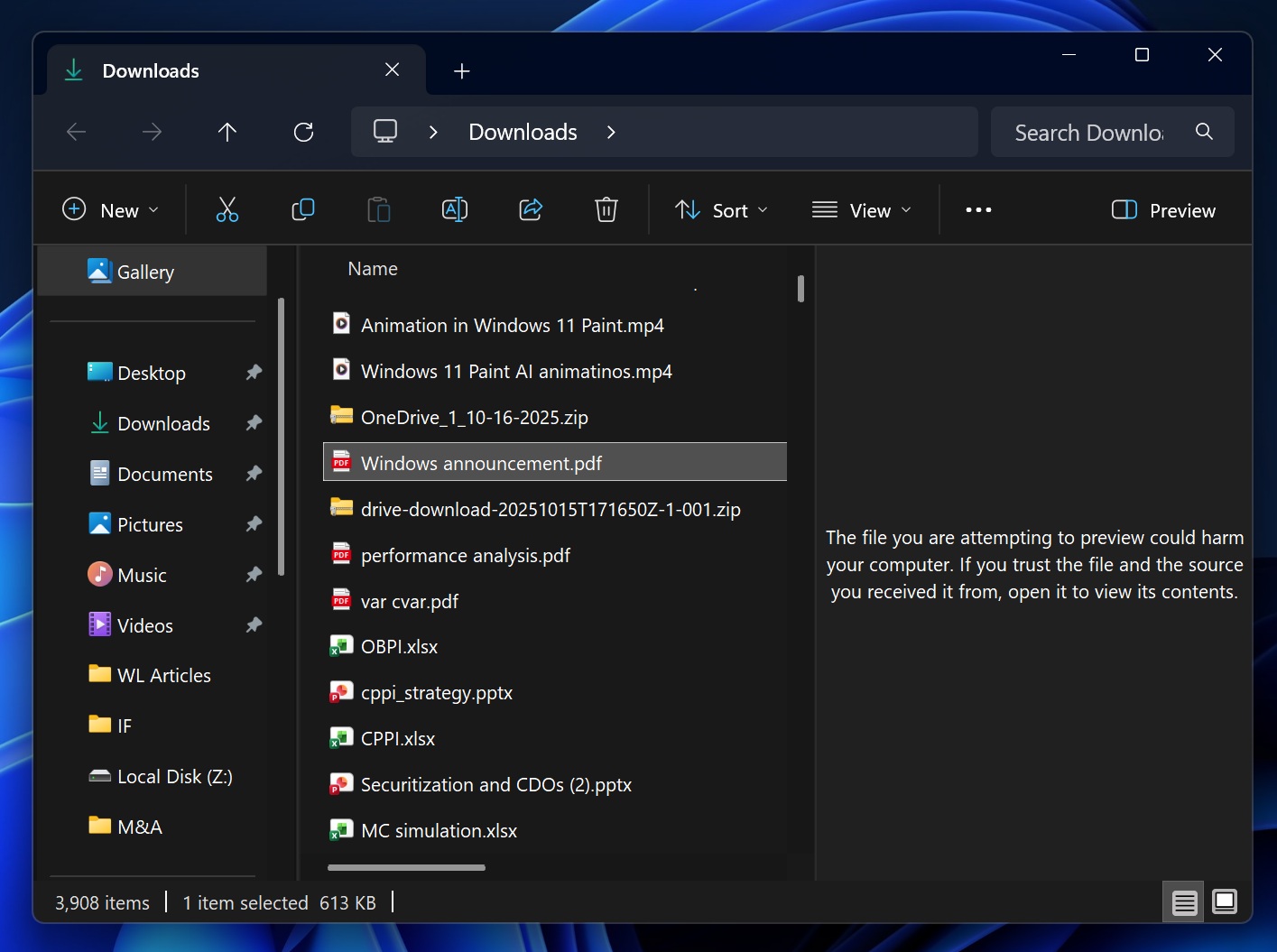
At that time, Windows Latest found that it was possible to whitelist internet-downloaded files and continue to preview them in File Explorer. However, some PowerShell scripts did not effectively unblock the files, and even manually allowing each file from Properties did not work all the time.
Microsoft now says it was a known issue after all these months, and Windows 11 KB5079391 finally makes the unlock process more reliable.
There are also other improvements shipping for File Explorer today:
- Voice Typing now works with File Explorer’s advanced controls, starting with renaming a file.
- The “Advanced Security Settings” pop-up in File Explorer now allows you to sort permissions.
In addition, Microsoft has improved display reliability, patched issues with printing, and is rolling out other improvements today.
The company is not aware of any new known issues.
The post Windows 11 KB5079391 out with features, direct download links for offline installers (.msu) appeared first on Windows Latest
“}]]


This Post Has 0 Comments