


Introduction
A glowing snake border may sound like a simple UI effect. On the web, there are many examples, variants, and breakdowns of how to build it. But on native Android, I have not really seen solid implementations done properly. Most of them are either simplified to a circle with plain rotation, or they use the same rotation-based progress idea even for rectangle shapes. As a result, the motion stops being uniform and starts to feel uneven and broken.
Let’s fix that properly.
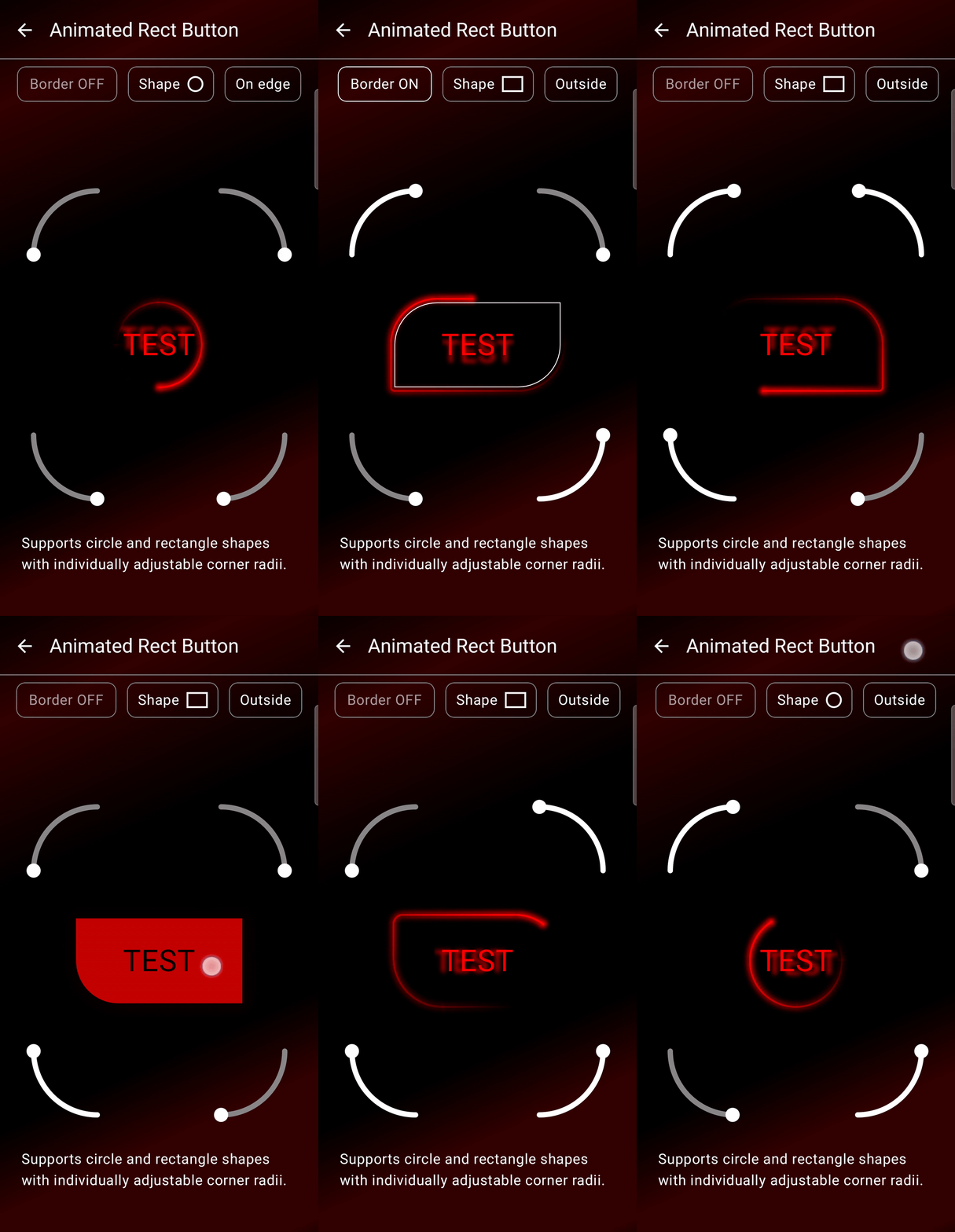
Warning: this solution is primarily a showcase or a learning exercise. Never ever ship a continuously running animation like this in production unless you fully understand its performance implications and can guarantee it stays within the 16 ms frame budget.
You will pay for this twice: first in development and maintenance — including the cost of supporting older and lower-end devices — and then, more importantly, in user experience. Users are extremely sensitive to even minor stutters, freezes, or small FPS drops, especially on budget devices where performance is already constrained.
This article is part of a glowing snake border series:
- Part 1 — Animated Snake Border for CircleShape.

- Part 2 — Animated Snake Border for Rectangle Shapes . — You are here
- Part 3 — Animated Snake Border for any Shape; Path & Sampling trick (coming soon).
Current article full code: link with running snake.
Problem
A common approach is to animate movement by rotating a line and taking its intersection with the path as the current position.
This works perfectly for circles, but for shapes where width and height differ significantly, the speed varies along the path.
Also, joins between vertical and horizontal segments often create visible seams, breaking the illusion of a continuous shape.
Rounded corners are often ignored completely, with no support for inner (inset) or outer (outset) borders that extend beyond the composable bounds.

Solution Requirements
- Smooth motion — the velocity vector changes smoothly while its magnitude remains constant
- Two-layer snake body — a blurred halo and a thin stroke core, fading smoothly from head to tail until fully transparent
- No visible seams — the snake must appear continuous across all segment joins
- Support for circular shapes
- Support for rectangles with sharp corners
- Rounded corner support
- Support for varying corner radii — the ability to define different radii for each corner
- State persistence — the snake should preserve its state when leaving and re-entering composition
- Encapsulation — the entire effect should be implemented within a single modifier, without spreading logic across the composition
- Dynamic geometry updates — runtime changes in size or shape must not cause discontinuities or jumps; motion should remain smooth and continuous during transitions
Implementation
This article focuses only on the snake movement.
Text-related effects and the glowing halo border when pressed are out of scope and are covered in my previous articles.
Also, for anyone looking for some hidden magic here, there really is none. The whole thing is just a perimeter split into 8 segments: 4 quarter-circle arcs, 2 horizontal lines, and 2 vertical lines. From there, it becomes a fairly boring mechanical routine: compute where the snake head and tail are, determine which segments they fall into, and then render the snake piece by piece inside each affected segment separately.
Step 1 Extract animation STATE:
By state here I mean the variable that describes the snake movement itself. If we treat the full perimeter as a closed contour of normalized length 1, then that variable is simply the animation progress. It moves from 0 to 1, then jumps back to 0 and repeats. Once this value is known, everything else can be derived from it: the head position, the tail position, and the currently covered perimeter segments.
This logic could be moved entirely inside the modifier with Modifier.composed, but I also needed the same progress value outside the modifier to keep it synchronized with the drop shadow angle inside GlowingText. That is why I moved it into a separate helper, rememberRectSnakeState.
Lifecycle observation is also encapsulated there, so the state is not animated when it does not need to be. Another common mistake is to tie progress directly to frame ticks. In that case, if FPS drops by X times,
the snake speed also drops by X times. Here the progress is time-based, so its speed does not depend on frame rate.
 @Stable
  class RectSnakeState internal constructor(
      initialProgress: Float = 0f
  ) {
      var progress by mutableFloatStateOf(initialProgress)
          internal set

      internal var isEnabled by mutableStateOf(true)
      internal var isLifecycleRunning by mutableStateOf(true)

      val isRunning: Boolean
          get() = isEnabled && isLifecycleRunning

      companion object {
          // state saver
          ...
      }
  }
 @Composable
  fun rememberRectSnakeState(
      enabled: Boolean = true
  ): RectSnakeState {
      val state = rememberSaveable(saver = RectSnakeState.Saver) {
          RectSnakeState()
      }
      val lifecycleOwner = LocalLifecycleOwner.current

      state.isEnabled = enabled

      DisposableEffect(lifecycleOwner) {
          // lifecycle observation
          ...
      }

      LaunchedEffect(state.isRunning) {
          if (!state.isRunning) return@LaunchedEffect

          val startProgress = state.progress
          val startFrameNanos = withFrameNanos { it }

          while (true) {
              val frameNanos = withFrameNanos { it }
              val elapsedMs = (frameNanos - startFrameNanos) / 1_000_000f
              val loopProgress = elapsedMs / SnakeLoopAnimationDurationMs
              state.progress = normalizeSnakeProgress(startProgress + loopProgress)
          }
      }

      return state
  }
Step 2: Build the perimeter geometry
The first thing we need is an explicit perimeter model, because the snake should move not along an abstract shape, but along a fully defined geometric track.
In this solution, the perimeter geometry is a precomputed description of that track built from the current size, shape, stroke placement, and resolved corner radii.
As part of that, the full border is reduced to 8 ordered segments: 4 straight edges and 4 quarter-circle arcs. For each segment, we compute its geometry, its length, and the offset at which it starts along the full perimeter.
The final geometry object contains the track bounds (left, top, right, bottom), the radius of each corner (topLeftRadius, topRightRadius, bottomRightRadius, bottomLeftRadius), the centers of the four corner arcs (topRightCenter, bottomRightCenter, bottomLeftCenter, topLeftCenter), the length of every segment, the accumulated start offset of every segment, and the total perimeter length.
Based on this geometry, at any moment of the animation we can determine which segments the snake currently spans and the exact positions of its head and tail on the border.
— quarterTurn is the length coefficient for a quarter-circle arc.
— topLen, rightLen, bottomLen, and leftLen are the lengths of the straight perimeter segments.
— topRightArcLen, bottomRightArcLen, bottomLeftArcLen, and topLeftArcLen are the lengths of the four corner arcs.
— segmentLengths stores the real length of each of the 8 perimeter segments.
— segmentStarts stores the accumulated offset at which each segment begins along the full perimeter. (Pixel points)
— totalLen is the total length of the entire perimeter track.
— topRightCenter, bottomRightCenter, bottomLeftCenter, and topLeftCenter are the arc centers used later for rendering and point lookup.
 private fun buildRectSnakeTrackGeometry(...): RectSnakeTrackGeometry? {
      // track bounds, resolved corner radii, and validation
      ...

      val quarterTurn = PI.toFloat() / 2f

      val topLen = (trackWidth - radii.topLeft - radii.topRight).coerceAtLeast(0f)
      val rightLen = (trackHeight - radii.topRight - radii.bottomRight).coerceAtLeast(0f)
      val bottomLen = (trackWidth - radii.bottomRight - radii.bottomLeft).coerceAtLeast(0f)
      val leftLen = (trackHeight - radii.bottomLeft - radii.topLeft).coerceAtLeast(0f)

      val topRightArcLen = (quarterTurn * radii.topRight).coerceAtLeast(0f)
      val bottomRightArcLen = (quarterTurn * radii.bottomRight).coerceAtLeast(0f)
      val bottomLeftArcLen = (quarterTurn * radii.bottomLeft).coerceAtLeast(0f)
      val topLeftArcLen = (quarterTurn * radii.topLeft).coerceAtLeast(0f)

      val segmentLengths = floatArrayOf(
          topLen,
          topRightArcLen,
          rightLen,
          bottomRightArcLen,
          bottomLen,
          bottomLeftArcLen,
          leftLen,
          topLeftArcLen
      )

      val segmentStarts = FloatArray(segmentLengths.size)
      var totalLen = 0f
      for (index in segmentLengths.indices) {
          segmentStarts[index] = totalLen
          totalLen += segmentLengths[index]      }

      return RectSnakeTrackGeometry(
          left = left,
          top = top,
          right = right,
          bottom = bottom,
          topLeftRadius = radii.topLeft,
          topRightRadius = radii.topRight,
          bottomRightRadius = radii.bottomRight,
          bottomLeftRadius = radii.bottomLeft,
          segmentLengths = segmentLengths,
          segmentStarts = segmentStarts,
          totalLen = totalLen,
          // arc centers
          topRightCenter = Offset(...),
          bottomRightCenter = Offset(...),
          bottomLeftCenter = Offset(...),
          topLeftCenter = Offset(...),
          // rendering-related geometry fields
          ...
      )
  }
Step 3: Convert animation progress into snake head and tail positions
At this step, we stop working with the static perimeter model and derive the current snake span from the animation progress. This is an internal derived state used only for rendering, not the animation state object
from Step 1. The progress value is first converted into headDistance, which represents the current position of the snake head along the full perimeter length. The actual snake length is then computed from
snakeLengthFraction * totalLen, and tailDistanceis obtained by moving backward from the head along the same perimeter. Once both positions are known, they define the full visible snake span that will later be
rendered from tail to head across the affected segments.
— progress is the normalized animation progress.
— wrappedProgress keeps the progress inside the looping 0..1 range (normalized animation progress).
— headDistance is the current head position measured along the full perimeter.
— snakeLengthFraction defines how much of the perimeter the snake should occupy.
— snakeLength is the real snake length on the current track.
— tailDistance is the tail position measured backward from the head.
— alphaAtDistance(distance) gives the fade value for any point inside the current snake span.
 private fun buildRectSnakeProgressState(
      progress: Float,
      snakeLengthFraction: Float,
      totalLen: Float
  ): RectSnakeProgressState {
      // Keep progress inside the stable [0, 1) loop even if the input overflows.
      val wrappedProgress = ((progress % 1f) + 1f) % 1f
      val headDistance = wrappedProgress * totalLen
      val snakeLength = (snakeLengthFraction.coerceIn(0f, 1f) * totalLen)
          .coerceIn(0f, totalLen)
      val tailDistance = headDistance - snakeLength

      fun alphaAtDistance(distance: Float): Float {
          val relative = (distance - tailDistance) / snakeLength
          return relative.coerceIn(0f, 1f)
      }

      return RectSnakeProgressState(
          headDistance = headDistance,
          snakeLength = snakeLength,
          tailDistance = tailDistance,
          alphaAtDistance = ::alphaAtDistance //(Float) -> Float
      )
  }
Step 4: Split the snake span across the affected segments
If the snake is short enough, it may fit entirely inside a single segment.
In other cases, it spans multiple segments at once.
For each affected segment, we determine which part should be drawn.
This gives us the exact intervals that will be rendered on straight edges and corner arcs.
— startDistance and endDistance define the current snake span on the perimeter: startDistance is the current tail position, and endDistance is the current head position, both measured along the full perimeter path.
— wrapped keeps the current distance inside the 0..totalLen perimeter range, so we can correctly determine which segment it belongs to.
— findSegmentIndex(…) tells us which segment the current part of the snake belongs to.
— segmentStart and segmentEnd define the boundaries of that segment.
— intervalEnd gives the end of the current piece that can be drawn inside this segment before moving to the next one.
private fun drawDistanceIntervalNative(
      canvas: android.graphics.Canvas,
      geometry: RectSnakeTrackGeometry,
      startDistance: Float,
      endDistance: Float,
      colorFrom: Color,
      colorTo: Color,
      alphaAtDistance: (Float) -> Float,
      paint: Paint,
  ) {
      val totalLen = geometry.totalLen
      var current = startDistance

      while (current < endDistance) {
          val wrapped = ((current % totalLen) + totalLen) % totalLen
          val segmentIndex = findSegmentIndex(geometry.segmentStarts, geometry.segmentLengths, wrapped)
          val segmentStart = geometry.segmentStarts[segmentIndex]          val segmentEnd = segmentStart + geometry.segmentLengths[segmentIndex]          val intervalEnd = min(endDistance, current + (segmentEnd - wrapped))

          drawSegmentPartNative(
              canvas = canvas,
              geometry = geometry,
              segmentIndex = segmentIndex,
              startDistance = wrapped,
              endDistance = wrapped + (intervalEnd - current),
              colorFrom = colorFrom,
              colorTo = colorTo,
              alphaAtDistance = alphaAtDistance,
              paint = paint
          )

          current = intervalEnd
      }
  }
Step 5. Render the snake inside drawWithCache
At this point, the geometry and the snake intervals are already known, so only rendering remains. I do it inside drawWithCache to prepare geometry and paint objects once and reuse them during drawing. This keeps the
whole effect inside a single modifier.
From there, the logic is simple: draw every segment currently covered by the snake. Depending on the current head and tail positions, that may be one segment or several at once. With a large snake fraction such as
0.75f, the snake can span most of the perimeter and sometimes touch all 8 segments. Each affected segment is rendered only for the interval that belongs to the current snake span.
Straight segments and corner arcs are rendered differently, but both follow the same interval logic. Segment joints have to use cut ends rather than round caps. If a rounded head or tail is needed, it should be
drawn separately as a circle or semicircle.
fun Modifier.rectSnakeBorder(
      state: RectSnakeState,
      ...
  ): Modifier = this.drawWithCache {
      val geometry = buildRectSnakeTrackGeometry(...)
      if (geometry == null) {
          return@drawWithCache onDrawBehind {}
      }

      val snakeState = buildRectSnakeProgressState(
          progress = state.progress,
          snakeLengthFraction = snakeLengthFraction,
          totalLen = geometry.totalLen
      )

      val bodyStrokePaint = createBodyStrokePaint(...)
      val glowStrokePaint = createGlowStrokePaint(...)
      val glowHeadPaint = createGlowHeadPaint(...)

      val head = pointAtDistance(geometry, snakeState.headDistance)

      onDrawBehind {
          if (snakeState.snakeLength > 0f) {
              drawIntoCanvas { canvas ->
                  val nativeCanvas = canvas.nativeCanvas

                  // Draw the large glowing outer snake body.
                  drawSnakeLayerNative(
                      canvas = nativeCanvas,
                      geometry = geometry,
                      snakeState = snakeState,
                      colorFrom = glowColorFrom,
                      colorTo = glowColorTo,
                      paint = glowStrokePaint
                  )

                  // Draw the glowing outer snake head.
                  nativeCanvas.drawCircle(
                      head.x,
                      head.y,
                      glowingStrokeWidthPx / 2f,
                      glowHeadPaint
                  )

                  // Draw the thin inner snake body on top of the glow.
                  drawSnakeLayerNative(
                      canvas = nativeCanvas,
                      geometry = geometry,
                      snakeState = snakeState,
                      colorFrom = bodyColorFrom,
                      colorTo = bodyColorTo,
                      paint = bodyStrokePaint
                  )
              }

              // Draw the sharp inner head point.
              drawCircle(
                  color = bodyColorTo,
                  radius = bodyStrokeWidthPx / 2f,
                  center = head
              )
          }
      }
  }
The nativeCanvas is needed here for the outer halo body and the halo head, because BlurMaskFilter is only available through the native Android paint pipeline. The inner snake body is not blurred, but it is still
rendered through the same native path simply to reuse the same drawSnakeLayerNative(…) logic.
Blur mask seams problem
There are still some small visual seams between blurred line segments and blurred arcs, especially when the halo body width becomes large. This current approach does not fully eliminate them. I will cover that separately in the next article using a sampling-based approach.
Conclusion
This solution supports CircleShape, RectangleShape, and RoundedCornerShape with varying corner radii, which in practice covers most regular UI elements. For any other generic Shape, I fail explicitly with: error(“rectSnakeBorder supports only RoundedCornerShape, RectangleShape, and CircleShape”)
But for custom shapes, is there a more universal solution that works for any closed shape?
Check out my next article for a more universal solution.
Github link: whole article code and only animated snake package.
Jetpack Compose: Animated Snake Border for Rectangle Shapes was originally published in ProAndroidDev on Medium, where people are continuing the conversation by highlighting and responding to this story.



This Post Has 0 Comments