
 [[{“value”:”
One of the best practical uses of Apple Intelligence is the new Adaptive Power mode. Adaptive Power mode, new in iOS 26, allows your phone to adjust its resources and performance to optimize your battery life in situations of high power use. It’s easy to turn on, and then you just let your iPhone do the rest. Let’s learn how to enable Adaptive Power Mode.
Why You’ll Love This Tip
- Find the perfect balance between performance and battery saving.
- Allow your phone to adjust its settings based on your current usage.
How to Enable Adaptive Power Mode
System Requirements
This tip requires an iPhone 15 Pro or later running iOS 26. Find out how to update to the latest version of iOS.
Adaptive Power Mode enables your phone to adjust its usage to optimize your battery power during times of high usage, doing things like automatically dimming your screen or slightly slowing down some apps. Unlike Low Power Mode, this mode doesn’t go into power-saving measures 100% of the time. So, you can toggle this on and leave it running all the time, preserving performance when your phone isn’t working as hard and helping you prevent battery drain well before the little icon turns red. For more ways to optimize Apple Intelligence, check out our free Tip of the Day newsletter. Here is how to toggle on Adaptive Power Mode:
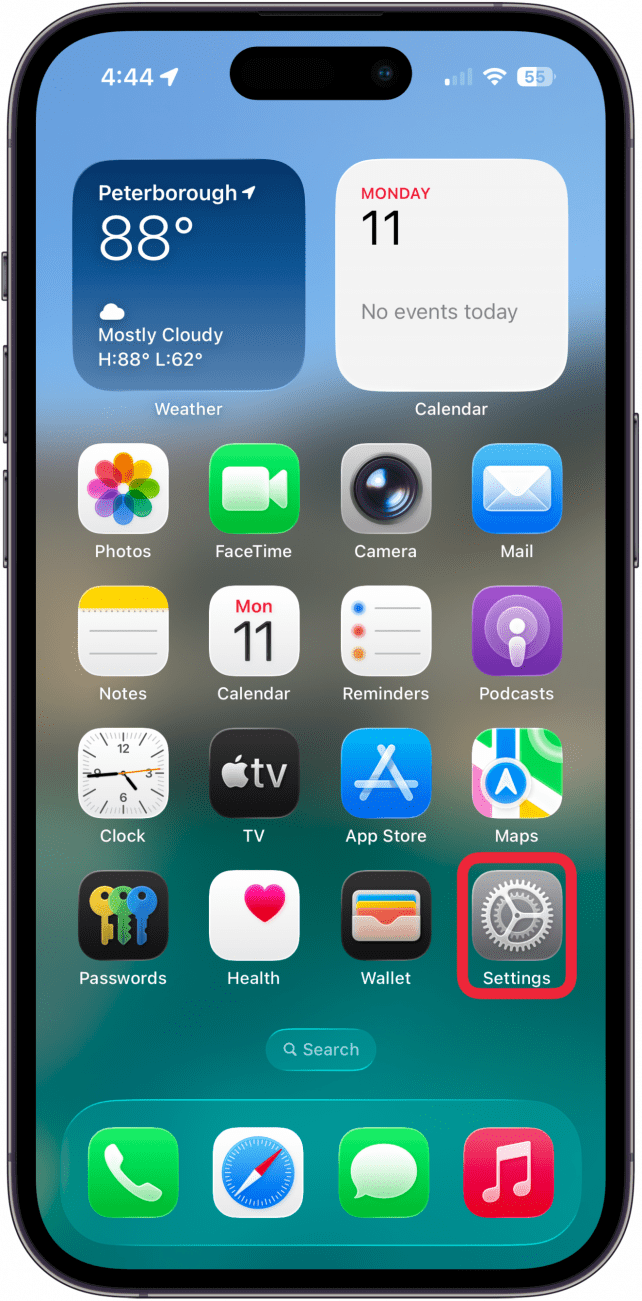
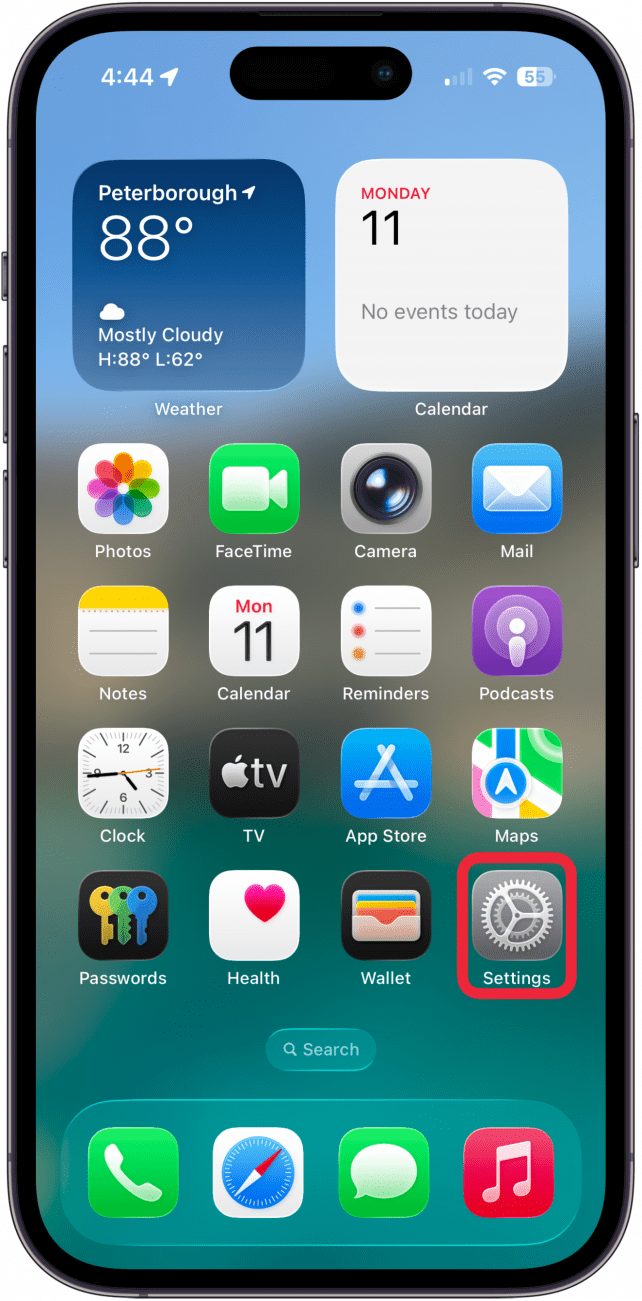
- Open your Settings app.
<!–[if IE 9]>
![]()
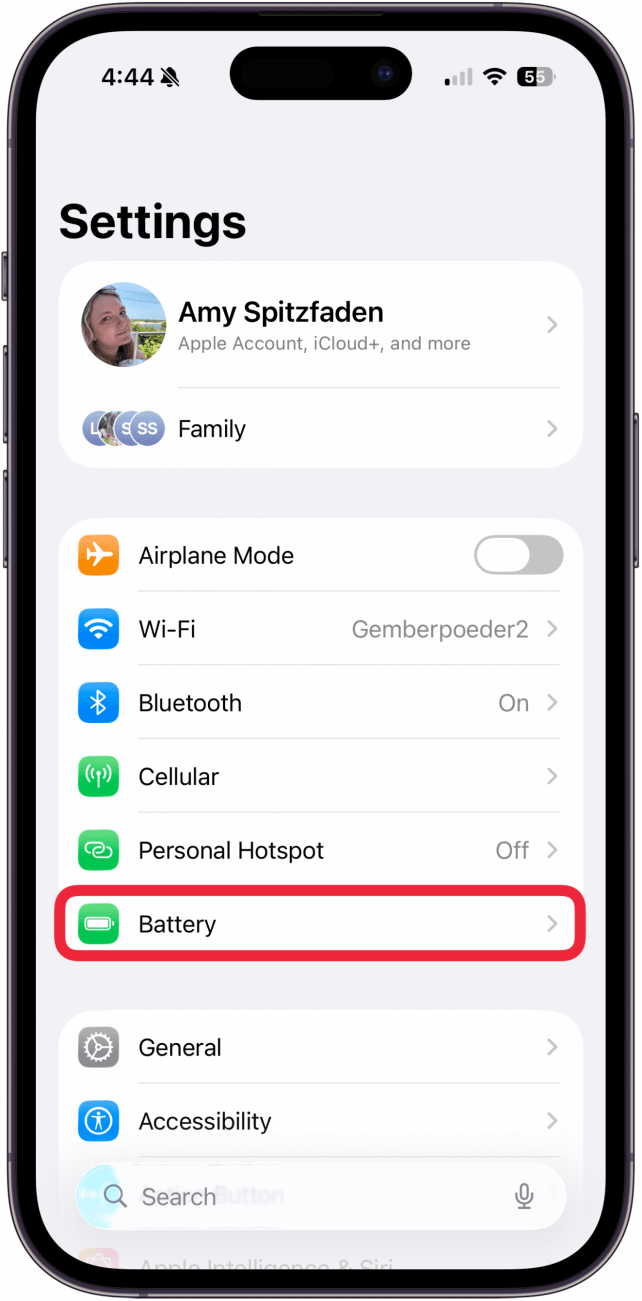
- Tap Battery.
<!–[if IE 9]>
![]()
- Tap Power Mode.
<!–[if IE 9]>
![]()
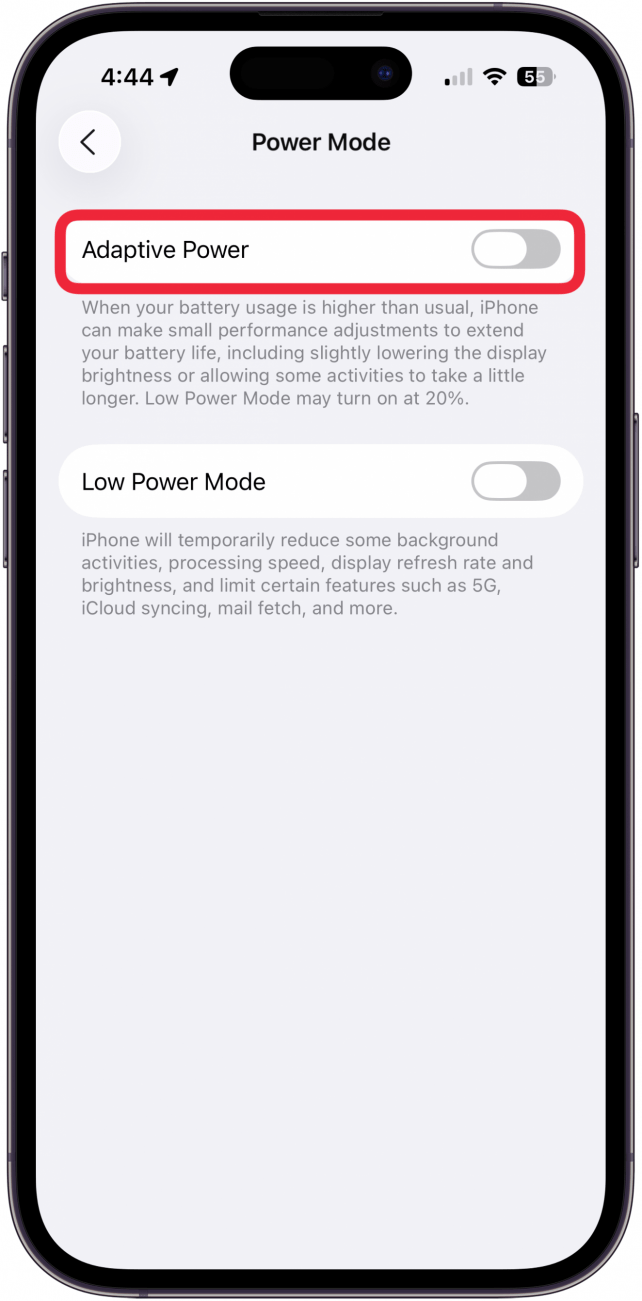
- Toggle on Adaptive Power.
<!–[if IE 9]>
![]()
- Tap the back arrow to return to Settings.
<!–[if IE 9]>
![]()

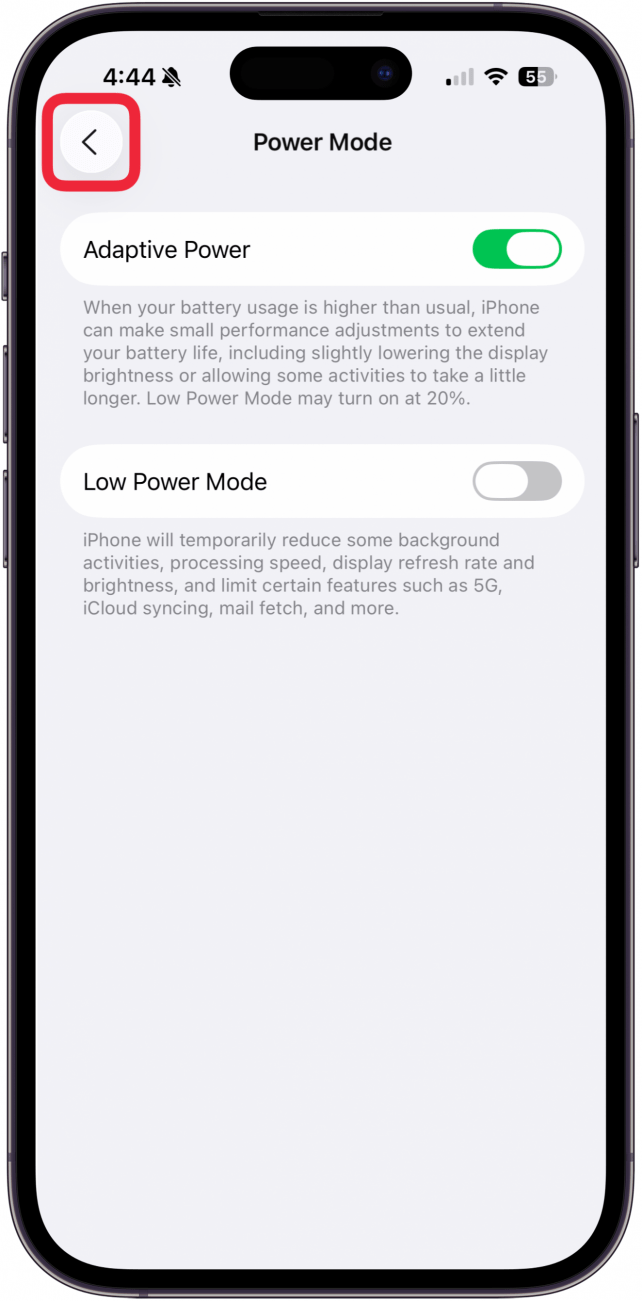
Now your iPhone will adjust its performance to optimize your battery when needed. If you want to turn this feature off, just follow the steps and toggle Adaptive Power off instead.
“}]]



This Post Has 0 Comments