
 [[{“value”:”
Here’s a new Apple visual intelligence feature you won’t want to miss; you can now use Visual Look Up to search images on your iPhone screen across apps. Here’s how to use on-screen visual intelligence on your iPhone.
Why You’ll Love This Tip
- Highlight objects in a screenshot and use visual intelligence to find similar images online.
- Ask ChatGPT questions about images on your iPhone screen.
- Search supported apps like Google and Etsy to find similar products to the image on your iPhone screen.
How to Use Apple Visual Intelligence to Look Up Images in Screenshots
System Requirements
This tip was tested on an iPhone 16. You’ll need an iPhone 15 Pro or Pro Max, or any iPhone 16 running iOS 26 or later for this tip to work. Find out how to update to the latest iOS.
What can you do with Apple visual intelligence? More than ever before! The latest visual intelligence feature is the ability to look up items on your iPhone screen across a variety of apps. Let’s go over how to use this new Apple Intelligence feature.
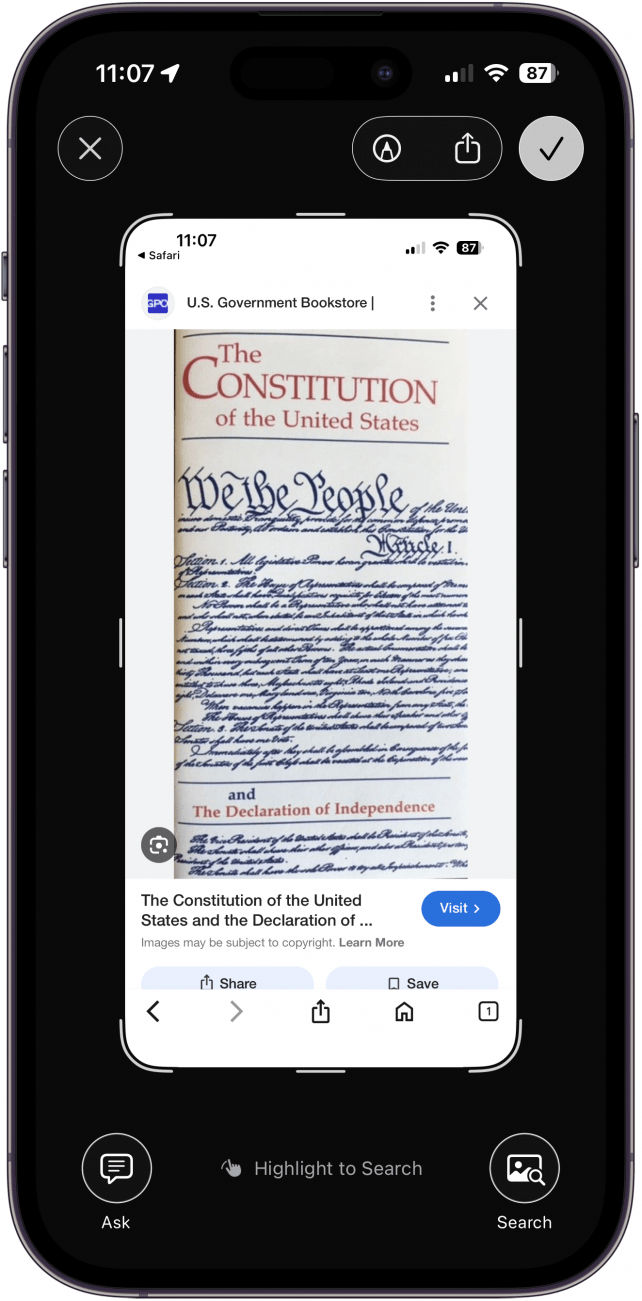
- Take a screenshot of an image that interests you on your iPhone. This can be anything, but you might want to try with a piece of furniture or clothing you’re interested in.
<!–[if IE 9]>

- Use your finger to circle or scribble over the part of the screenshot you want to learn about. That area will glow with animation.
<!–[if IE 9]>

- Tap the Ask button.
<!–[if IE 9]>

- Type a question, then tap the Send button. Or, you can simply wait for Apple Intelligence and ChatGPT to give you general information about the image.
<!–[if IE 9]>

- Wait a moment, and the ChatGPT results will appear onscreen.
<!–[if IE 9]>

- From your screenshot, you can also swipe up to see the image search results. In the future, Apple promises that you will also be able to see results directly from apps like Etsy and Pinterest here, but that feature is not available as of this writing.
<!–[if IE 9]>

- You can tap images from sites to purchase the item or learn more.
<!–[if IE 9]>


Now you know how to use Apple visual intelligence to look up an on-screen image. Be sure to check out our free Tip of the Day for more great Apple Intelligence tutorials.
More On: Apple Intelligence
“}]]


This Post Has 0 Comments