
 [[{“value”:”
Not a fan of Liquid Glass? If you don’t like the translucent Apple display feature, you’re probably wondering how to turn off Liquid Glass. You can’t fully turn off Liquid Glass, but you can reduce the translucent effect, so your iPhone or iPad display looks more opaque.
What to Know
- Learn how to reduce the transparent effect of the new Apple Liquid Glass feature, and make your iPad and iPhone display more opaque.
- To minimize Liquid Glass, toggle on Reduce Transparency in your Accessibility settings.
- You can add Reduce Transparency to your Control Center to turn the feature on and off more quickly.
How to Minimize Liquid Glass Effects on Your iPhone & iPad
System Requirements
The following steps were performed on an iPhone 16 running iOS 26 (available as a beta now, and to be shipped universally in September 2025)
Apple introduced a new display design called Liquid Glass with iOS 26. The glossy, translucent effect extends across operating systems for iPad, Mac, and Apple Watch, as well, creating a unified user experience for every Apple device with a display. Not all Apple users are wild about Liquid Glass, though, and want to turn off Liquid Glass. If you’re not a fan of the new Liquid Glass design, here’s how to minimize Liquid Glass features on your iPhone and iPad.
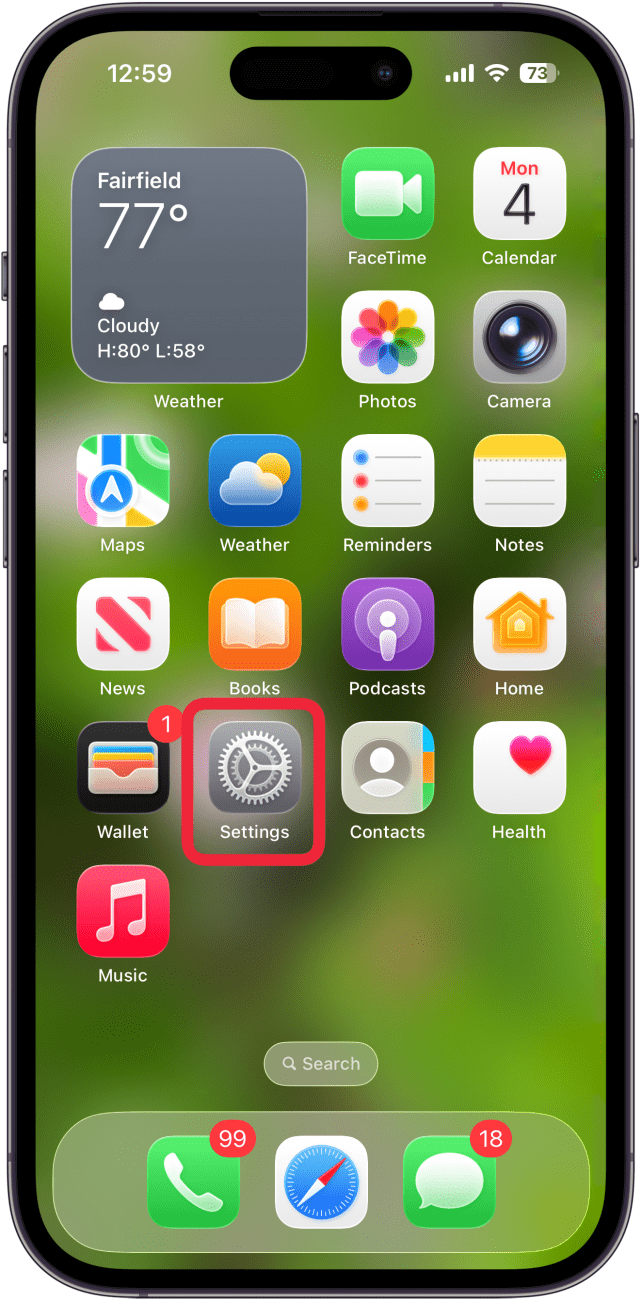
- Open the Settings app.
<!–[if IE 9]>

- Tap Accessibility.
<!–[if IE 9]>

- Tap Display & Text Size.
<!–[if IE 9]>

- Turn on Reduce Transparency.
<!–[if IE 9]>

- If you want to be able to turn Reduce Transparency on and off more quickly than via Settings, add Reduce Transparency to the Accessibility Shortcuts in your Control Center.


Toggling on Reduce Transparency won’t change all the new iOS and iPad OS 26 display updates, but at least your display will look more opaque now! Be sure to check out our free Tip of the Day for more great iOS 26 tutorials.
FAQ
- How can I save battery on my iPhone and iPad? There are several ways to save battery on your iPhone and iPad, one quick method is to disable your iPhone’s Always On Display.
- How do I add widgets to my iPhone’s Lock Screen? To add widgets to your iPhone’s Lock Screen, press the Lock Screen until it enters Edit mode, select a Lock Screen, tap Customize, Lock Screen, then add your widgets.
- I want to organize my iPad and iPhone Home Screen better, any tips? Yes! We have a roundup of ways to organize your iPhone Home Screen, including app folders, widgets, and more.
“}]]


This Post Has 0 Comments