
 [[{“value”:”
What is Live Listen? This handy feature essentially allows you to use your iPhone as a microphone and listen to the audio through your AirPods. With both iOS and watchOS 26, you can now activate Live Listen from your Apple Watch.
Why You’ll Love This Tip
- Control Live Listen without touching your iPhone.
- Activate Live Listen even if you are not near your iPhone.
How to Turn on Live Listen from Apple Watch
System Requirements
This tip was performed on an Apple Watch Series 8 paired with AirPods Pro 2 and an iPhone 16 Pro running iOS 26. Find out how to update to the latest version of iOS. Using Live Listen on your Apple Watch still requires your iPhone, as well as a pair of AirPods or MFi-compatible hearing aids.
Live Listen is an accessibility feature that is designed for those who are hard of hearing and need an extra boost to their hearing aids. With AirPods or MFi-compatible hearing aids, you can use your iPhone like a microphone and have the audio piped directly into your ears. With the latest versions of iOS and watchOS, you can now activate Live Listen from your Apple Watch. For more useful Apple Watch tips and tricks, be sure to sign up for our free Tip of the Day newsletter. Now, here’s how to use Live Listen on your Apple Watch:
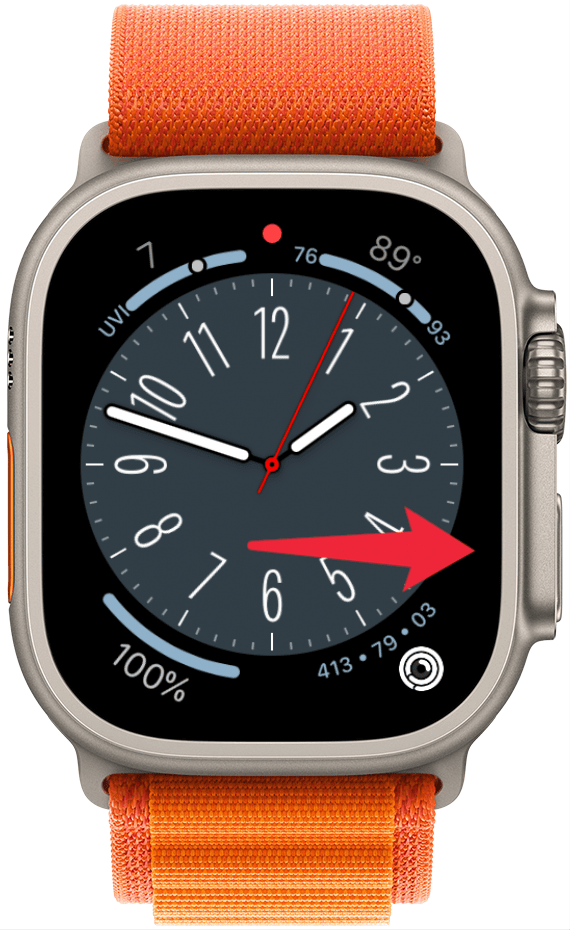
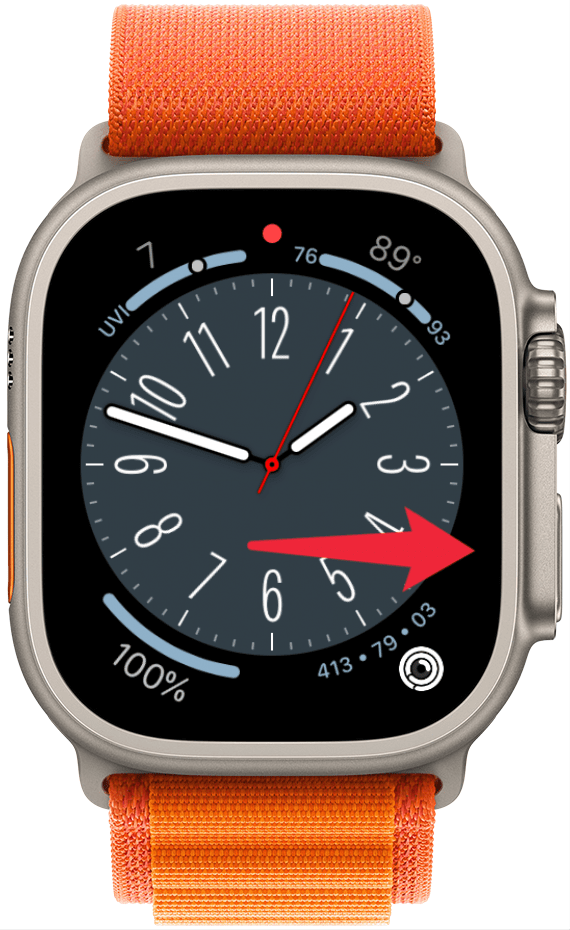
- On your Apple Watch, press the side button to open the Control Center.
<!–[if IE 9]>
![a screenshot of an apple watch with a red arrow pointing toward the side button]()
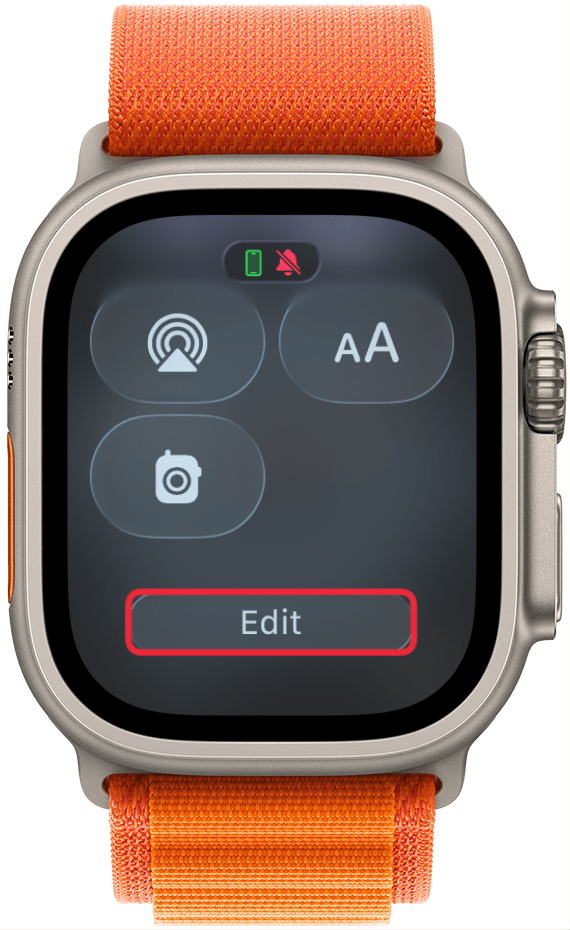
- Scroll to the bottom of the Control Center and tap Edit.
<!–[if IE 9]>
![a screenshot of the control center on apple watch with a red box around the edit button]()
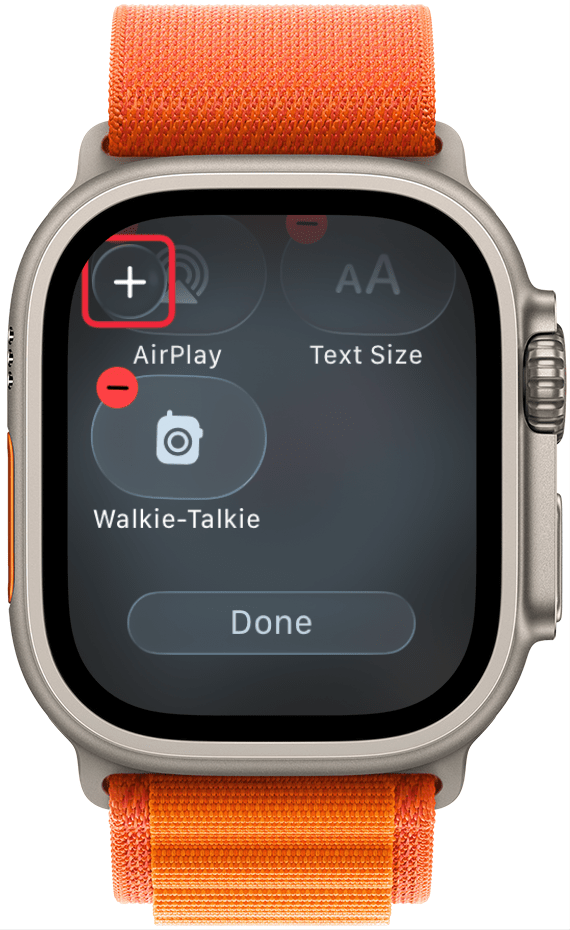
- Tap the plus icon.
<!–[if IE 9]>
![a screenshot of the control center on apple watch in edit mode with a red box around the plus icon]()
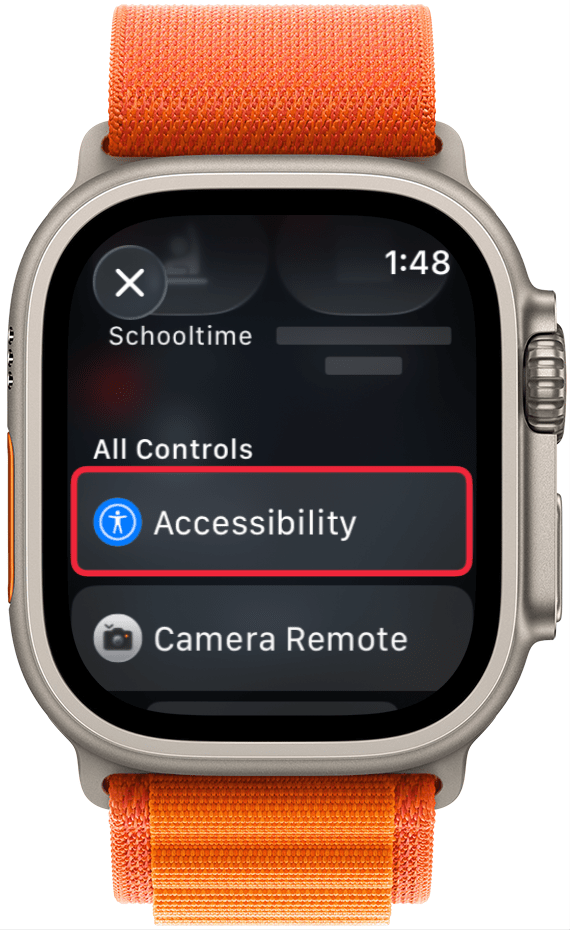
- Scroll down and tap Accessibility.
<!–[if IE 9]>
![a screenshot of control center controls on apple watch with a red box around the accessibility category]()
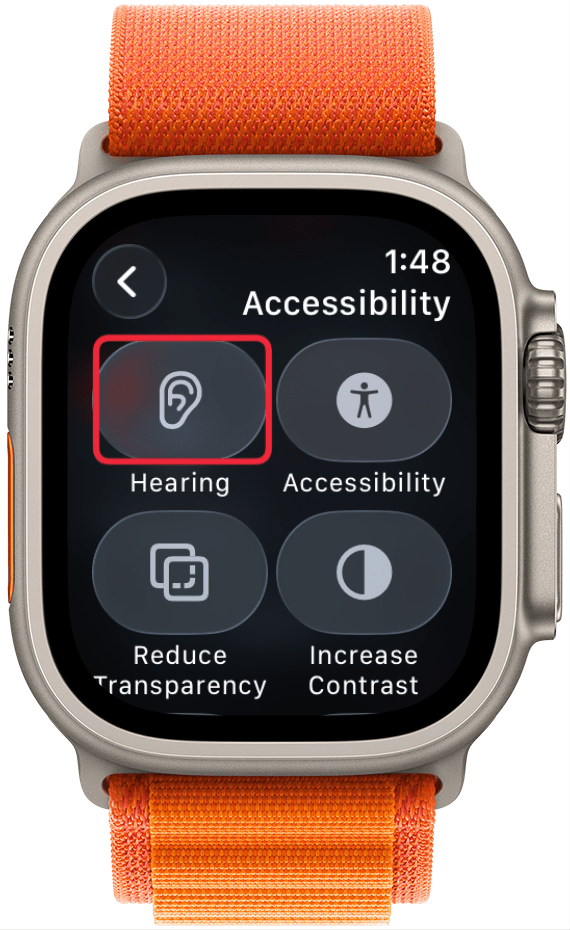
- Tap Hearing.
<!–[if IE 9]>
![a screenshot of apple watch accessibility options for the control center with a red box around hearing]()
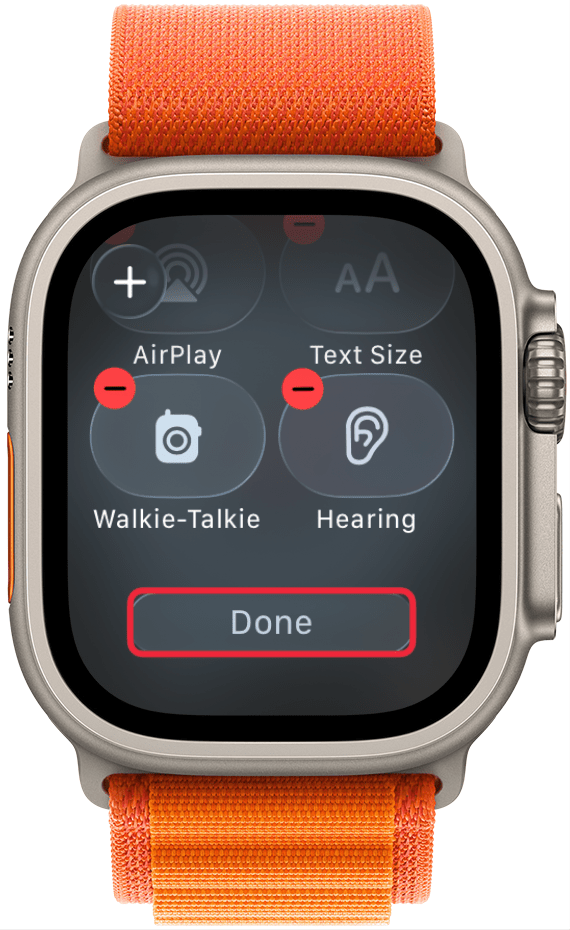
- Tap Done.
<!–[if IE 9]>
![a screenshot of the control center on apple watch in edit mode with a red box around the done button]()
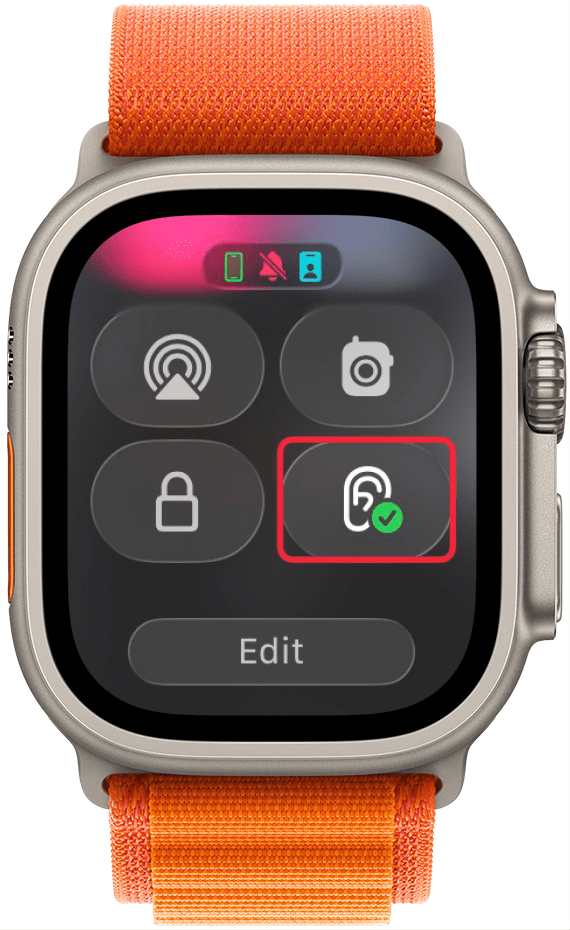
- Tap the Hearing icon.
<!–[if IE 9]>
![a screenshot of the control center on apple watch with a red box around the hearing button]()
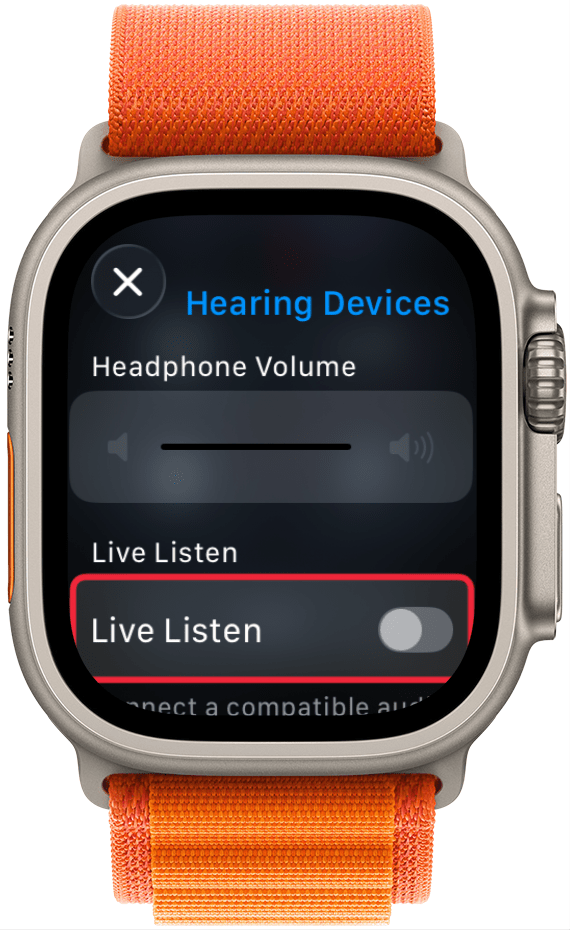
- Tap the toggle to activate Live Listen. If the toggle is grayed out, that means you do not have AirPods or MFi-compatible hearing aids connected to your iPhone.
<!–[if IE 9]>
![a screenshot of the hearing control center menu with a red box around the live listen toggle]()
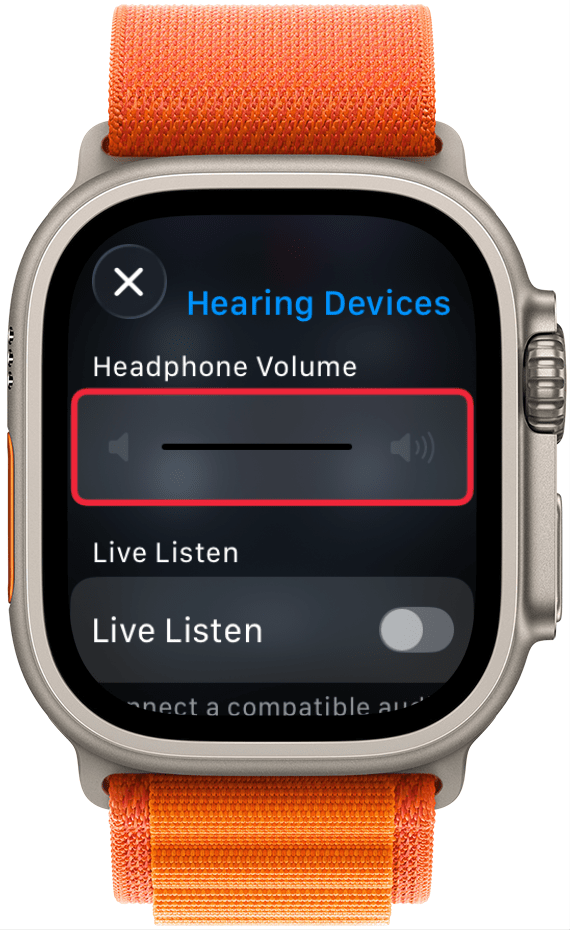
- While Live Listen is active, you can adjust the volume.
<!–[if IE 9]>
![a screenshot of the hearing control center menu with a red box around the volume slider]()
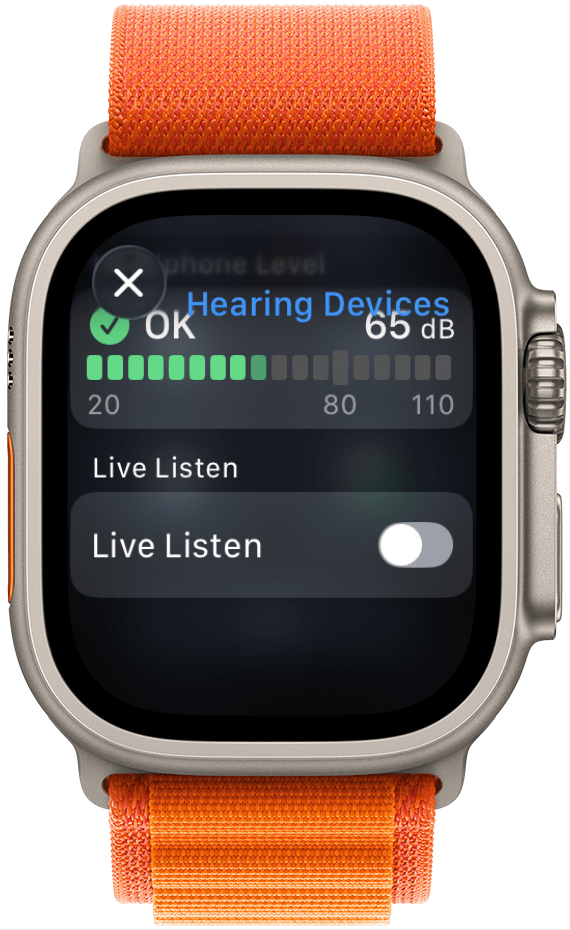
- If you scroll down, you can see the decibel level.
<!–[if IE 9]>
![a screenshot of the hearing control center menu showing the decibel level]()
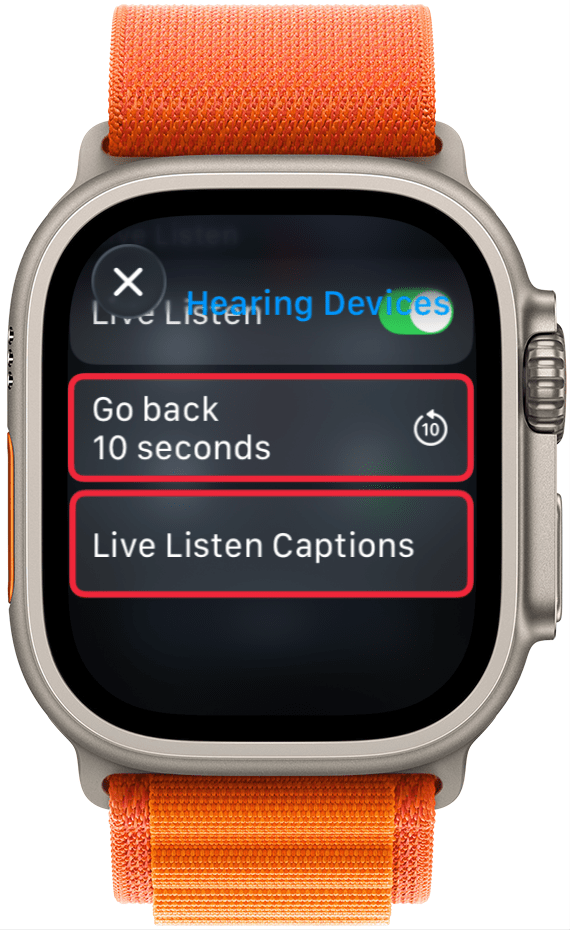
- At the bottom, there are options to go back ten seconds (which will rewind the audio ten seconds) and Live Listen Captions.
<!–[if IE 9]>
![a screenshot of the hearing control center menu with a red box around the buttons for go back 10 seconds and live listen captions]()
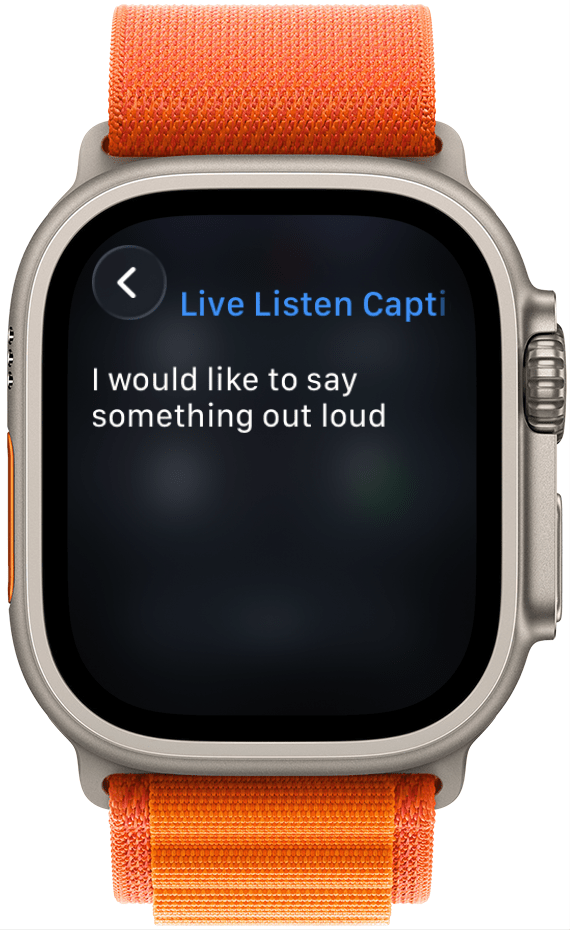
- If you tap Live Listen Captions, you can see auto-generated captions for anything that is spoken.
<!–[if IE 9]>
![a screenshot of live listen captions menu on apple watch showing auto generated captions]()
That’s how to use Live Listen on your Apple Watch! Keep in mind that even though you can control Live Listen from your Apple Watch, the audio and processing power are coming from your iPhone, so you’ll still need to keep it close by. Next, find out how to use Assistive Touch on Apple Watch.
More On: Accessibility on iPhone
“}]]




This Post Has 0 Comments