
 [[{“value”:”
Apple Watch Sleep Tracking has a new Sleep Score feature that gives you an overall number rating your sleep. It considers factors such as your sleep duration, wake-ups, awake time, and consistency of your bedtime over time. You can check your Sleep Score soon after you wake up.
Why You’ll Love This Tip
- Understand how you slept using a simple daily Sleep Score number.
- You won’t need to analyze confusing sleep graphs to understand how you slept.
How to Use Apple Watch Sleep Score
System Requirements
This tip was tested on an iPhone 17 Pro Max and an Apple Watch Series 10. You’ll need an Apple Watch running watchOS 26 or later paired with an iPhone running iOS 26 or later for this tip to work. Find out how to update to the latest iOS and watchOS.
Apple’s Sleep Score calculator will take the data gathered via your Apple Watch sleep tracker features and will provide you with daily Sleep Scores. For more Apple Watch tips, don’t forget to check out our free Tip of the Day newsletter. As long as you have already set up sleep tracking via your Health app, you’ll be able to see your Sleep Score in the Health app on both your Apple Watch and iPhone. Here’s how to view the data on iPhone:
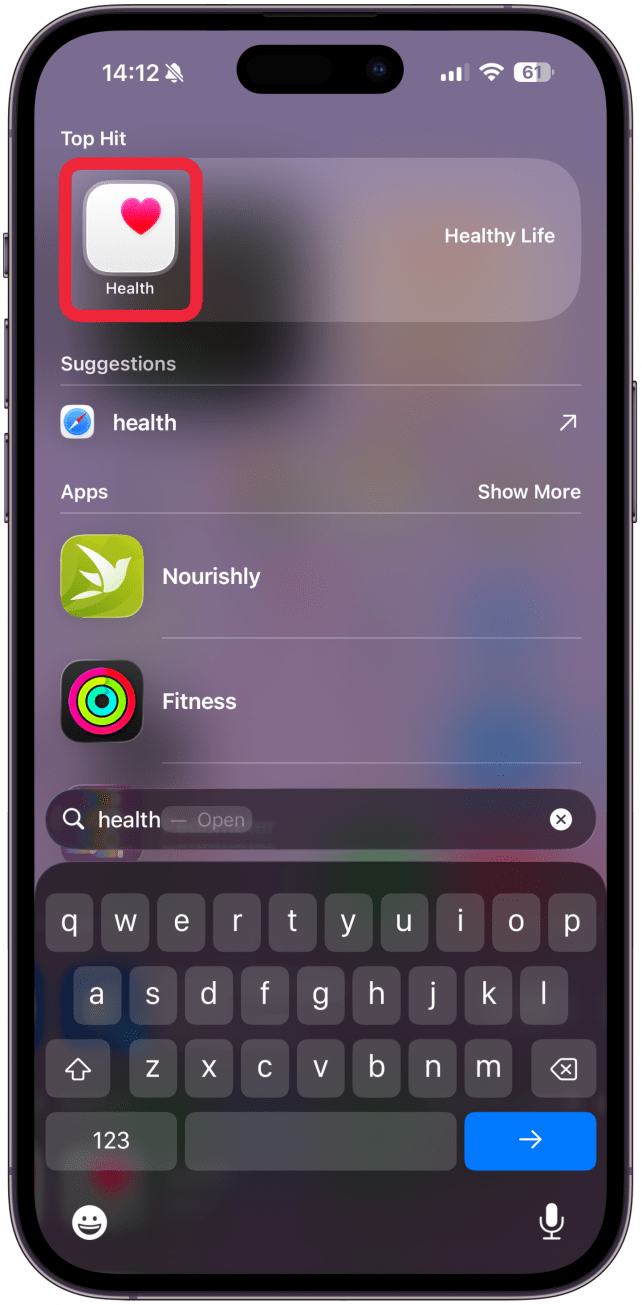
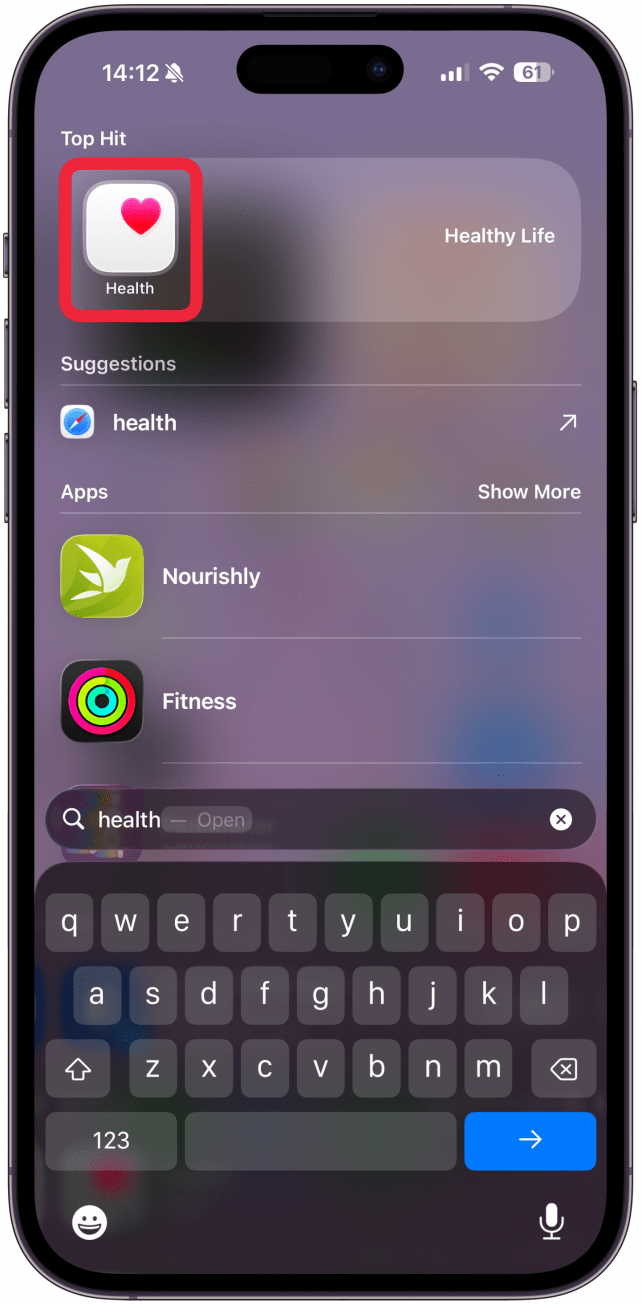
- Open the Health app.
<!–[if IE 9]>
![Open the Health app.]()
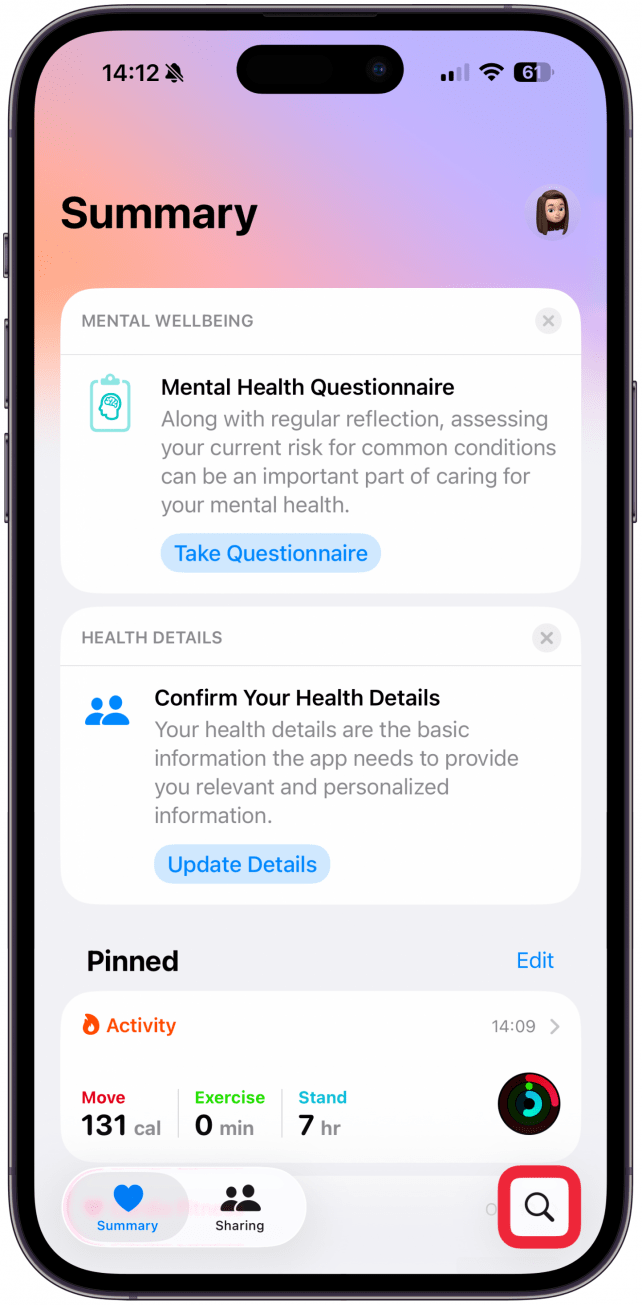
- Tap on the search icon in the bottom right corner.
<!–[if IE 9]>
![Tap on the search icon in the bottom right corner.]()
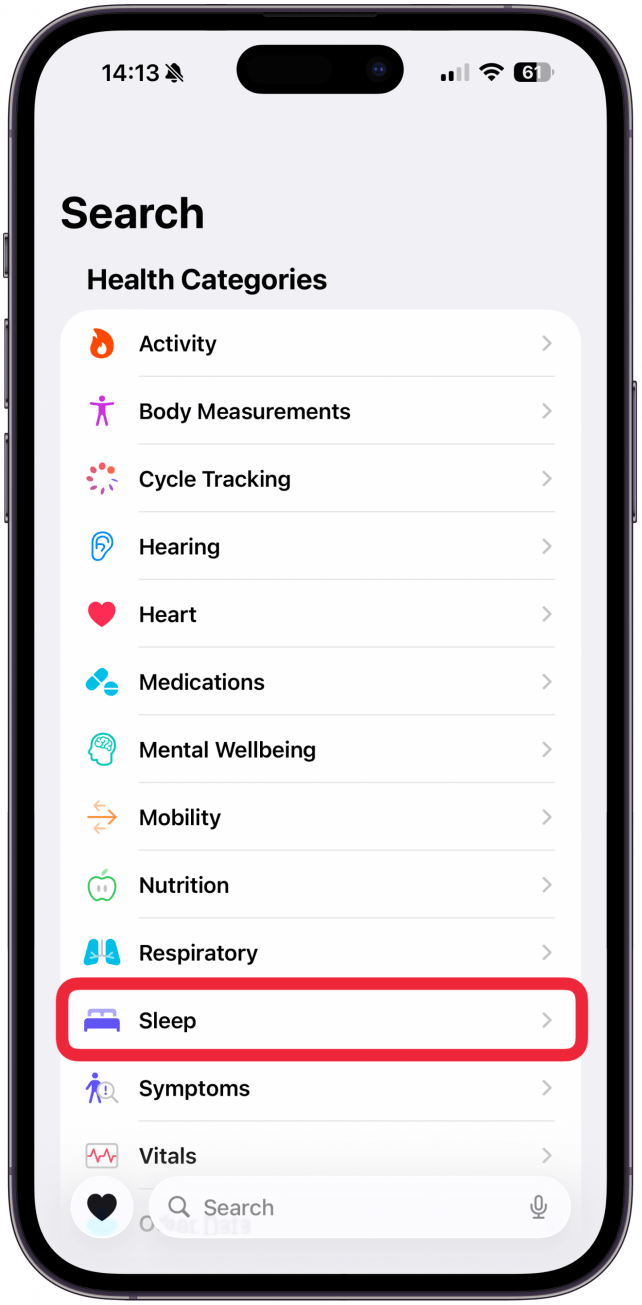
- Select Sleep.
<!–[if IE 9]>
![Select Sleep.]()
- Tap on Sleep Score.
<!–[if IE 9]>
![Tap on Sleep Score.]()
- Tap on Sleep Score again to see even more data.
<!–[if IE 9]>
![Tap on Sleep Score again to see even more data.]()
- Tap on Show in Charts to see your Sleep Score over time.
<!–[if IE 9]>
![Tap on Show in Charts to see your Sleep Score over time.]()
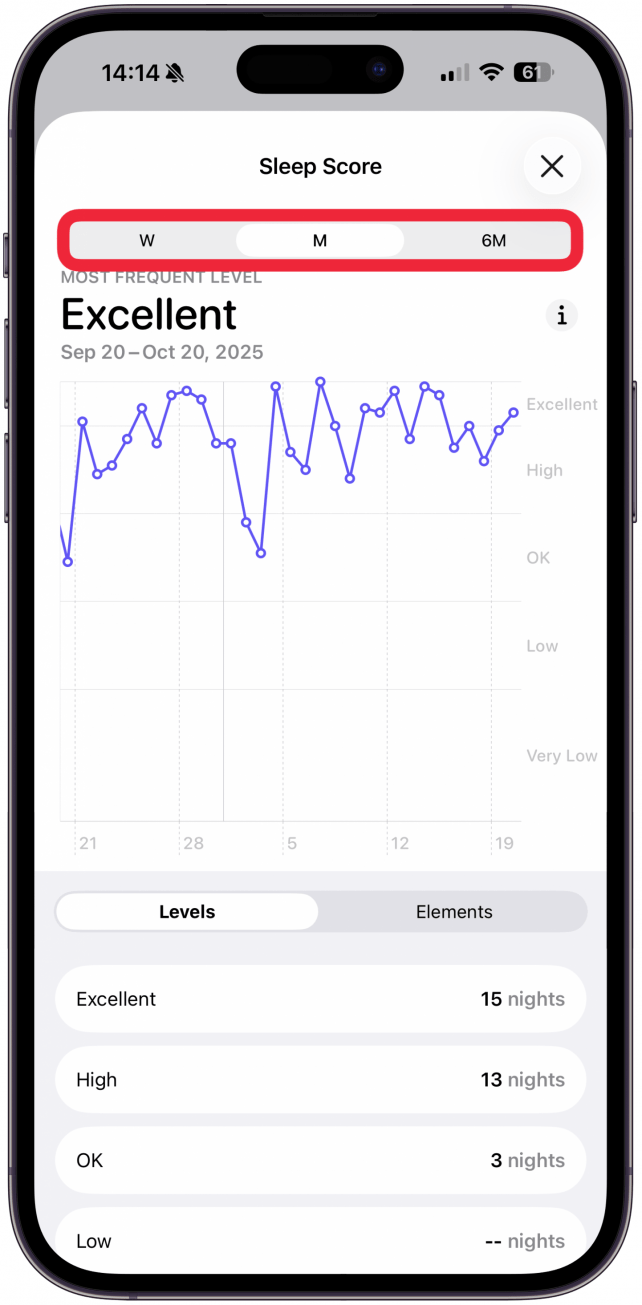
- Select W for weeks, M for months, and 6M for six months.
<!–[if IE 9]>
![Select W for weeks, M for months, and 6M for six months.]()
- Under Levels you can see how many nights you got which score level during the time period selected above.
<!–[if IE 9]>
![Under Levels you can see how many nights you got which score level during the time period selected above.]()
- Tap on Elements to see your average Duration, Bedtime, and Interruptions during the time period selected above.
<!–[if IE 9]>
![Tap on Elements to see your average Duration, Bedtime, and Interruptions during the time period selected above.]()
- Tap on the i icon to get more information on what the different levels mean.
<!–[if IE 9]>
![Tap on the i icon to get more information on what the different levels mean.]()
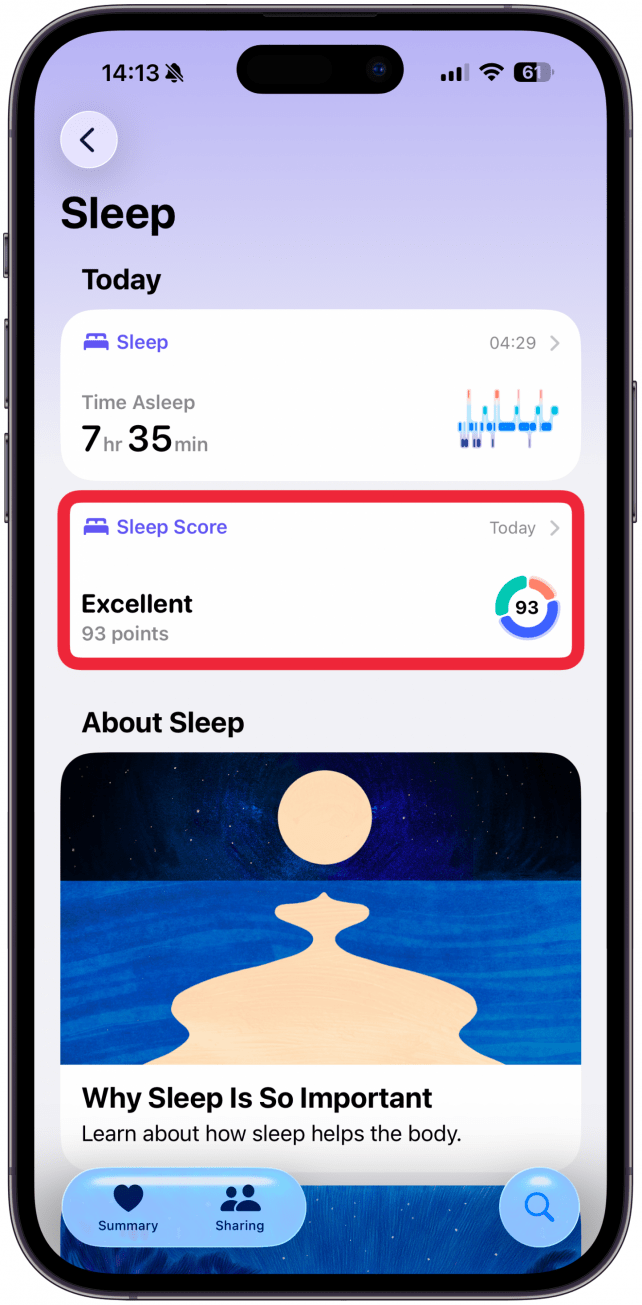
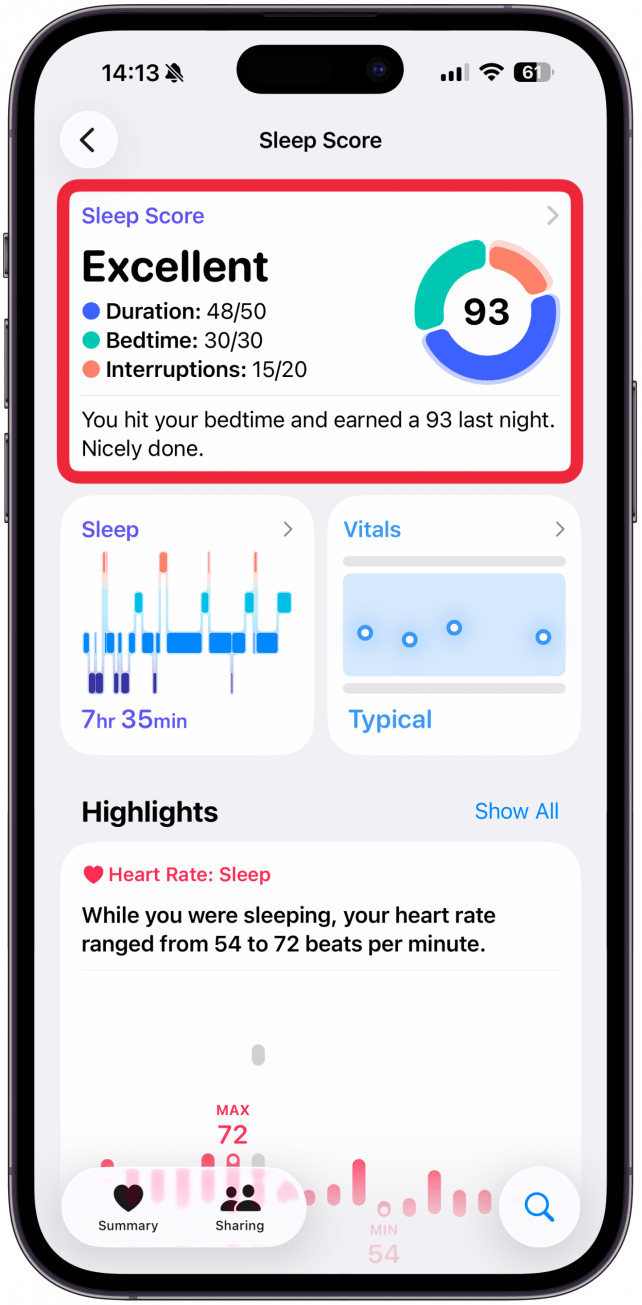
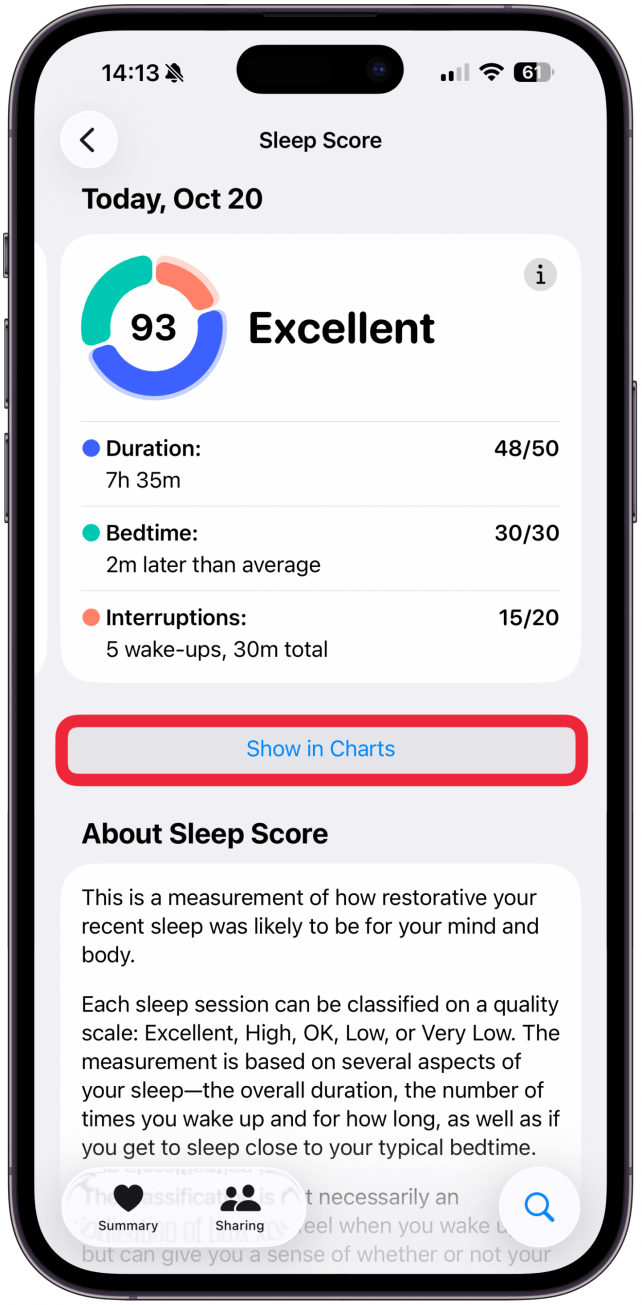
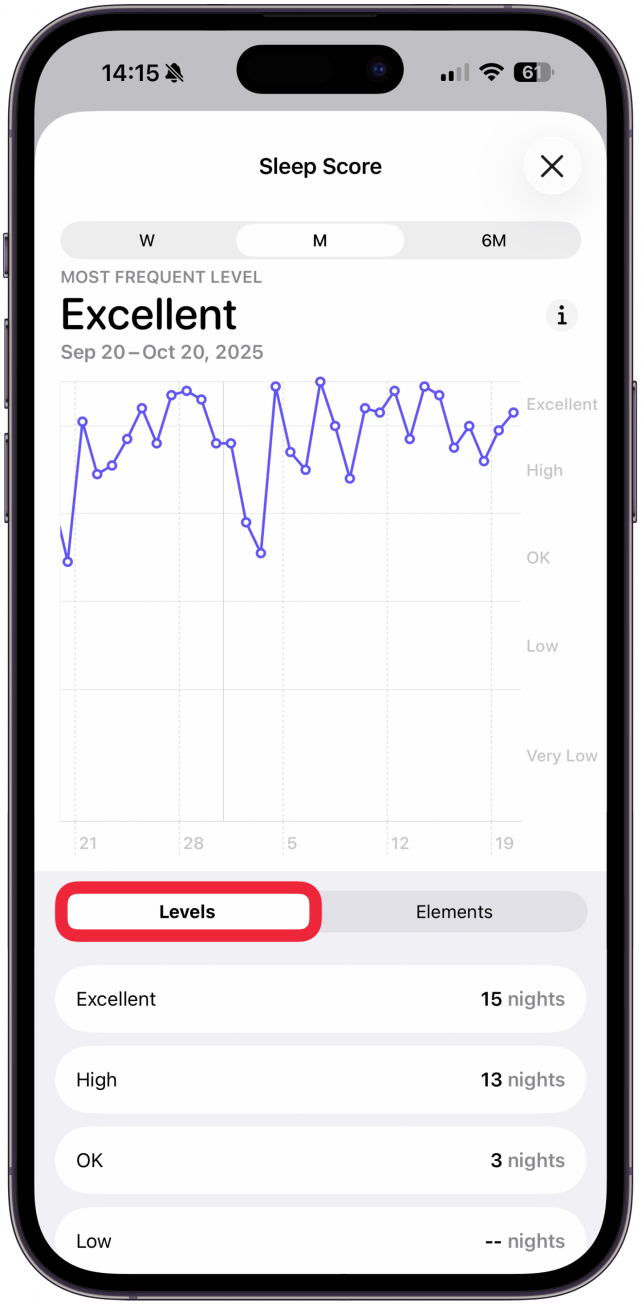
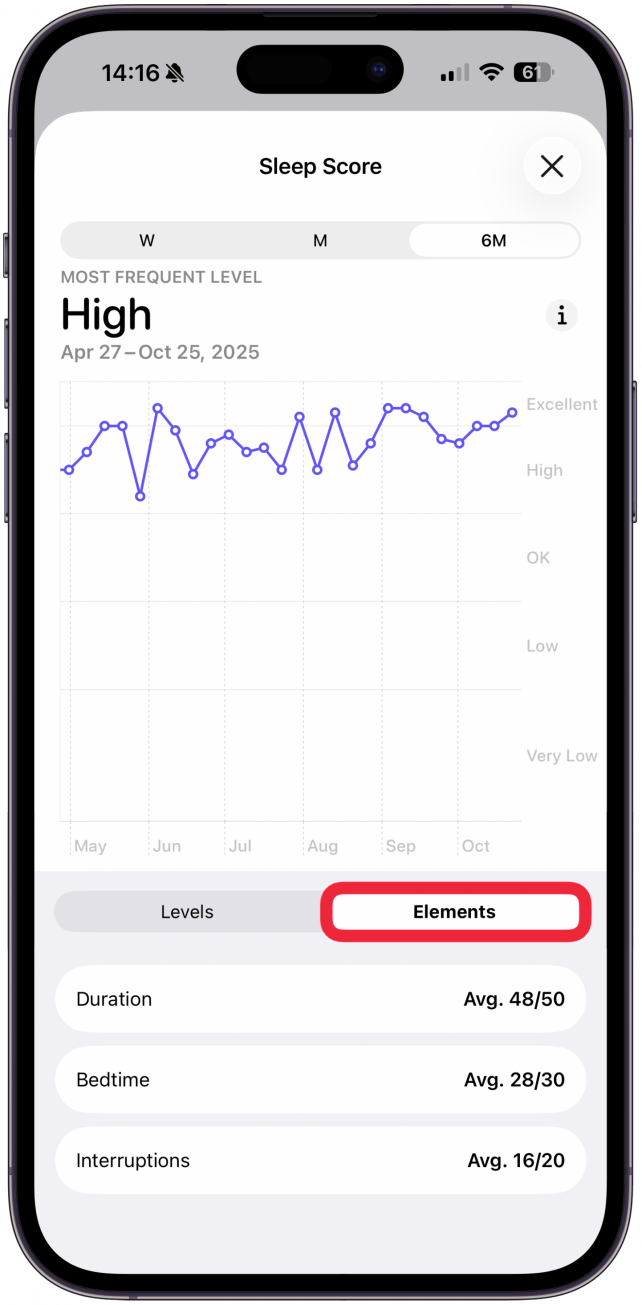
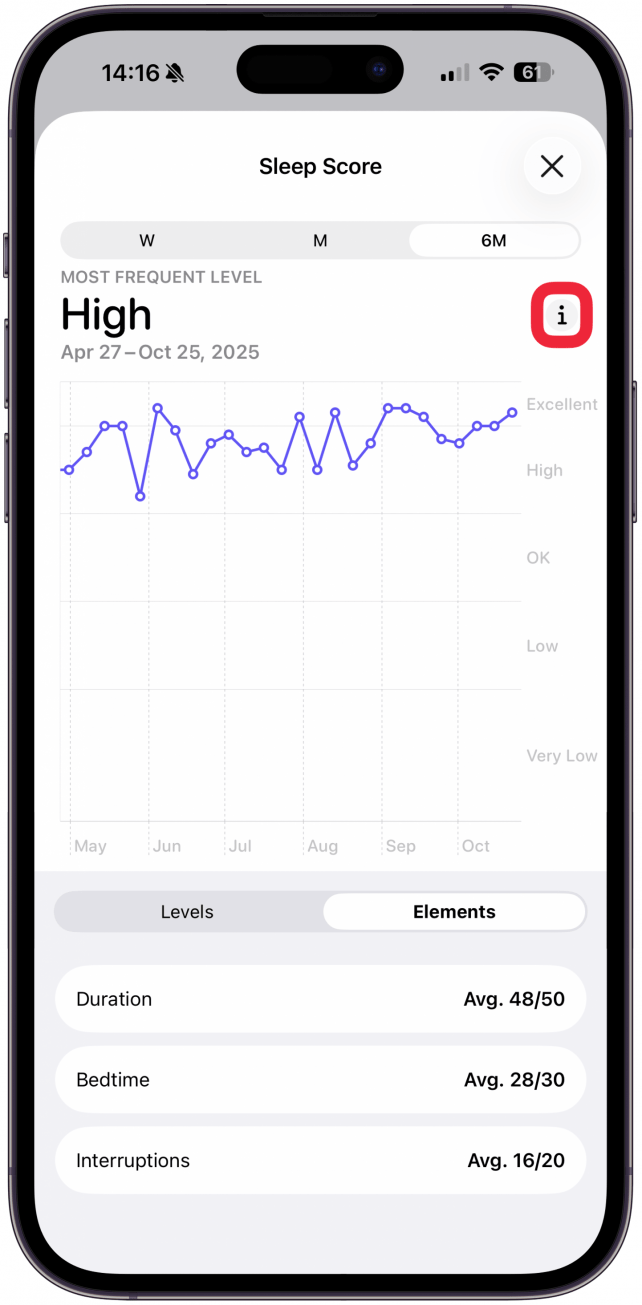
The Sleep Score calculation is simple, it is a number out of 100 with sleep duration giving you up to 50 points, bedtime consistency is up to 30 points, and interruptions and wake up time are the final 20 points. The number determines your sleep level, excellent being the best and very low being the worst.
Now you know how to see your Apple Watch sleep tracker’s Sleep Score feature. In my experience, Apple has been giving me much higher scores than other health trackers. My biggest sleep concern is how little deep sleep I get but since the Sleep Score doesn’t consider it as part of the calculation, I get a very high Sleep Score even if I didn’t wake up feeling rested.
More On: Sleep Tracking
“}]]



This Post Has 0 Comments