


Most Android developers know how to override onCreate(), but very few know what happens before that method ever runs. When a user taps your app icon, Android goes through a surprisingly complex sequence involving the Launcher, ActivityManagerService, Zygote, SystemServer, Binder IPC, and finally the ActivityThread that creates and starts your Activity.
In this article, I’ll walk you through that entire flow in simple, practical terms — the same way senior engineers understand the platform.
1. It Starts With a Tap: Launcher Sends an Intent
When the user taps your app icon, it feels simple — but under the hood, the Android system wakes up a whole chain of components.
Here’s what actually happens:
- The Launcher (yes, it’s just another Android app) receives the tap event.
- It constructs an Intent targeting your app’s main Activity — specifically the one declared with ACTION_MAIN and CATEGORY_LAUNCHER.
- This Intent is then handed over to the ActivityManagerService (AMS), the core system service that controls when and how Activities start.
At this point, the Android framework evaluates whether your app already has a running process.
If not, AMS prepares to create a brand-new process for your application.
2. ActivityManagerService — The Brain of App Lifecycle
Once the Launcher hands over your Intent, ActivityManagerService (AMS) takes charge.
Think of AMS as Android’s master coordinator — nothing launches, stops, or resumes without its approval.
Here’s what AMS evaluates before moving forward:
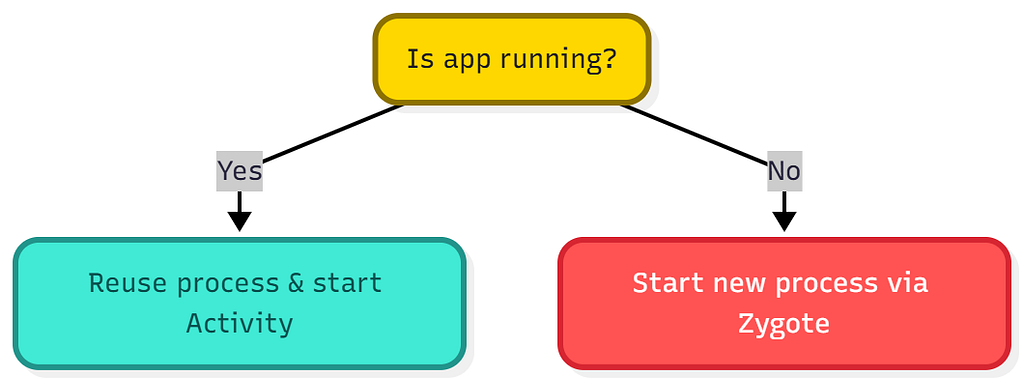
- Is your app process already alive?
If yes, AMS may simply route the launch request to it. - Is there an existing task or activity stack to reuse?
Android tries to avoid unnecessary recreation. - Is there enough memory available?
AMS constantly tracks memory pressure to decide whether it can start a new process. - What priority should this app get?
Foreground apps get higher priority; background ones get lower.
If the app isn’t already running, AMS triggers the next big step:
It reaches out to Zygote to spawn a brand-new process.
This is the moment when the real Android internal magic kicks in.
3. Zygote — The Pre-Heated Engine of Android
Next in the chain is Zygote, one of the most critical pieces of Android’s internal machinery.
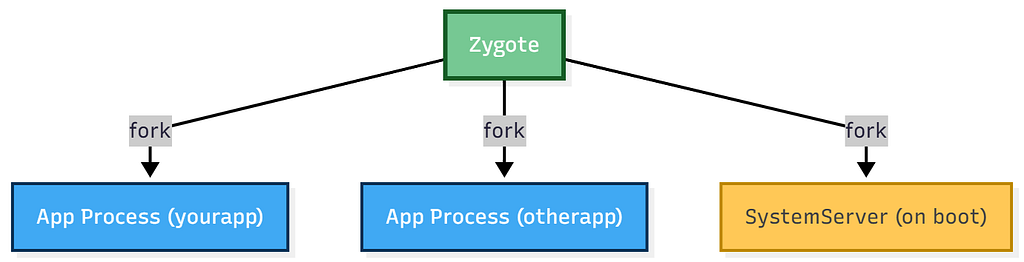
Zygote is a pre-started, pre-loaded Linux process that sits quietly in the background, holding:
- Core system libraries
- Preloaded Android framework classes
- A warmed-up runtime environment
Its only job?
To instantly “fork” new app processes on demand.
Why does Android rely on Zygote?
Because starting a process from scratch is slow.
Forking an already-initialized process is lightning fast.
Think of Zygote as a pre-heated oven — since everything is already warm and loaded, your app can start cooking immediately.
So when AMS decides your app needs a fresh process, it signals Zygote:
- Zygote forks itself
- A brand-new app process is created
- The runtime environment is bootstrapped and isolated for your application
At this point, your application process is officially alive — but not yet ready to run your Activity.
4. SystemServer — The Brain Behind Android’s System Services
Before your app ever comes to life, Android has already started one of its most important processes: SystemServer.
SystemServer is massive.
It’s the place where almost every core Android service lives, including:
- ActivityManagerService (AMS)
- PackageManagerService
- WindowManagerService
- LocationManagerService
- PowerManagerService
These services are the backbone of the entire framework.
They manage windows, lifecycle events, permissions, processes, power, location — basically everything that makes Android… Android.
Now, when your new app process (spawned by Zygote) starts running, it doesn’t work in isolation.
It immediately begins communicating with these system services.
And how does this communication happen?
Through Binder IPC — Android’s ultra-efficient, highly secure mechanism that lets apps talk to system services across process boundaries.
Binder is the invisible “glue” that holds the whole framework together.

Binder IPC — The Invisible Highway Connecting Your App to the System
Binder is Android’s custom, highly-optimised Inter-Process Communication (IPC) mechanism.
Android is built on Linux, but Linux IPC methods like pipes or sockets are too slow and too heavy for the constant communication between apps and system services.
That’s why Android created Binder — a mechanism that is:
- Fast (zero-copy optimized shared memory)
- Secure (each call is tagged with the caller’s UID/PID)
- Lightweight (small memory footprint)
- Structured (supports typed transactions, unlike raw byte streams)
Here’s how Binder works simplistically:
- Your app calls something like
startActivity(intent) - That call is wrapped and sent over Binder to the ActivityManagerService (which lives inside SystemServer).
- AMS receives the request, makes a decision, and sends a response back over the same Binder channel.
Binder makes it feel like you’re calling a normal function, but in reality, you’re talking across process boundaries.
It is the invisible glue that makes Android’s entire architecture possible.
5. Android Runtime Starts Your Application Process
The new process now needs to start running actual code.
Once Zygote forks a new process for your app, that process is basically “blank.”
It doesn’t yet know anything about your application code.
So Android begins the next stage:
Android Runtime (ART) starts the show
Your new process must:
- Start the virtual machine (ART)
This loads the execution environment needed for Java/Kotlin code. - Load your app’s code and resources
The process reads your APK, loads classes, assets, resources, and native libraries. - Start the main thread (ActivityThread)
This is NOT a UI thread conceptually — it is the actual heart of your application.
It handles lifecycle calls, message queues, launching activities, and running the app’s event loop.
Many developers believe that the entry point is onCreate(), but that’s not true.
6. ActivityThread — The Heartbeat of Your App (The Main/UI Thread)
Once the Android Runtime has prepared your process, control passes to ActivityThread — the true conductor of your app’s lifecycle.
Despite its name, ActivityThread is not an Activity.
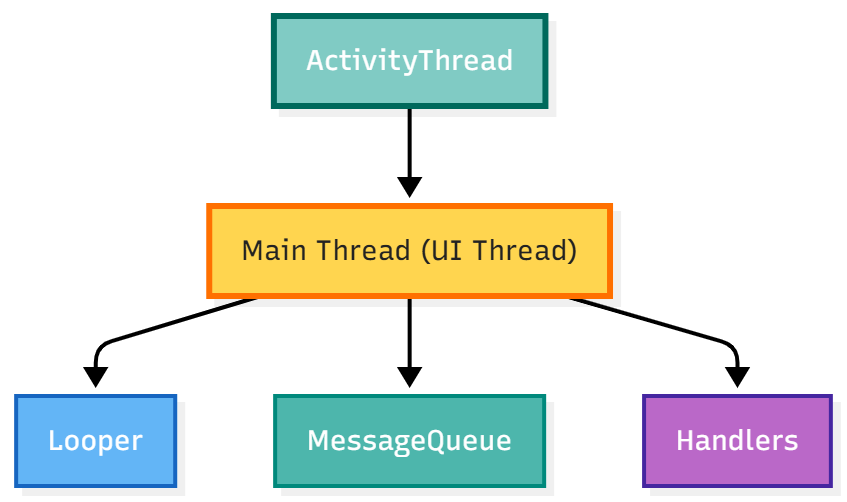
It’s a central class inside your process that orchestrates everything happening on the main (UI) thread.
Here’s what ActivityThread does the moment your app process comes alive:
Sets Up the Main Thread Infrastructure
ActivityThread creates the Looper and MessageQueue, the backbone of Android’s single-threaded UI model.
This is what allows your app to process events in order — touches, lifecycle callbacks, drawing operations, etc.
Handles All Communication From AMS
ActivityThread listens for messages from ActivityManagerService via Binder IPC.
These messages include instructions like:
- Launch this Activity
- Resume it
- Pause it
- Destroy it
Every lifecycle callback you see (onCreate, onStart, etc.) is triggered because ActivityThread received a command from AMS.
Creates Your Application Object
Before any Activity launches, ActivityThread initializes your global Application class — the true first component of your app.
Only after the Application object is ready, ActivityThread finally creates and attaches your Activity instance, calling the famous lifecycle methods.
7. AMS Signals ActivityThread — Time to Launch the Activity
Once your process is ready, ActivityManagerService (AMS) triggers the moment you’ve been waiting for.
It sends a command through Binder IPC to your app’s ActivityThread:
“Start this Activity.”
ActivityThread then orchestrates the entire launch sequence:
- Loads your Activity class
(Using the app’s ClassLoader) - Creates a fresh Activity instance
- Calls attach()
This wires the Activity into the Android framework — giving it references to:
- Context
- Window
- Token
- ActivityThread
4. Connects your Activity to the Window system
This is where your UI receives a surface to draw on.
5. Finally invokes your lifecycle methods in order:
- onCreate() — initialize your layout, view models, DI, etc.
- onStart() — Activity becomes visible.
- onResume() — Activity comes to the foreground and starts interacting with the user.
At this exact moment, your UI finally appears on the screen.
What feels instantaneous to the user is actually the output of dozens of synchronized internal operations — AMS, Zygote, Binder, SystemServer, ActivityThread, the runtime, the window system, and more.
Awesome!! Your app is fully alive now.
Why Understanding This Flow Makes You a Better Android Engineer
Knowing this flow is not just theoretical — it improves real-world engineering:
Debugging ANRs
You understand how the main thread, Looper, and system services interact.
Profiling cold startup time
You know where delays come from: Zygote fork, Application.OnCreate , Activity inflations.
Working on performance-critical apps
Such as ride-hailing, location services, and payment apps.
Understanding system-level crashes
You can reason about Binder failures, process kills, or background execution limits.
Designing better architecture
You know what the system does vs. what your code does.
This is what separates senior Android developers from mid-level ones.
Conclusion
Behind a simple tap on the app icon, Android orchestrates a complex dance between Zygote, SystemServer, AMS, Binder, and ActivityThread — all happening in milliseconds.
Understanding this journey helps you write faster, more stable, and more predictable applications.
Thanks for sticking around. Appreciate you making it to the end. If you found this useful, feel free to share or drop a comment.
Android Internals: What Really Happens Under the Hood When You Tap on App Icon? was originally published in ProAndroidDev on Medium, where people are continuing the conversation by highlighting and responding to this story.




This Post Has 0 Comments