
 [[{“value”:”Can’t unlock your Apple Watch because you forgot the passcode? Here’s how to reset it and start using your watch again without stress.
The post Forgot Apple Watch Passcode? How to Reset and Unlock It appeared first on iGeeksBlog.”}]] [[{“value”:”
You probably don’t forget your Apple Watch passcode easily. You wear the watch on your wrist every day, unlock it multiple times, and the muscle memory sticks. That makes forgetting the passcode feel unlikely, but it can still happen. A long break from wearing the watch, a recent passcode change, or too many incorrect attempts can completely lock you out.
When that happens, it quickly becomes frustrating because there is no way to retrieve or view the forgotten passcode. The only fix is to erase the Apple Watch and set it up again. Keep reading to learn how to reset your Apple Watch passcode with or without the paired iPhone.
Table of Contents
- What Happens When You Reset an Apple Watch
- Method 1: Reset Apple Watch Using a Paired iPhone
- Method 2: Reset Apple Watch Without iPhone
- How to Restore Apple Watch Data After Reset
- Can You Reset Apple Watch Without Apple ID or Password?
- Apple Watch Reset Not Working? Common Issues and Fixes
- Tips to Avoid Forgetting Your Apple Watch Passcode Again
- Summing Up…
What Happens When You Reset an Apple Watch
Before you reset the watch, it’s important to understand what happens next. Resetting does more than remove the passcode. It completely erases the device and prepares it for a fresh setup.
When the reset is complete, the following changes take place:
- All data, apps, and settings are permanently deleted from the watch.
- The passcode is removed and cannot be recovered.
- The watch disconnects from your iPhone.
- You must pair the Apple Watch again during setup.
- Activation Lock may require your Apple ID and password.
- Health and Activity data can be restored only if a backup exists.
If you reset your Apple Watch via the Watch app on your iPhone, a backup is automatically created during unpairing. This allows you to restore apps, watch faces, and settings after the reset.
However, if the reset is performed directly on the Apple Watch, no new backup is created during the process. The watch can still be restored from an existing iPhone backup if one is available. If no backup exists, the watch must be set up as new, and previously stored data cannot be recovered.
Method 1: Reset Apple Watch Using a Paired iPhone
This is the preferred way to reset an Apple Watch because the unpairing process creates a fresh backup and removes Activation Lock after you confirm with your Apple Account during the reset.
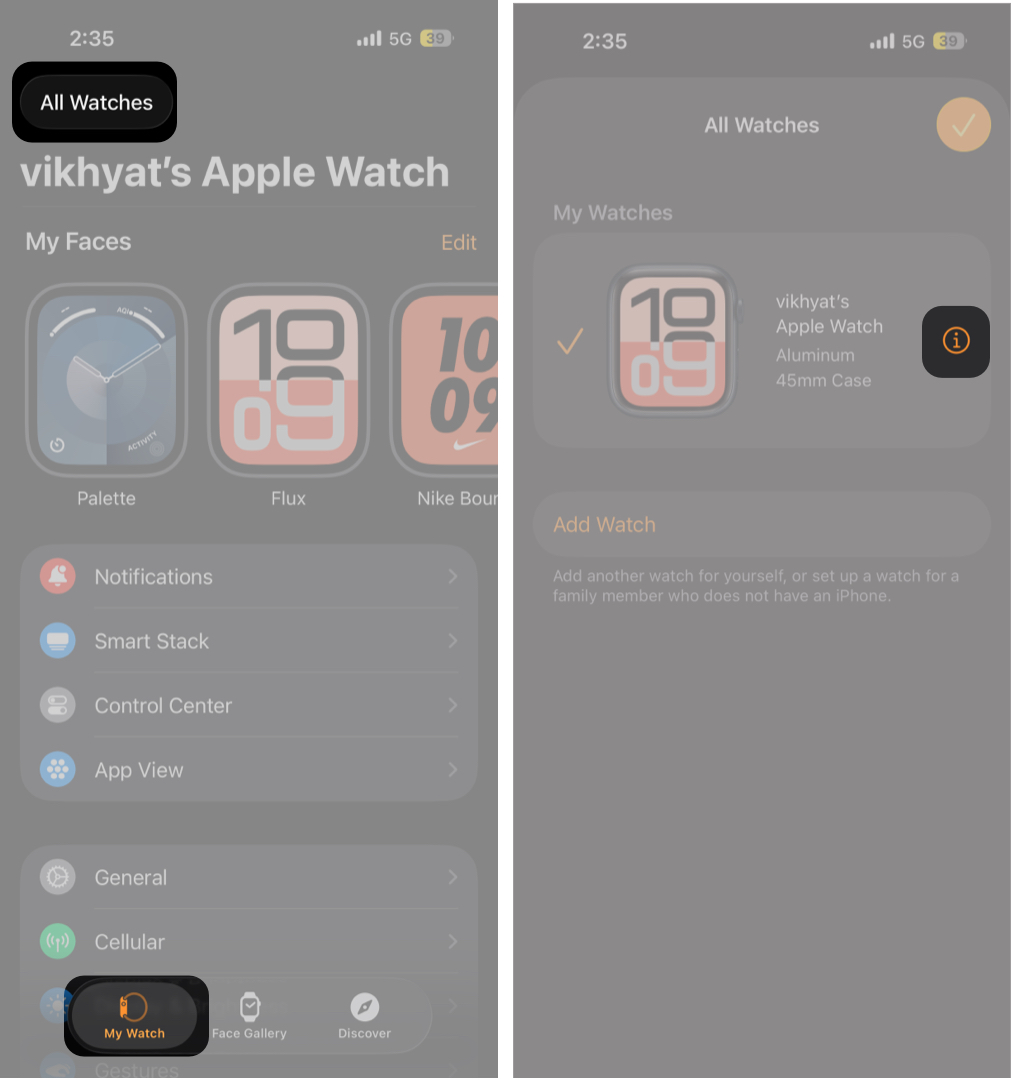
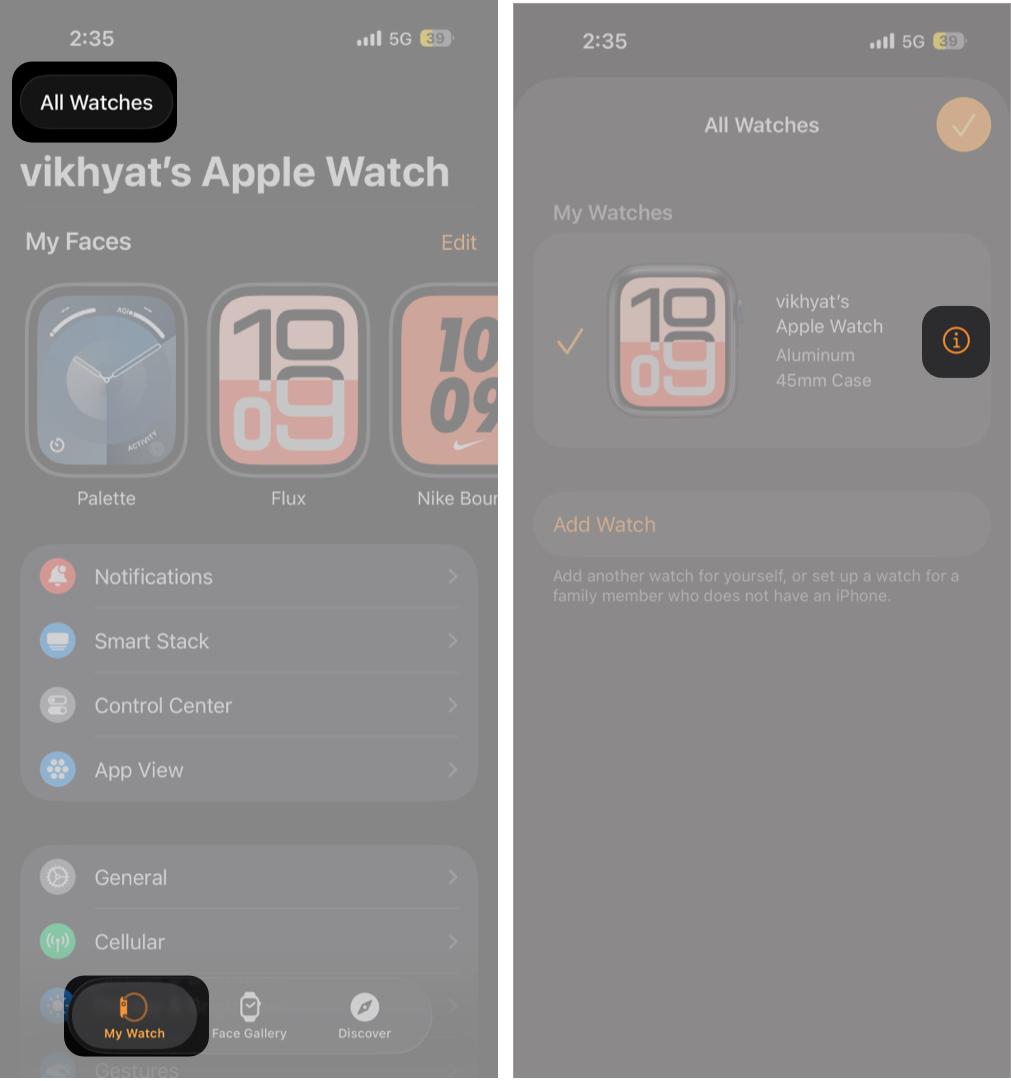
- Open the Watch app on your paired iPhone and ensure you are on the “My Watch” tab.
- Tap the All Watches button at the top left corner.
- Tap the i (Information) button next to the Apple Watch you want to reset.
- Here, scroll to the bottom and tap Unpair Apple Watch.
- Next, tap Unpair [Your Name] Apple Watch on the confirmation prompt.
- Finally, enter your Apple Account (formerly Apple ID) password to finish resetting.
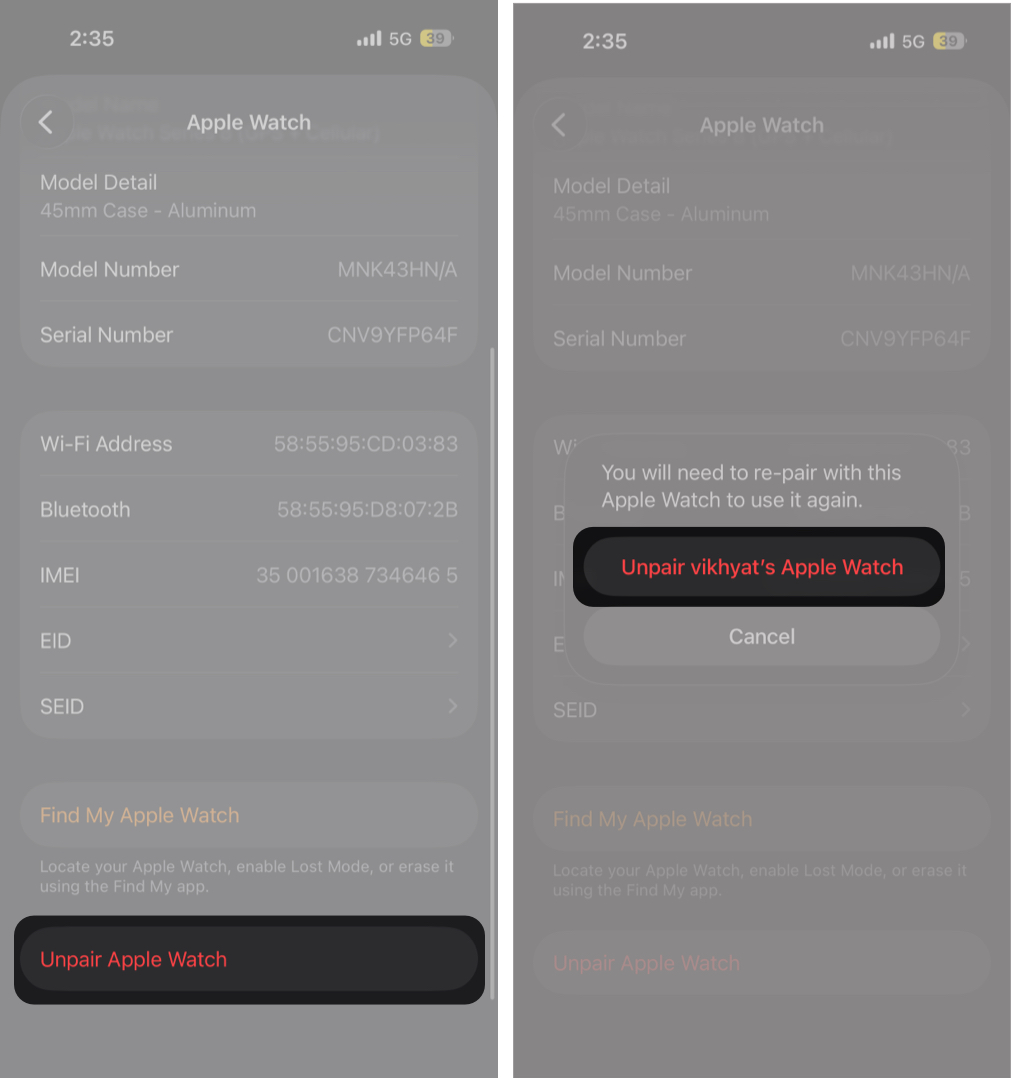
Your iPhone creates a fresh backup and erases the watch. Once done, bring the iPhone near the watch and follow the pairing instructions. Choose Restore from Backup when asked.
Method 2: Reset Apple Watch Without iPhone
Use this method when the paired iPhone is not available.
- Connect your Apple Watch to its charger.
- Now, press and hold the Side button until the Emergency Call screen appears.
- Next, press and hold the Digital Crown until the “Erase all content and settings?” screen appears.
- Tap Reset and confirm your action.
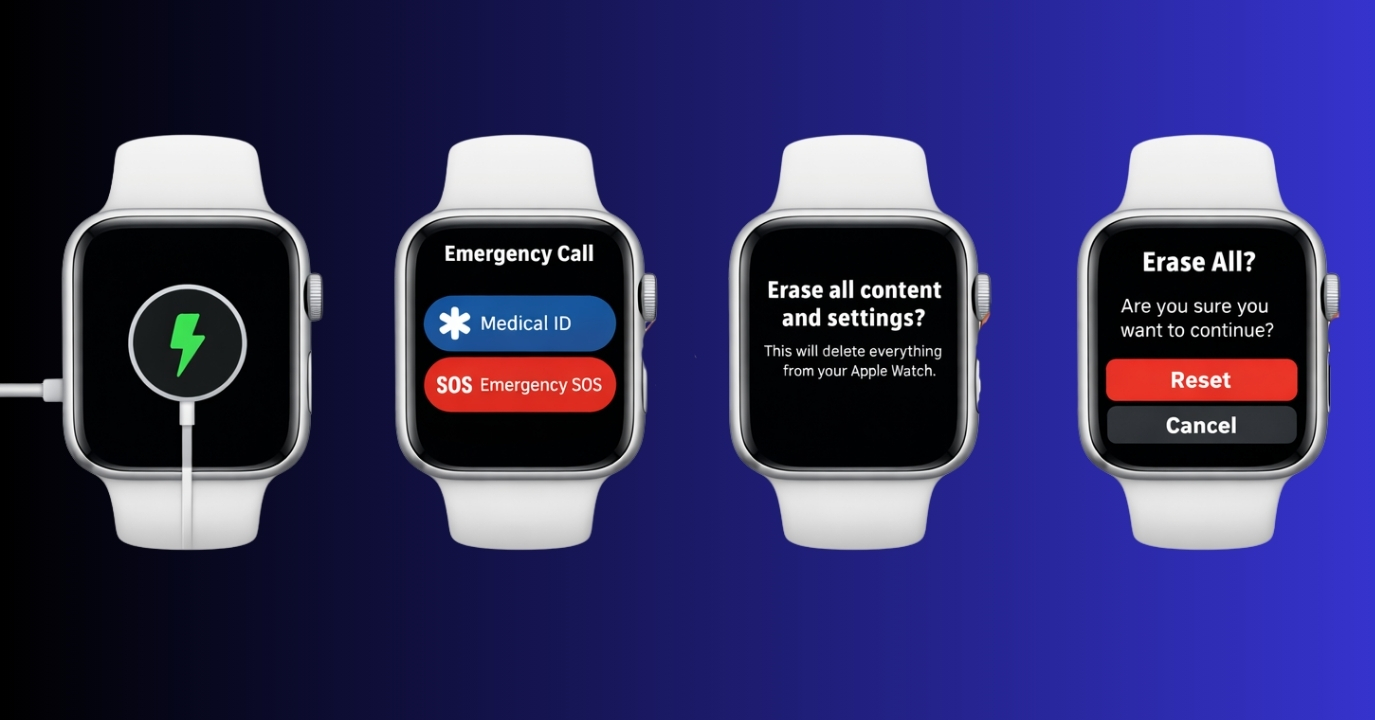
Once the reset process finishes, you can pair the watch again using the Watch app on iPhone. During the pairing process, you will be asked to choose a new passcode.
Remember, since the Apple Watch does not ask for the Apple Account password during the reset process, you’ll be required to enter it when pairing the watch again if Activation Lock is enabled.
How to Restore Apple Watch Data After Reset
During the Apple Watch pairing process, the Watch app offers you two options:
- Restore from Backup.
- Set Up as a New Apple Watch.
Choose the Restore from Backup option to bring back apps, settings, and watch faces. Health and Fitness data also returns if iCloud sync was enabled earlier.
Can You Reset Apple Watch Without Apple ID or Password?
No. If Activation Lock is active, the original Apple ID and password are mandatory during setup. This security feature prevents lost or stolen watches from being reused.
If you forgot your Apple ID credentials, recover them through Apple account recovery before proceeding.
Apple Watch Reset Not Working? Common Issues and Fixes
If you’re having trouble resetting or setting up your Apple Watch after forgetting the passcode, the following fixes should help you get back on track:
| Common problem | Why it happens | Quick fix |
|---|---|---|
| Apple Watch stuck on Activation Lock | Activation Lock is enabled and requires the original Apple Account password | Apple Watch is not pairing with the iPhone |
| No backup available during setup | The watch was not backed up before the reset | Set up the Apple Watch as new. Previously erased data cannot be recovered |
| Bluetooth or Wi Fi is disabled, or the connection failed | Bluetooth or Wi Fi is disabled, or the connection failed | Restart both devices and turn on Bluetooth and Wi Fi on the iPhone |
| Reset option not appearing on Apple Watch | The watch is not on the charger | Place the Apple Watch on its charger and repeat the reset steps |
| Apple Watch stuck on pairing screen | Temporary software glitch during setup | Force restart the Apple Watch and the iPhone, then try pairing again |
| Forgot Apple Account password | The account credentials are not accessible | Recover the Apple Account using Apple’s account recovery before continuing |
Tips to Avoid Forgetting Your Apple Watch Passcode Again
While forgetting your Apple Watch passcode is uncommon, it can still happen. Follow these simple habits to reduce the chances of getting locked out again.
- Enable Unlock with iPhone, so your watch unlocks automatically when your iPhone is nearby.
- Avoid changing your passcode frequently unless necessary.
- Choose a passcode that’s secure but easy to remember.
- Wear your Apple Watch regularly to keep passcode muscle memory intact.
- Keep iCloud backups enabled to protect your data.
- Store your Apple Account credentials securely in a trusted password manager.
Summing Up…
And that’s it. This is how you can reset your Apple Watch passcode and get your Apple Watch working again. Now you know that if your iPhone is nearby, unpairing through the Watch app is the fastest solution. If not, resetting directly from the watch still works as long as you have your Apple ID.
Did this guide help you reset your Apple Watch? Let us know in the comments.
The post Forgot Apple Watch Passcode? How to Reset and Unlock It appeared first on iGeeksBlog.”}]]




This Post Has 0 Comments