
A deep dive into one of Jetpack Compose’s most powerful yet misunderstood layout modifiers
Introduction: The “Where Is My View?” Problem
Picture this: It’s your first week at a fintech company. Your tech lead walks over and says, “We need the scroll to stop exactly when the cashback amount is visible below the toolbar. Oh, and we need to position a tooltip anchor exactly where the CTA button is rendered.”
You think, “Easy! I’ll just get the view’s position and…”
Then you remember — this is Jetpack Compose. There’s no view.getLocationOnScreen(). There’s no ViewTreeObserver. The layout system is completely different.
Welcome to one of the most common “aha!” moments for Android developers transitioning to Compose. And the answer to this problem? onGloballyPositioned.
What Exactly is onGloballyPositioned?
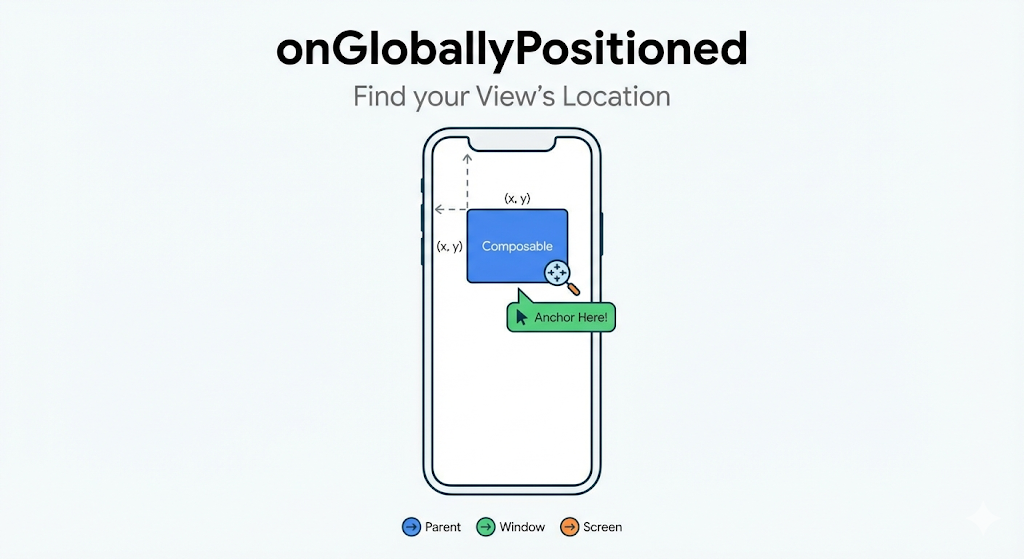
Let’s start simple. onGloballyPositioned is a Modifier that gives you a callback after a composable has been measured and placed on screen. It hands you LayoutCoordinates—a treasure chest of information about where your composable actually ended up.
Box(
    modifier = Modifier
        .size(100.dp)
        .onGloballyPositioned { coordinates ->
            // This runs AFTER the Box is laid out
            val width = coordinates.size.width   // in pixels
            val height = coordinates.size.height // in pixels
        }
)
Think of it as Compose saying: “Hey, I’ve figured out where this thing goes. Here’s the report.”
Why Can’t We Just Use State for Sizes?
If you’re coming from the XML world, this might seem like overkill. “Why can’t I just set the size and be done with it?”
Here’s the thing: In Compose, layout is declarative and happens in phases.
- Composition — Your @Composable functions run, building the UI tree
- Layout — Compose measures and places each node
- Drawing — Everything gets painted on screen
The catch? During Composition, you don’t know the final sizes yet. If you have a Column with fillMaxWidth(), you won’t know its pixel width until the Layout phase completes.
onGloballyPositioned is your bridge from the Layout phase back into your composable logic.
Real-World Use Case
1. Dynamic Scroll Calculations
Let me show you a real production scenario. Imagine you’re building a rewards screen (yes, like the ones in payment apps). The requirements:
- When the user scrolls, the card should stop scrolling when the “₹500 Cashback” title reaches just below the toolbar
- The bottom spacer needs to be exactly tall enough to make this work
Here’s the problem: You can’t hardcode the spacer height because:
- The content height varies (different reward amounts, different text lengths)
- Screen sizes differ across devices
- The toolbar height might change
The Solution:
@Composable
fun RewardDetailsScreen() {
    val density = LocalDensity.current

    // Track heights as they're laid out
    var detailsContentHeightPx by remember { mutableStateOf(0f) }
    var transactionCardHeightPx by remember { mutableStateOf(0f) }
    var subtitlePositionInCardPx by remember { mutableStateOf(0f) }
BoxWithConstraints(modifier = Modifier.fillMaxSize()) {
        val screenHeightPx = with(density) { maxHeight.toPx() }

        // Calculate exactly how much bottom spacer we need
        val totalContentHeightPx = detailsContentHeightPx + transactionCardHeightPx
        val scrollDistanceToSubtitlePx = topSpacerHeightPx + subtitlePositionInCardPx

        val bottomSpacerHeight = with(density) {
            val requiredSpacerPx = requiredTotalHeightPx - totalContentHeightPx
            maxOf(0.dp, (requiredSpacerPx / density.density).dp)
        }
        LazyColumn {
            item {
                CardContent(
                    onHeightMeasured = { detailsContentHeightPx = it },
                    onSubtitlePositionMeasured = { subtitlePositionInCardPx = it }
                )
            }

            item {
                TxnCard(
                    modifier = Modifier.onGloballyPositioned {
                        transactionCardHeightPx = it.size.height.toFloat()
                    }
                )
            }

            // Dynamic spacer that makes scroll stop at the right place
            item {
                Spacer(modifier = Modifier.height(bottomSpacerHeight))
            }
        }
    }
}
What’s happening here:
- Each section reports its height via onGloballyPositioned
- We calculate the exact spacer height needed for perfect scroll behavior
- The UI adapts to any content or screen size
This is impossible to achieve with hardcoded values.
2. Tooltip and Popup Anchoring
Ever needed to show a tooltip pointing exactly at a button? Or position a dropdown right below an input field?
@Composable
fun CheckBalanceCTA(viewModel: ViewModel) {
    Box(
        modifier = Modifier
            .fillMaxWidth()
            .padding(horizontal = 24.dp)
            .onGloballyPositioned { coordinates ->
                // Get position relative to the window
                val position = coordinates.localToWindow(Offset.Zero)
                viewModel.anchorX = position.x
                viewModel.anchorY = position.y
            }
    ) {
        Button(onClick = { viewModel.showTooltip() }) {
            Text("Check Gift Card Balance")
        }
    }
}
Now your ViewModel knows exactly where to position a tooltip, coach mark, or popup — in window coordinates that work with PopupPositionProvider or even custom overlay systems.
3. Parallax Scrolling Effects
Want that slick parallax effect where the header image moves slower than the content?
@Composable
fun ParallaxHeader(scrollState: ScrollState) {
    var headerHeight by remember { mutableStateOf(0) }

    Box(
        modifier = Modifier
            .fillMaxWidth()
            .height(250.dp)
            .onGloballyPositioned { headerHeight = it.size.height }
            .graphicsLayer {
                // Move at 50% of scroll speed for parallax
                translationY = scrollState.value * 0.5f
                // Optional: fade out as user scrolls
                alpha = 1f - (scrollState.value.toFloat() / headerHeight).coerceIn(0f, 1f)
            }
    ) {
        Image(
            painter = painterResource(R.drawable.header_bg),
            contentDescription = null,
            modifier = Modifier.fillMaxSize()
        )
    }
}
Without knowing headerHeight, you can’t calculate proper alpha transitions. onGloballyPositioned delivers that information at exactly the right moment.
4. Nested Position Tracking
Sometimes you need to know where an element is relative to a parent, not the window.
@Composable
fun NestedPositionExample() {
    var childPositionInParent by remember { mutableStateOf(Offset.Zero) }

    Column(
        modifier = Modifier.fillMaxSize()
    ) {
        Spacer(modifier = Modifier.height(100.dp))

        Box(
            modifier = Modifier
                .size(50.dp)
                .background(Color.Red)
                .onGloballyPositioned { coordinates ->
                    // Position relative to immediate parent
                    childPositionInParent = coordinates.positionInParent()
                }
        )
    }

    // childPositionInParent.y will be ~100.dp in pixels
}
The LayoutCoordinates object gives you multiple coordinate systems:
- positionInParent() — relative to immediate parent
- positionInRoot() — relative to the Compose root
- localToWindow(Offset.Zero) — relative to the window
- localToScreen(Offset.Zero) — relative to the screen (API 33+)
The Mental Model: When Does It Fire?
Here’s a critical insight that trips up many developers:
onGloballyPositioned fires during the Layout phase, but the lambda captures values that can trigger Recomposition.
var width by remember { mutableStateOf(0) }
Box(
    modifier = Modifier
        .fillMaxWidth()
        .onGloballyPositioned { width = it.size.width }
) {
    // This will recompose when width changes!
    Text("Width: $width px")
}
The flow:
- Initial composition → Layout phase → onGloballyPositioned fires → width updates
- State change triggers recomposition → Layout phase → onGloballyPositioned fires again
- If width is the same, no more recomposition (smart equality check)
Be careful not to create infinite loops by changing something that affects layout inside the callback!
Common Pitfalls (And How to Avoid Them)
1. Using It When You Don’t Need It
// ❌ Don't do this - you already know the size!
Box(
    modifier = Modifier
        .size(100.dp)
        .onGloballyPositioned {
            size = it.size // Pointless - you set it to 100.dp!
        }
)
// ✅ Only use when size is dynamic
Box(
    modifier = Modifier
        .fillMaxWidth() // Dynamic - depends on parent
        .onGloballyPositioned { width = it.size.width }
)
2. Heavy Operations in the Callback
// ❌ Don't do expensive work here
.onGloballyPositioned { coordinates ->
    // This runs on the main thread during layout!
    saveToDisk(coordinates.size)
    analyticsSdk.track("layout_complete", coordinates)
}
// ✅ Just capture the values, process later
.onGloballyPositioned { coordinates ->
    heightPx = coordinates.size.height.toFloat()
}
LaunchedEffect(heightPx) {
    // Heavy work in a coroutine
    analyticsSdk.track("layout_complete", heightPx)
}
3. Forgetting About Density
// ❌ Mixing pixels and dp incorrectly
.onGloballyPositioned { coordinates ->
    val heightPx = coordinates.size.height
    spacerHeight = heightPx.dp // WRONG! This treats pixels as dp
}
// ✅ Convert properly using density
val density = LocalDensity.current
.onGloballyPositioned { coordinates ->
    val heightPx = coordinates.size.height
    spacerHeight = with(density) { heightPx.toDp() }
}
The onGloballyPositioned vs onSizeChanged Debate
Compose also has onSizeChanged. When should you use which?
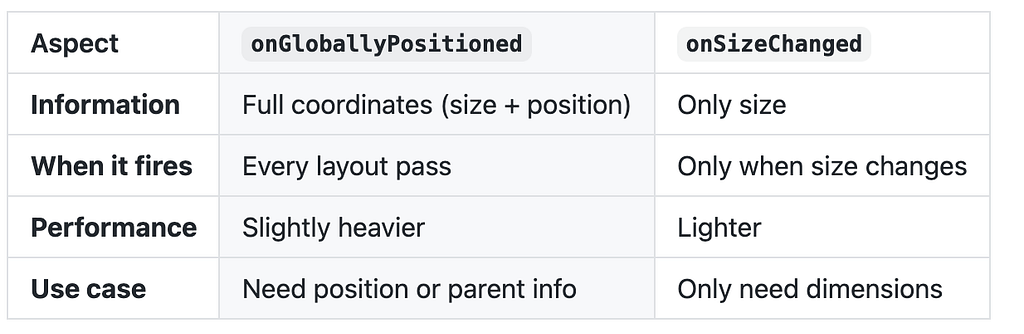
Rule of thumb: Start with onSizeChanged if you only need dimensions. Graduate to onGloballyPositioned when you need position data.
Bonus: Combining with Other Modifiers
The modifier chain order matters:
// Position BEFORE padding
Box(
    modifier = Modifier
        .onGloballyPositioned { /* Gets position including padding */ }
        .padding(16.dp)
        .background(Color.Blue)
)
// Position AFTER padding
Box(
    modifier = Modifier
        .padding(16.dp)
        .onGloballyPositioned { /* Gets position of inner content */ }
        .background(Color.Blue)
)
The callback receives coordinates for “this point in the modifier chain” — not the final rendered element.
Summary: When to Reach for onGloballyPositioned
✅ Use it when:
- You need to know the final pixel dimensions of dynamic content
- You’re positioning popups, tooltips, or overlays
- You’re building scroll-linked animations or effects
- You need to communicate layout info to a ViewModel or external system
- You’re calculating spacers or offsets based on measured content
❌ Don’t use it when:
- You’re setting hardcoded sizes
- You can achieve the same with BoxWithConstraints
- You just want to read parent constraints (use SubcomposeLayout instead)
Final Thoughts
onGloballyPositioned is one of those APIs that seems simple on the surface but unlocks incredibly powerful UI patterns. It’s the bridge between Compose’s declarative layout system and the pixel-perfect positioning requirements of modern mobile apps.
The next time you find yourself thinking “If only I knew where this composable ended up…” — you now have the answer.
Found this helpful? Follow me for more deep dives into Jetpack Compose, Android architecture, and mobile development patterns. Drop a comment with your most creative use of onGloballyPositioned!
From Pixels to Perfection: A Deep Dive into Compose’s onGloballyPositioned was originally published in ProAndroidDev on Medium, where people are continuing the conversation by highlighting and responding to this story.




This Post Has 0 Comments