
 [[{“value”:”Wondering if your iPhone is unlocked? Follow this step-by-step guide to check your iPhone’s carrier lock status in minutes.
The post How to Check If Your iPhone Is Unlocked appeared first on iGeeksBlog.”}]] [[{“value”:”
Many people never realize their iPhone has a carrier lock because everything works fine on their current network. The problem shows up later when they try to switch carriers, activate an eSIM, use a local SIM while traveling, or hand the phone to someone else. Since carrier locks are not always obvious, it is smart to confirm the unlock status ahead of time to avoid activation errors, unexpected limitations, and issues when reselling the device.
If you are not sure how to check whether your iPhone is unlocked or carrier-locked, this guide walks you through the process step by step. You will also learn the difference between locked and unlocked iPhones, so you know what to expect.
Locked vs Unlocked iPhone: What It Means
Carrier locking is a network restriction applied by a mobile provider. It controls which SIMs or eSIMs the iPhone can use.
| Feature | Locked iPhone | Unlocked iPhone |
|---|---|---|
| Carrier compatibility | Works only with the original carrier | Works with any compatible carrier |
| SIM usage | Restricted to one carrier SIM or eSIM | Accepts SIMs and eSIMs from multiple carriers |
| Switching networks | Not possible without an official unlock | Switch carriers anytime |
| International travel | Requires roaming on the same carrier | Use local SIMs or eSIMs abroad |
| Dual SIM support | Limited to the same carrier | Mix carriers freely with dual SIM |
| Resale value | Lower due to carrier restriction | Higher and easier to resell |
| Purchased through | Carrier contracts or installment plans | Apple Store or unlocked retail |
| Unlock required | Yes, through the carrier | No unlock required |
What Is a Locked iPhone?
A locked iPhone is restricted to a single carrier at the network level. The lock is added by the carrier and enforced during activation using Apple’s activation servers.
What Is an Unlocked iPhone?
An unlocked iPhone works with any supported carrier. You can insert any compatible SIM or set up any eSIM without restrictions.
How to Check if Your iPhone Is Unlocked
If you want to check whether your iPhone is unlocked, follow the steps below. These methods work on most models and iOS versions.
1. Check Carrier Lock in Settings
This is the fastest way for anyone running iOS 14 or newer.
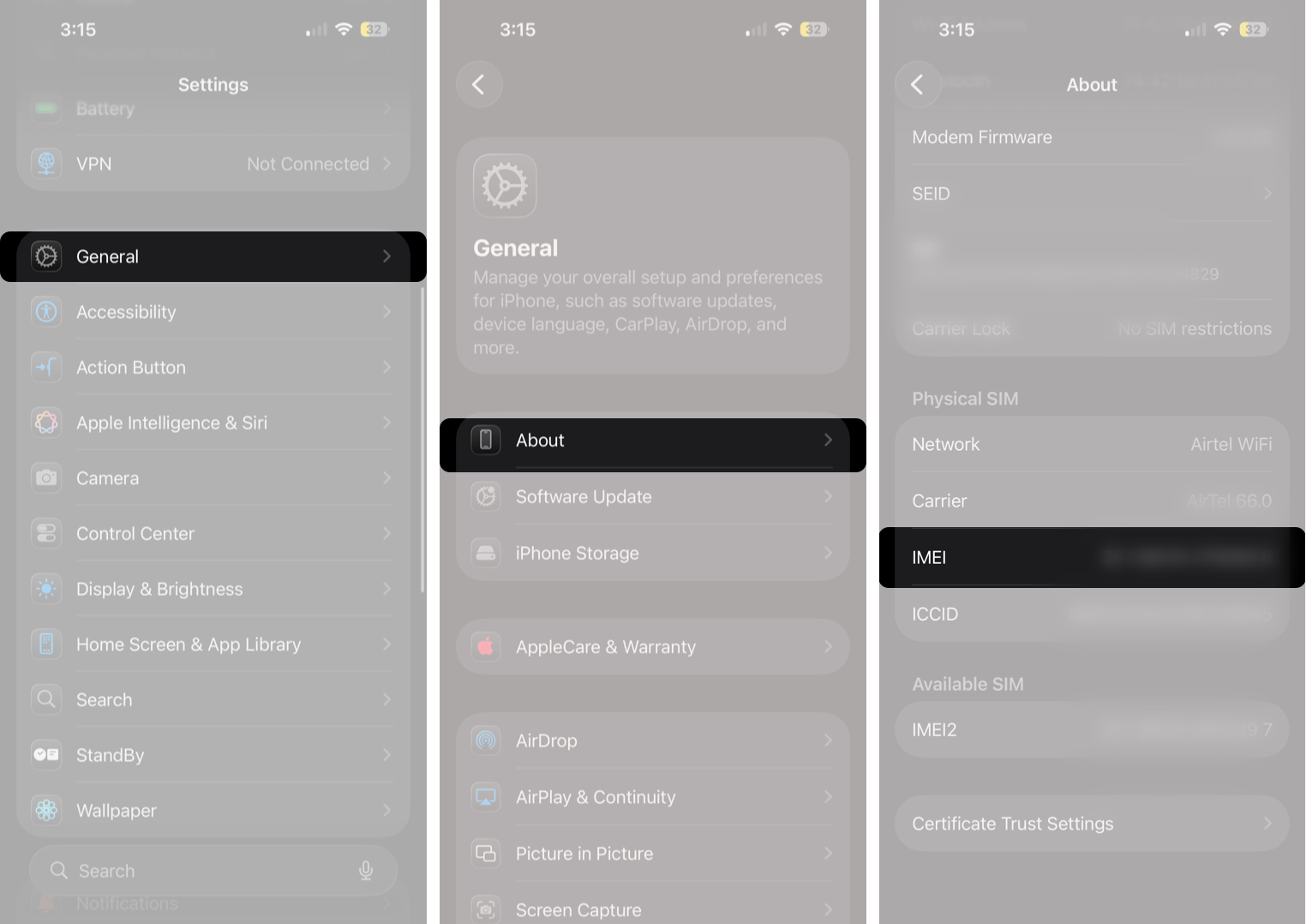
- Go to Settings → General → About.
- Here, scroll down to Carrier Lock and check the status next to it.
- If it says “No SIM restrictions,” your iPhone is unlocked.
- If you see a specific carrier name or a SIM-locked message, it means the device is locked.
2. Test With a SIM From Another Carrier
While the “No SIM restrictions” status in iPhone settings is the quickest way to confirm whether your iPhone is unlocked, you can test it with another SIM card for hands-on confirmation. Moreover, this is the only manual way to check the unlocked status on iPhones running on older iOS versions.
Simply turn off your iPhone, remove the SIM tray, swap the SIM card, reinsert the tray, and turn the iPhone back on.
If the iPhone connects to the network and shows signal bars, it is unlocked. But if you see a “SIM not supported” or “invalid SIM” message, the iPhone is locked.
3. Verify With Your Carrier Using IMEI
If the iPhone claims to be unlocked in Settings but you still cannot use another carrier, it may be an activation or provisioning issue.
In such cases, contact your carrier and ask them to verify the unlock status using your iPhone’s IMEI number.
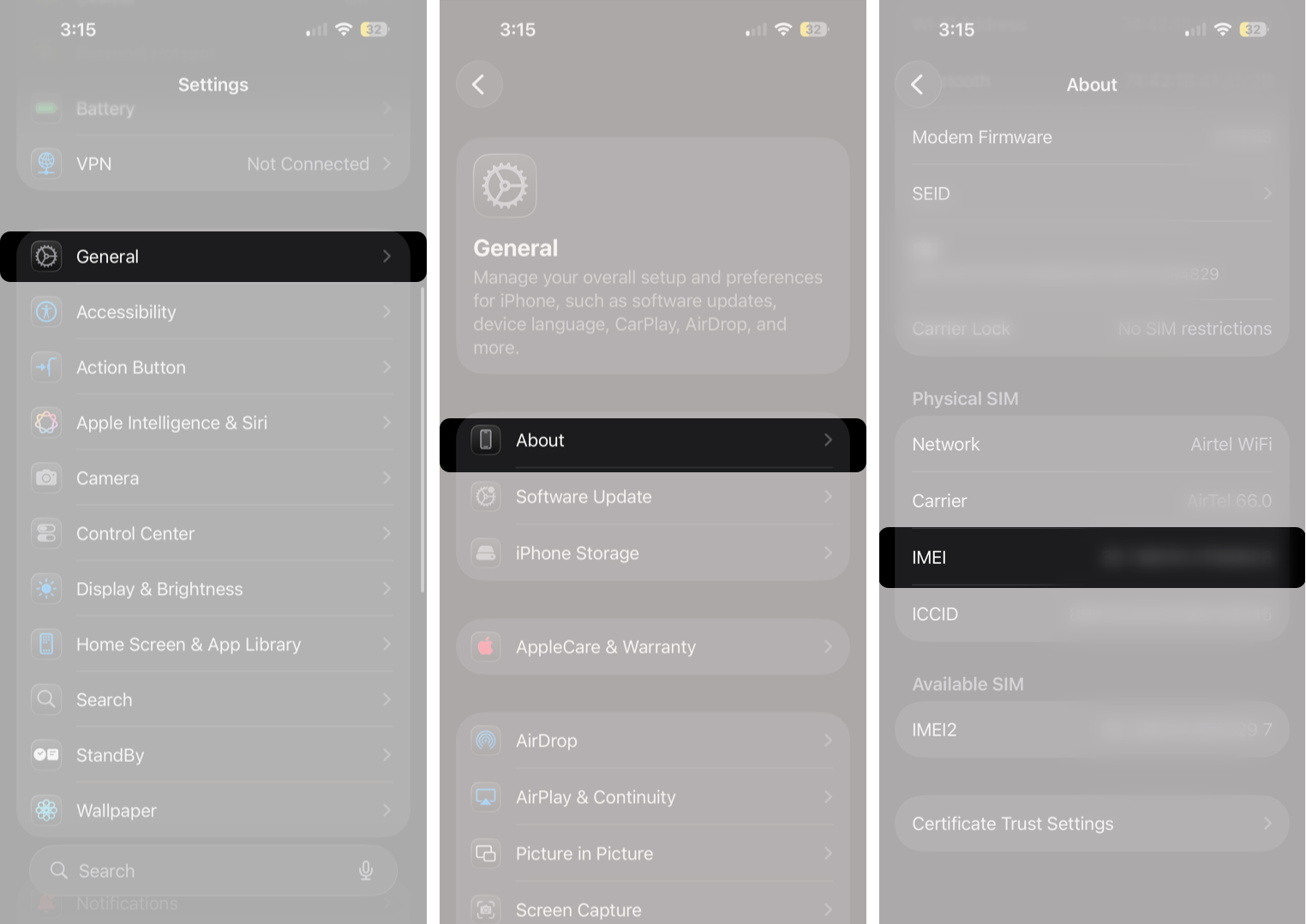
To find the IMEI on your iPhone, go to Settings → General → About, and scroll down to find the IMEI number.
If the issue persists even after the carrier confirms the unlock status, contact Apple Support to determine whether the problem lies with your iPhone.
4. Check Apple Purchase Records
iPhones bought directly from Apple are usually unlocked unless stated otherwise. This is helpful for second-hand or gifted devices.
Try the following:
- Search your purchase invoice or Apple Store receipt.
- If you no longer have them, contact Apple Support and provide the serial number.
They can confirm if the device was originally sold locked or unlocked.
Why It Matters to Confirm Unlock Status
An unlocked iPhone does not gain new software features, but it offers real-world benefits:
- Freedom to switch networks at any time.
- Cheaper travel with local SIMs or eSIMs abroad.
- Higher resale and trade-in value.
- No disputes when buying or selling used devices.
If you plan to upgrade, trade in, sell your iPhone, or move to a better data plan, knowing the unlock status removes guesswork.
What to Do If Your iPhone Is Locked
If the device turns out to be locked, the only legitimate and safe method is to request an official unlock.
Steps to follow:
- Contact the original carrier.
- Complete any pending payments or eligibility requirements.
- Wait for confirmation.
- Restart the iPhone. In some cases, a backup and restore helps apply the change.
Avoid third-party unlocking tools and shady services. These can be illegal or leave your device blocked from activation.
Before You Switch Carriers
Now you know how to check if an iPhone is unlocked using Settings, SIM testing, carrier verification, or Apple purchase details. Making sure the device is fully unlocked avoids activation errors that usually show up during an eSIM setup or when using a new physical SIM.
If you have recently switched networks or purchased a used iPhone, check the unlock status before making changes.
FAQs
Only the carrier or Apple can officially remove a carrier lock. Resetting the device does not unlock it.
Most carriers complete unlocking within a few hours to a few days after eligibility is confirmed.
Unlocked iPhones usually have higher resale value and are easier to sell or trade in.
Also read:
- Best Places to Buy Refurbished iPhone in 2026
- How to Check if Your iPhone Is Original, Refurbished, or Fake
The post How to Check If Your iPhone Is Unlocked appeared first on iGeeksBlog.”}]]



This Post Has 0 Comments