
 [[{“value”:”Want to control your Apple Watch using your iPhone? This guide explains how to turn on Apple Watch Mirroring, use it easily, and fix common issues.
The post How to Mirror Your Apple Watch on Your iPhone: A Simple Guide appeared first on iGeeksBlog.”}]] [[{“value”:”
If you find the buttons on your Apple Watch too small or want a bigger screen to control it, Apple Watch Mirroring can help. Introduced in iOS 16, this feature lets you control your Apple Watch from your iPhone, providing a larger, easier-to-see display. Here’s a simple, quick guide to explain what it is, how to set it up, and how to use it.
Table of Contents
- What does Apple Watch Mirroring do?
- Requirements for Apple Watch Mirroring
- Turn On or Off Apple Watch Mirroring on Your iPhone
- Enable Apple Watch Mirroring Shortcut on iPhone
- How to Control Your Apple Watch with Your iPhone
- Tips for a Better Mirroring Experience
- Fix Common Apple Watch Mirroring Issues
- Wrapping Up
What does Apple Watch Mirroring do?
With Apple Watch Mirroring, you can use your watch on your iPhone’s larger screen, viewing and controlling it directly from your phone. It uses AirPlay to cast your watch screen, and every gesture you make on the iPhone is mirrored on the watch. This makes navigating menus, changing settings, or using apps much simpler.
Though it was designed for accessibility, it is useful for everyday tasks, especially when you need to make quick adjustments or when the watch’s buttons or screen are not working well.
Requirements for Apple Watch Mirroring
Before we begin, make sure you have everything you need for the feature to work properly.
- Your Apple Watch must be running watchOS 9 or later.
- Your iPhone must be running on iOS 16 or later.
- Both devices should be paired and connected via Bluetooth and Wi-Fi.
- The feature works only on Apple Watch Series 6 or later and Apple Watch SE (2nd Gen).
Turn On or Off Apple Watch Mirroring on Your iPhone
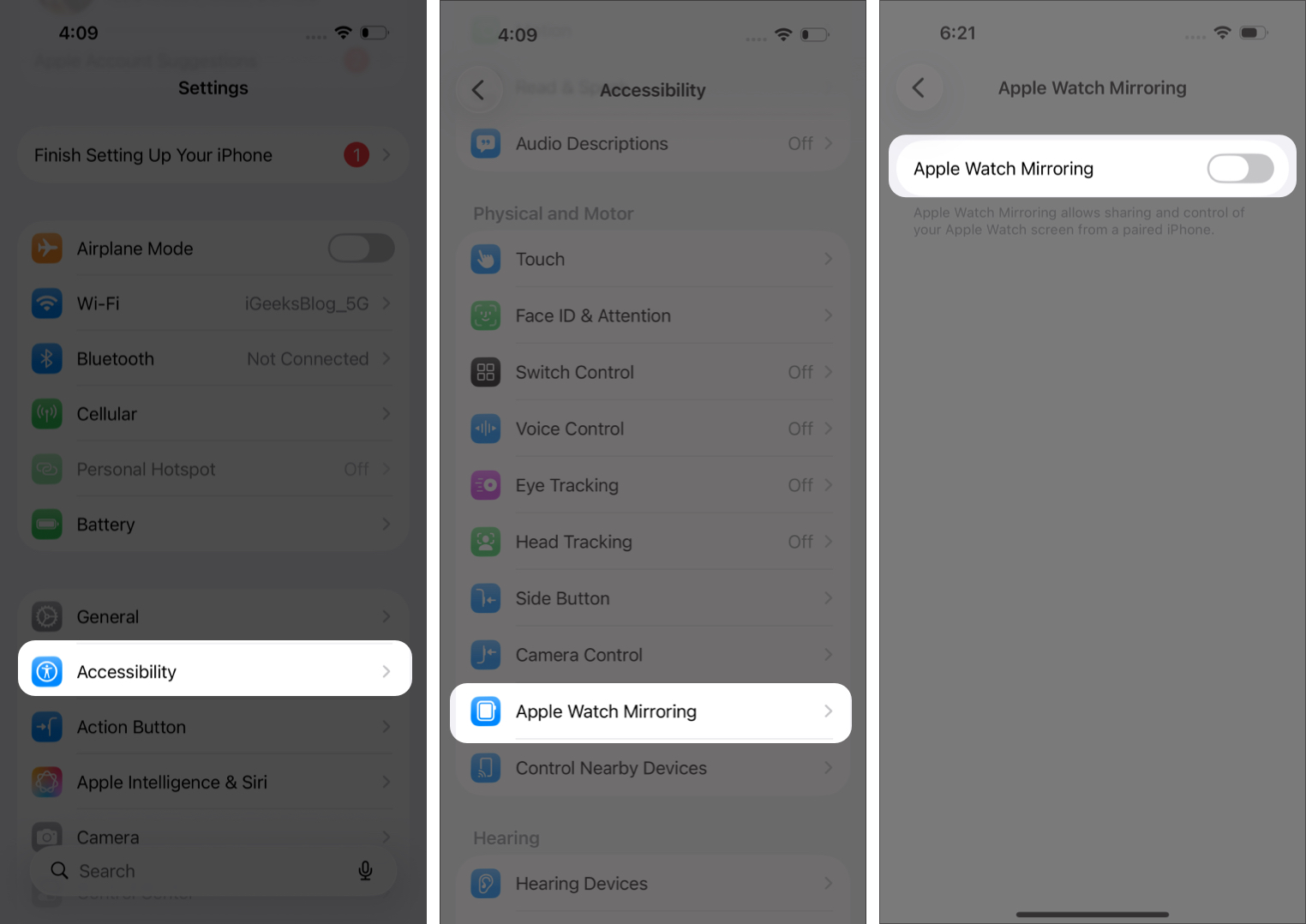
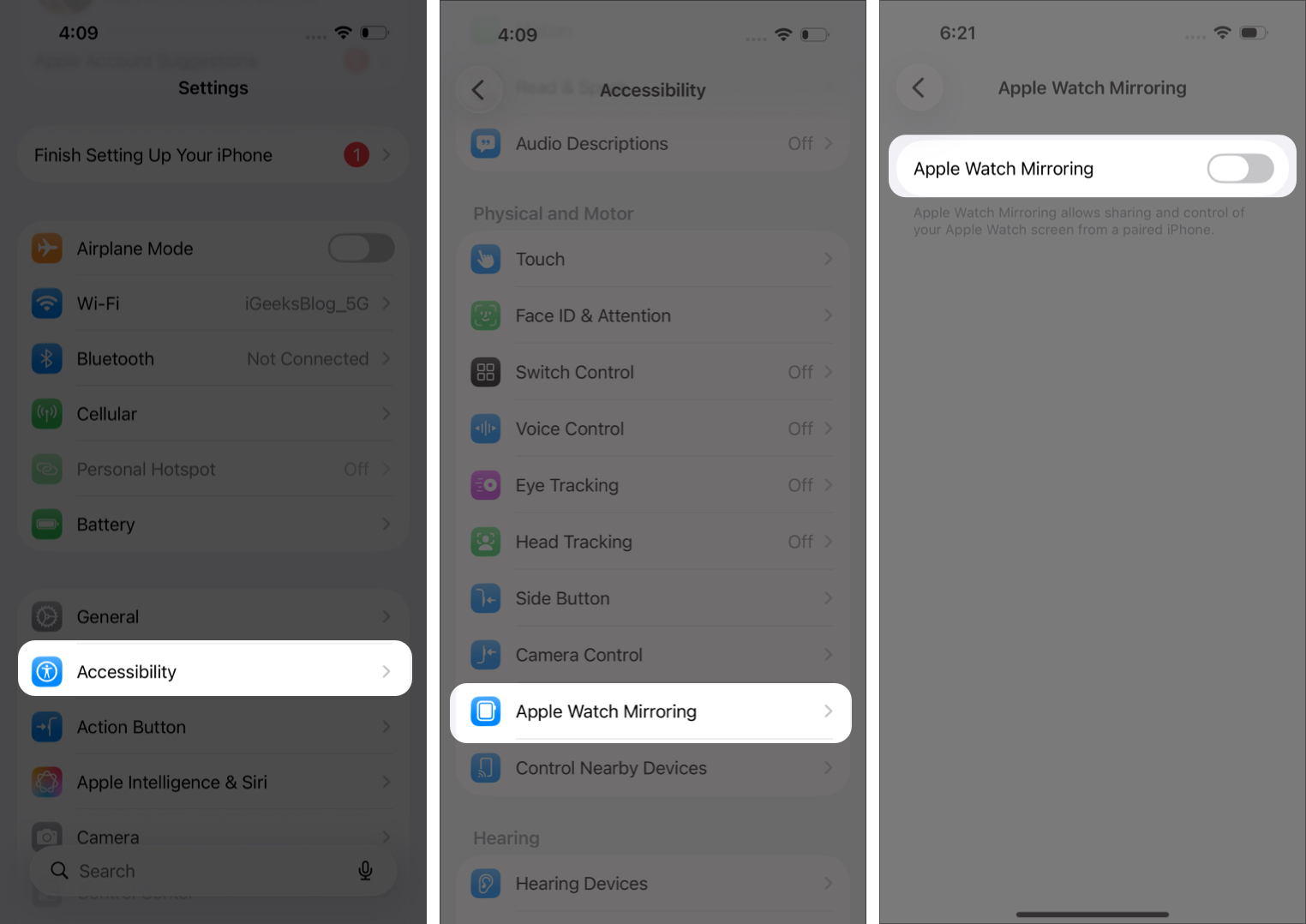
Turning on mirroring takes less than a minute. Here’s how to do it:
- Open Settings.
- Tap Accessibility.
- Under Physical and Motor, tap Apple Watch Mirroring.
- Turn on the Apple Watch Mirroring toggle.
Once enabled, your Apple Watch screen will appear on your iPhone. It may take a few seconds to connect. For me, it took almost 30 seconds.
Enable Apple Watch Mirroring Shortcut on iPhone
If you plan to use this feature often, add it to the Accessibility Shortcut on your iPhone so you can turn it on quickly by triple-clicking the Side button. Here’s how to add it:
- Go to Settings, tap Accessibility.
- Scroll down to Accessibility Shortcut under General.
- Check Apple Watch Mirroring from the list.
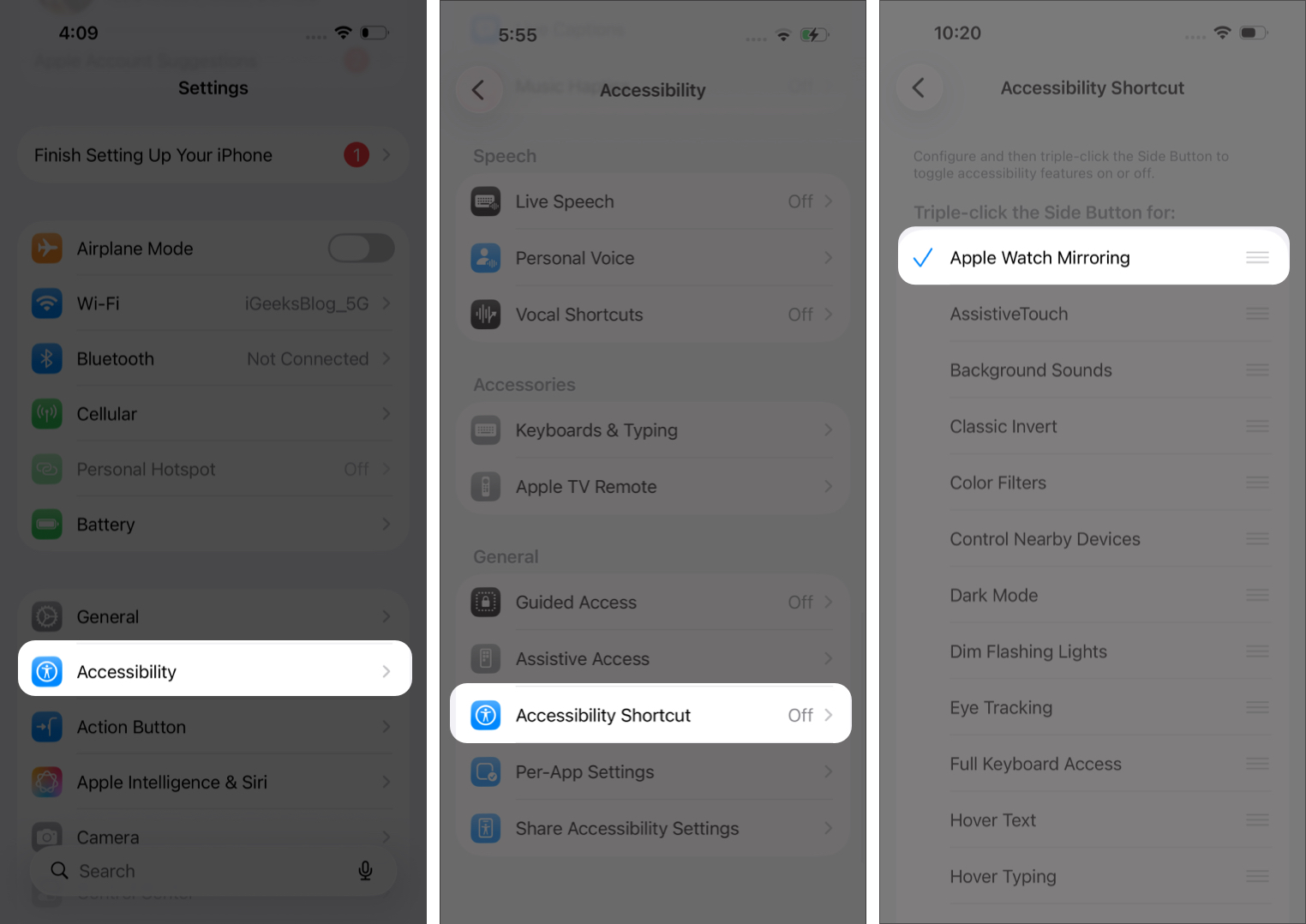
That’s it. You can now start mirroring your watch by triple-clicking the side button.
How to Control Your Apple Watch with Your iPhone
Once mirroring is active, you will see the complete replica of your watch interface on your screen. Now, let’s learn to control and access your watch on iPhone.
- Tap the Digital Crown icon on your iPhone to open apps or go to the Home Screen.
- Tap the Side button icon to open the Control Center or hold for emergency controls.
- Tap the Action button icon to open the Workout app directly (only on Apple Watch Ultra models).
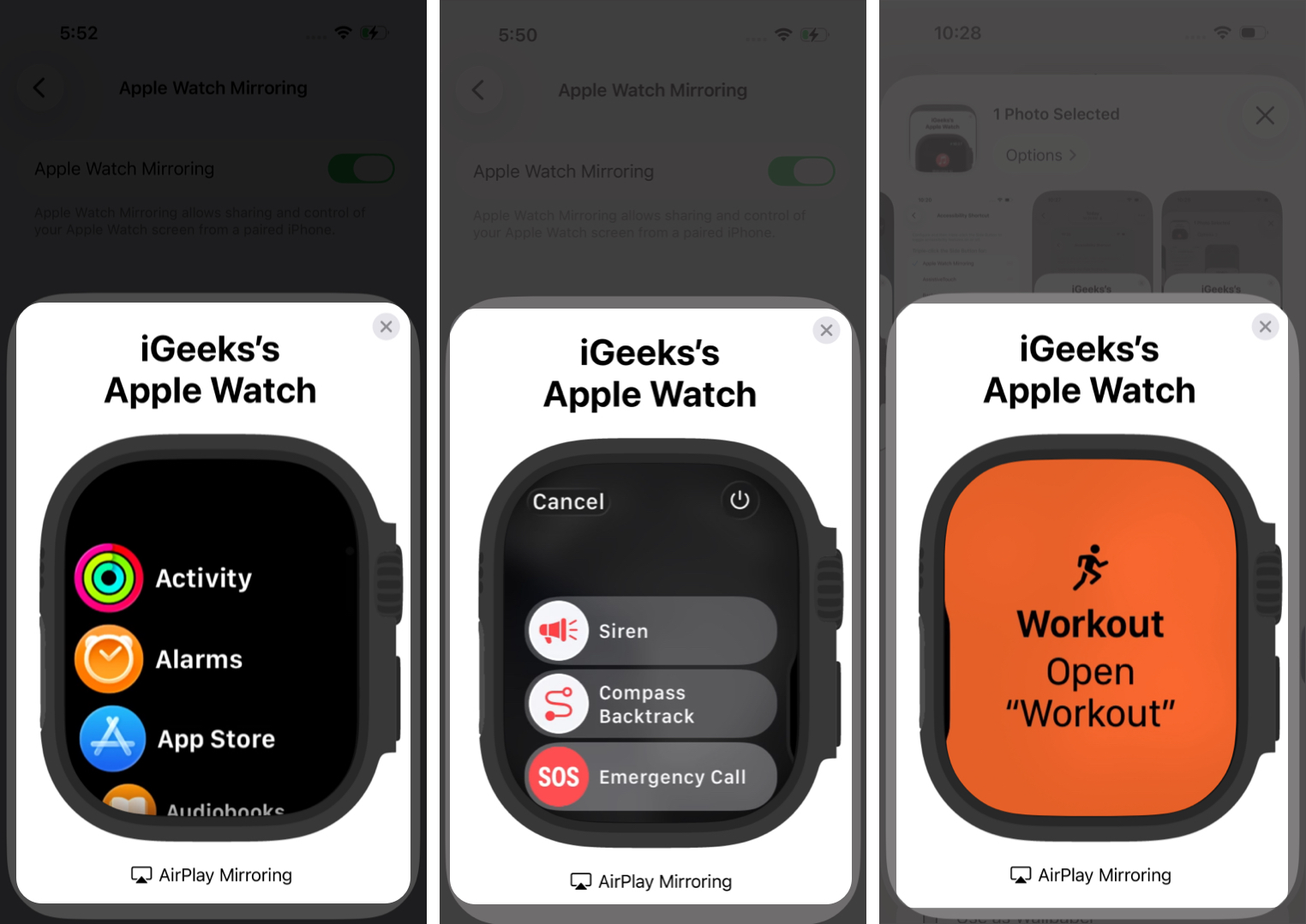
- Tap and hold the Digital Crown to invoke Siri.
- Swipe up or down to scroll, and swipe left or right to switch screens.
- Open any app from the App Library, and it will instantly mirror on your Apple Watch.
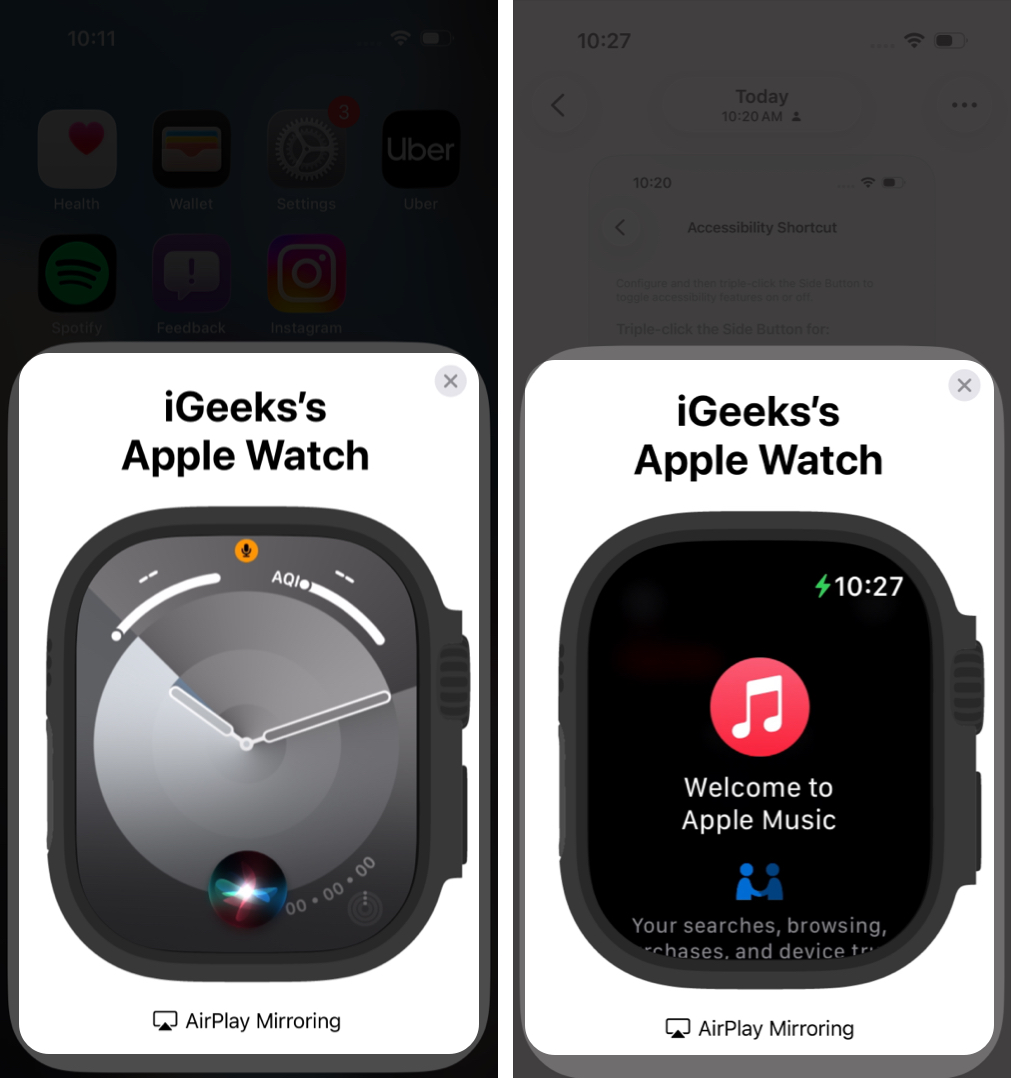
Moreover, you can open apps, respond to messages, adjust settings, and even enter your passcode directly from the iPhone screen. The touch controls feel natural because they work the same way as on the watch.
Tips for a Better Mirroring Experience
A few quick settings can make the experience smoother.
- Enable “Always On” in the Watch app under Display & Brightness to keep the watch screen awake.
- Increase your iPhone’s Auto-Lock time to prevent mirroring from disconnecting.
- Keep your iPhone and Apple Watch close to maintain a stable connection.
- Expect some delays because the feature uses AirPlay.
- Close unnecessary apps on your iPhone to prevent lagging.
Fix Common Apple Watch Mirroring Issues
If mirroring is not working properly, here are some common fixes.
Start with the basics: make sure Bluetooth and Wi-Fi are on, both devices use the same Apple ID, and they’re properly paired. If the screen still doesn’t appear, turn the feature off and back on.
Still not working? Try these steps:
- Restart your iPhone and Apple Watch.
- Update both devices to the latest software.
- Unpair and pair your Apple Watch again if the issue continues.
Most connection issues are solved by a simple restart or software update. If nothing helps, contacting Apple Support is your best next step.
Wrapping Up
Apple Watch Mirroring is a practical feature that makes your watch easier to control, especially for individuals with physical and motor disabilities. It is simple to set up and takes only a few steps to activate. Once you try it, you may find yourself using it more often than expected.
FAQs
Your devices may not meet the software or model requirements. You should also check Wi-Fi, Bluetooth, and pairing status.
No. Apple Watch Mirroring works only with a paired iPhone.
Yes. Both devices use more power during mirroring.
No. It works only on Apple Watch Series 6 or later.
Yes. Mirroring runs through your local network and stays linked to your Apple ID, so your information remains private.
Read More
- Tips to fix Siri not working on Apple Watch
- How to use Action button on Apple Watch Ultra
- How to share Apple Watch faces
The post How to Mirror Your Apple Watch on Your iPhone: A Simple Guide appeared first on iGeeksBlog.”}]]


This Post Has 0 Comments