
 [[{“value”:”Sharing your screen on WhatsApp makes it easier to explain things visually. Here’s how to use screen sharing on iPhone, Android, and desktop devices.
The post How to Share Screen on WhatsApp (iPhone, Android, and Desktop) appeared first on iGeeksBlog.”}]] [[{“value”:”
Screen sharing on WhatsApp is useful when you want to show someone what’s happening on your device instead of explaining it. Whether you’re helping a family member troubleshoot an issue, showing a document, or guiding a friend through an app, WhatsApp’s screen-sharing feature lets you share your display in real time.
This guide explains how to share your screen on iOS, Android, and desktop, along with quick fixes if the option isn’t available.
Things to Know Before Sharing Your Screen on WhatsApp
Before you start, keep these important points in mind:
- Screen sharing works only during an active WhatsApp video call. It is not available during audio calls.
- You can use screen sharing on iOS, Android, and the WhatsApp Desktop app for Mac and Windows.
- WhatsApp confirms that screen sharing is protected by end-to-end encryption, meaning only people in the call can see your screen.
- Everything visible on your screen will be shared, including notifications, messages, and sensitive information. It’s best to enable Do Not Disturb before starting.
How to Share Your Screen on WhatsApp for iPhone and Android
On iPhone
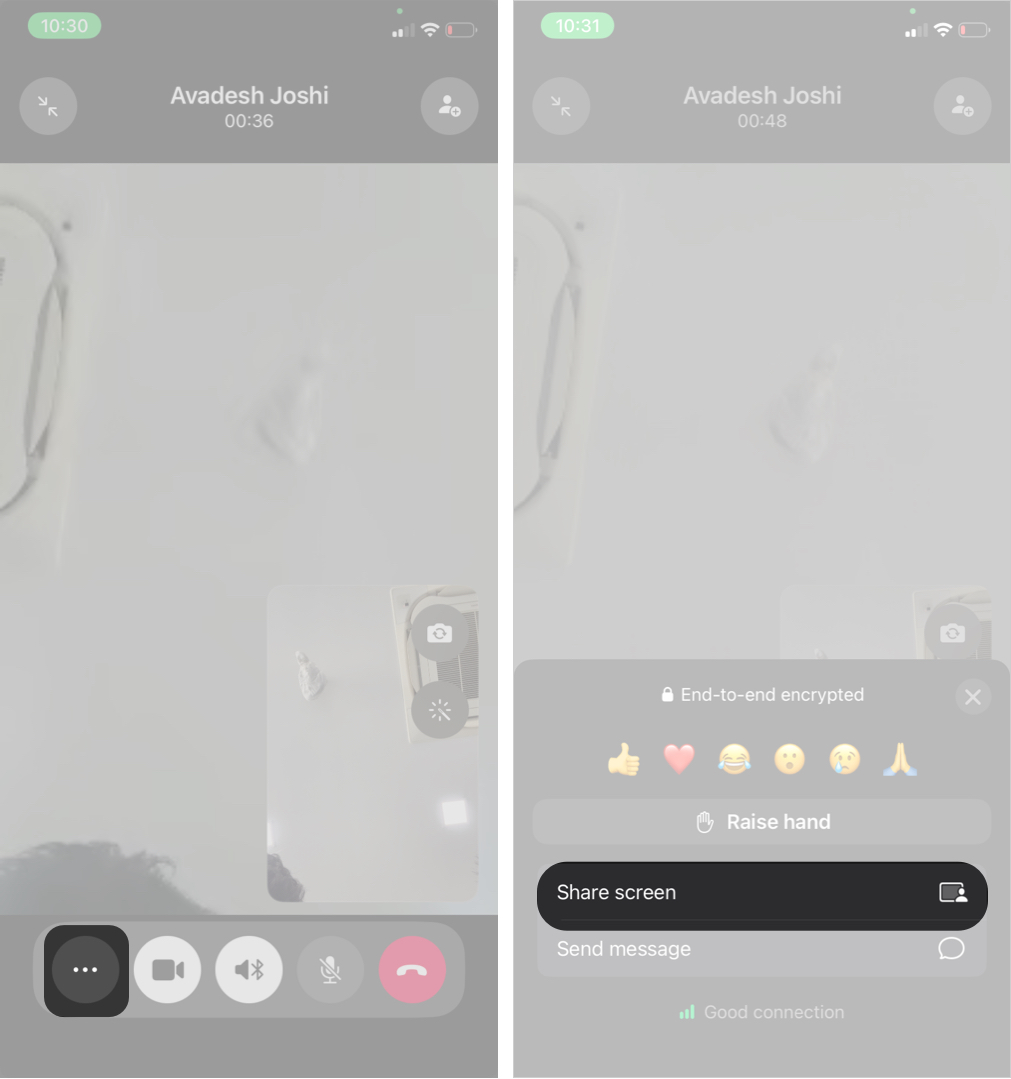
Mobile devices are one of the most common ways to share your screen on WhatsApp. Follow these steps on your iPhone or iPad:
- Open WhatsApp and start a video call.
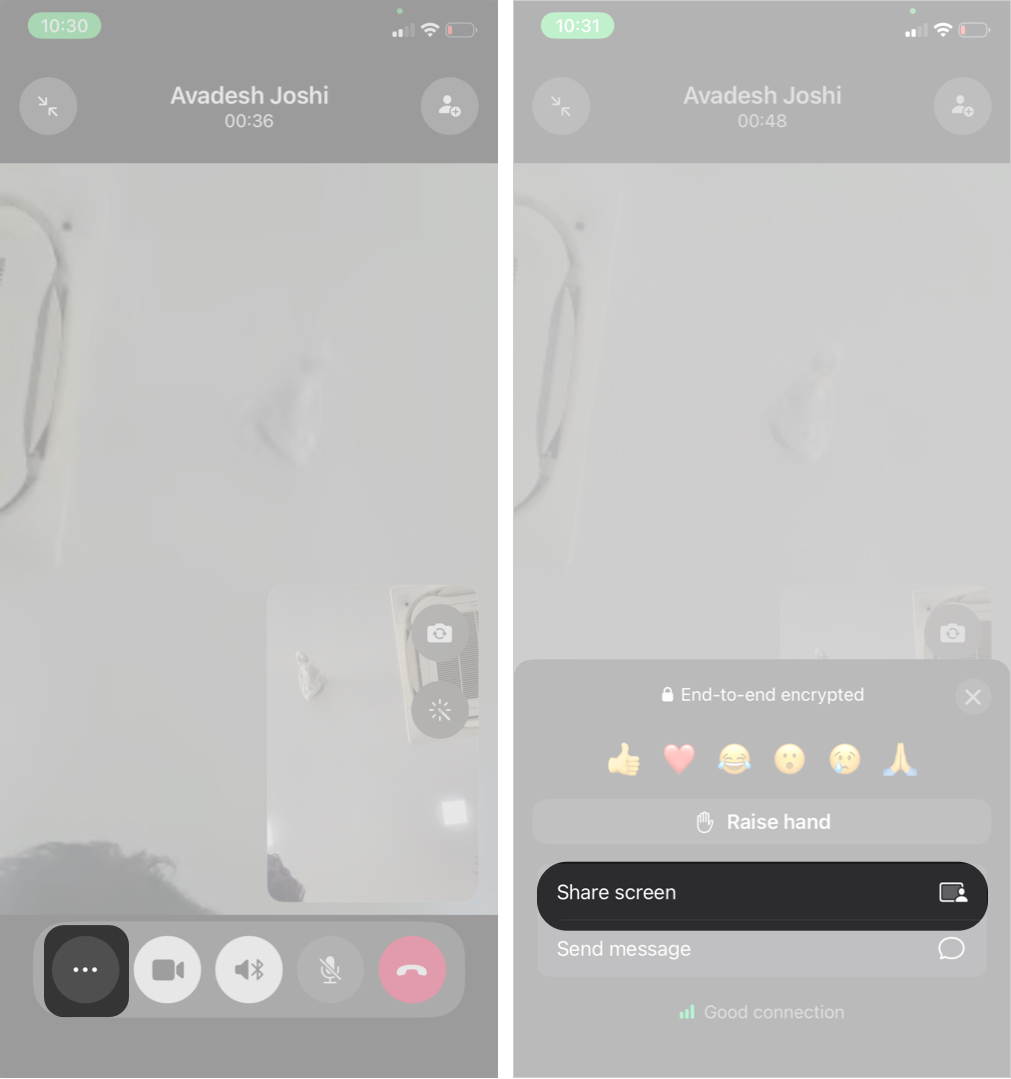
- Tap the three-dot icon in the call controls.
- Select Share screen.
- Select Start Broadcast to begin sharing.
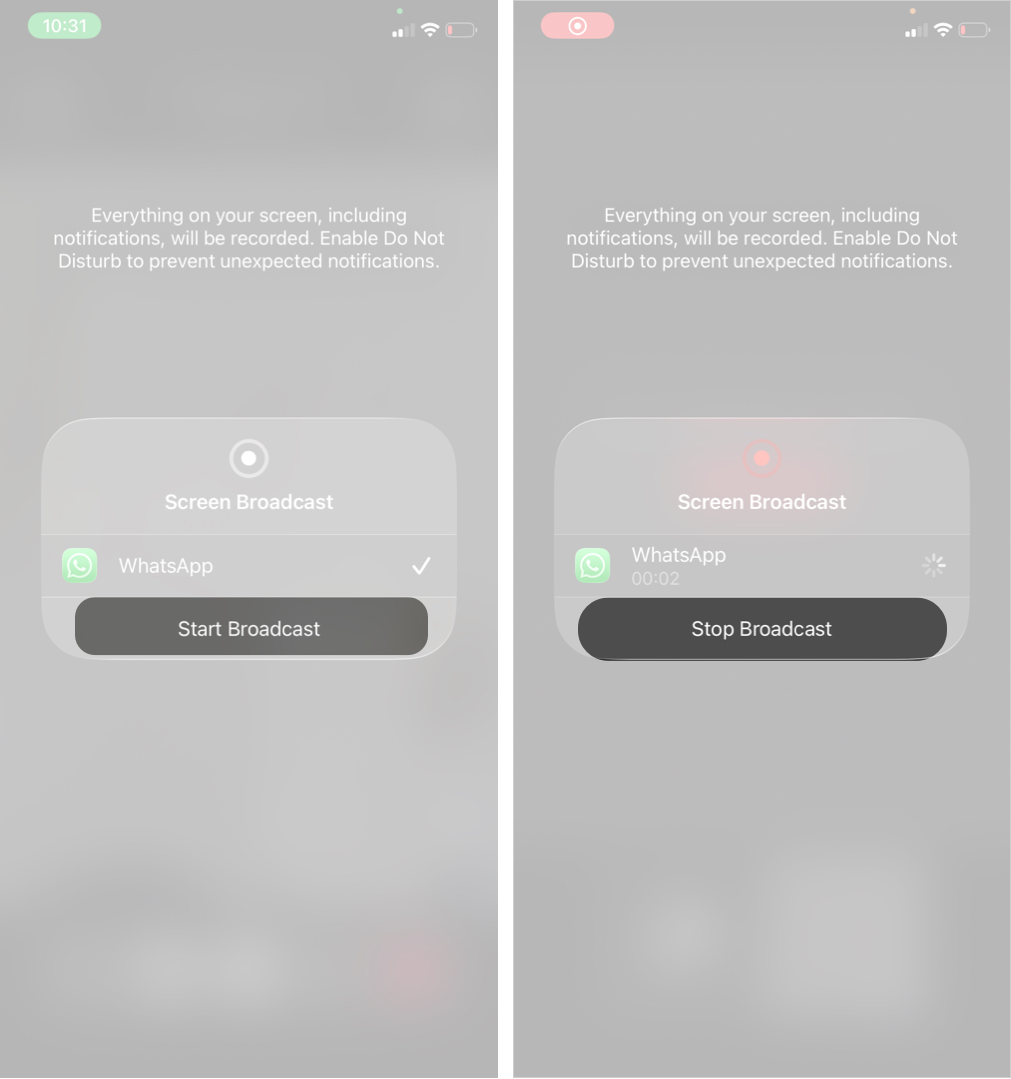
To stop sharing, tap Stop Broadcast on the call screen.
On Android
Screen sharing on Android is simple and works similarly to iOS. Here’s how to do it:
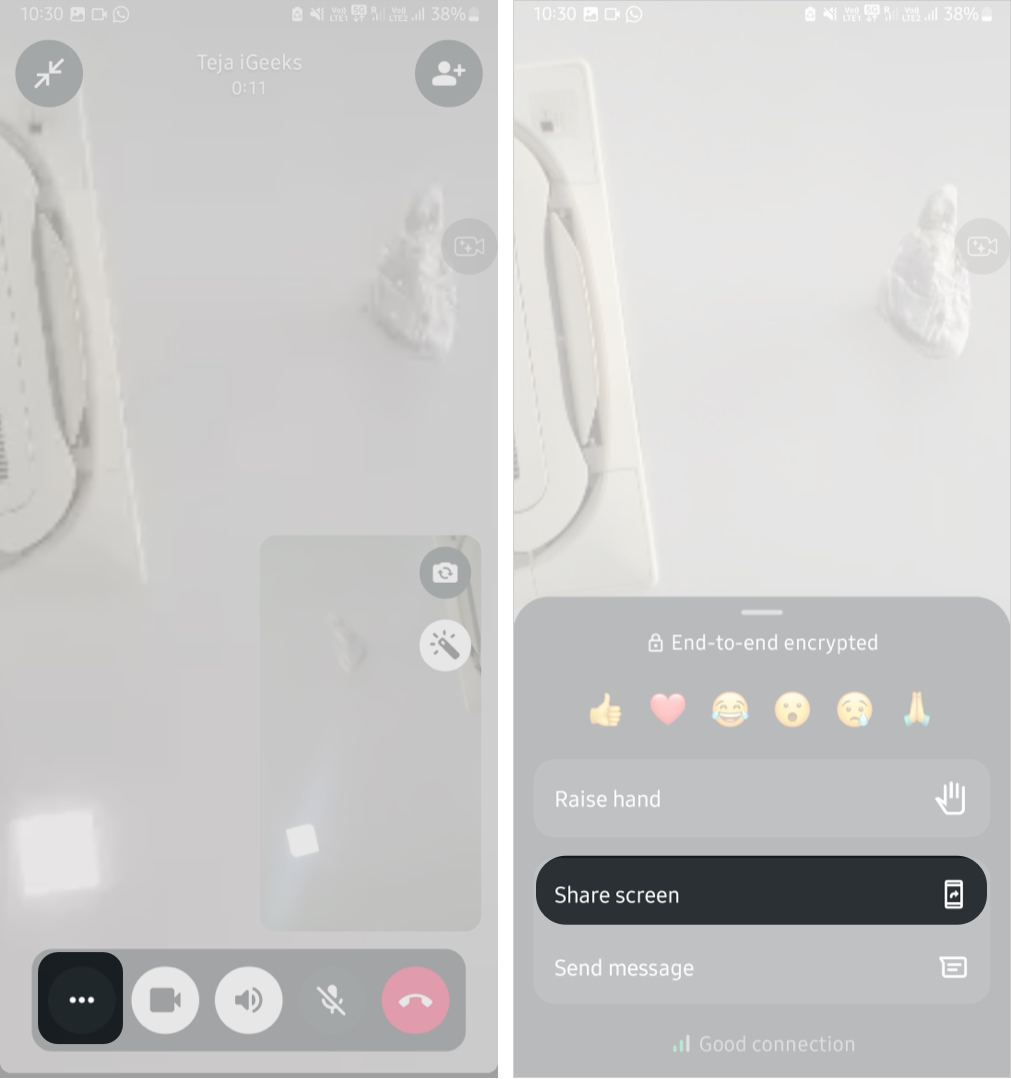
- Start or join a video call in WhatsApp.
- Tap the three-dot icon at the bottom of the call screen.
- Select Share screen.
- A warning pop-up box about screen sharing will appear.
- Allow the required permissions and tap Start now.
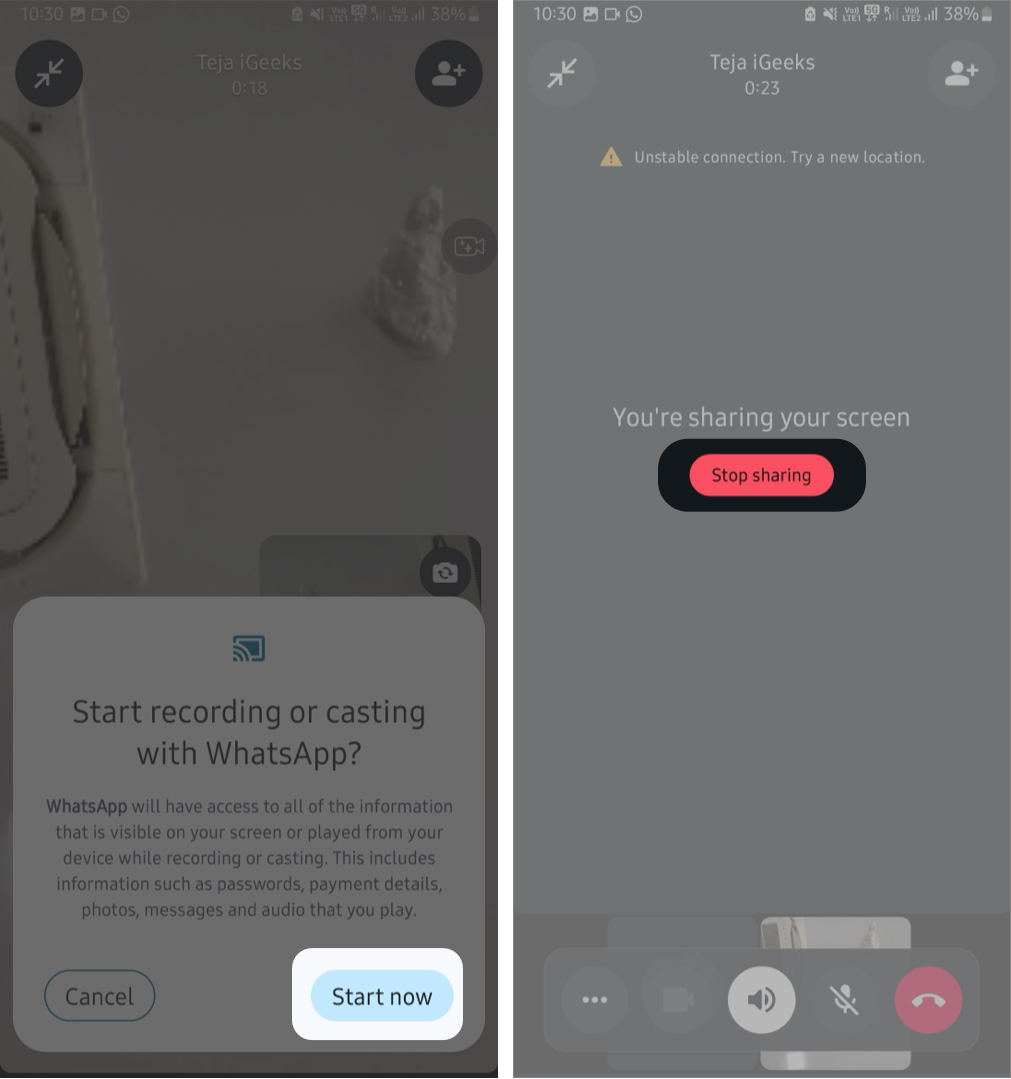
When you’re finished, tap Stop Sharing on the call screen.
Share Your Screen on WhatsApp Desktop (Mac and Windows)
WhatsApp Web does not currently support screen sharing or voice/video calls. However, you can share your screen using the WhatsApp Desktop app on Mac or Windows.
On Mac
- Open the WhatsApp app on your Mac and start a video call.
- Click the Screen Sharing icon.
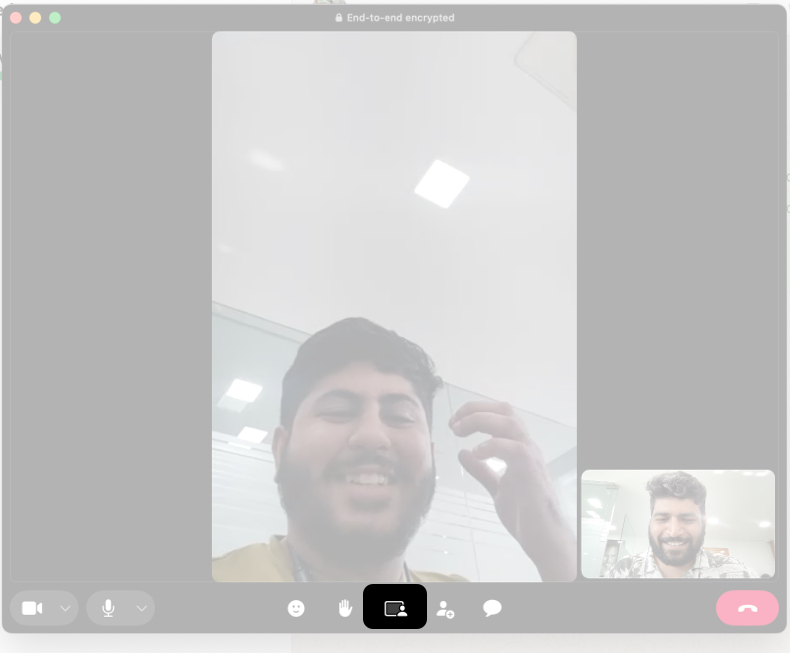
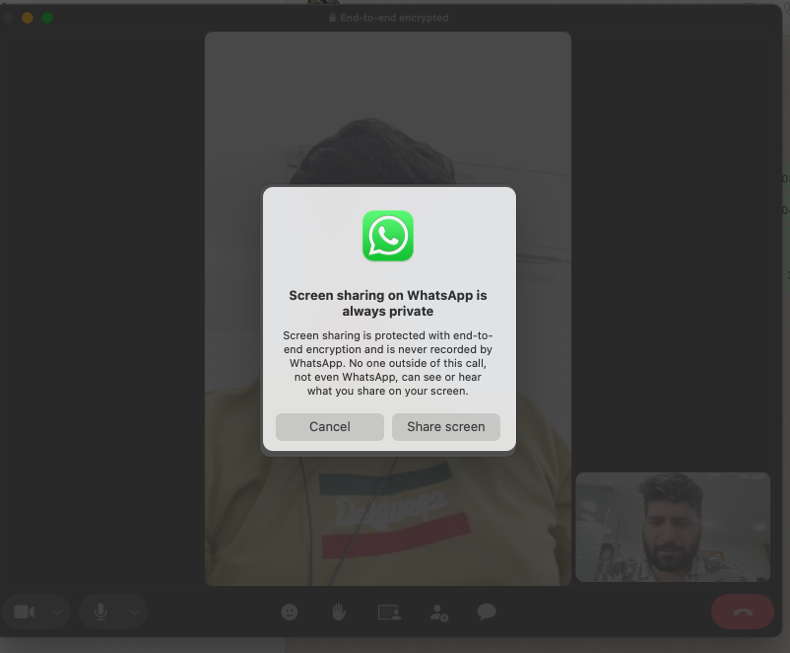
- A permission pop-up will appear; click Allow to enable screen and audio sharing.
- Choose the screen or window you want to share.
- Click Share.
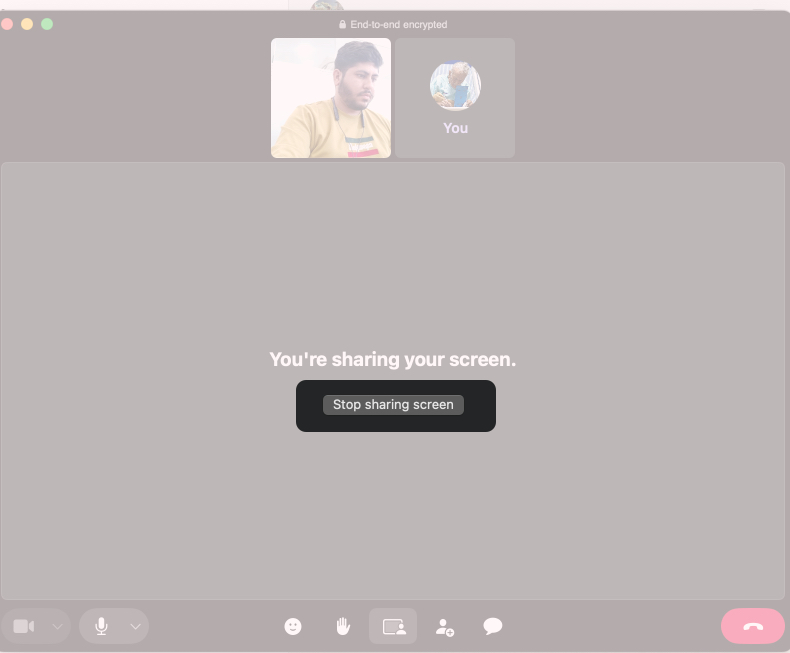
To stop sharing:
- Click Stop Sharing inside WhatsApp, or
- Click the purple screen-sharing icon in the macOS menu bar and select Stop Sharing.
On Windows
- Open WhatsApp Desktop on your Windows PC.
- Start a video call.
- Click the Screen Sharing icon.
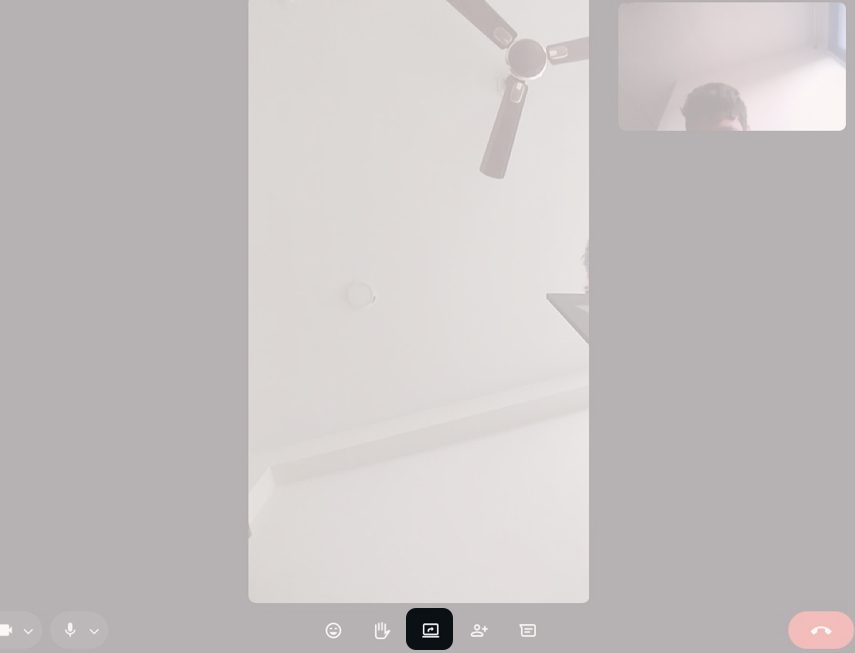
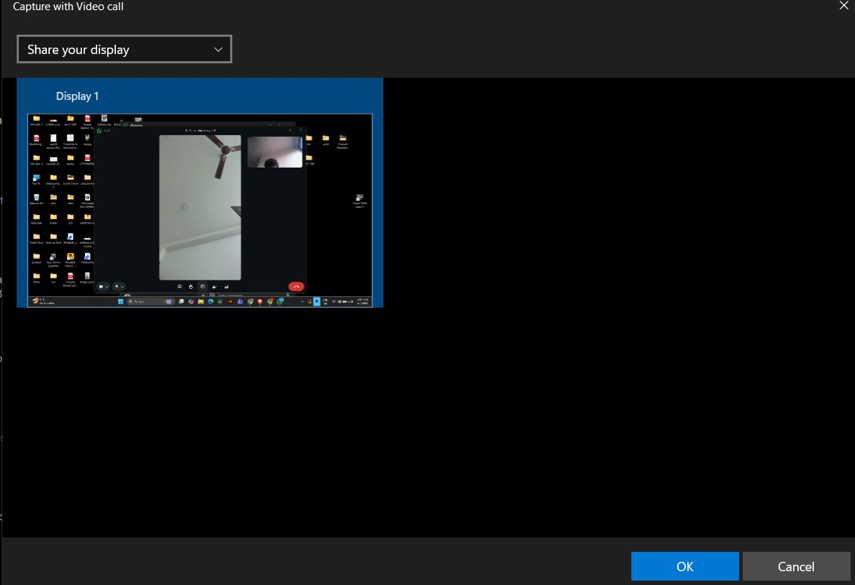
- Choose a screen, window, or tab to share.
- Click Share.
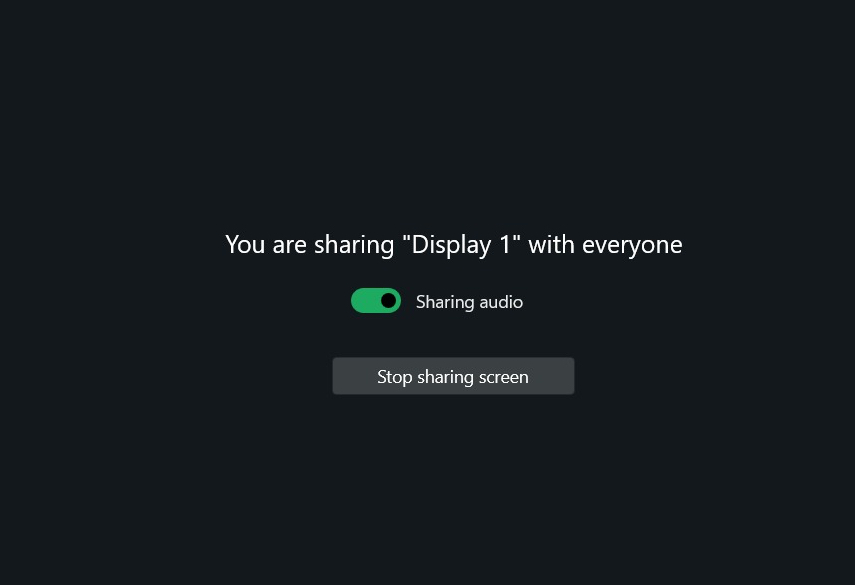
- To stop sharing, click Stop sharing in WhatsApp.
Related: How to Share Screen on Instagram Video Calls
Why You Might Not See the Screen Share Option
If the screen-sharing button is missing, it may be due to one of the following reasons:
- You started an audio call instead of a video call.
- Your WhatsApp app is outdated.
- Required system permissions are disabled on your device.
- On desktop, camera access may be blocked, preventing the feature from appearing.
How to Fix WhatsApp Screen Sharing Not Working
If screen sharing isn’t working on WhatsApp, try these troubleshooting steps:
- Update WhatsApp from the App Store, Google Play Store, or Microsoft Store.
- Check permissions for camera, microphone, and screen recording.
- Disable aggressive battery optimization or background restrictions.
- Restart or reinstall the WhatsApp app.
- Switch to a stable internet connection.
Related: 11 Ways to Fix WhatsApp Calls Not Working on iPhone and Android
Final Thoughts
WhatsApp screen sharing makes it easy to explain something visually without leaving the app. It’s simple, secure, and convenient for quick help, demonstrations, or presentations.
If you need advanced features such as remote control, annotations, or high-quality audio sharing, dedicated tools like Zoom or Microsoft Teams may work better. However, for everyday use, WhatsApp’s built-in screen sharing works well.
FAQs
No. Screen sharing only works during an active WhatsApp video call.
Yes. Screen sharing works in the WhatsApp Desktop app for Mac, although some features may be limited compared to Windows.
WhatsApp does not record screen-sharing sessions. However, participants in the call could use their own devices to record the screen.
System audio sharing depends on your device and operating system, so it may not always work the same way across platforms.
The post How to Share Screen on WhatsApp (iPhone, Android, and Desktop) appeared first on iGeeksBlog.”}]]



This Post Has 0 Comments