
 [[{“value”:”
What To Know
- If your phone calls keep being made through FaceTime audio rather than the phone app, open Settings, tap Apps, Phone, Default Calling App, and make sure Cellular is selected.
- If selecting Cellular doesn’t stop the glitch, try turning off FaceTime in Settings, Apps, FaceTime, and toggle off FaceTime.
Ever since downloading the iOS 26 beta software on my iPhone, I’ve noticed an annoying problem. Whenever I attempt to make a phone call, my iPhone defaults to FaceTime audio. I’ve never had this type of issue before, so I set about troubleshooting. Here’s how to stop your iPhone from defaulting to FaceTime audio for phone calls.
Jump To:
How to Stop Your iPhone from Defaulting to FaceTime Audio for Phone Calls
If you’re aggravated with your phone calls defaulting to FaceTime audio instead of a regular phone call, there are two solutions. You can change the Default Calling App from FaceTime Audio to Phone. If that doesn’t work, you can turn off FaceTime completely.
How to Change Default Calling App on iPhone & iPad
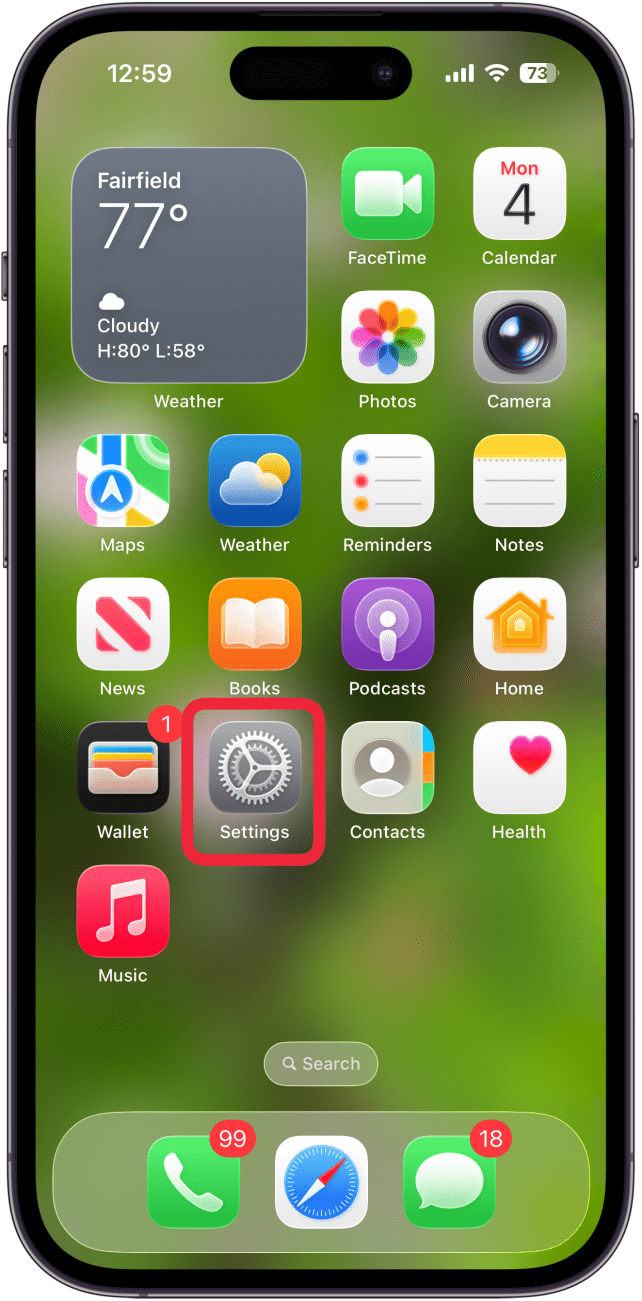
- Open the Settings app.
<!–[if IE 9]>

- Tap Apps.
<!–[if IE 9]>

- Tap Phone.
<!–[if IE 9]>

- Tap Default Calling App.
<!–[if IE 9]>

- Tap Cellular.
<!–[if IE 9]>

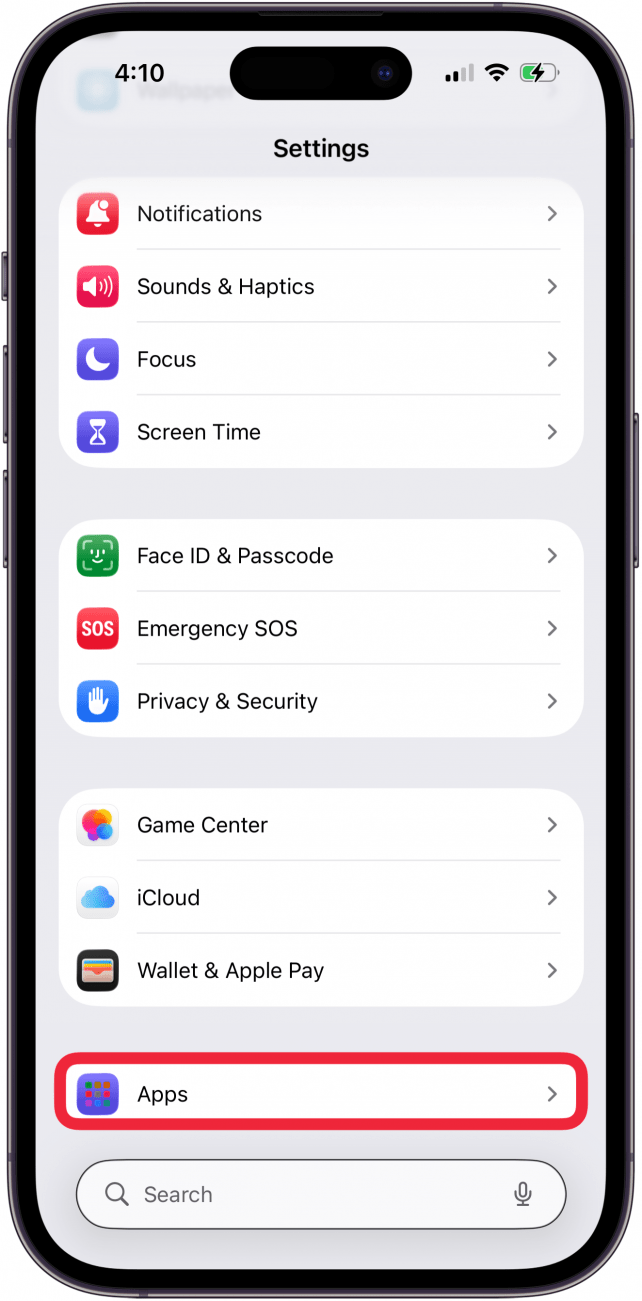


I’ve taken this step three times now, and every time I go back to check my Default Calling App setting, it says FaceTime Audio again, though I’ve changed it to Cellular. Since this is obviously a glitch, I’ve reported it to Apple, and have moved on to turning off FaceTime completely.
How to Turn Off FaceTime on iPhone & iPad
- Open the Settings app.
<!–[if IE 9]>

- Tap Apps.
<!–[if IE 9]>

- Tap FaceTime.
<!–[if IE 9]>

- Toggle off FaceTime.
<!–[if IE 9]>


Now you know how to solve the annoying problem of your iPhone phone calls defaulting to FaceTime audio. Be sure to check out our free Tip of the Day for more great iPhone tutorials on the Phone and FaceTime apps.
FAQ
- My iPhone calls keep failing; what can I do? If iPhone calls fail repeatedly, you can toggle Airplane mode on and off, reset your network settings, and more.
- What do I do if my iPhone goes straight to voicemail without ringing? If your iPhone goes straight to voicemail without ringing, make sure Do Not Disturb is not on, Airplane mode is off, and more.
- My iPhone will make phone calls, but I can’t text; how can I fix this? If your iPhone will make calls but won’t text, make sure your iPhone is updated to the latest iOS, hard reboot your iPhone, and more.
“}]]


This Post Has 0 Comments