


Renovate Bot is a tool that automatically opens pull requests to update your dependencies. This article will walk you through installing Renovate on a GitHub repository and configuring it for an Android project. We’ll cover how to target specific dependencies (like Kotlin and Gradle plugins), set update frequency, and apply best practices to avoid PR noise.
How Renovate Bot Works
Renovate Bot scans your source repository for dependency files, for example, thebuild.gradle.ktsfile. It then checks each dependency to see if a newer version is available.
In other words, it compares the versions you have against the latest releases on Maven Central and other registries. This way, Renovate quickly identifies any libraries or tools in your project that are outdated.
Think of Renovate Bot as a friendly robot librarian in your code’s library. It scans the shelves (your dependency files) for old books (outdated packages) and automatically brings you the latest editions (updates) for approval. This way, your “library” of code is always updated with minimal effort.

Proposing Updates Automatically
For each outdated dependency it finds, Renovate automatically generates a Pull Request in your source control (e.g. on GitHub or GitLab). This PR includes the changes needed to update to the new version, for example, bumping the version number in your libs.versions.toml file along with notes like changelogs when available.
You (or your team) can review these PRs and run tests, and then merge the ones you’re happy with. By doing this routinely, your project stays up-to-date with the latest bug fixes and features from those dependencies, with almost no manual work on your part.
Installing Renovate Bot on Your GitHub Repository
The easiest way to use Renovate on GitHub is via the official Mend Renovate app (available on the GitHub Marketplace). Go to the Renovate GitHub App page and click the green Install button.
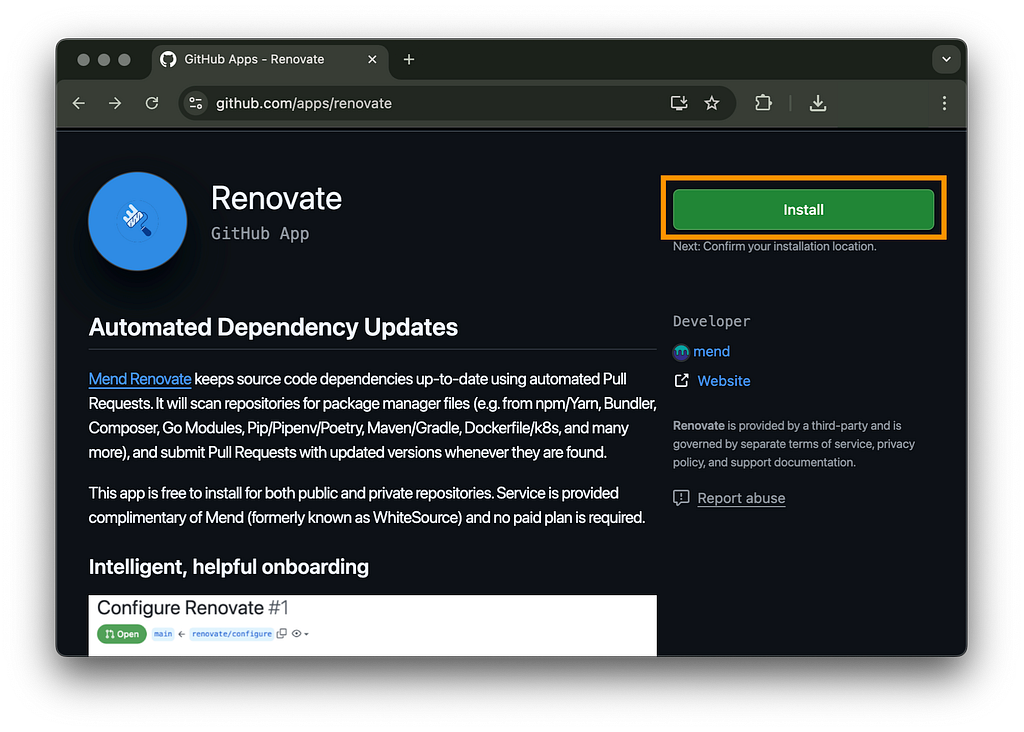
You can choose to install it on all repositories or select specific ones during setup.
Onboarding Pull Request
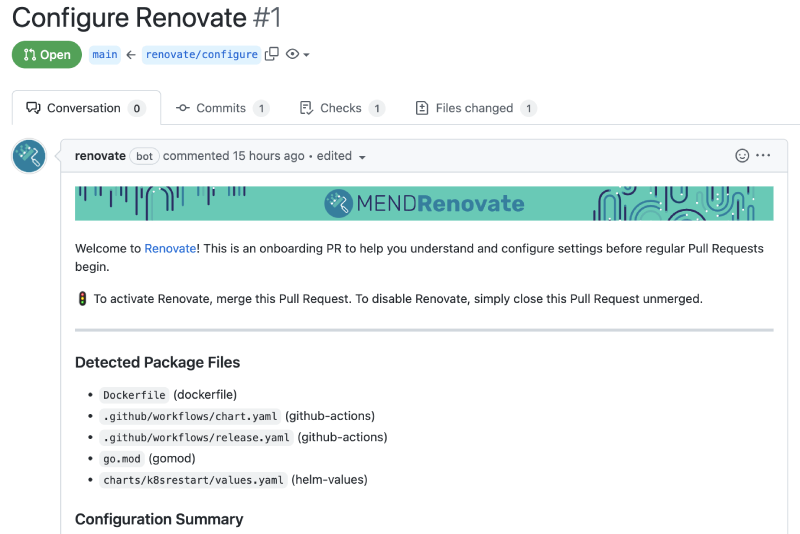
Once installed, Renovate will create an onboarding PR (usually titled “Configure Renovate”) on your repo. This PR contains a starter configuration (in renovate.json) and a list of detected package files.
Importantly, Renovate does nothing else until you merge this PR.
This “no-risk onboarding” means you can review and tweak the config before enabling any updates. If you’re satisfied, merge the PR to activate Renovate (closing it without merging will disable Renovate)
Basic Renovate Configuration for Android Projects
After onboarding, you can customize Renovate via a renovate.json file in your repository. Here’s how to configure Renovate to focus on specific dependencies and common Android project needs:
Start with a Preset
The default config suggested by Renovate’s onboarding PR typically extends a preset like config:recommended. This preset includes smart defaults (grouping, semantic commit messages, etc.) suitable for most projects. It’s a great starting point for beginners.
Target Important Dependencies
By default, Renovate will attempt to update all dependencies it recognizes. For Android projects, this includes:
- Libraries (Maven dependencies in your Gradle dependencies blocks)
- Gradle plugins (versions in the plugins { … } block, such as the Android Gradle Plugin and Kotlin plugin)
- Gradle wrapper (the Gradle version used by your project)
Example Config (Standard Gradle Project)
Below is an example renovate.json for a typical Android project using build.gradle or build.gradle.kts files. This config extends the recommended preset, and demonstrates how to schedule updates weekly and group certain updates for clarity:
{
  "$schema": "https://docs.renovatebot.com/renovate-schema.json",
  "extends": ["config:recommended"],
  "schedule": ["every weekend"],           // Run Renovate on weekends only
  "packageRules": [
    {
      "matchDepNames": [
        "com.android.application",
        "com.android.library"
      ],
      "groupName": "Android Gradle Plugin"  // Group all Android Gradle Plugin updates together
    },
    {
      "matchPackagePatterns": ["^org.jetbrains.kotlin"],
      "groupName": "Kotlin Dependencies"    // Group all Kotlin-related updates (Kotlin stdlib, plugin, etc.)
    }
  ]}
How this works: In the above config, we use packageRules to group updates. For example, we match the plugin IDs “com.android.application” and “com.android.library” (which correspond to the Android Gradle Plugin) and group them under one PR. Similarly, any dependency with org.jetbrains.kotlin in its name will be grouped (this would include the Kotlin Gradle plugin and Kotlin stdlib). Grouping is optional, but it can reduce noise by bundling related updates together.
Scheduling Update Frequency (Daily vs Weekly Updates)
By default, the Renovate GitHub App runs continuously, it checks for new releases and can open PRs at any time (roughly soon after a new version is published). This can be overwhelming for active projects. You can control the frequency and timing of Renovate updates using the schedule option in your config.
Renovate provides human-readable schedule presets for common needs. For example:
- schedule:daily – updates PRs daily (before 4 AM by default).
- schedule:weekly – updates once a week (by default early Monday morning).
- schedule:nonOfficeHours – updates only outside typical working hours (e.g. after 10pm and before 5am on weekdays, and anytime on weekends).
Schedules can be defined in plain English or cron. For example, the nonOfficeHours preset is equivalent to:
"schedule": [
  "after 10pm every weekday",
  "before 5am every weekday",
  "every weekend"
]
This means Renovate will only create branches/PRs during late nights and weekends. You can adjust these rules or times to suit your team’s preference. When using custom schedules, it’s often helpful to set a timezone in your config (e.g., your local timezone) so “10pm” refers to your 10pm.
Real-World Example: Renovate Updating Kotlin Dependencies
Once Renovate is installed and configured, it starts doing its job: automatically creating pull requests when your dependencies go out of date. Here’s a real example from a project using Kotlin and Gradle:
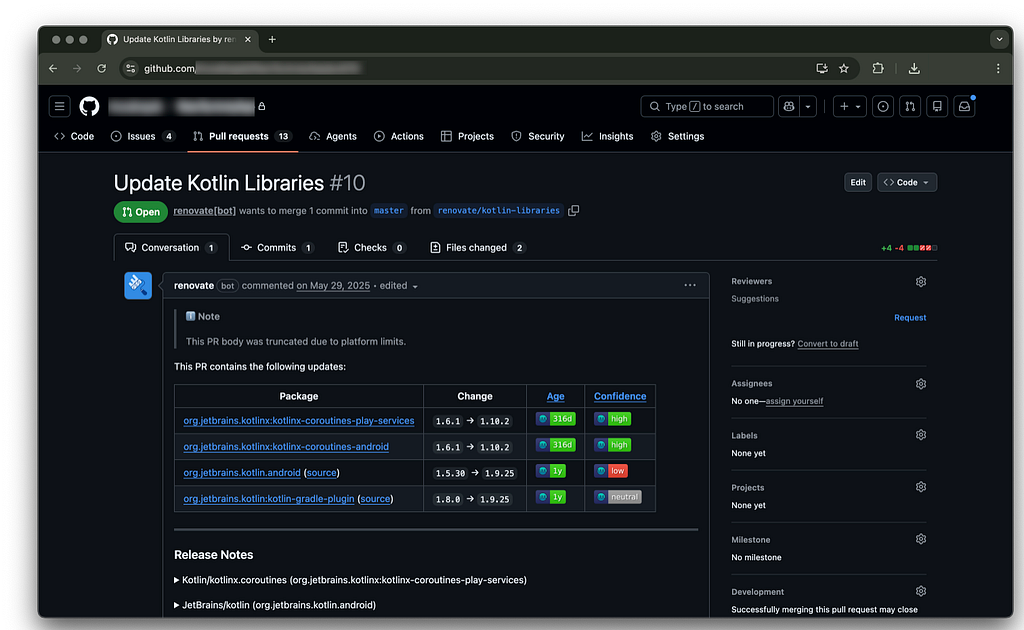
Renovate created a PR proposing safe version bumps for 4 Kotlin-related dependencies. This update was grouped because the config used a rule like:
{
  "matchPackagePatterns": ["^org.jetbrains.kotlin"],
  "groupName": "Kotlin Dependencies"
}
This PR shows how Renovate fits into your Android workflow:
- No more tracking Kotlin or Gradle versions manually
- You get one tidy PR with only the changes you need
- It helps you stay current with best practices and security fixes
- The risk is low, just review, test, and merge
This hands-off automation saves time, keeps your Android project modern, and helps avoid tech debt creeping in unnoticed.
Best Practices for Managing Renovate PRs and Avoiding Noise
Once Renovate is up and running, you might find an influx of pull requests. Here are some best practices to manage updates without being overwhelmed:
- Use Intelligent Grouping: As mentioned, group related packages into single PRs. Renovate’s default config already groups certain known “monorepo” packages (like all Firebase libraries or all Jetpack Compose libraries, if they share a release cycle). You can add custom groups for things like “All Retrofit/OkHttp updates in one PR” by using regex patterns in matchPackagePatterns.
- Schedule during Quiet Periods: By confining updates to, say, weekends or nights, you reduce context-switching for developers. It also ensures CI resources aren’t hogged by Renovate during peak hours. Many teams choose weekly updates on a specific day (e.g., Tuesday morning) so they can allocate time to review and merge them regularly.
- Limit PR Rate: Renovate allows you to limit how many PRs it creates. Two useful settings are: prHourlyLimit maximum number of PRs Renovate will open per hour.prConcurrentLimitmaximum number of Renovate PRs open at any one time.
- Automerge Safe Updates: If you have a good test suite, consider enabling Renovate’s automerge for certain updates to reduce manual work. For example, you might automerge minor and patch updates for dependencies that rarely cause issues (like lint rules or test libraries). Renovate can automerge once checks pass. In particular, setting “automergeType”: “branch” allows Renovate to merge a passing update without even creating a PR (it merges the update branch directly). If tests fail, then Renovate will fall back to opening a PR for your attention. Automerging is recommended only for updates you’re confident in – a Renovate doc note says “enable automerge for any type of dependency update where you would select ‘Merge’ anyway”. Common candidates are devDependencies or very minor library bumps.
- Ignore or Postpone Certain Updates: Not all updates are worth doing immediately. You can configure Renovate to ignore specific dependencies (using ignoreDeps) or specific version ranges. For example, if a library released a series of unstable beta versions, you might ignore versions containing -beta in the version. You can also tell Renovate to skip major updates for certain packages if you plan to handle those manually. These settings prevent Renovate from opening PRs that you know you’ll not merge. (The onboarding PR’s config often includes ignorePresets like :ignoreModulesAndTests to ignore test-specific dependencies by default.)
- Label and Triage PRs: Configure Renovate to add labels to PRs (as shown in the example config where major updates get a “major-update” label). This helps triage: you might prioritize minor updates differently from major ones. You can also assign reviewers or team members in the config (reviewers or use CODEOWNERS integration) to ensure the right people see the PRs.
By following these practices, Renovate becomes a low-noise, high-value assistant for managing dependencies, rather than a source of “PR spam.” The key is finding the right balance of update frequency and grouping for your project’s pace.
Keep Your Android Project Up-to-Date with Renovate Bot: A Step-by-Step Guide was originally published in ProAndroidDev on Medium, where people are continuing the conversation by highlighting and responding to this story.





This Post Has 0 Comments