
 [[{“value”:”
Did you know that you can quickly turn off specific app notifications without having to dig deep in your notifications settings? I’ll teach you how to turn notifications off on iPhone’s Lock Screen in just a few quick steps. This is an easy way to declutter by turning off iPhone notifications as soon as they pop up.
Why You’ll Love This Tip
- Turn off specific app notifications the moment you get them.
- Avoid the hassle of navigating to Notification Settings and disable notifications directly from your Lock Screen.
How to Turn Off iPhone Notifications Directly from Your Lock Screen
System Requirements
This tip was performed on an iPhone 17 Pro Max running iOS 26.2. Find out how to update to the latest version of iOS.
You may already know how to turn off notifications on iPhone in the Notification Settings. For more decluttering tips, don’t forget to check out our free Tip of the Day newsletter. However, it is even easier to turn off an unwanted app notification the moment it pops up, directly from your Lock Screen:
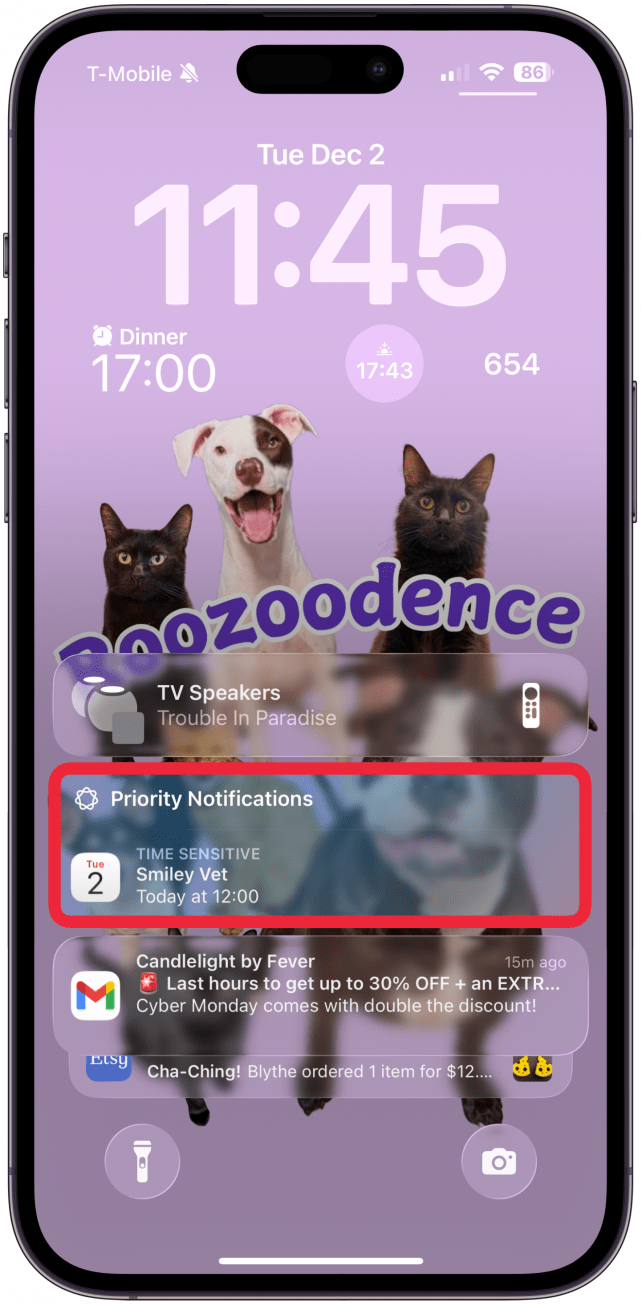
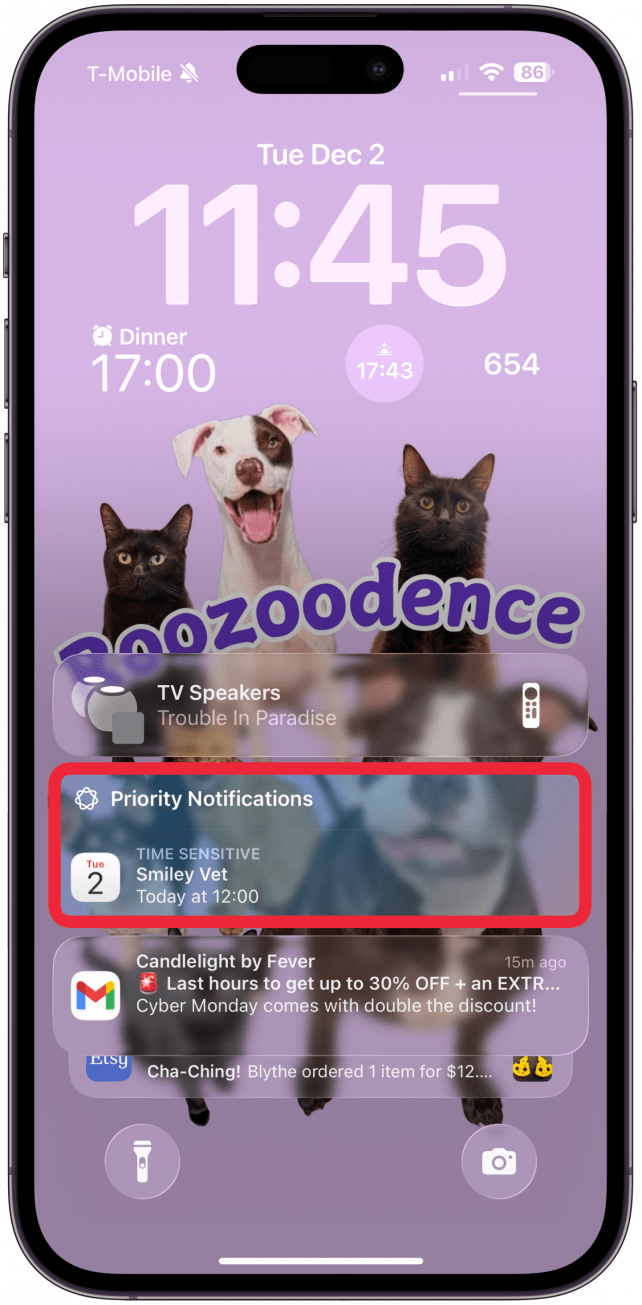
- Locate a notification from an app on your Lock Screen that you wish to silence.
<!–[if IE 9]>
![Locate a notification from an app on your Lock Screen you wish to silence.]()
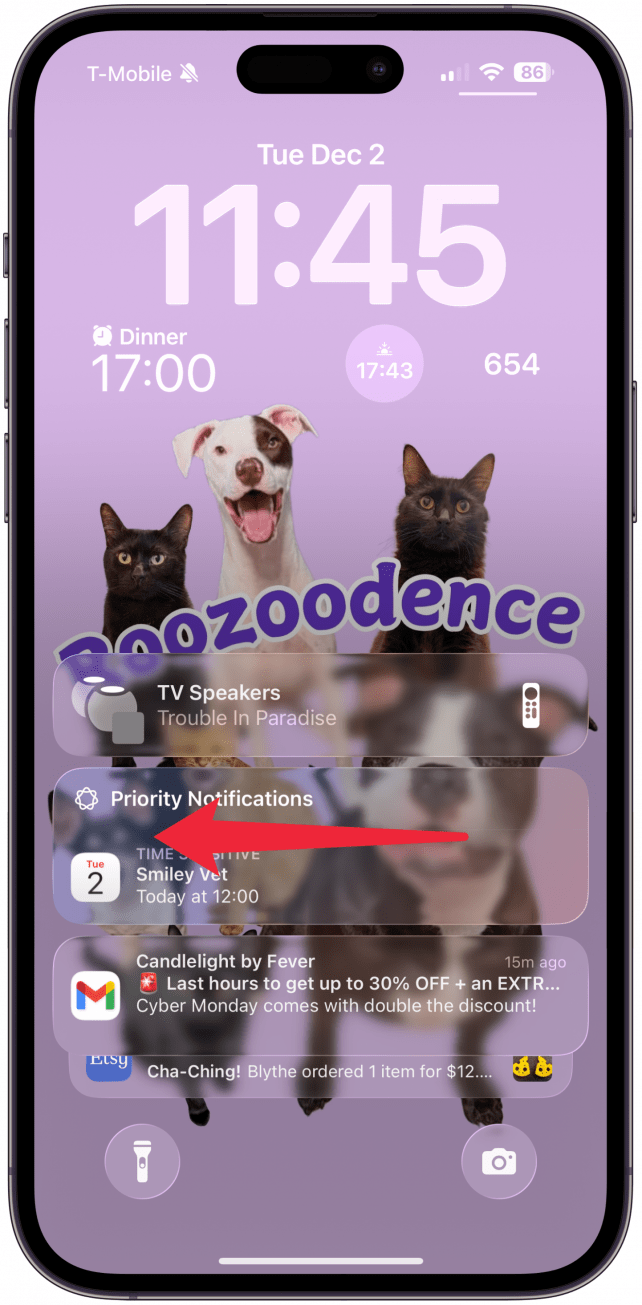
- Swipe from right to left over the notification.
<!–[if IE 9]>
![Swipe from right to left over the notification.]()
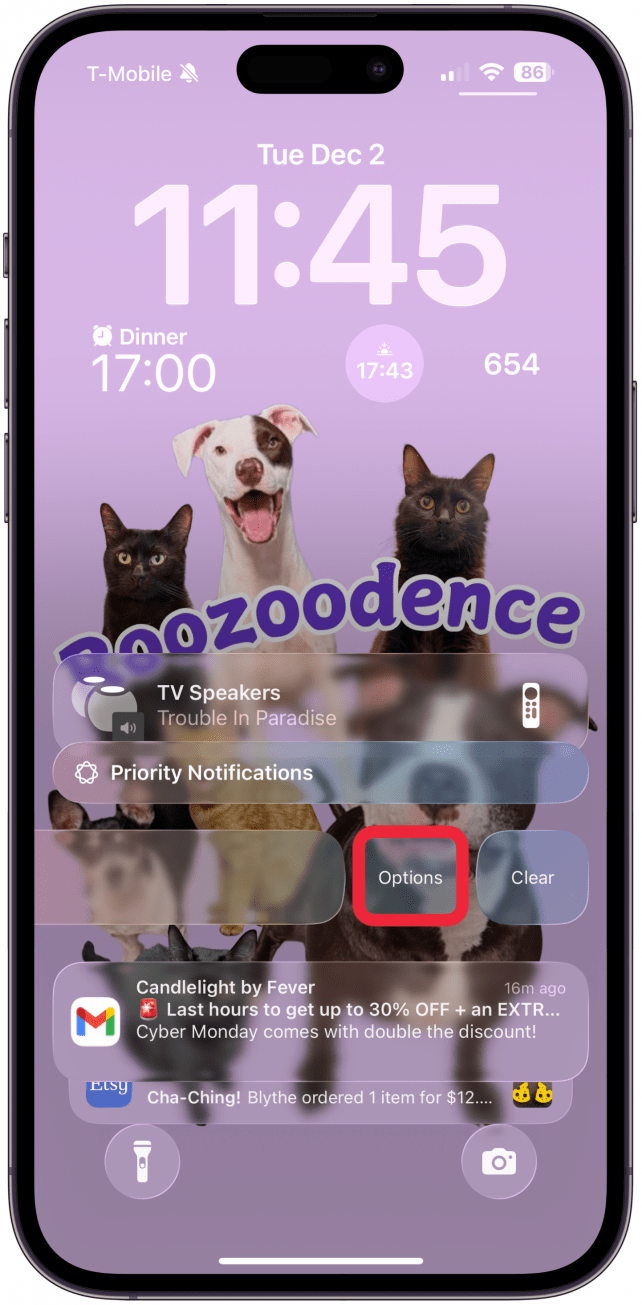
- Tap Options.
<!–[if IE 9]>
![Tap Options.]()
- Select Turn Off.
<!–[if IE 9]>
![Select Turn Off.]()
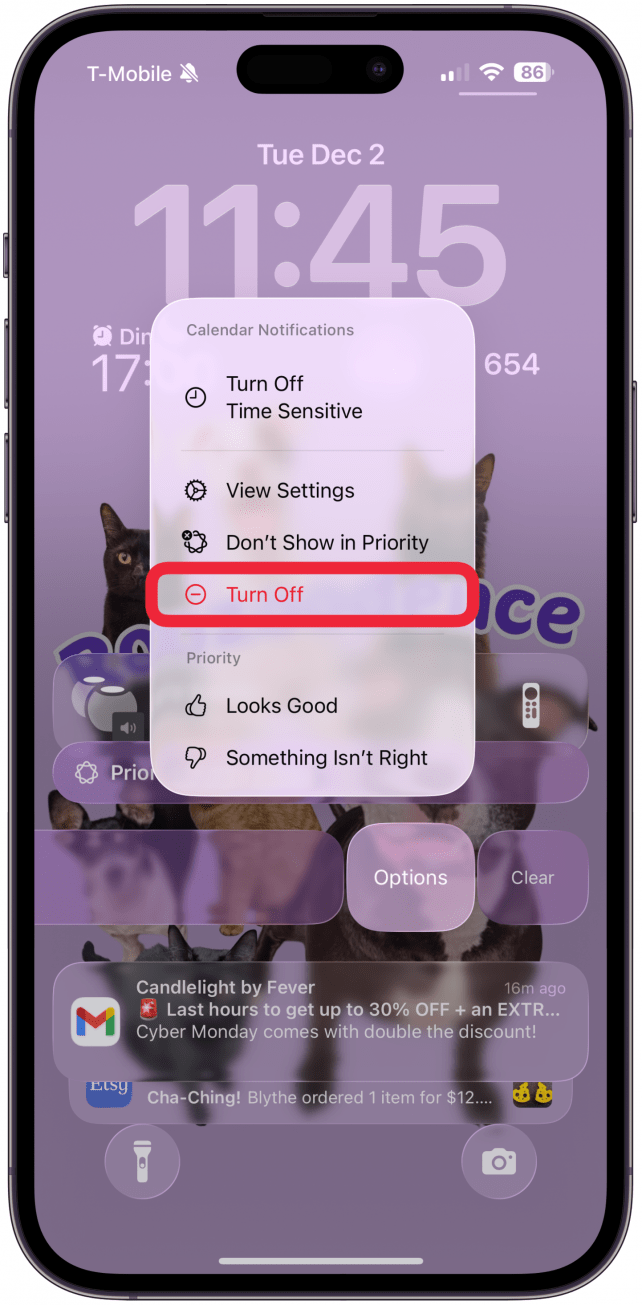
Another trick is that instead of tapping Turn Off, you can tap View Settings in Step 4, which will take you to the page with all the settings for that particular app.
Warning
There is no confirmation step once you tap Turn Off, so if you accidentally turn off the wrong app notifications, you’ll have to turn them back on via settings. Here’s how to turn notifications back on.
Now you know how to turn off iPhone notifications directly from the Lock Screen! Next, learn how to optimize the notifications on your iPhone to improve your overall experience.
More On: Notifications
“}]]



This Post Has 0 Comments