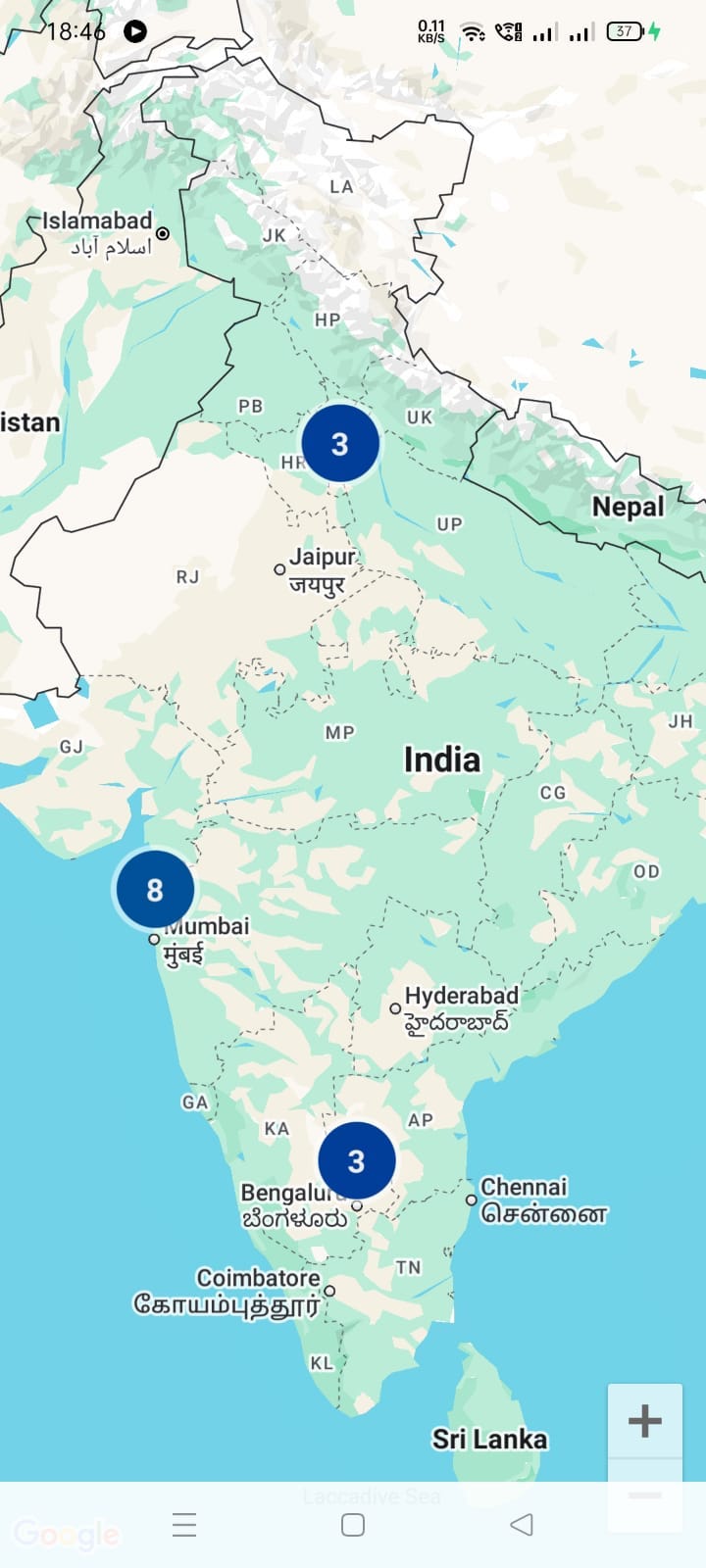

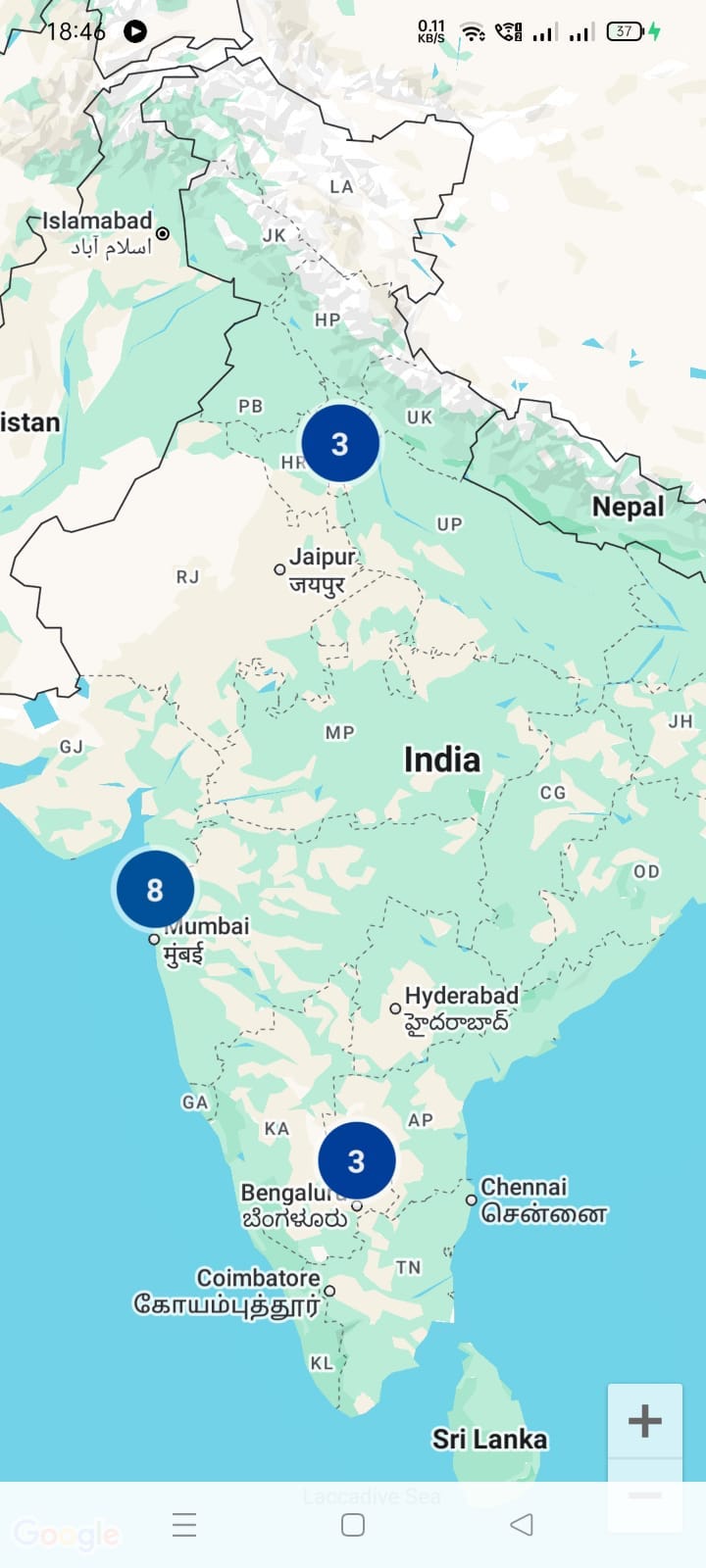
When I first added hundreds of markers to Google Maps in my Android app, I thought it would look impressive.
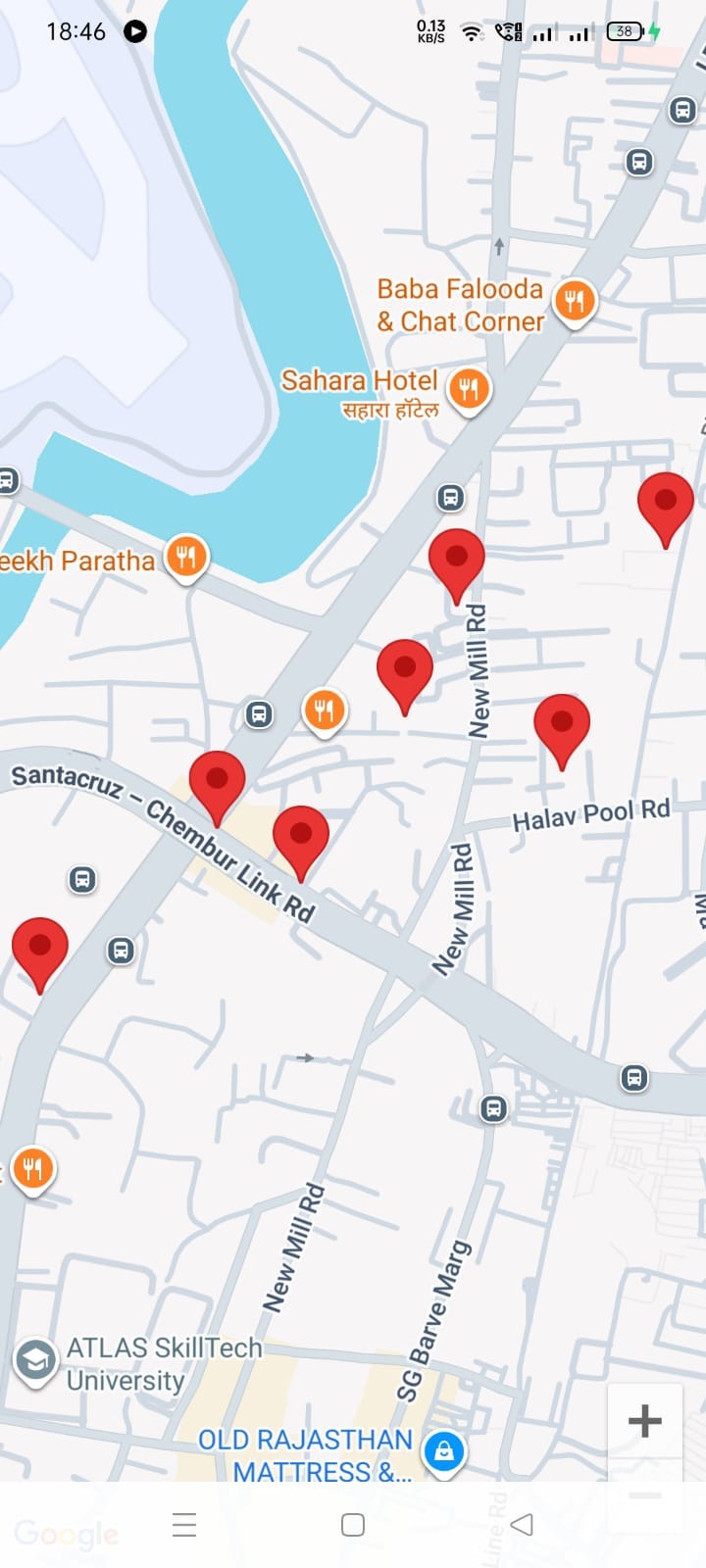
Instead, my map ended up looking like a cluttered pin cushion 🧷 — hard to read, slow to use, and frustrating for users.
This is a common problem in apps like delivery apps, reporting tools, or real estate apps, where you need to show lots of locations at once.
Too many overlapping pins make the map messy and hurt performance, especially on low-end devices.
The solution? Marker Clustering 🎯
Instead of showing every pin, the map groups nearby markers into a single bubble (like “50”), which splits into smaller groups as you zoom in.
The result: a clean, scalable, and user-friendly map.
In this guide, I’ll show you how to add Marker Clustering to your Android app using Jetpack Compose.
How to Implement Marker Clustering in Android?
🔹Step 1: Add Maps Utils dependency
Make sure your Google Maps Compose version is compatible
implementation("com.google.maps.android:android-maps-utils:3.17.0") //latest
🔹Step 2: Create a Cluster Item
Cluster items represent your markers on the map.
import com.google.android.gms.maps.model.LatLng
import com.google.maps.android.clustering.ClusterItem

class MyClusterItem(
    private val position: LatLng,
    private val title: String,
    private val snippet: String
) : ClusterItem {
    override fun getPosition(): LatLng = position
    override fun getTitle(): String = title
    override fun getSnippet(): String = snippet
    override fun getZIndex(): Float? {
        return 0f
    }
}
🔹Step 3: Cluster Manager Setup inside Compose
Here’s a complete MapClusterScreen using Jetpack Compose and multiple service providers in multiple clusters:
import androidx.compose.foundation.layout.fillMaxSize
import androidx.compose.runtime.Composable
import androidx.compose.ui.Modifier
import androidx.compose.ui.platform.LocalContext
import com.google.android.gms.maps.model.CameraPosition
import com.google.android.gms.maps.model.LatLng
import com.google.maps.android.clustering.ClusterManager
import com.google.maps.android.compose.GoogleMap
import com.google.maps.android.compose.MapEffect
import com.google.maps.android.compose.rememberCameraPositionState
import com.app.salesjourneycompose.viewmodel.MyClusterItem

@Composable
fun MapClusterScreen() {
    val context = LocalContext.current
    val india = LatLng(18.5204, 73.8567) // center of India

    val cameraPositionState = rememberCameraPositionState {
        position = CameraPosition.fromLatLngZoom(india, 5f)
    }

    GoogleMap(
        modifier = Modifier.fillMaxSize(),
        cameraPositionState = cameraPositionState
    ) {
        MapEffect { map ->
            val clusterManager = ClusterManager<MyClusterItem>(context, map)


          val locations = listOf(
                        // Delhi
                        MyClusterItem(LatLng(28.6139, 77.2090), "Service Center A", "Electronics Repair, Delhi"),
                        MyClusterItem(LatLng(28.6145, 77.2105), "Service Center B", "Mobile Repair, Delhi"),
                        MyClusterItem(LatLng(28.6150, 77.2080), "Service Center C", "Home Appliances, Delhi"),

                        // Mumbai
                        MyClusterItem(LatLng(19.0760, 72.8777), "Service Center D", "Authorized Service, Mumbai"),
                        MyClusterItem(LatLng(19.0780, 72.8800), "Service Center E", "Express Repair, Mumbai"),
                        MyClusterItem(LatLng(19.0745, 72.8760), "Service Center F", "Multi-brand Repair, Mumbai"),

                        // Bangalore
                        MyClusterItem(LatLng(12.9716, 77.5946), "Service Center J", "Laptop Repair, Bangalore"),
                        MyClusterItem(LatLng(12.9725, 77.5955), "Service Center K", "Mobile Repair, Bangalore"),
                        MyClusterItem(LatLng(12.9700, 77.5930), "Service Center L", "Electronics Repair, Bangalore")
                    )

            // Add items to cluster manager
            clusterManager.addItems(locations)
            clusterManager.cluster()

            // Camera idle & marker click listeners
            map.setOnCameraIdleListener { clusterManager.onCameraIdle() }

        }
    }
}
🔹Step 4: Customize Cluster (optional)
You can customize the color or icon of individual markers and cluster bubbles using a CustomClusterRenderer:
import android.content.Context
import com.app.salesjourneycompose.viewmodel.MyClusterItem
import com.google.android.gms.maps.GoogleMap
import com.google.android.gms.maps.model.BitmapDescriptorFactory
import com.google.android.gms.maps.model.MarkerOptions
import com.google.maps.android.clustering.Cluster
import com.google.maps.android.clustering.ClusterManager
import com.google.maps.android.clustering.view.DefaultClusterRenderer


class CustomClusterRenderer(
    context: Context,
    map: GoogleMap,
    clusterManager: ClusterManager<MyClusterItem>
) : DefaultClusterRenderer<MyClusterItem>(context, map, clusterManager) {

    // Customize individual markers
    override fun onBeforeClusterItemRendered(item: MyClusterItem, markerOptions: MarkerOptions) {
        markerOptions.icon(BitmapDescriptorFactory.defaultMarker(BitmapDescriptorFactory.HUE_AZURE))
        markerOptions.title(item.title)
    }

    // Customize cluster markers
    override fun onBeforeClusterRendered(
        cluster: Cluster<MyClusterItem>,
        markerOptions: MarkerOptions
    ) {
        markerOptions.icon(BitmapDescriptorFactory.defaultMarker(BitmapDescriptorFactory.HUE_ORANGE))
    }
}
And that’s it! With these simple steps, you can easily implement marker clustering in your Android app
🤓 How Marker Clustering Works
- 📍 Nearby markers are grouped into a single bubble when zoomed out.
- 🔎 The cluster splits into smaller groups as you zoom in.
- ✅ Eventually, individual markers appear, clearly showing each location.
This keeps your map clean, readable, and fast — even with hundreds of markers..
📝Conclusion
Marker clustering transforms crowded, messy maps into clean, scalable, and user-friendly interfaces.
Whether your app shows hundreds or thousands of locations — from delivery points and reporting sites to real estate listings — clustering ensures your map stays:
- Professional-looking
- Fast and responsive
- Easy to navigate for users
⚠️ Note: While clustering significantly improves performance, extremely large datasets (tens of thousands of markers) may still require additional optimizations, such as loading markers dynamically, filtering by map bounds, or offloading cluster calculations to a background thread.
With this approach, even complex location-heavy apps feel intuitive, smooth, and user-friendly — without overwhelming the user.
Try implementing marker clustering in your next Android project and see the difference in map performance and usability! 🚀
Learn More: Building a Map Screen from Scratch
If you’re new to Jetpack Compose and Google Maps, check out my previous tutorial where I show how to build your first map screen step by step:
Build Your First Map Screen with Jetpack Compose and Google Maps
Also, for official documentation on the Maps SDK Utility Library (clustering, GeoJSON, KML, etc.), visit:
Google Maps Android Utility Library
Happy Coding 👩💻💖
Overloaded with Markers? The Secret to Clean Google Maps with Clustering in Android Jetpack Compose was originally published in ProAndroidDev on Medium, where people are continuing the conversation by highlighting and responding to this story.



This Post Has 0 Comments