


PhysicsBox is a thin wrapper around JBox2. This library was inspired by PhysicsLayout.
In this article, I will show you how to quickly and easily add physics to Kotlin projects using PhysicsBox.
Add dependencies.
For Compose Multiplatform projects:
implementation("io.github.zinchenko-dev:physicsbox:<latest_release>")
For android:
implementation("io.github.zinchenko-dev:physicsbox-android:<latest_release>")
For jvm desktop:
implementation("io.github.zinchenko-dev:physicsbox-desktop:<latest_release>")
At the time of publication of this article, the latest version is 2.0.0.
Quick start.
Wrap your composables with PhysicsBox and register bodies via Modifier.physicsBody:
@Composable
fun BasicScreenDemo(modifier: Modifier = Modifier) {
    PhysicsBox(
        modifier = modifier,
    ) {
        Box(
            modifier = Modifier
                .size(72.dp)
                .background(Color.Red)
                .physicsBody(key = "basic_box")
        )
    }
}
This simple example gives us a very basic screen with one body. It contains default settings for world and body (default gravity, world scale, boundaries, resistance, density etc.).
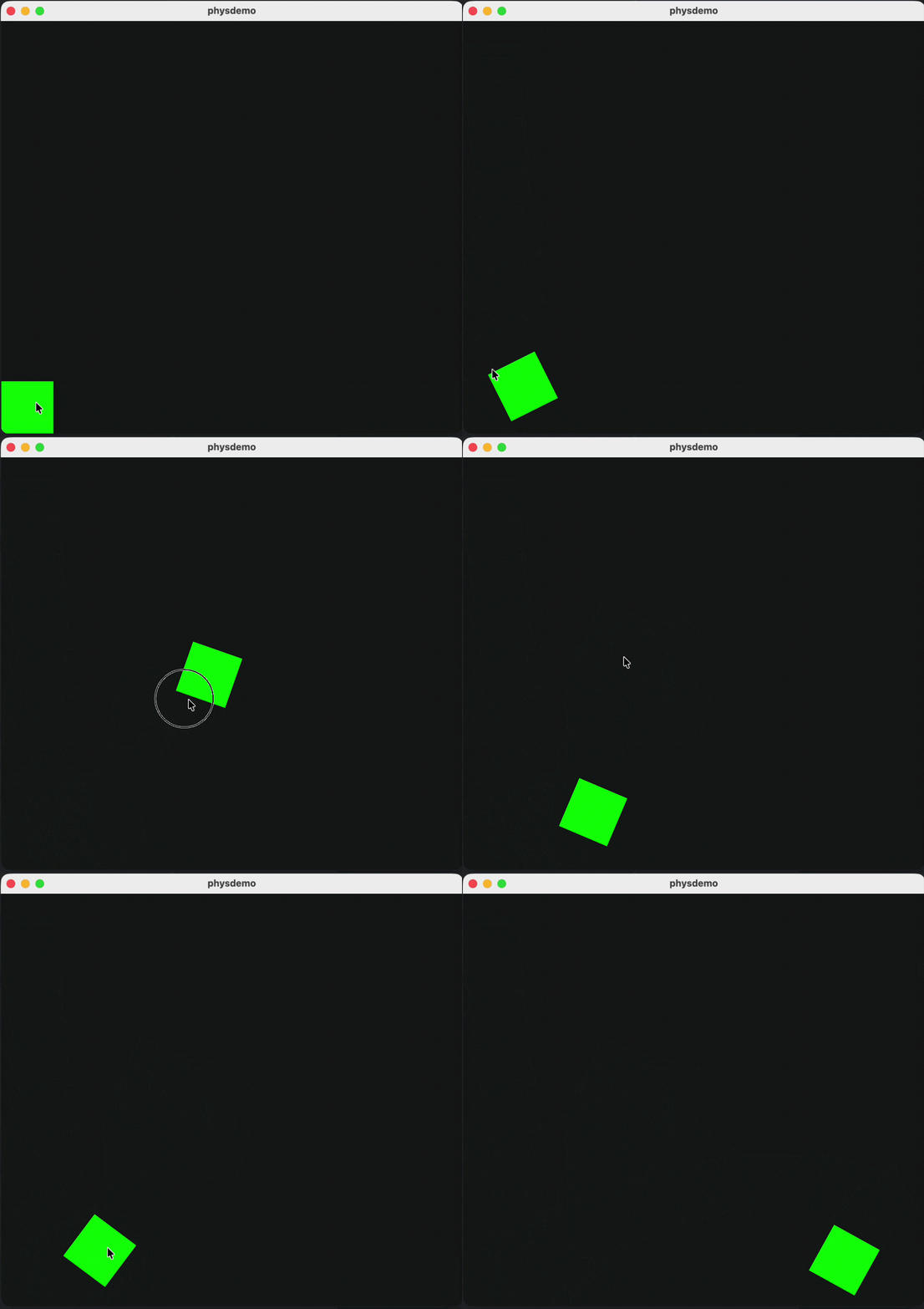
Let’s add a couple more shapes. The easiest way to construct regular polygons is to use the regularPolygonNormalized() and polygonComposeShape() utilities. You can also construct your own shape; see the trapezoid example.
Note: Polygon shapes must be convex polygons.
...
  PhysicsBox(
        modifier = modifier,
    ) {
...
        Box(
            modifier = Modifier
                .size(72.dp)
                .clip(CircleShape) // By default, the shape is a rectangle; all other shapes must be explicitly defined.
                .background(Color.Red)
                .physicsBody(
                    key = "basic_circle",
                    shape = PhysicsShape.Circle(), // It is easy to maintain a physicsShape that is the same as a composable shape. The physical shape will have the same size as the composable.
                )
        )

        val triangle = remember { regularPolygonNormalized(sides = 3) }

        Box(
            modifier = Modifier
                .size(72.dp)
                .clip(polygonComposeShape(triangle))
                .background(Color.Yellow)
                .physicsBody(
                    key = "triangle",
                    shape = triangle,
                )
        )

        val trapezoid = remember {
            PhysicsShape.Polygon(
                vertices = listOf(
                    PhysicsVector2(-0.50f, 0.50f),
                    PhysicsVector2(0.50f, 0.50f),
                    PhysicsVector2(0.28f, -0.50f),
                    PhysicsVector2(-0.28f, -0.50f),
                ),
                space = PhysicsShape.Polygon.VertexSpace.Normalized,
            )
        }

        Box(
            modifier = Modifier
                .size(72.dp)
                .clip(polygonComposeShape(trapezoid))
                .background(Color.LightGray)
                .physicsBody(
                    key = "trapezoid",
                    shape = trapezoid,
                )
        )

        val poly5x = remember { regularPolygonNormalized(sides = 5) }

        Box(
            modifier = Modifier
                .size(72.dp)
                .clip(polygonComposeShape(poly5x))
                .background(Color.Magenta)
                .physicsBody(
                    key = "poly5x",
                    shape = poly5x,
                )
        )
    }
...
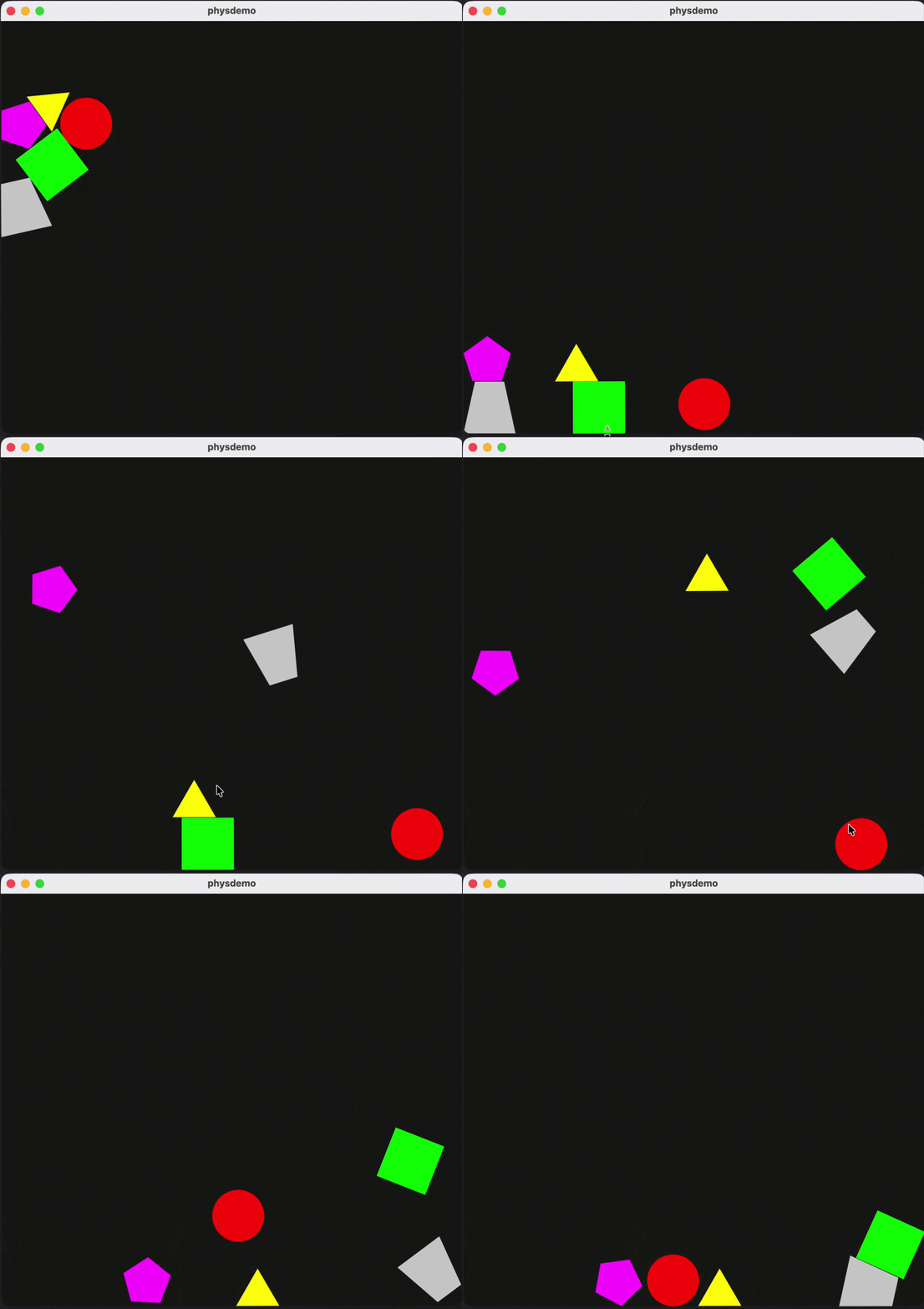
In the next step, we will transform the polygonal shape into a lightweight object and add simulated air/environmental resistance, but we will reduce the friction coefficient and change the gravity vector.
...
        val poly5x = remember { regularPolygonNormalized(sides = 5) }

        Box(
            modifier = Modifier
                .size(72.dp)
                .clip(polygonComposeShape(poly5x))
                .background(Color.Magenta)
                .physicsBody(
                    key = "poly5x",
                    shape = poly5x,
                    config = PhysicsBodyConfig(
                        gravityScale = -0.01f,
                        initialTransform = PhysicsTransform(
                            vector2 = PhysicsVector2(
                                x = 400f,
                                y = 800f,
                            )
                        ),
                        friction = 0.001f,
                        density = 0.001f,
                        linearDamping = 0.8f,
                        angularDamping = 0.8f
                    )
                )
        )
...
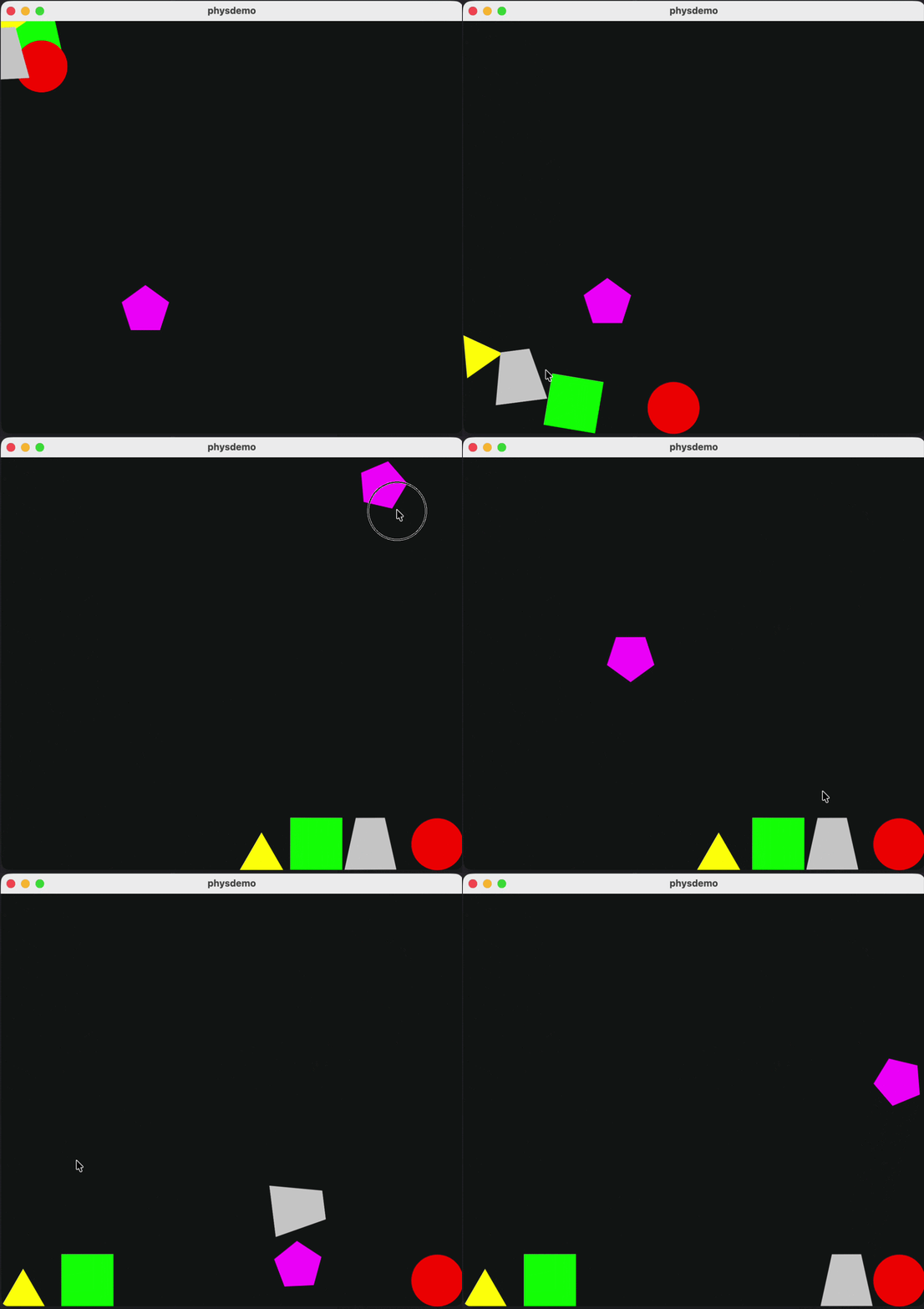
In the next step, we will add collision filters and make the polygonal object “transparent” to some other objects (a “ghost” object). To do this, we need to add filter codes for the bodies and then configure the filters.
private object Bodies {
    const val BOUNDARY = 0x0001 // By default, objects have the code 0x0001
    const val CIRCLE = 0x0002
    const val TRIANGLE = 0x0004
    const val TRAPEZOID = 0x0008
    const val POLYGON_5 = 0x0010
    const val RECT = 0x0020

    const val SOLID_MASK = BOUNDARY or CIRCLE or TRIANGLE or TRAPEZOID or POLYGON_5 or RECT
}
Next, we will set the object codes and their collision filter codes.
  Box(
        modifier = Modifier
            ...
            .physicsBody(
                key = "basic_box",
                filter = CollisionFilter(
                    categoryBits = Bodies.RECT,
                    maskBits = Bodies.SOLID_MASK,
                ),
            )
    )

    Box(
        modifier = Modifier
            ...
            .physicsBody(
                key = "basic_circle",
                shape = PhysicsShape.Circle(),
                filter = CollisionFilter(
                    categoryBits = Bodies.CIRCLE,
                    maskBits = Bodies.SOLID_MASK,
                ),
            )
    )

    val triangle = remember { regularPolygonNormalized(sides = 3) }

    Box(
        modifier = Modifier
              ...
            .physicsBody(
                key = "triangle",
                shape = triangle,
                filter = CollisionFilter(
                    categoryBits = Bodies.TRIANGLE,
                    maskBits = Bodies.SOLID_MASK,
                ),
            )
    )
    ...
    Box(
        modifier = Modifier
            ...
            .physicsBody(
                key = "trapezoid",
                shape = trapezoid,
                filter = CollisionFilter(
                    categoryBits = Bodies.TRAPEZOID,
                    maskBits = Bodies.SOLID_MASK,
                ),
            )
    )

    ...

    Box(
        modifier = Modifier
            ...
            .physicsBody(
                key = "poly5x",
                shape = poly5x,
                filter = CollisionFilter(
                    categoryBits = Bodies.POLYGON_5,
                    maskBits = Bodies.BOUNDARY or Bodies.CIRCLE, // We specify only the codes of those objects that it should encounter. All others will be “transparent”
                ),
              ...
            )
    )
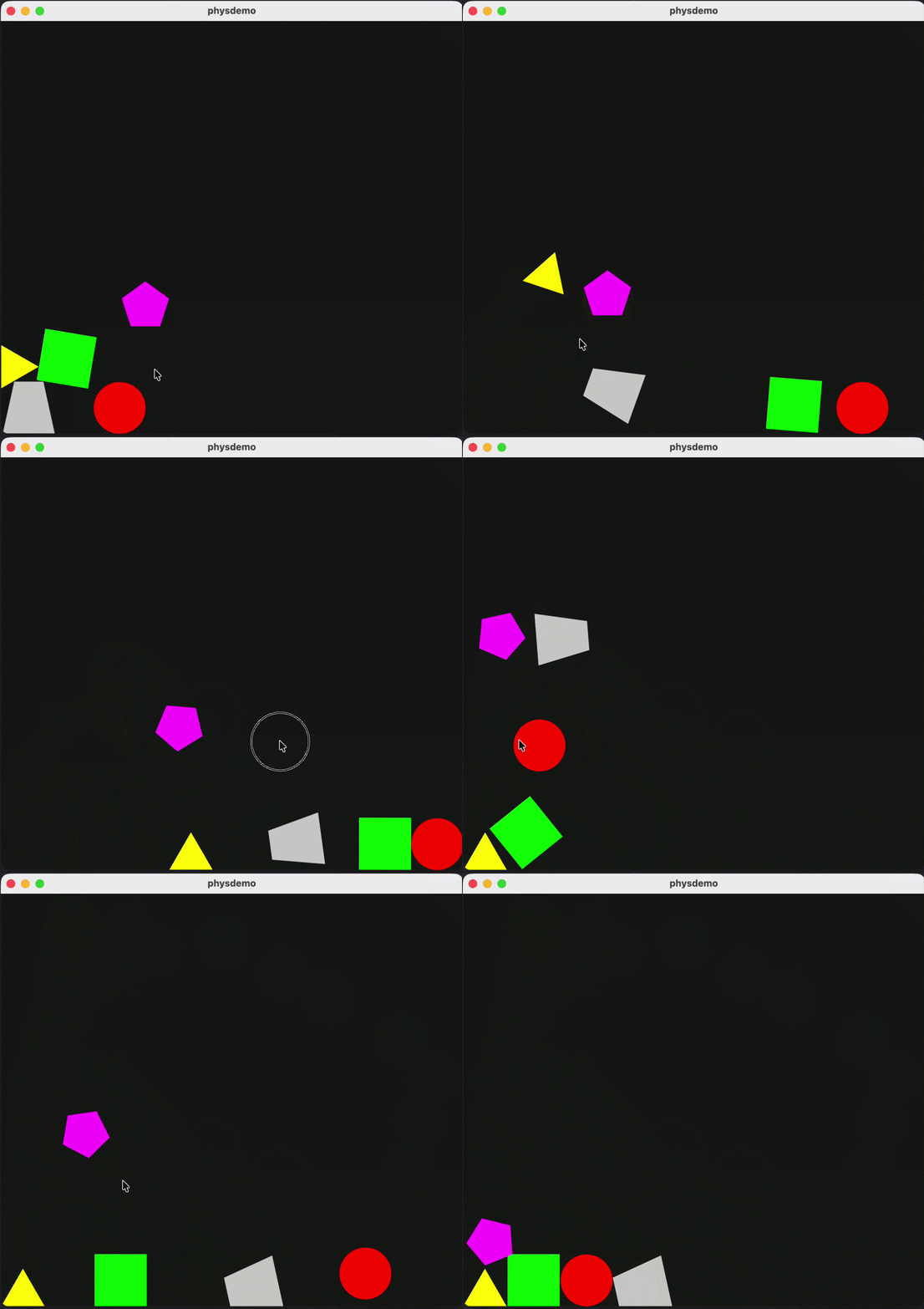
Next, we will create an object of the “bullet” type with controllable momentum and high elasticity.
To do this, we need to create a PhysicsBox layout state to access its functions and create a button to call the impulse function.
@Composable
fun BasicScreenDemo(modifier: Modifier = Modifier) {
  val state = rememberPhysicsBoxState() // build state
  val bulletKey = "bullet" // Add key for bullet object

  Button(
      onClick = {
          state.enqueueImpulse( // Call impulse on bullet object
              key = bulletKey,
              impulseXPx = Random.nextInt(-500, 500).toFloat(),
              impulseYPx = Random.nextInt(-500, 500).toFloat(),
          )
      }
  ) {
      Text("Bullet impulse")
  }

    PhysicsBox(
        modifier = modifier,
        state = state, // Passing the state to PhysicsBox
    ) {
...
      Box(
          modifier = Modifier
              .size(12.dp)
              .clip(CircleShape)
              .background(Color.White)
              .physicsBody(
                  key = bulletKey,
                  shape = PhysicsShape.Circle(),
                  filter = CollisionFilter(
                      categoryBits = Bodies.CIRCLE,
                      maskBits = Bodies.SOLID_MASK,
                  ),
                  config = PhysicsBodyConfig(
                      restitution = 0.95f, // Bounciness coefficient used for contacts
                      isBullet = true, // enables a higher-quality collision mode for fast-moving dynamic bodies to reduce tunneling through thin objects/boundaries. This is more expensive.
                      initialTransform = PhysicsTransform( // Initial body position
                          vector2 = PhysicsVector2(
                              x = 260f,
                              y = 460f,
                          )
                      ),
                  )
              )
      )
  ...
  }
}
Now we will configure the PhysicsBox by changing the PhysicsBoxConfig boundary parameters and change state configs:
@Composable
fun BasicScreenDemo(modifier: Modifier = Modifier) {
    val state = rememberPhysicsBoxState(
        initialGravity = PhysicsVector2(
            x = 0f,
            y = -9.8f
        ),
    )
...
    PhysicsBox(
        modifier = modifier,
        state = state,
        config = PhysicsBoxConfig(
            boundaries = BoundariesConfig(
                thicknessPx = 256f,
                restitution = 1f,
                friction = 0f
            )
        )
    ) {
 ...
  }
}
For better illustration, let’s put the object keys into variables and a list, and then call the impulse on all these objects.
...
val bulletKey = "bullet"
val triangleKey = "triangle"
val circleKey = "basic_circle"
val boxKey = "basic_box"

val keyList = listOf(triangleKey, bulletKey, circleKey, boxKey)

Button(
    onClick = {
        keyList.forEach { key ->
            state.enqueueImpulse(
                key = key,
                impulseXPx = Random.nextInt(-1_500, 1_500).toFloat(),
                impulseYPx = Random.nextInt(-1_500, 1_500).toFloat(),
            )
        }
    }
) {
    Text("Impulse")
}

...
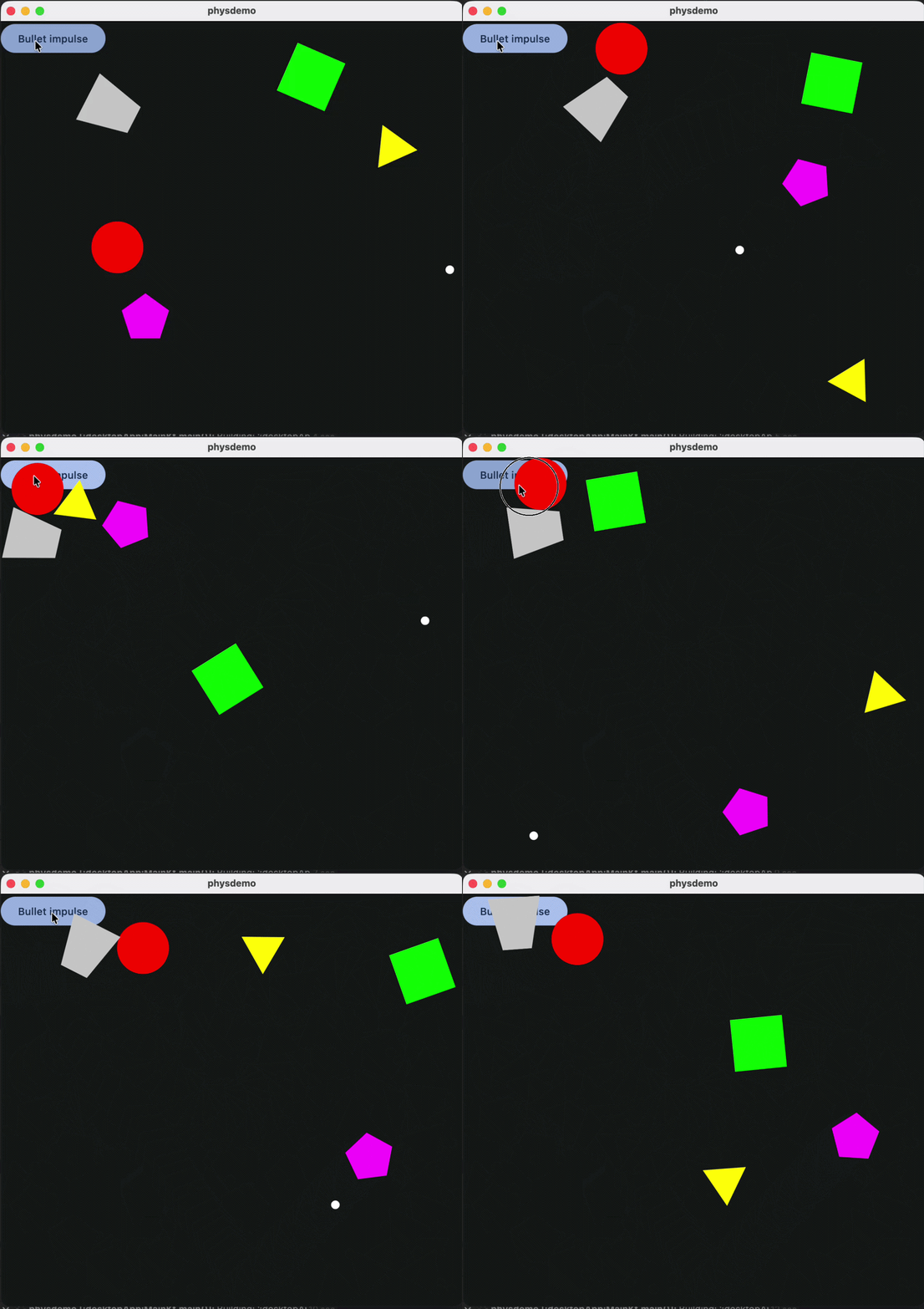
This way, with a few simple steps, you can quickly implement physics-like screens. For more information, see the library documentation. You can also find more examples of how to use the library in the project repository and demo applications.
Find code samples from this guide here.
Please note that the PhysicsBox library is not a game engine; it is just a simple wrapper over jbox2d, and it is suitable for interactive screens, simulating physical bodies in composable elements, demonstrations, presentations, etc., but not for games. For game development use game engines such as Godot, Unity, UE etc.
PhysicsBox. Adding physics to compose driven projects was originally published in ProAndroidDev on Medium, where people are continuing the conversation by highlighting and responding to this story.





This Post Has 0 Comments