


Introduction
In today’s mobile landscape, text input is rarely just about text. Users have grown accustomed to a rich, expressive communication style that goes beyond simple characters. Whether it’s sending a funny GIF, sharing a sticker, or dragging and dropping an image from another app, rich content support has become a default expectation.
Most popular messaging and social media applications support these features seamlessly. However, for Android developers, supporting this “default” behavior requires specific implementation steps. A standard text field doesn’t automatically know how to handle a GIF sent from the Gboard or an image pasted from the clipboard.
The “Default” Experience (and why it fails)
If you simply drop a TextField into your Compose UI, it handles text perfectly. But try to insert a GIF from the keyboard or paste an image, and… nothing happens. The keyboard might commit a URI string if you’re lucky, or more likely, the input is simply ignored because the text field accepts only text.
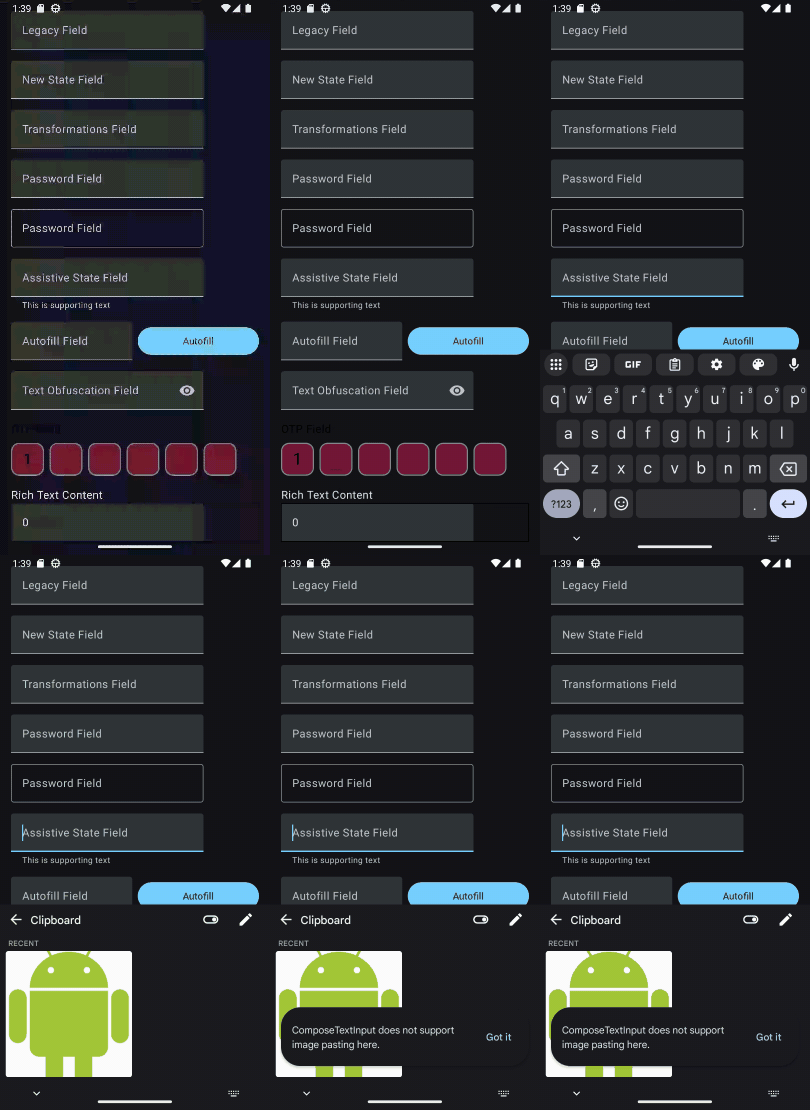
To bridge this gap, Jetpack Compose introduces a powerful modifier: contentReceiver.
The Solution: contentReceiver
The contentReceiver modifier is a unified API designed to handle rich content from multiple sources:
- Soft Keyboard: GIFs and stickers from apps like Gboard.
- Clipboard: Pasted images or rich text.
- Drag and Drop: Content dragged from other apps (in split-screen mode) or within the same app.
Instead of managing OnCommitContentListener for keyboards and separate drag-and-drop listeners, contentReceiver gives us a single entry point to handle all TransferableContent.
Implementation Step-by-Step
Let’s build a text input area that can accept images and display them.
Step 1: The ViewModel Logic
First, we need a way to process the incoming content. We’ll create a RichContentViewModel to handle the TransferableContent. The core logic involves using the .consume function, which allows us to peel off the parts of the content we can handle (like image URIs) and return the rest (or null if we consumed everything).
class RichContentViewModel : ViewModel() {
    // State to hold our received images
    var selectedImages by mutableStateOf<List<Uri>>(emptyList())

    @OptIn(ExperimentalFoundationApi::class)
    fun handleContent(
        transferableContent: TransferableContent
    ): TransferableContent? {
        val newUris = mutableListOf<Uri>()

        // consume returns the parts of the content we didn't use.
        // inside the lambda, we return true if we consumed the item.
        val remaining = transferableContent.consume { item ->
            // If the item has a URI, we take it
            if (item.uri != null) {
                newUris += item.uri
                true // Consumed
            } else {
                false // Not consumed, leave it for other handlers
            }
        }

        // Update our state with the new images
        selectedImages = newUris

        return remaining
    }
}
Step 2: The UI Implementation
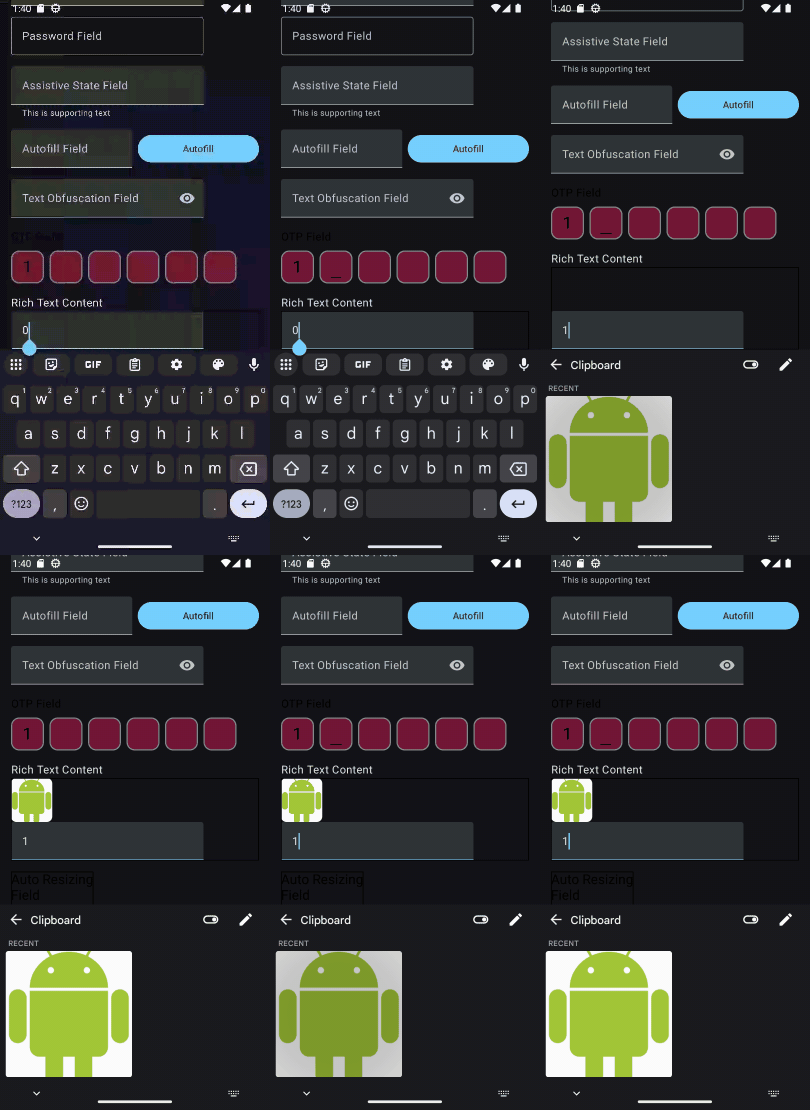
Now, let’s apply this to our UI. A key advantage of contentReceiver is flexibility. We don’t have to apply it directly to the TextField. By applying it to a parent container (like a Column), we turn that entire area into a “drop zone” for drag-and-drop operations, improving the user experience.
Here is our RichContentTextField composable:
@OptIn(ExperimentalFoundationApi::class)
@Composable
fun RichContentTextField(
    richContentViewModel: RichContentViewModel = viewModel()
) {
    Column(
        modifier = Modifier
            .fillMaxWidth()
            .border(1.dp, color = Color.Black)
            // Attach the content receiver here!
            // This delegates the handling logic to our ViewModel
            .contentReceiver(richContentViewModel::handleContent)
    ) {
        // 1. Display received images
        LazyRow(
            modifier = Modifier.fillMaxWidth()
        ) {
            items(richContentViewModel.selectedImages) { imageUri ->
                AsyncImage(
                    model = imageUri,
                    contentDescription = null,
                    modifier = Modifier
                        .size(64.dp)
                        .padding(end = 4.dp)
                        .clip(RoundedCornerShape(8.dp)),
                    contentScale = ContentScale.Crop
                )
            }
        }
        // 2. The actual text input
        val count = rememberTextFieldState()

        // Optional: Update text state based on images (just for demo purposes)
        LaunchedEffect(richContentViewModel.selectedImages) {
            if (richContentViewModel.selectedImages.isNotEmpty()) {
                 count.setTextAndPlaceCursorAtEnd(richContentViewModel.selectedImages.size.toString())
            }
        }
        TextField(
            state = count,
            placeholder = { Text("Rich Content Field") },
        )
    }
}
Key Takeaways from the Code:
- contentReceiver on Parent: We placed the modifier on the Column. This means if a user drags an image anywhere into this box, it will be caught.
- AsyncImage: We use Coil’s AsyncImage to render the URIs we extracted.
- Separation of Concerns: The UI only cares about displaying the state (selectedImages), while the ViewModel handles the complexity of the TransferableContent.
The Result
With just a few lines of code, we’ve transformed a basic text input into a rich media receiver. Users can now insert GIFs from their keyboard or drag photos directly into the app.
Conclusion
Supporting rich content is no longer an “extra” feature — it’s a core part of modern Android app development. The contentReceiver modifier in Jetpack Compose drastically simplifies this process, unifying what used to be three separate APIs into one clean, declarative interface. By implementing this, you ensure your app feels native, modern, and responsive to how users actually communicate today.
References
https://medium.com/media/9d6173df81f8e842f25b25f0a406c606/href
- Receive rich content | Views | Android Developers
- Copy and paste | Jetpack Compose | Android Developers
Love you all.
Stay tune for upcoming blogs.
Take care.
Rich Content in Text Input in Jetpack Compose was originally published in ProAndroidDev on Medium, where people are continuing the conversation by highlighting and responding to this story.



This Post Has 0 Comments