
 [[{“value”:”
Tired of getting spam calls? Well, the newest version of iOS has a feature that should alleviate the annoyance of spam: Call Screening. This useful tool will silence unknown callers and ask them to give their reason for calling, allowing you to decide whether you want to pick up the phone. Here’s how to stop spam calls with Call Screening.
Why You’ll Love This Tip
- Never worry about spam again since you’ll always know who is calling.
- Avoid picking up the phone without knowing the reason for the call.
How to Turn On Call Screening
System Requirements
This tip was performed on an iPhone 15 Pro running iOS 26. It does not work with earlier iOS versions. Find out how to update to the latest version of iOS.
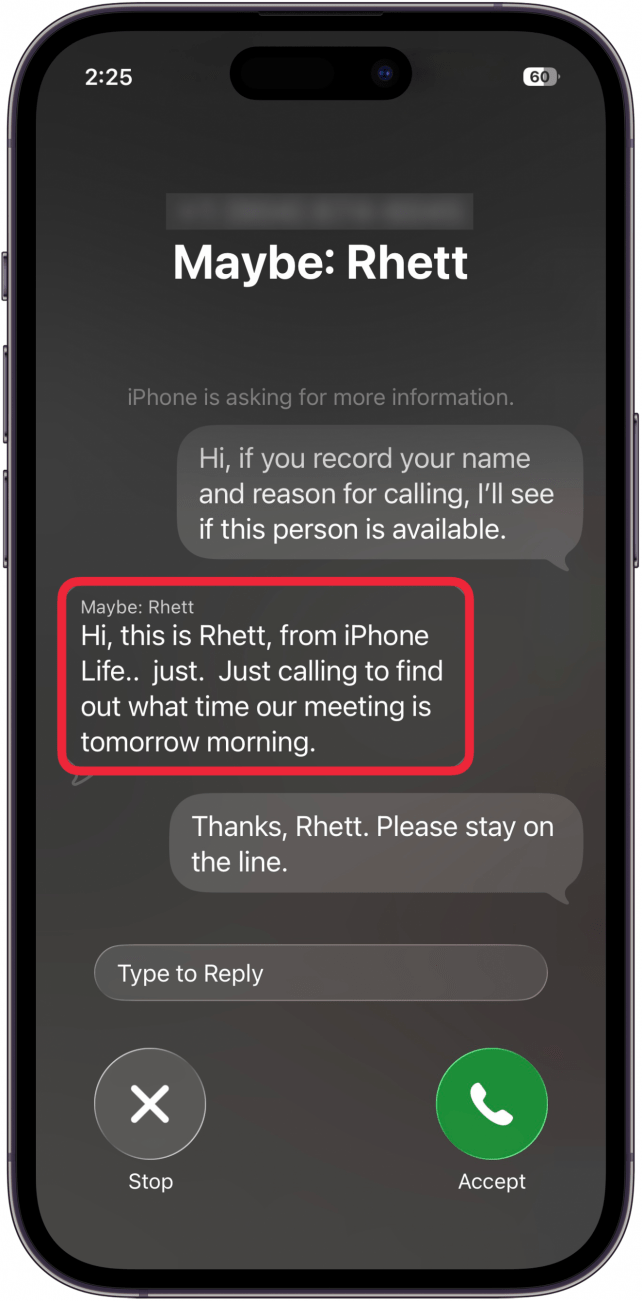
Call Screening on iPhone is an iOS 26 feature that silences incoming calls from unknown numbers and prompts the caller to provide their name and reason for calling. Then, your phone will ring and display a transcript of the caller’s answer, allowing you to easily decide whether or not you want to pick up the call. For more on the latest iOS 26 updates, be sure to sign up for our free Tip of the Day newsletter. Now, here’s how to turn on Call Screening:
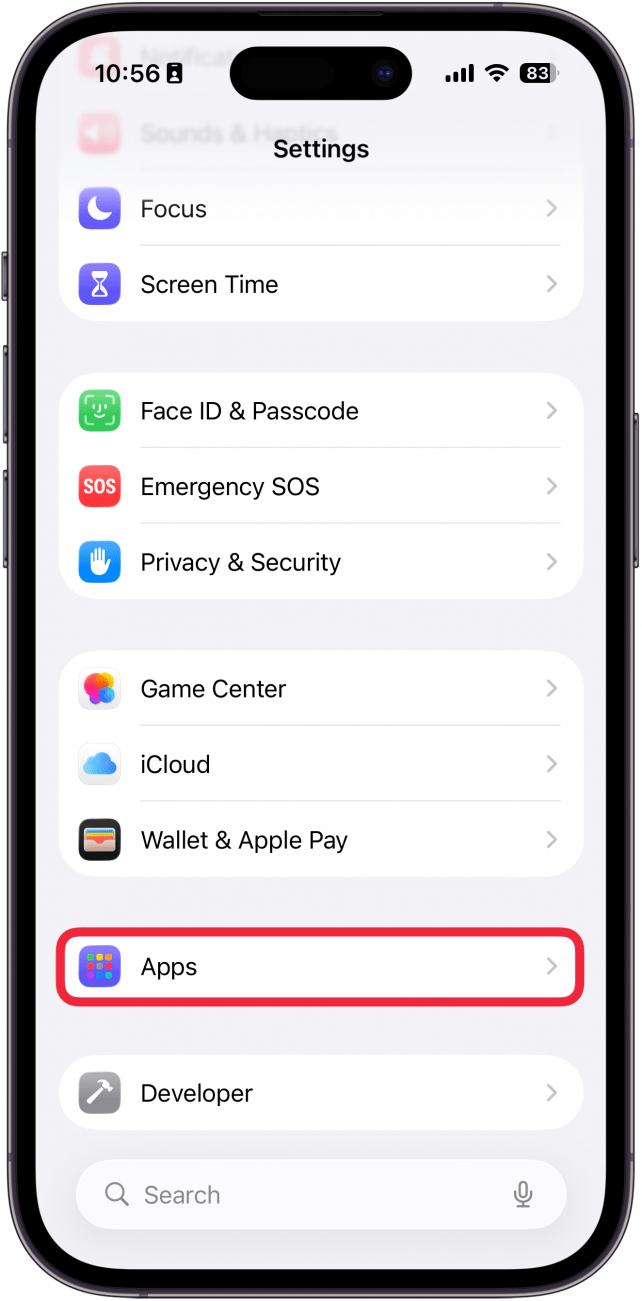
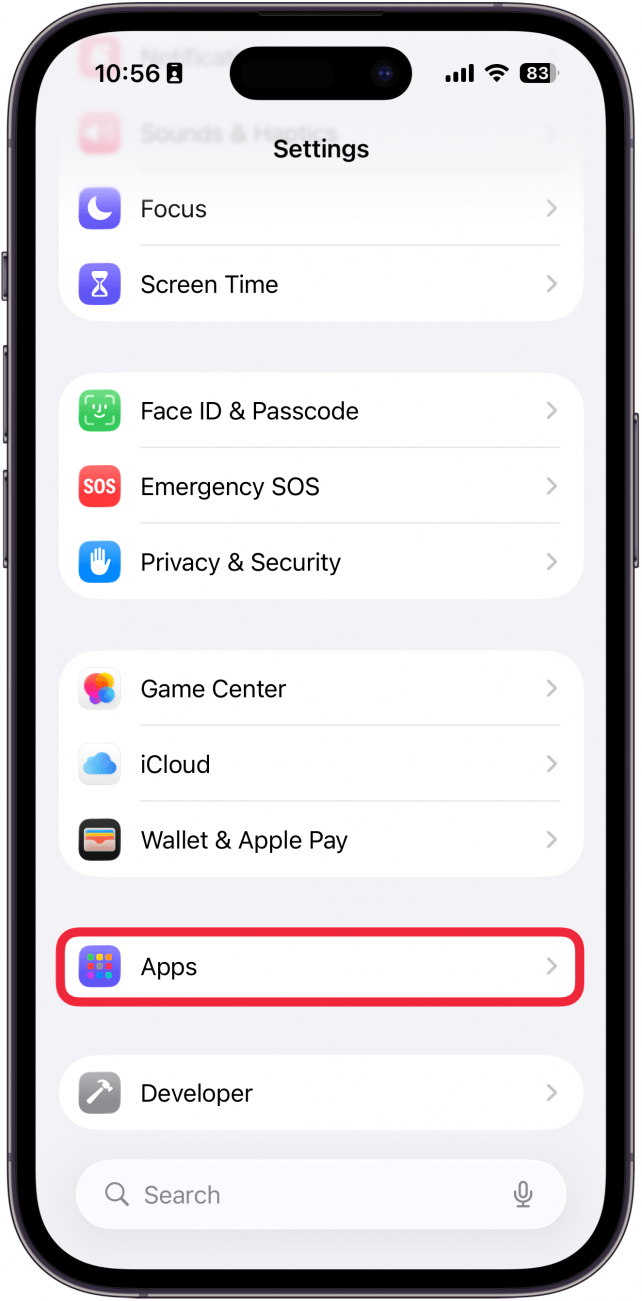
- Open the Settings app and select Apps.
<!–[if IE 9]>
![a screenshot of the iphone settings app with a red box around apps]()
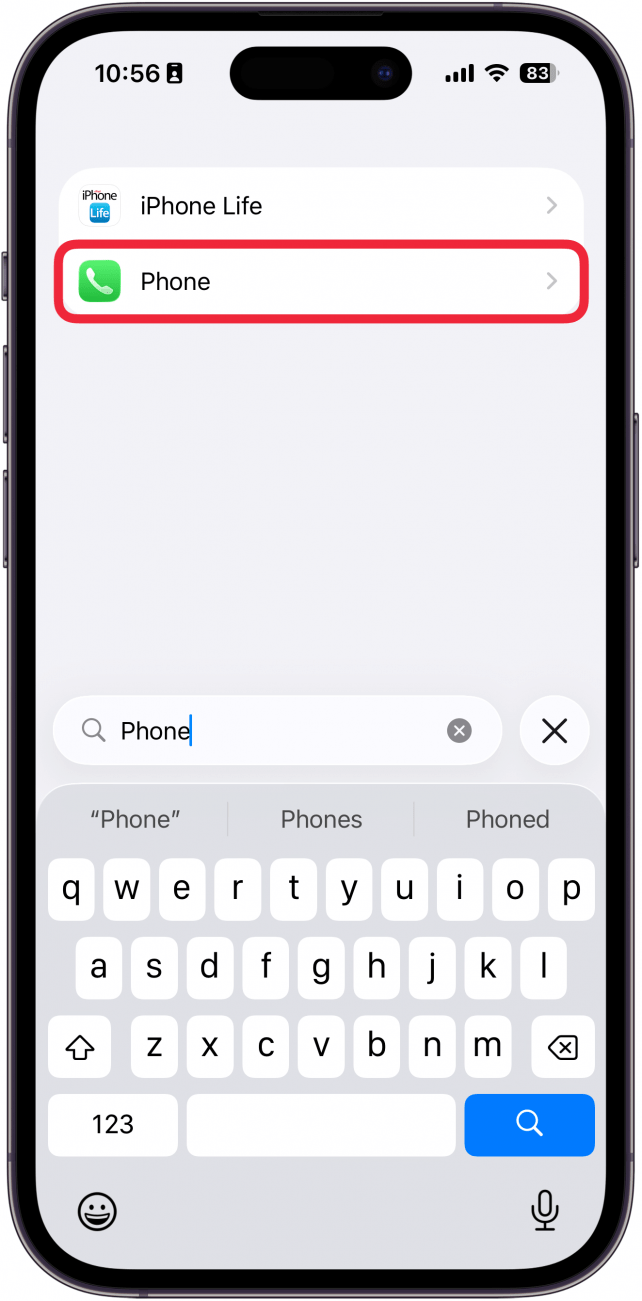
- Find the Phone app in the list or use the search bar.
<!–[if IE 9]>
![a screenshot of iphone settings app list with a red box around the phone app]()
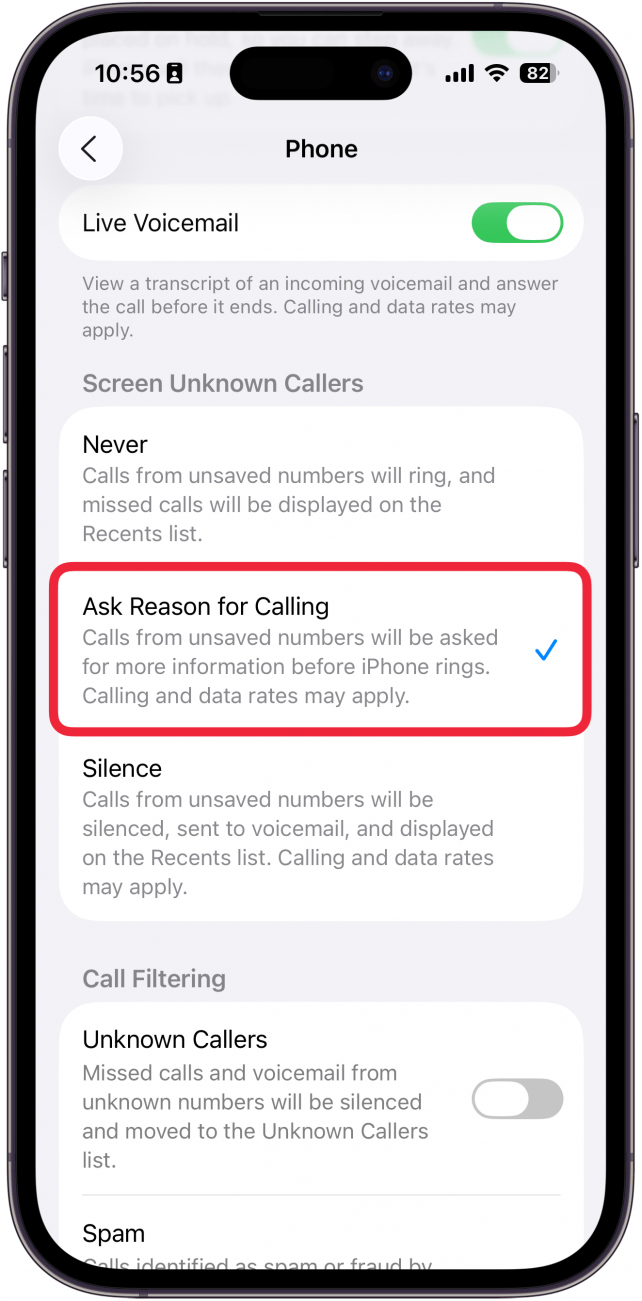
- Scroll down to Screen Unknown Callers, and select Ask Reason for Calling.
<!–[if IE 9]>
![a screenshot of the iphone phone settings with a red box around ask reason for calling]()
- Now, when you receive a call from an unknown number, you should see a transcription of the caller’s name and reason for calling.
<!–[if IE 9]>
![a screenshot of the iphone call screening feature with a red box around the message being left by the caller]()
Note
This feature has been glitchy for some of us on the iPhone Life team, so if you experience problems getting Call Screening to work, you’re not alone. We expect the feature to become more stable with future iOS updates.
That’s how to turn on Call Screening on the iPhone! Whether you have phone anxiety or you’re just tired of receiving spam calls, this feature is sure to come in handy. Next, find out how to silence unknown callers on iPhone.
More On: Calling on iPhone
“}]]


This Post Has 0 Comments