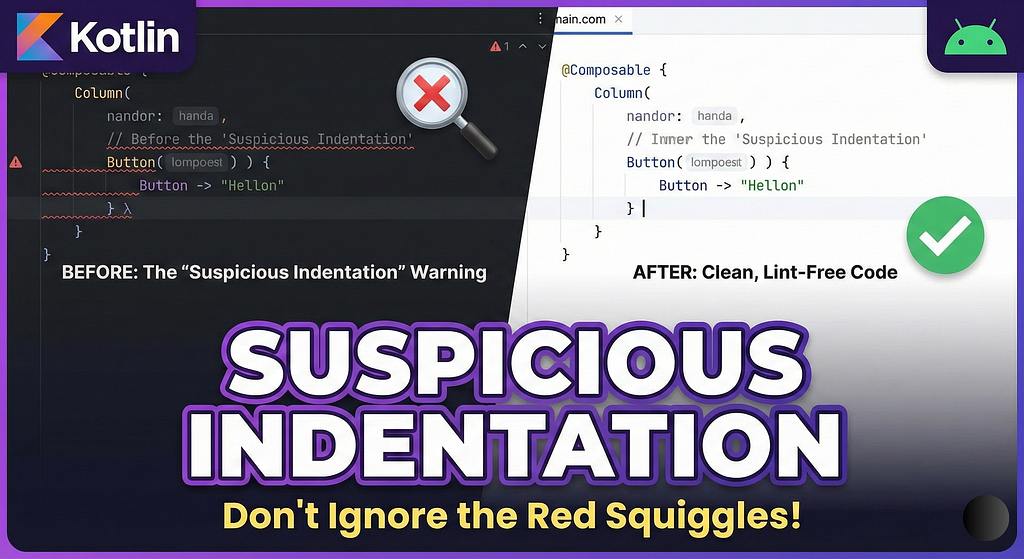

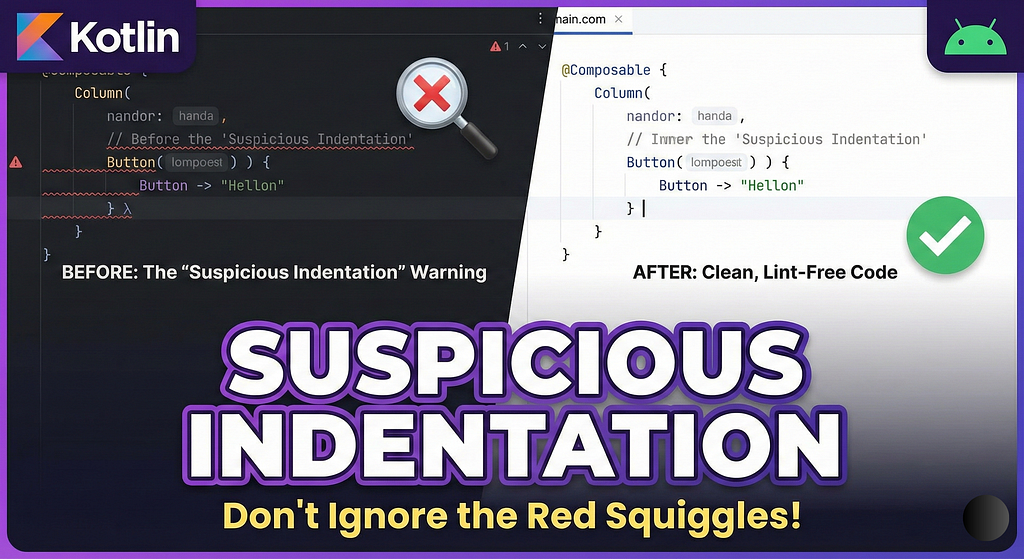
Those Red Squiggly Lines That Don’t Break Your Build: Understanding Kotlin’s “Suspicious Indentation” Warning
Why Android Studio is trying to save you from yourself (and how I learned to stop worrying and love the linter)
You know that moment when you’re in the zone, writing beautiful Jetpack Compose code, everything compiles perfectly, your app runs smoothly, and then… you notice them. Those annoying red squiggly lines under your code. You hover over them: “Suspicious indentation.”
Your heart sinks. You hit build. It works. You run the app. It works. Everything… works?
Welcome to one of Android development’s most confusing moments. I still remember the first time I encountered this warning, during the early Kotlin migration days. I spent 20 minutes convinced I’d found a compiler bug. Spoiler: I hadn’t.
Let me pull up a chair and share what’s really going on here, because this seemingly innocent warning teaches us something fundamental about how Kotlin works — and why your IDE is actually being your best friend.
The Mystery Unveiled: What IS Suspicious Indentation?
Here’s the thing: Kotlin doesn’t use semicolons to end statements (thank goodness). Instead, it relies heavily on structural analysis and newlines to understand where statements begin and end. This is awesome 99% of the time. But that other 1%? That’s where the “suspicious indentation” warning lives.
Let me show you a real example that probably looks familiar:
@Composable
fun UserProfile(user: User) {
    Column(
        modifier = Modifier.fillMaxSize()
    ) {
        // Display user avatar
        Image(
            painter = painterResource(id = user.avatarId),
            contentDescription = "User avatar"
        )
        // Show user name
        Text(text = user.name)

        // This is a special note about the button
        // It handles click events
        Button(onClick = {
            handleUserClick(user)
        })
        // More details about the button behavior
        {
            Text("View Profile")
        }
    }
}
See that Button? That’s where the red squiggles appear. But why?
The Invisible Problem
Here’s what’s happening under the hood. When you write:
Button(onClick = { handleUserClick(user) })
// Comment here
{
    Text("View Profile")
}
Kotlin’s parser sees this as TWO separate statements:
- Button(onClick = { handleUserClick(user) }) — A complete function call
- { Text(“View Profile”) } — A lambda block just… floating there
The comment creates a visual break that makes it LOOK like the trailing lambda belongs to Button, but syntactically, Kotlin has already closed that function call. The compiler is smart enough to figure out what you meant (which is why it still compiles), but the linter is waving a red flag saying, “Hey, this looks weird.”
Why Should You Care? (It’s Not Just Cosmetic)
“But it compiles! Ship it!” — Every developer ever, at 4 PM on Friday
Hold on. Here’s why this warning deserves your attention:
1. It Can Hide Real Bugs
Consider this scenario:
fun calculateDiscount(price: Double): Double {
    if (price > 100)
        // Apply 20% discount for premium customers
        return price * 0.8
        // Also log the transaction
        logTransaction(price)  // This NEVER executes!

    return price
}
That indentation makes it look like logTransaction is part of the if statement. It’s not. It’s unreachable code. The suspicious indentation warning would catch this.
2. Code Readability = Team Happiness
In a team where hundred’s of PR’s are reviewed monthly, inconsistent indentation is like reading a book where random paragraphs are misaligned. Your brain has to work harder to parse the structure. Anything that makes code reviews harder will slow down your entire team.
3. IDE Performance
This one surprised me. Android Studio’s code analysis engine works better when your code structure is unambiguous. Clear indentation helps the IDE provide better autocomplete, refactoring suggestions, and error detection. It’s a small optimization, but it compounds.
The Compose Connection: Why This Happens More Often Now
If you’re writing Jetpack Compose (and you should be — it’s fantastic), you’ve probably noticed this warning more frequently. There’s a reason.
Compose relies heavily on trailing lambda syntax:
Column {
    // content
}
This is actually:
Column(content = {
    // content
})
When you add comments between the function call and the lambda, or between parameters and the trailing lambda, Kotlin’s parser gets confused about your intent. The indentation looks suspicious because the structure is ambiguous.
Here’s a pattern I see in every junior developer’s code (and plenty of senior devs too):
LazyColumn(
    modifier = Modifier.fillMaxSize(),
    // Configure the layout spacing
    verticalArrangement = Arrangement.spacedBy(8.dp)
)
// Content for the lazy column
{
    items(userList) { user ->
        UserCard(user)
    }
}
That comment before the trailing lambda? That’s the culprit.
The Fix: Three Simple Strategies
Strategy 1: Move Comments Inside
LazyColumn(
    modifier = Modifier.fillMaxSize(),
    verticalArrangement = Arrangement.spacedBy(8.dp)
) {
    // Content for the lazy column
    items(userList) { user ->
        UserCard(user)
    }
}
Clean, clear, and no warning.
Strategy 2: Use KDoc Comments Above
/**
 * Displays a scrollable list of users with 8dp spacing
 */
LazyColumn(
    modifier = Modifier.fillMaxSize(),
    verticalArrangement = Arrangement.spacedBy(8.dp)
) {
    items(userList) { user ->
        UserCard(user)
    }
}
Bonus: This also generates documentation!
Strategy 3: Extract Complex Lambdas
LazyColumn(
    modifier = Modifier.fillMaxSize(),
    verticalArrangement = Arrangement.spacedBy(8.dp)
) {
    UserListContent(userList)
}
@Composable
private fun LazyListScope.UserListContent(users: List<User>) {
    // Content for the lazy column
    items(users) { user ->
        UserCard(user)
    }
}
This not only fixes the warning but also improves testability and reusability.
The Bigger Picture: Linters Are Your Friends
Here’s something I wish I’d understood earlier in my career: warnings exist to make you a better developer.
When I started, I saw warnings as annoying noise. “It compiles, doesn’t it?” But over time, I realized that every warning is the accumulated wisdom of thousands of developers who made mistakes before you. The “suspicious indentation” warning exists because someone, somewhere, shipped a bug because of this exact issue.
Modern Android development is complex. We juggle:
- Kotlin’s nuanced syntax
- Compose’s declarative paradigm
- Coroutines and async flows
- Navigation, state management, dependency injection
- And about 47 other things before lunch
The linter is like having a senior developer looking over your shoulder, catching the small things so you can focus on the big things.
Pro Tips
1. Enable “Optimize Imports on Save”
Android Studio → Settings → Editor → General → Auto Import
Less manual cleanup = fewer opportunities for weird indentation
2. Use Consistent Formatting
Set up .editorconfig in your project:
[*.kt]indent_size = 4
ij_kotlin_allow_trailing_comma = true
3. Run Lint in CI/CD
Add this to your GitHub Actions or Jenkins:
./gradlew lintDebug
Catch these issues before code review.
4. Pair Program
Having another set of eyes catches these issues in real-time. Plus, you’ll learn each other’s formatting habits.
5. Don’t Suppress Without Understanding
Yes, you can add @Suppress(“SuspiciousIndentation”), but ask yourself: why does this warning exist here? 9 times out of 10, there’s a better fix.
What This Teaches Us About Kotlin
Here’s the philosophical takeaway: Kotlin gives you incredible flexibility and expressiveness. But with great power comes great responsibility (yes, I just quoted Spider-Man in a technical article).
The language design prioritizes readability and conciseness. Features like:
- Trailing lambda syntax
- Optional semicolons
- Expression-based syntax
- Smart indentation inference
These all work together to make Kotlin feel natural and clean. But they require you to be intentional about structure. The “suspicious indentation” warning is Kotlin’s way of saying, “I trust you, but let’s make sure we’re on the same page here.”
Your Code Is a Love Letter to Future You
Six months from now, you’ll come back to that Compose function at 2 AM trying to fix a critical bug. Do you want to spend 30 seconds understanding the structure, or 10 minutes debugging why that lambda isn’t executing when you think it should?
Clean indentation isn’t about following arbitrary rules. It’s about respecting the person who has to maintain this code — which is often future you.
The Bottom Line
That “suspicious indentation” warning isn’t trying to annoy you. It’s trying to help you write code that:
- Compiles correctly (today and tomorrow)
- Reads clearly (for you and your team)
- Maintains easily (when you’ve forgotten why you wrote it)
- Performs reliably (because structure matters)
When you see those red squiggly lines, don’t ignore them. Take 10 seconds to:
- Understand what the linter is flagging
- Fix the structure
- Move on with confidence
Your future self will thank you. Your team will thank you. And honestly? Your codebase will thank you.
Now go forth and write beautifully indented Compose functions. And the next time someone on your team asks about those red squiggly lines that don’t break the build, you’ll know exactly what to tell them.
TL;DR
- What it is: A warning when code indentation doesn’t match its logical structure
- Why it happens: Kotlin relies on newlines/structure; comments can break visual flow
- Why it matters: Can hide bugs, hurts readability, impacts IDE performance
- How to fix: Move comments inside blocks, use KDoc above, or extract complex lambdas
- Key lesson: Linters are friends, not enemies — they encode collective developer wisdom
Have you encountered suspicious indentation warnings in your Android projects? What patterns have you found work best in Jetpack Compose? Share your experiences in the comments below!
Those Red Squiggly Lines That Don’t Break Your Build: Understanding Kotlin’s “Suspicious… was originally published in ProAndroidDev on Medium, where people are continuing the conversation by highlighting and responding to this story.




This Post Has 0 Comments