
 [[{“value”:”
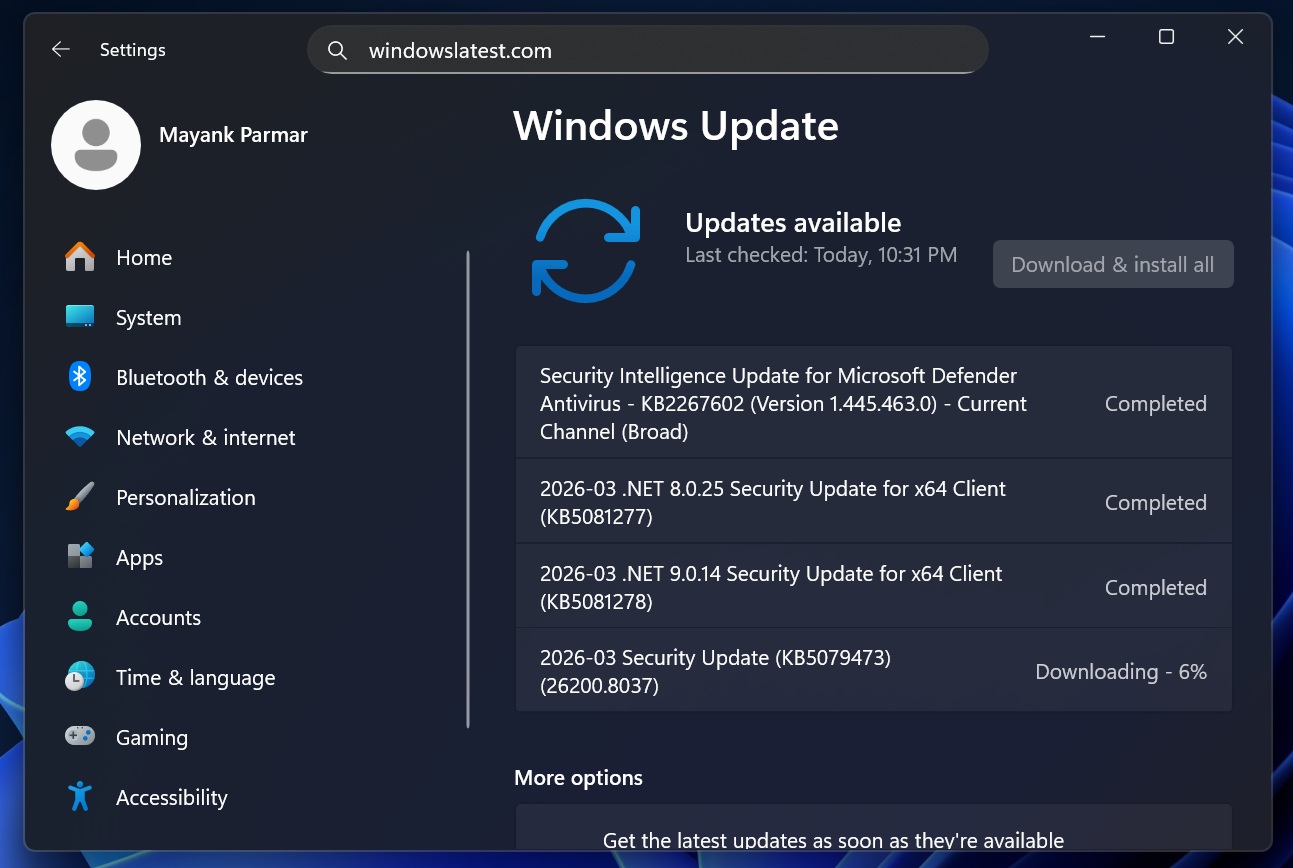
Windows 11 KB5079473 is now rolling out as part of Microsoft’s March 2026 Patch Tuesday, and it has up to nine new features, including Emoji 16, Internet Speed Test, Extract all options in Explorer, and more. You can download it via Windows Update or use one of the direct download links for KB5079473 offline installers (.msu).
KB5079473 is a mandatory update, and it’s titled “2026-03 Security Update (KB5079473) (26200.8037).” A security update means it’ll download and install automatically unless you manually pause the Windows Update service.
In our tests, Windows Latest noticed that Windows 11 25H2 bumps to Build 26200.8037 after the March 2026 Update, and version 24H2 bumps to Build 26100.8037. Microsoft has also posted the following two updates:
- 2026-03 .NET 8.0.25 Security Update for x64 Client (KB5081277)
- 2026-03 .NET 9.0.14 Security Update for x64 Client (KB5081278)
.NET updates are required by some Windows apps, including inbox apps or features.
Download Links for Windows 11 KB5079473
Windows 11 KB5079473 Direct Download Links: 64-bit and ARM-64 | Microsoft Update Catalog lets you download an offline installer (.msu).
If you use Update Catalog, the size of the update would come down to almost 4GB, and I have a breakdown for each version/variant in the following table:
| Build Number | Size | OS Version | Architecture |
|---|---|---|---|
| 26200.8037 | 4523.6 MB | Windows 11 25H2 | x64-based |
| 26200.8037 | 4308.8 MB | Windows 11 25H2 | arm64-based |
| 26100.8037 | 4523.6 MB | Windows 11 24H2 | x64-based |
| 26100.8037 | 4308.8 MB | Windows 11 24H2 | arm64-based |
To download Windows 11 Build 26200.8037, open Settings > Windows Update, and check for updates.
What’s new in Windows 11 Build 26200.8037 (25H2) / Build 26200.8037 (24H2)?
1. Emoji 16.0 finally arrives in Windows 11
It’s been 6 months since Windows Latest reported about the Emoji 16.0 update coming to Windows 11, but at that time, the Emoji panel didn’t support it.
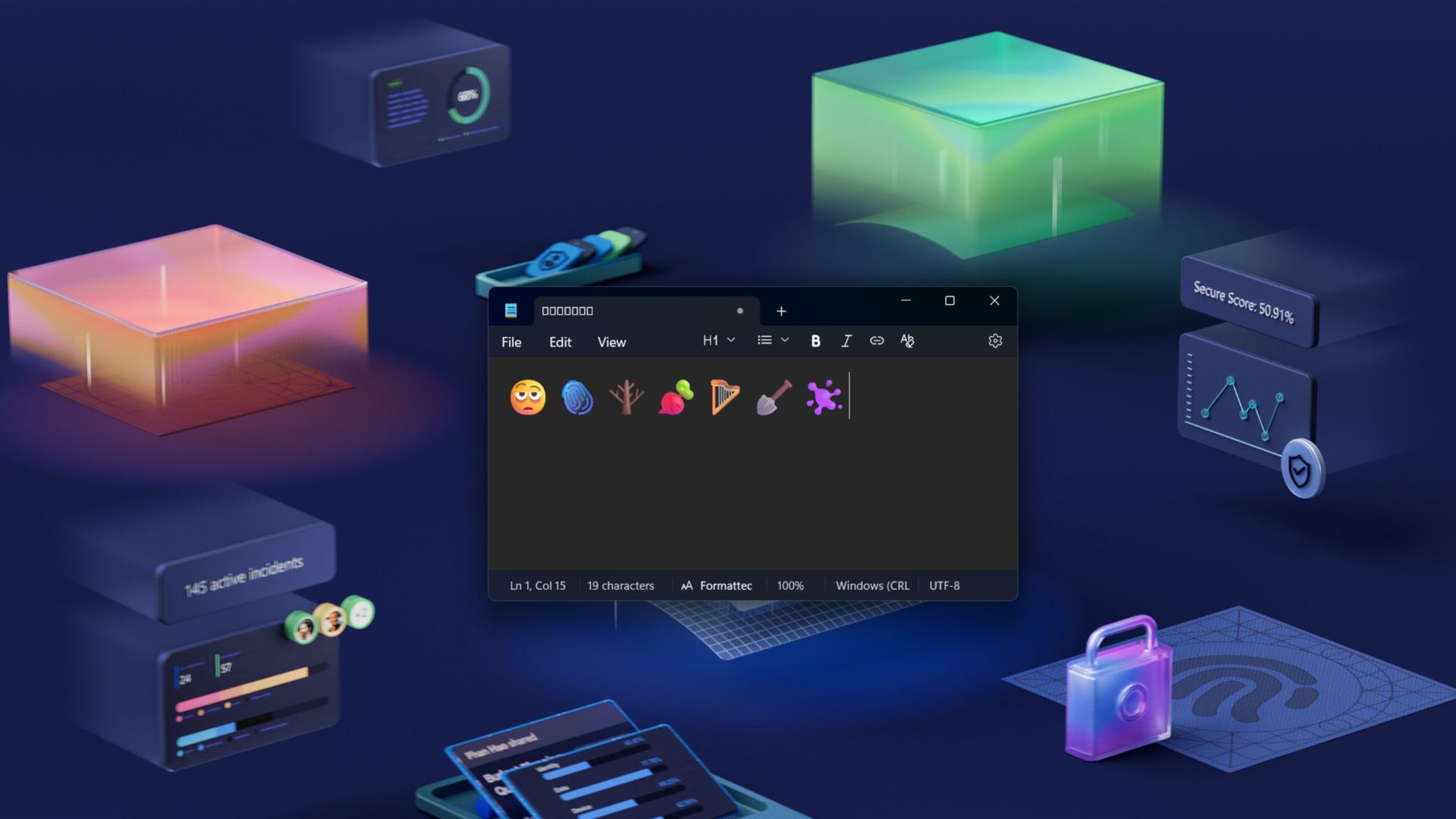
However, with Windows 11 KB5079473, the latest Unicode release introduces a small, carefully selected set of new emojis that now appear in the Windows emoji panel. According to Microsoft, the update adds one new emoji from each major category, designed to represent commonly used expressions and symbols.
2. Windows Backup restore expands to organizations
Microsoft is expanding Windows Backup restore capabilities to enterprise environments. With this update, the first sign-in restore experience is now available as part of Windows Backup for Organizations. The feature automatically restores a user’s settings and Microsoft Store apps the first time they sign in to a device.
After Windows 11 KB5079473, this restore experience works on:
- Microsoft Entra hybrid-joined devices
- Cloud PCs
- Multi-user environments
The goal is to simplify device refreshes and migrations by automatically recreating a user’s familiar environment when they log in to a new system, which is understandable since many organizations are replacing older Windows PCs. IT administrators will get a more consistent setup process during device upgrades, replacements, or large-scale deployments.
3. Quick Machine Recovery turns on automatically for more PCs
Previously, Quick Machine Recovery (QMR) was enabled only in limited scenarios. With the Windows 11 KB5079473 update, the feature now turns on automatically for Windows Professional devices that are not domain-joined and not managed by enterprise endpoint tools.
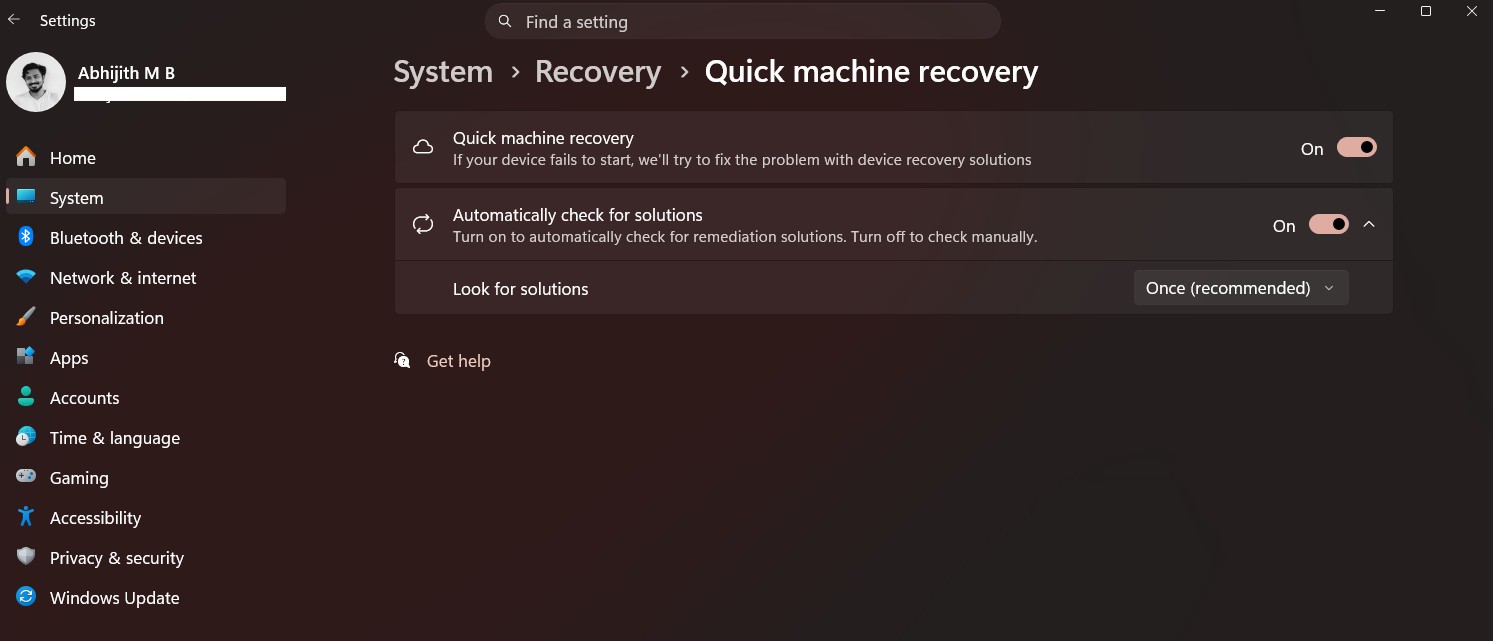
This means unmanaged Windows Pro PCs now receive the same recovery capabilities that were previously available primarily to Windows Home systems. Quick Machine Recovery helps restore a system when serious boot problems occur by providing recovery options that help repair startup issues.
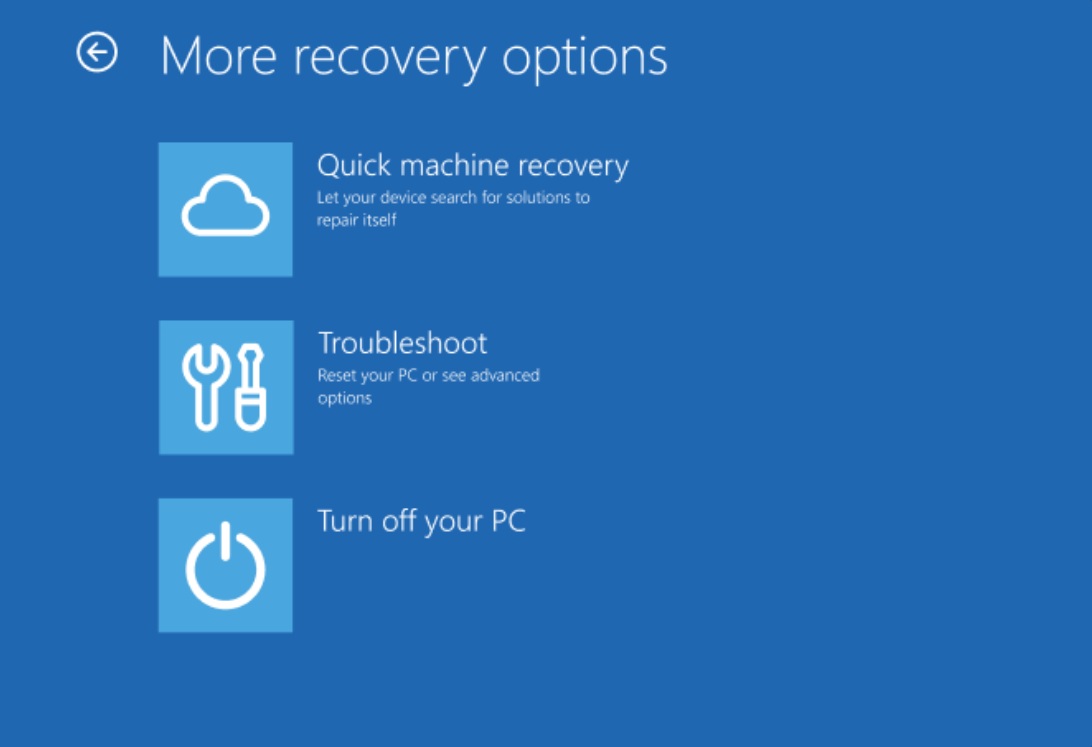
For enterprise environments, the behavior remains unchanged. Domain-joined or enterprise-managed devices will still have QMR disabled by default, unless an organization specifically enables it.
4. Built-in network speed test arrives in the taskbar
Taskbar is also getting a built-in network speed test in Windows 11 KB5079473, making it easier to check connection performance directly from the system tray.
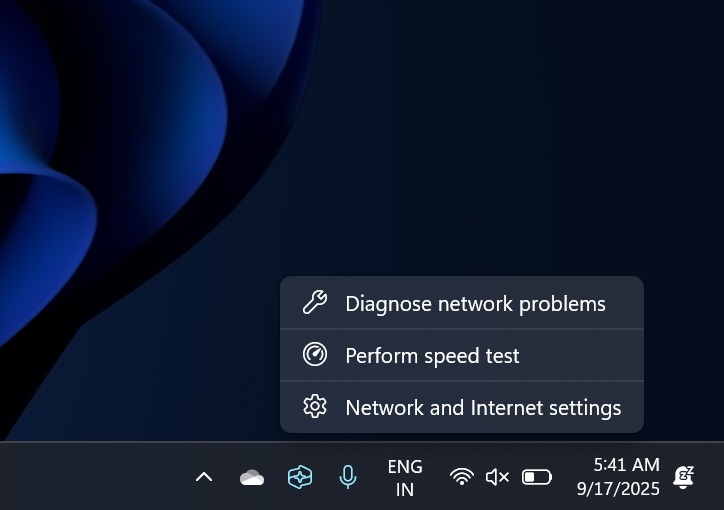
You can launch the speed test from:
- Wi-Fi Quick Settings
- Cellular Quick Settings
- Right-clicking the network icon in the system tray
However, as we reported, the internet speed test tool in the taskbar is not a native feature and opens in your default browser to measure the speed of Ethernet, Wi-Fi, and cellular connections.
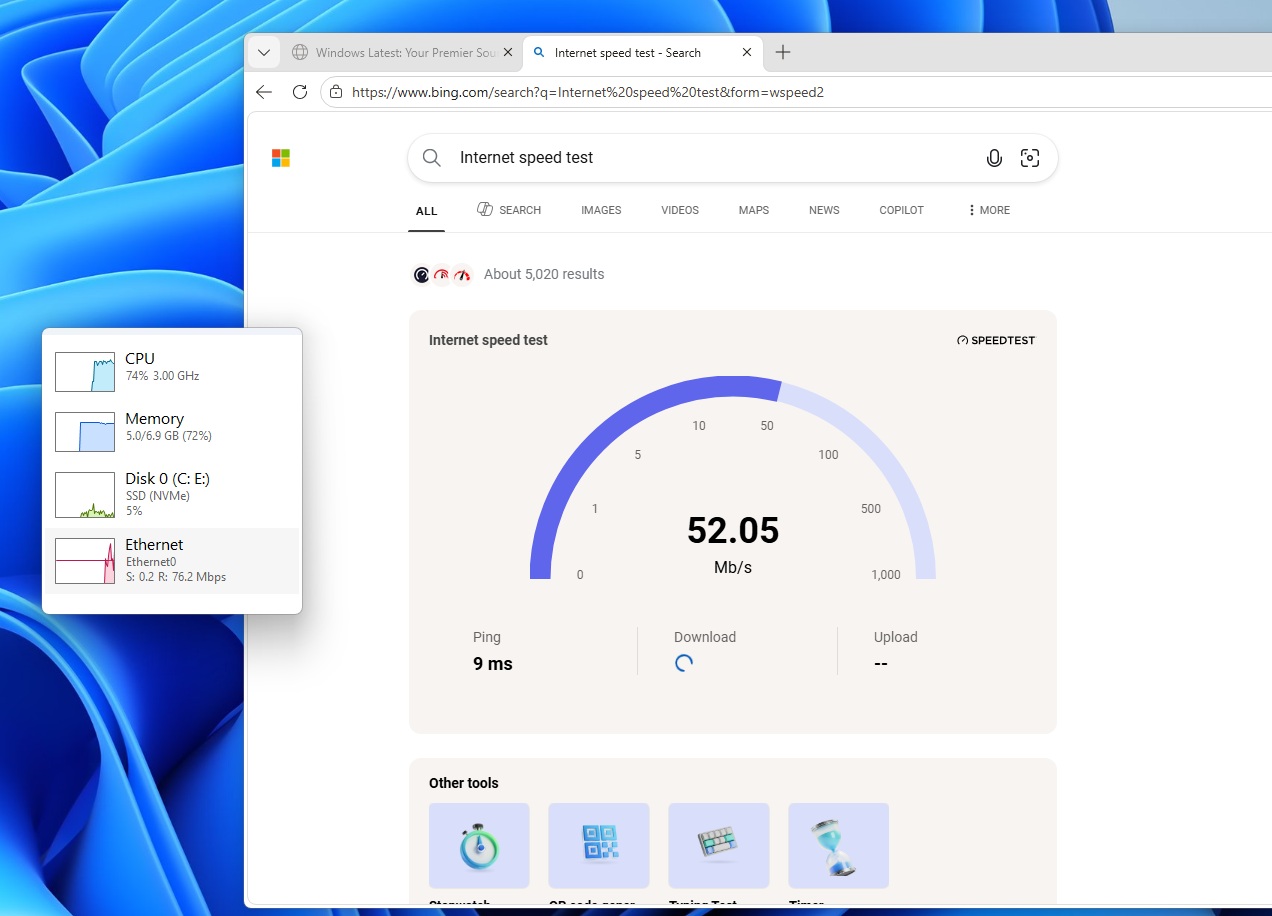
Either way, the feature is still useful when diagnosing network issues or verifying that your internet connection is performing as expected.
5. Windows now includes built-in Sysmon for security monitoring
One of the most technical additions in this update is the integration of Sysmon (System Monitor) directly into Windows. Sysmon is a well-known tool used by security professionals and administrators to monitor detailed system activity.
It can capture system events that help with threat detection, event logging, and system monitoring. These events are written to the Windows Event Log, allowing security tools and monitoring software to analyze activity across the system.
Until now, Sysmon was only available through Microsoft’s Sysinternals suite, which meant administrators had to manually download and configure it. With the March 2026 update, Windows now includes Sysmon as an optional built-in feature.
However, the feature is disabled by default and must be manually enabled before it can be used in Windows 11 KB5079473.
You can enable Sysmon from:
Settings > System > Optional Features > More Windows Features > Sysmon
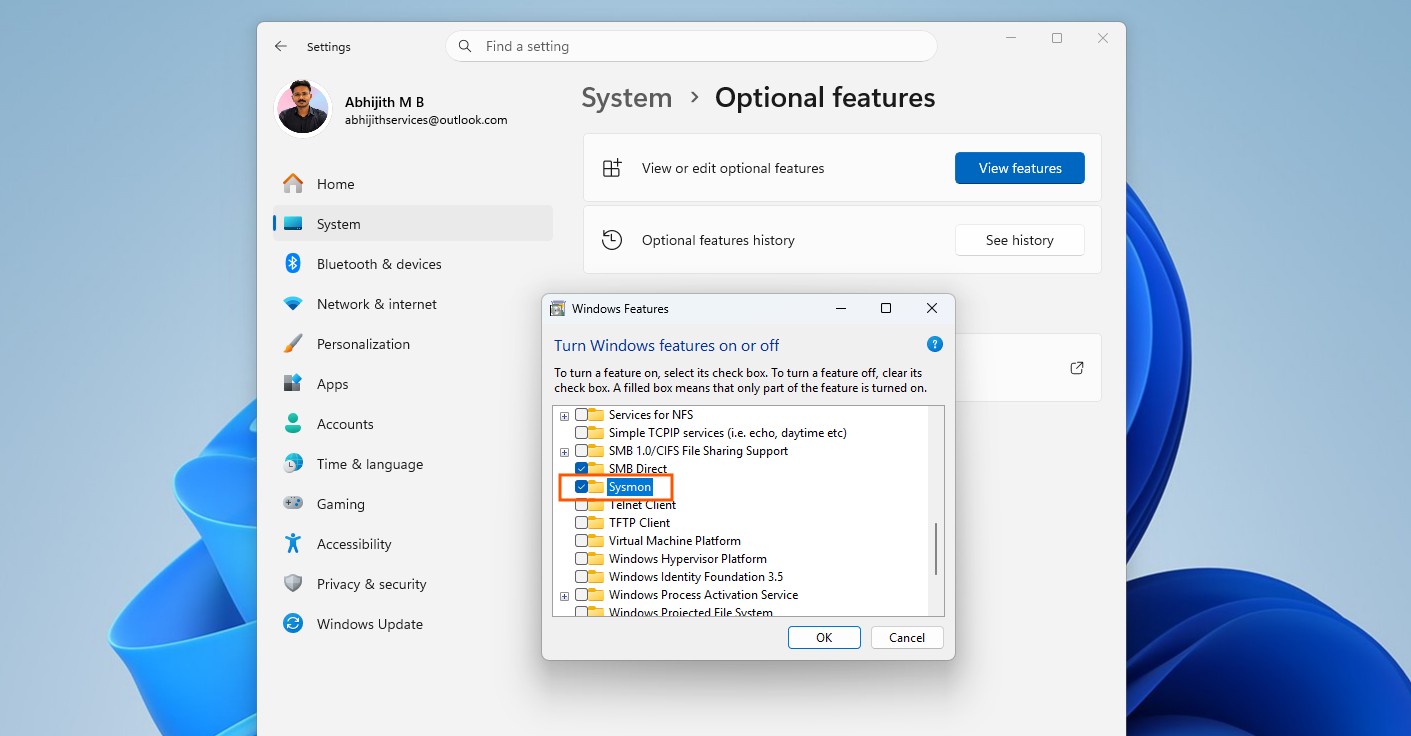
Alternatively, you can enable it through PowerShell or Command Prompt by running the following command:
Dism /Online /Enable-Feature /FeatureName:Sysmon
After installing the feature, you must complete the setup by running:
sysmon -i
If you previously installed Sysmon through the Sysinternals package, Microsoft recommends removing that version first before enabling the new built-in version.
6. Widgets settings redesigned
Microsoft has also made a small change to the Widgets experience. Previously, Widget settings opened in a small dialog window. With this update, the settings now open as a full-page interface inside the Widgets app.
7. WebP wallpapers are now supported
Windows 11 KB5079473 now supports WebP images as desktop wallpapers. WebP is a modern image format widely used on the web because it has better compression without any loss in high image quality. With the March update, you can now set .webp images directly as desktop backgrounds.
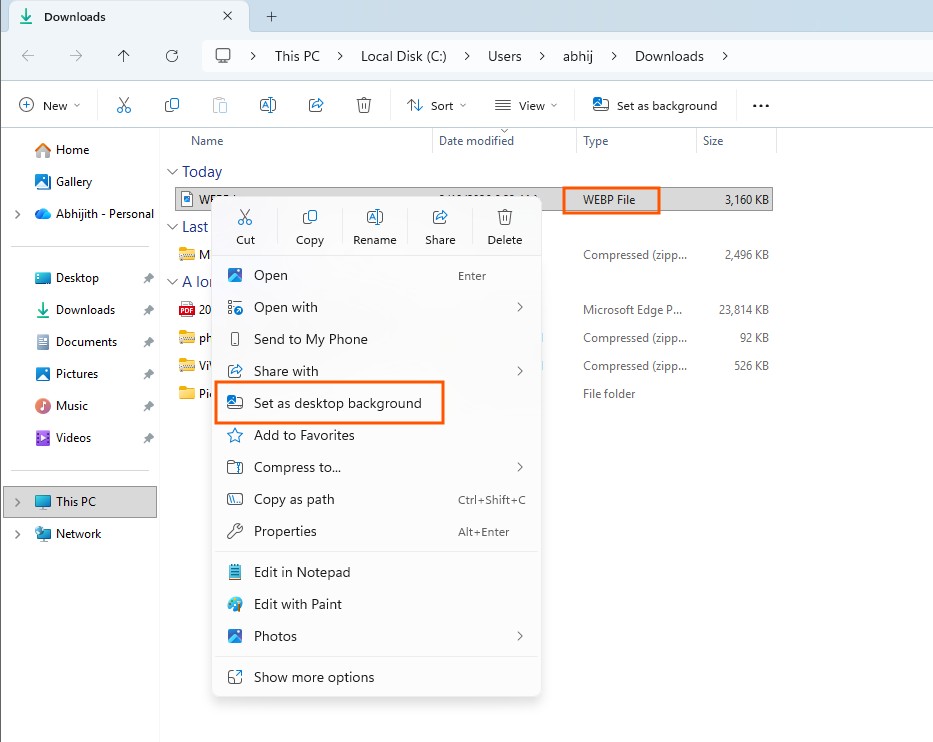
You can apply a WebP wallpaper in two ways:
- Go to Settings > Personalization > Background
- Right-click a WebP image in File Explorer and choose the option to set it as the desktop background
8. Taskbar search improvements
The taskbar search experience is also getting a few refinements in Windows 11 KB5079473. Search results now include group headers that show the number of results available in each category, making it easier to identify when more results exist within a specific group.
Windows also adds a preview option for search results. You can hover over a result and select Preview to view its contents without opening the file directly.
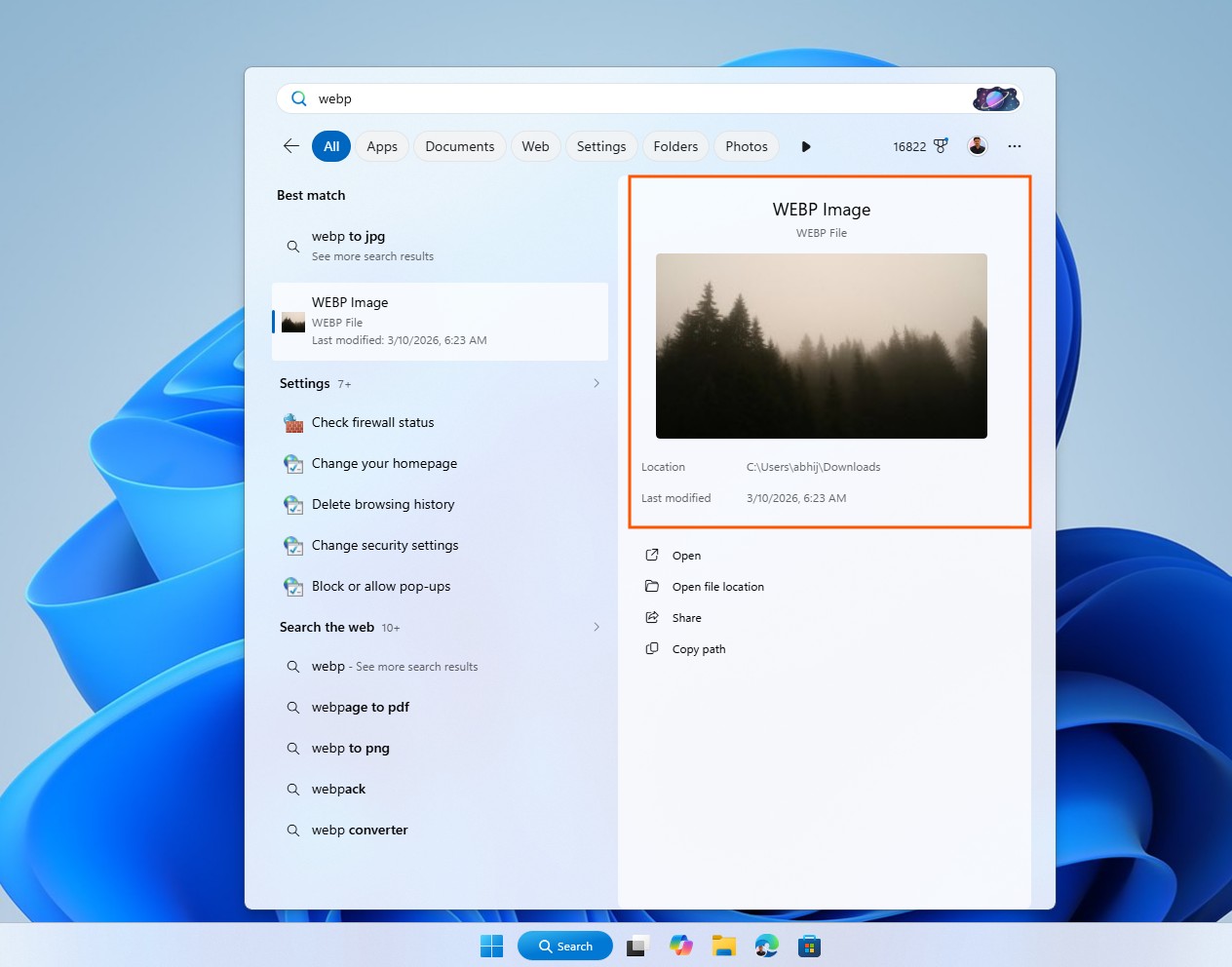
In addition, Microsoft has updated the Search process icon in Task Manager, which now displays a magnifying glass.
The post Windows 11 KB5079473 released with features, direct download links for offline installers (.msu) appeared first on Windows Latest
“}]]


This Post Has 0 Comments