
 [[{“value”:”
Tired of cluttered Safari web pages? Here’s how to use Hide Distracting Items to get rid of ads and more from Safari pages you visit.
Why You’ll Love This Tip
- Hide distracting items in Safari to streamline webpages.
- See only what’s important to you in Safari webpages.
How to Hide Distracting Items in Safari on iPhone & iPad
System Requirements
This tip was tested on an iPhone 17 Pro running iOS 26.4. Learn how to update to the latest operating system.
You can get rid of distractions in Safari webpages in just a few easy steps. Here’s how to hide distracting items in Safari.
Note: Content that updates frequently, like ads, may reappear even if you use Hide Distracting Items to get rid of them. You can use Reader mode to get around this problem.
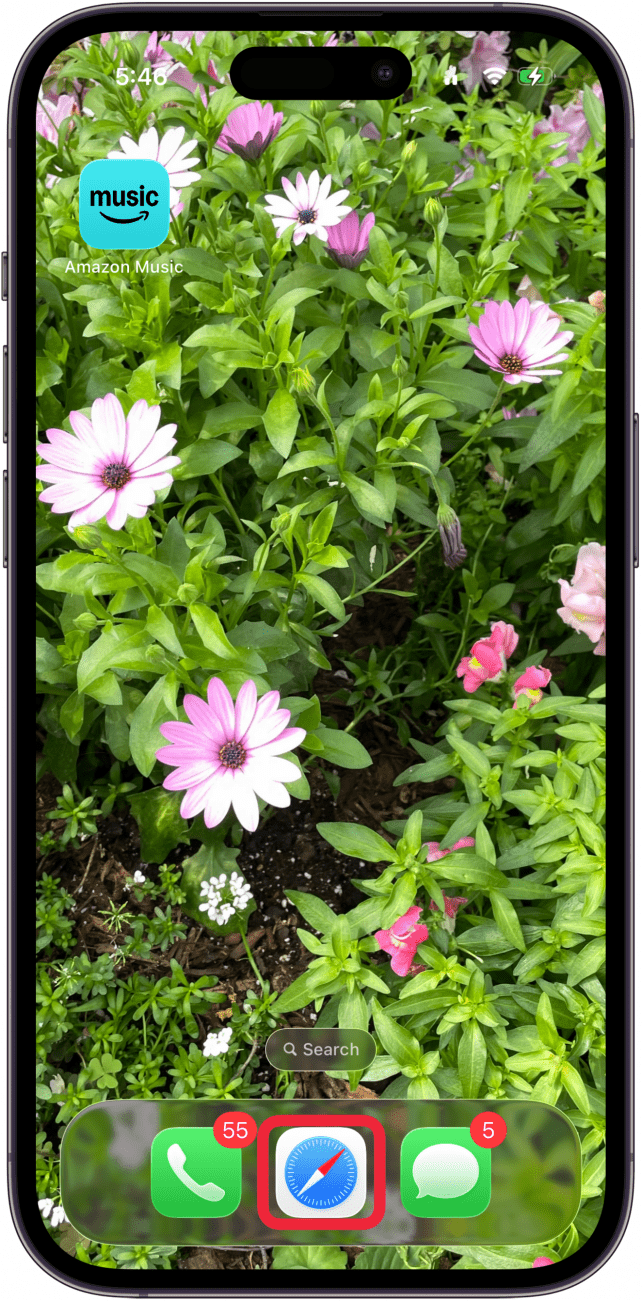
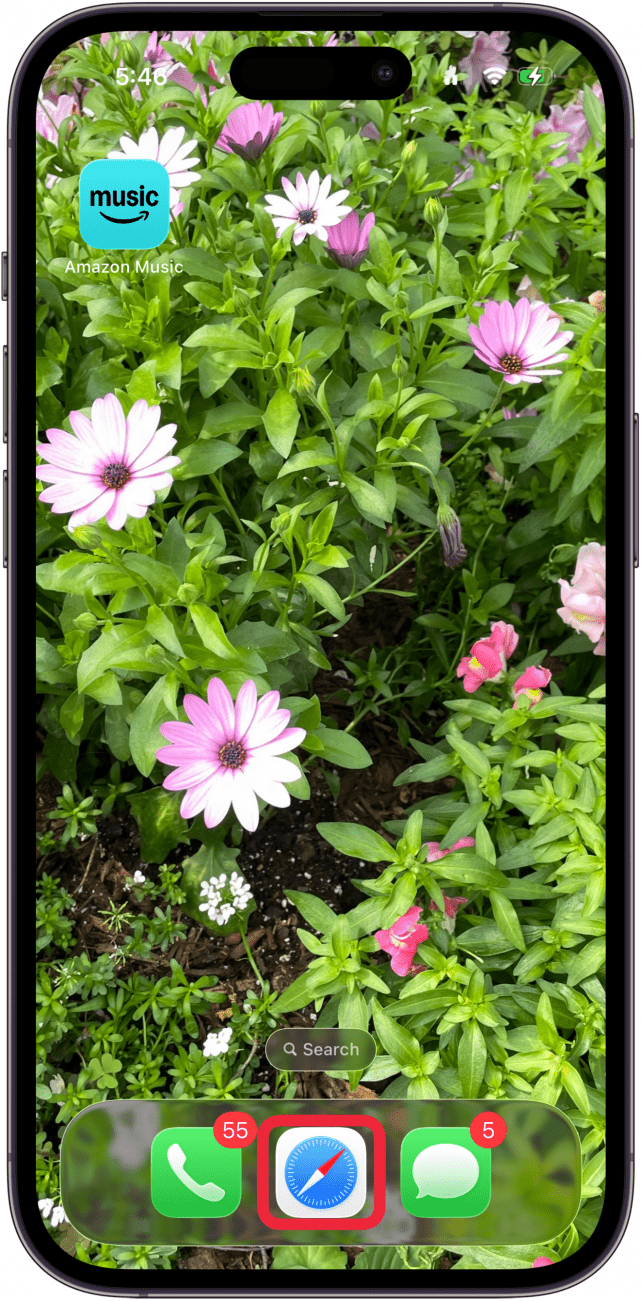
- Open the Safari app.
<!–[if IE 9]>

- Tap the Page Menu button in the Smart Search field.
<!–[if IE 9]>

- Tap Hide Distracting Items.
<!–[if IE 9]>

- As you navigate the page, you’ll see a border around items you can hide. Tap Hide in any of these boxes.
<!–[if IE 9]>

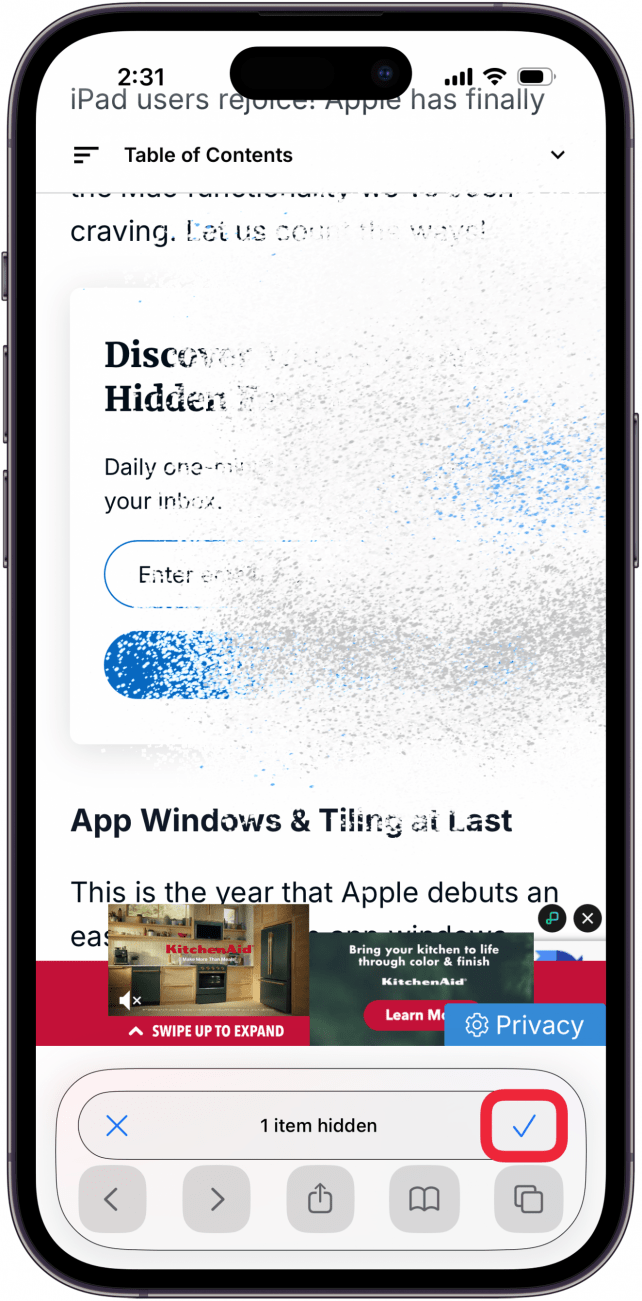
- Tap the check mark in the Smart Search field when you’re finished hiding distracting items.
<!–[if IE 9]>


Now you know how to hide distracting items in Safari webpages. If you liked this tutorial, sign up for our free Tip of the Day!
More On: Reducing Distractions
“}]]



This Post Has 0 Comments