
 [[{“value”:”
The Magnifier app is excellent for the blind and visually impaired, as well as those who frequently lose their reading glasses (guilty as charged). Here’s how to use the screen reader in the magnifying app on your iPhone.
Why You’ll Love This Tip
- Use your iPhone or iPad to magnify, then read small text out loud.
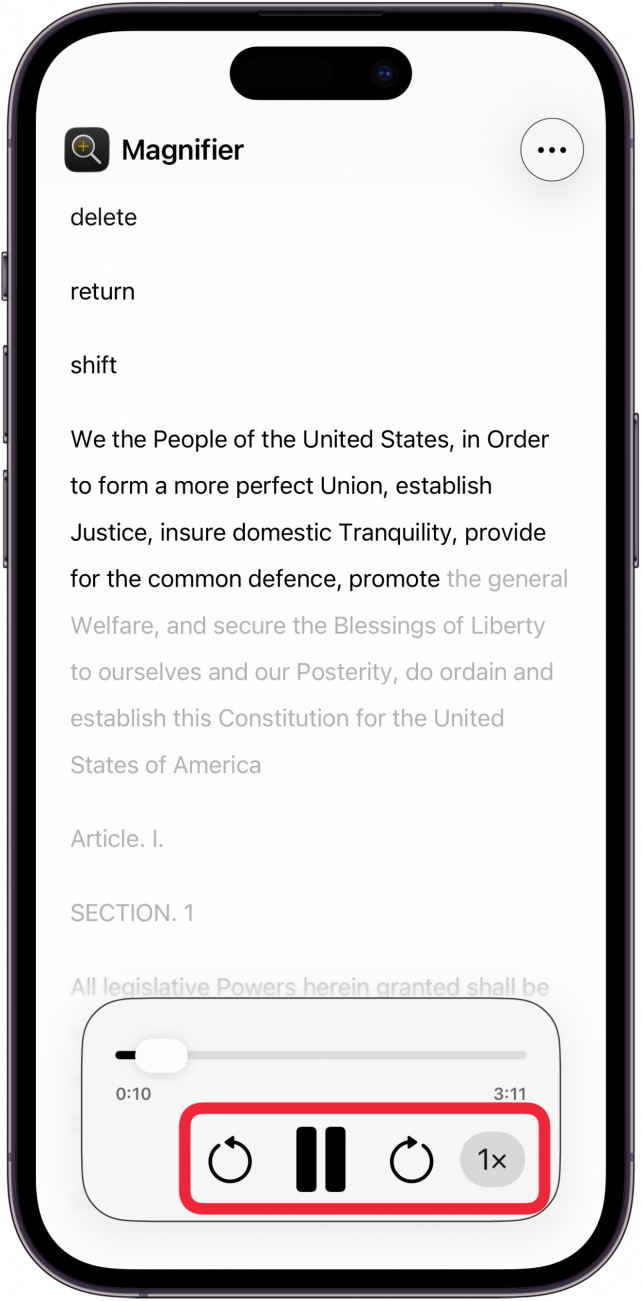
- Screen Reader controls in the Magnifier app let users skip backwards, forwards, pause, and have the text read faster or slower.
How to Use the Screen Reader in the Magnifier App on iPhone & iPad
System Requirements
This tip was performed on an iPhone 17 Pro running iOS 26. Find out how to update to the latest version of iOS.
The magnifying glass on your iPhone, otherwise known as the Magnifier app, has a screen reader feature that’s helpful to the blind and visually impaired, but also users who want the screen read for them while they’re taking notes or completing other tasks. Here’s how to use the screen reader in the Magnifier app on your iPhone and iPad.
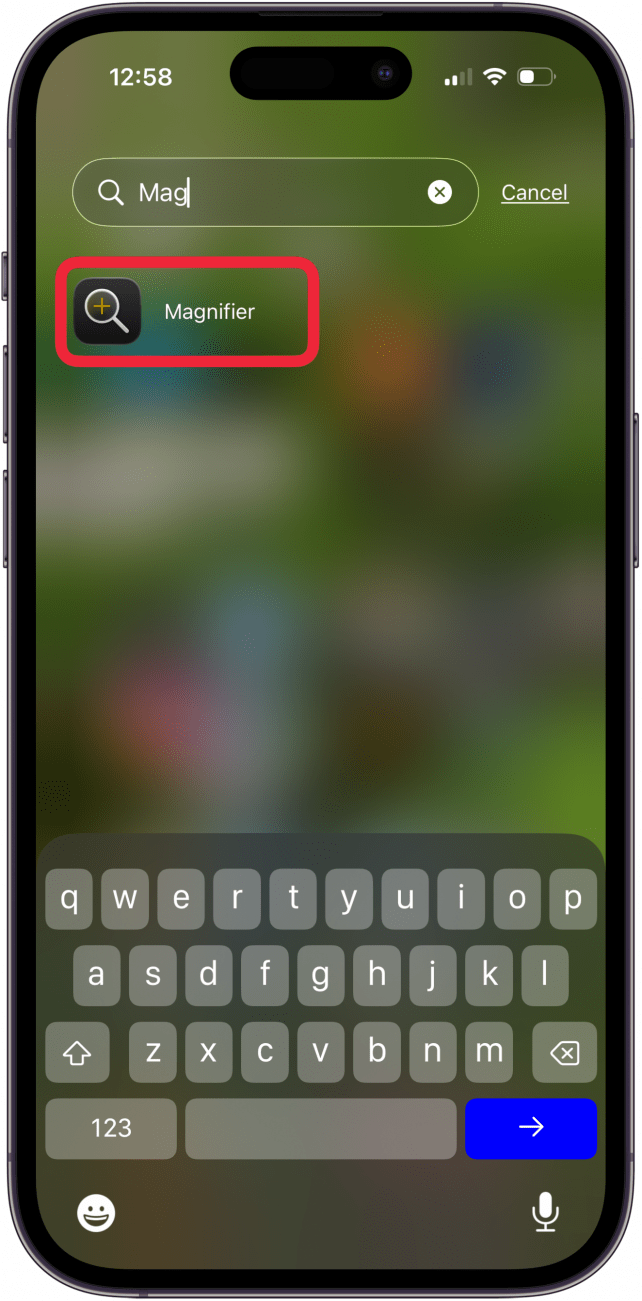
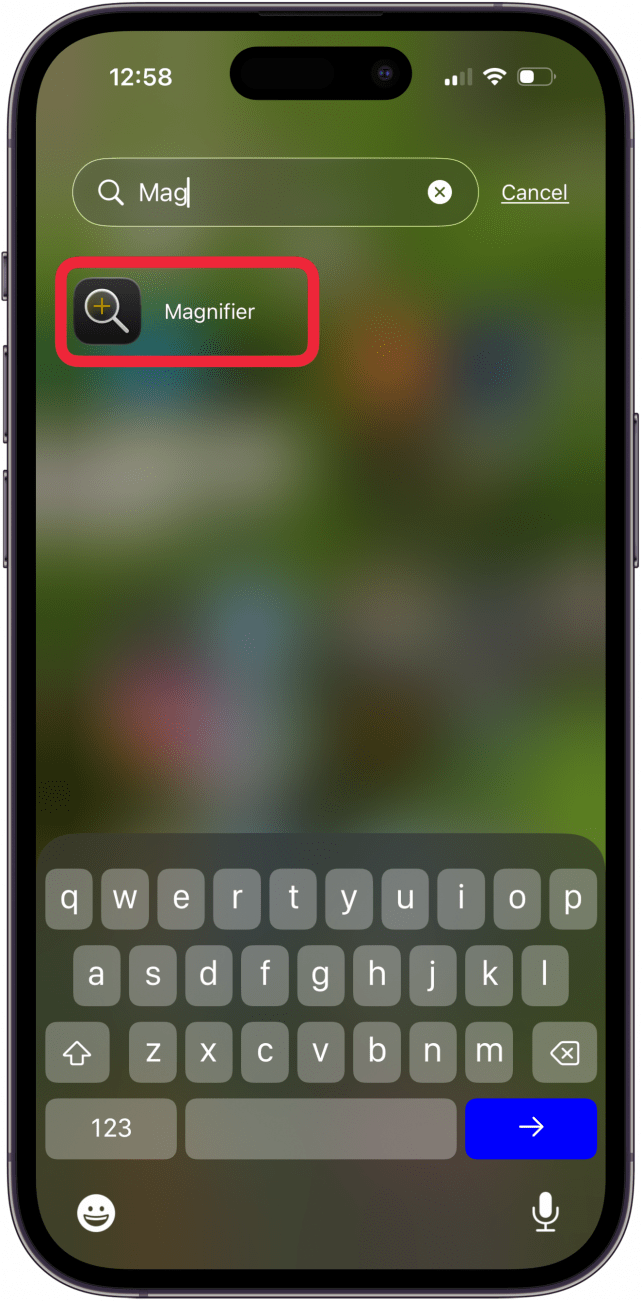
- Open the Magnifier app.
<!–[if IE 9]>

- Tap Capture to take a photo of the text you want read aloud.
<!–[if IE 9]>

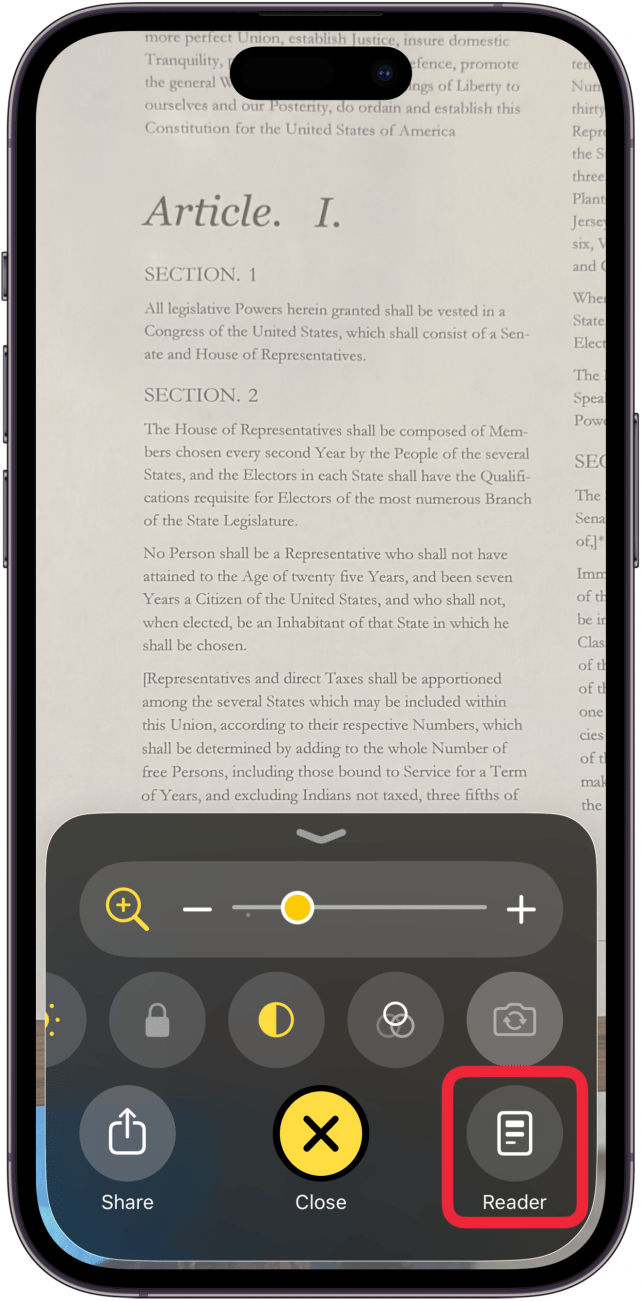
- Tap Reader.
<!–[if IE 9]>

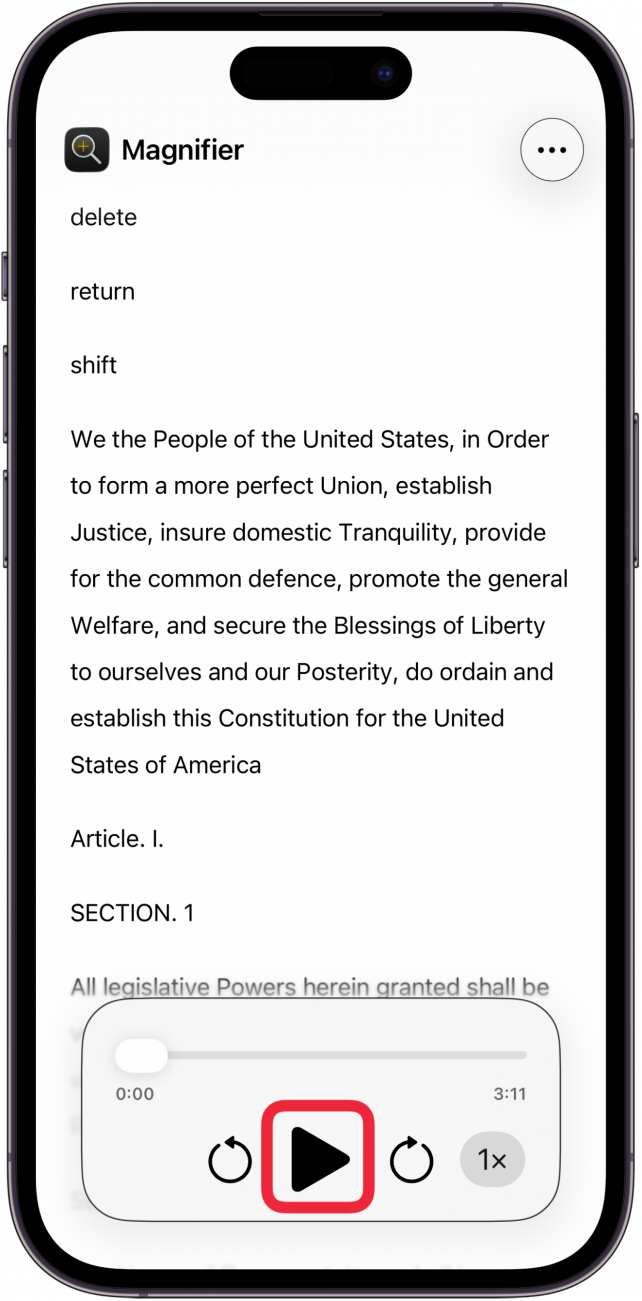
- Tap the Play icon to hear the text read aloud.
<!–[if IE 9]>

- You can tap the back arrow, Pause icon, forward arrow, or change playback speed with the controls at the bottom of the screen.
<!–[if IE 9]>


Now you know how to use the magnifier on your iPhone to read text out loud. Be sure to check out our free Tip of the Day for more great accessibility tutorials.
“}]]


This Post Has 0 Comments